Bemærk
Adgang til denne side kræver godkendelse. Du kan prøve at logge på eller ændre mapper.
Adgang til denne side kræver godkendelse. Du kan prøve at ændre mapper.
The source is where data enters a data flow or data flow graph. You configure the source by specifying an endpoint reference and a list of data sources (topics) for that endpoint.
Tip
A single data flow source can subscribe to multiple MQTT or Kafka topics at once. You don't need to create separate data flows for each topic. Use the dataSources field (or Topic(s) > Add row in the operations experience) to add multiple topic filters, including wildcards. For more information, see Subscribe to multiple topics.
This page applies to both data flows and data flow graphs. For data flows, the source is an operation in the Dataflow resource. For data flow graphs, the source is a Source node in the DataflowGraph resource.
Important
Data flows support MQTT and Kafka source endpoints. Data flow graphs support MQTT, Kafka, and OpenTelemetry source endpoints. Each data flow must have the Azure IoT Operations local MQTT broker default endpoint as either the source or destination. For more information, see Data flows must use local MQTT broker endpoint.
You can use one of the following options as the source.
Use the default endpoint
Under Source details, select Data flow endpoint.
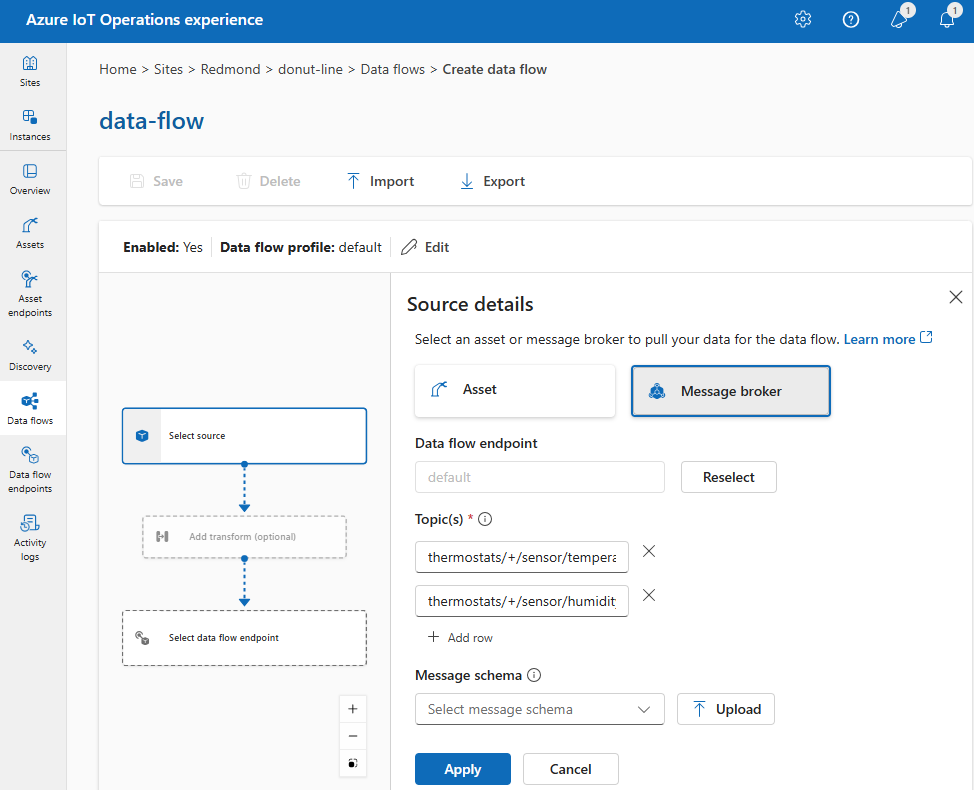
Enter the following settings for the message broker source:
Setting Description Data flow endpoint Select default to use the default MQTT message broker endpoint. Topic The topic filter to subscribe to for incoming messages. Use Topic(s) > Add row to add multiple topics. For more information on topics, see Subscribe to multiple topics. Message schema The schema to use to deserialize the incoming messages. See Specify schema to deserialize data. Select Apply.
Because dataSources accepts MQTT or Kafka topics without modifying the endpoint configuration, you can reuse the endpoint for multiple data flows even if the topics are different. For more information, see Subscribe to multiple topics.
Use an asset as a source
You can use an asset as the source for the data flow. You can use an asset as a source only in the operations experience.
Under Source details, select Asset.
Select the asset you want to use as the source endpoint.
Select Proceed.
A list of datapoints for the selected asset is displayed.
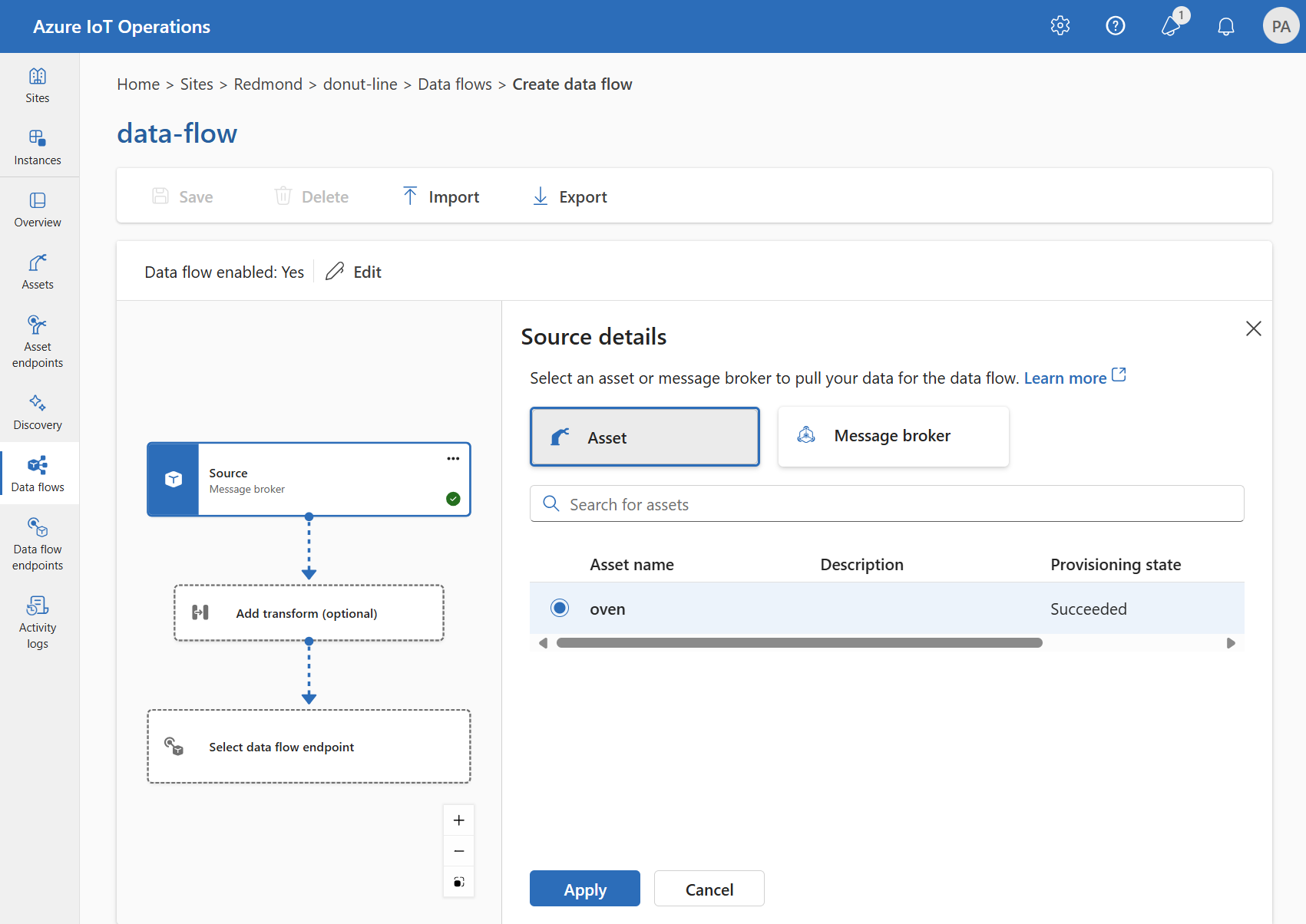
Select Apply to use the asset as the source endpoint.
When you use an asset as the source, the asset definition provides the schema for the data flow. The asset definition includes the schema for the asset's datapoints. For more information, see Manage asset configurations remotely.
After you configure the source, the data from the asset reaches the data flow through the local MQTT broker. So, when you use an asset as the source, the data flow uses the local MQTT broker default endpoint as the source.
Use a custom MQTT or Kafka endpoint
If you created a custom MQTT or Kafka data flow endpoint (for example, to use with Event Grid or Event Hubs), you can use it as the source for the data flow. Remember that storage type endpoints, like Data Lake or Fabric OneLake, can't be used as a source.
Under Source details, select Data flow endpoint.
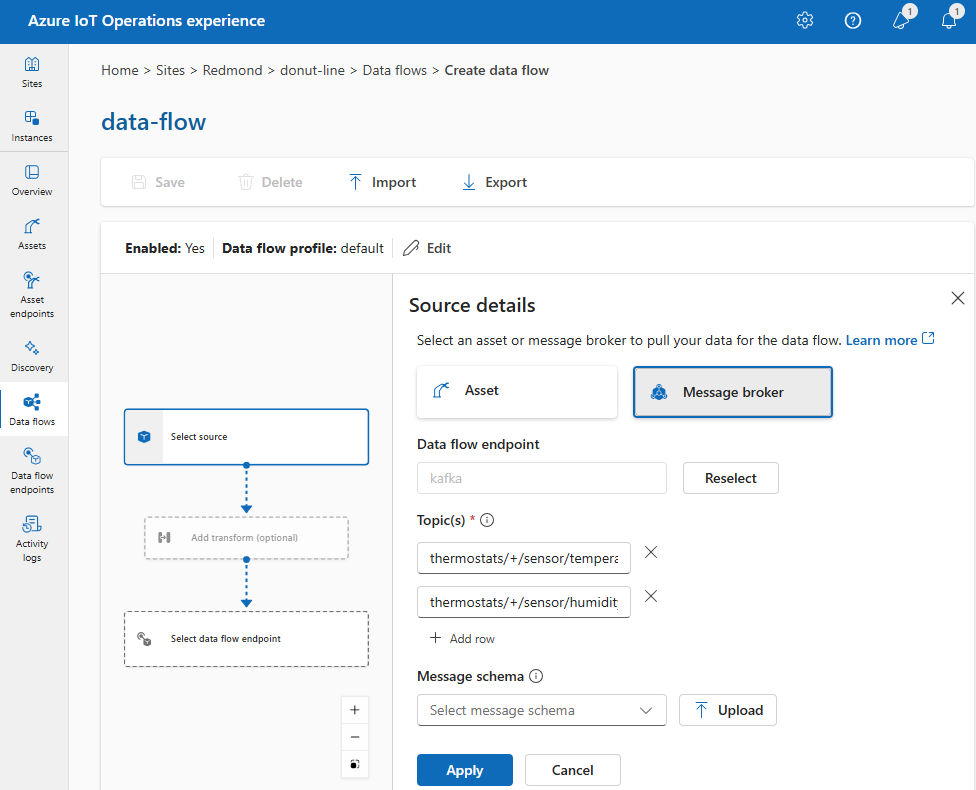
Enter the following settings for the message broker source:
Setting Description Data flow endpoint Use the Reselect button to select a custom MQTT or Kafka data flow endpoint. For more information, see Configure MQTT data flow endpoints or Configure Azure Event Hubs and Kafka data flow endpoints. Topic The topic filter to subscribe to for incoming messages. Use Topic(s) > Add row to add multiple topics. For more information on topics, see Subscribe to multiple topics. Message schema The schema to use to deserialize the incoming messages. See Specify schema to deserialize data. Select Apply.
Subscribe to multiple topics
You can specify multiple MQTT or Kafka topics in a source without needing to modify the data flow endpoint configuration. This flexibility means you can reuse the same endpoint across multiple data flows, even if the topics vary. For more information, see Reuse data flow endpoints.
MQTT topic wildcards
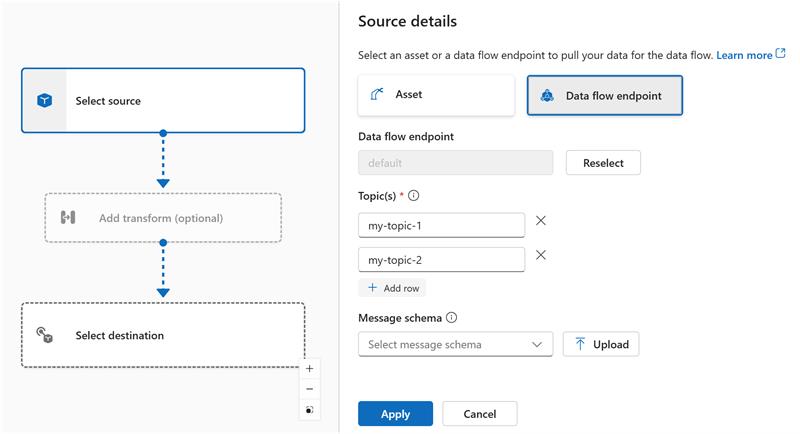
When the source is an MQTT (Event Grid included) endpoint, use the MQTT topic filter to subscribe to incoming messages. The topic filter can include wildcards to subscribe to multiple topics. For example, thermostats/+/sensor/temperature/# subscribes to all temperature sensor messages from thermostats. To configure the MQTT topic filters:
In the operations experience data flow Source details, select Data flow endpoint, then use the Topic(s) field to specify the MQTT topic filters to subscribe to for incoming messages. To add multiple MQTT topics, select Add row and enter a new topic.
Shared subscriptions
To use shared subscriptions with message broker sources, specify the shared subscription topic in the form of $shared/<GROUP_NAME>/<TOPIC_FILTER>.
In operations experience data flow Source details, select Data flow endpoint and use the Topic field to specify the shared subscription group and topic.
If the instance count in the data flow profile is greater than one, shared subscription is automatically enabled for all data flows that use a message broker source. In this case, the $shared prefix is added and the shared subscription group name automatically generated. For example, if you have a data flow profile with an instance count of 3, and your data flow uses a message broker endpoint as source configured with topics topic1 and topic2, they're automatically converted to shared subscriptions as $shared/<GENERATED_GROUP_NAME>/topic1 and $shared/<GENERATED_GROUP_NAME>/topic2.
You can explicitly create a topic named $shared/mygroup/topic in your configuration. However, adding the $shared topic explicitly isn't recommended because the $shared prefix is automatically added when needed. Data flows can make optimizations with the group name if it isn't set. For example, if $shared isn't set, data flows only have to operate over the topic name.
Important
Shared subscriptions are important for data flows when the instance count is greater than one and you're using Event Grid MQTT broker as a source, since it doesn't support shared subscriptions. To avoid missing messages, set the data flow profile instance count to one when using Event Grid MQTT broker as the source. That is when the data flow is the subscriber and receiving messages from the cloud.
Kafka topics
When the source is a Kafka (Event Hubs included) endpoint, specify the individual Kafka topics to subscribe to for incoming messages. Wildcards aren't supported, so you must specify each topic statically.
Note
When using Event Hubs via the Kafka endpoint, each individual event hub within the namespace is the Kafka topic. For example, if you have an Event Hubs namespace with two event hubs, thermostats and humidifiers, you can specify each event hub as a Kafka topic.
To configure the Kafka topics:
In the operations experience data flow Source details, select Data flow endpoint, then use the Topic field to specify the Kafka topic filter to subscribe to for incoming messages.
Note
You can specify only one topic filter in the operations experience. To use multiple topic filters, use Bicep or Kubernetes.
Use the source topic in the destination path
When you subscribe to multiple topics with wildcards, you can use the source topic as a variable in the destination path. This feature works with both data flows and data flow graphs.
Use ${inputTopic} for the full source topic, or ${inputTopic.N} to extract a specific segment (1-indexed). For example, if you subscribe to factory/+/telemetry/#, a message arriving on factory/line1/telemetry/temp can be routed to a destination topic like processed/${inputTopic.2}/data, which resolves to processed/line1/data.
For full details and examples, see Dynamic destination topics.
Specify source schema
When you use MQTT or Kafka as the source, you can specify a schema to display the list of data points in the operations experience web UI. Using a schema to deserialize and validate incoming messages isn't currently supported.
If the source is an asset, the portal automatically infers the schema from the asset definition.
Tip
To generate the schema from a sample data file, use the Schema Gen Helper.
To configure the schema used to deserialize the incoming messages from a source:
In the Operations experience data flow Source details, select Data flow endpoint and use the Message schema field to specify the schema. Select Upload to upload a schema file. For more information, see Understand message schemas.
For more information, see Understand message schemas.