Bemærk
Adgang til denne side kræver godkendelse. Du kan prøve at logge på eller ændre mapper.
Adgang til denne side kræver godkendelse. Du kan prøve at ændre mapper.
Data flow graphs give you a flexible way to process data as it moves through Azure IoT Operations. A standard data flow follows a fixed enrich, filter, map sequence. A data flow graph lets you compose transforms in any order, branch into parallel paths, and aggregate data over time windows.
A data flow graph is defined by the DataflowGraph Kubernetes custom resource. Inside it, you wire together sources, transforms, and destinations to build processing pipelines that match your scenario.
Important
Data flow graphs currently support only MQTT, Kafka, and OpenTelemetry endpoints. Other endpoint types like Data Lake, Microsoft Fabric OneLake, Azure Data Explorer, and Local Storage aren't supported. For more information, see Known issues.
Data flows vs. data flow graphs
Azure IoT Operations provides two ways to process data in a pipeline:
| Capability | Data flows | Data flow graphs |
|---|---|---|
| Pipeline shape | Fixed: enrich, filter, map | Flexible: any order, branching, merging |
| Transform types | Map, filter, enrich | Map, filter, branch, concatenate, window, enrich |
| Time-based aggregation | Not available | Window transforms with tumbling windows |
| Conditional routing | Not available | Branch and concatenate transforms |
| Endpoint support | All endpoint types | MQTT, Kafka, and OpenTelemetry only |
For new projects that use supported endpoint types, we recommend data flow graphs. Data flows remain fully supported for all scenarios, and they support the full range of endpoint types.
Available transforms
Each transform is a pre-built processing step that you configure with rules and chain with other transforms inside a DataflowGraph resource.
| Transform | What it does | Learn more |
|---|---|---|
| Map | Rename, restructure, compute, and copy fields | Transform data with map |
| Filter | Drop messages that match a condition | Filter and route data |
| Branch | Route each message to a true or false path based on a condition |
Filter and route data |
| Concatenate | Merge two or more paths back into one | Filter and route data |
| Window | Collect messages over a time interval, then aggregate | Aggregate data over time |
All transforms share an expression language for operators, functions, and field references. You can also enrich messages with external data from a state store in map, filter, and branch transforms.
How transforms compose
Transforms connect in sequence inside a DataflowGraph resource: Source > Transform A > Transform B > … > Destination.
Branch transforms split the flow into parallel paths, and concatenate transforms merge them back.
You can chain any number of transforms in any order. A pipeline with a single map transform is as valid as one that filters, branches, maps each path differently, merges, and then aggregates over a time window.
How configuration works
Each transform in a data flow graph references a pre-built artifact pulled from a container registry. You configure the transform by passing rules as JSON through the configuration section of the graph resource.
A default registry endpoint named default pointing to mcr.microsoft.com is created automatically when you deploy Azure IoT Operations. The built-in transforms use this endpoint to pull artifacts from Microsoft Container Registry. No extra registry setup is needed.
Here's a complete example that reads temperature data from an MQTT topic, converts Celsius to Fahrenheit with a map transform, and publishes the result:
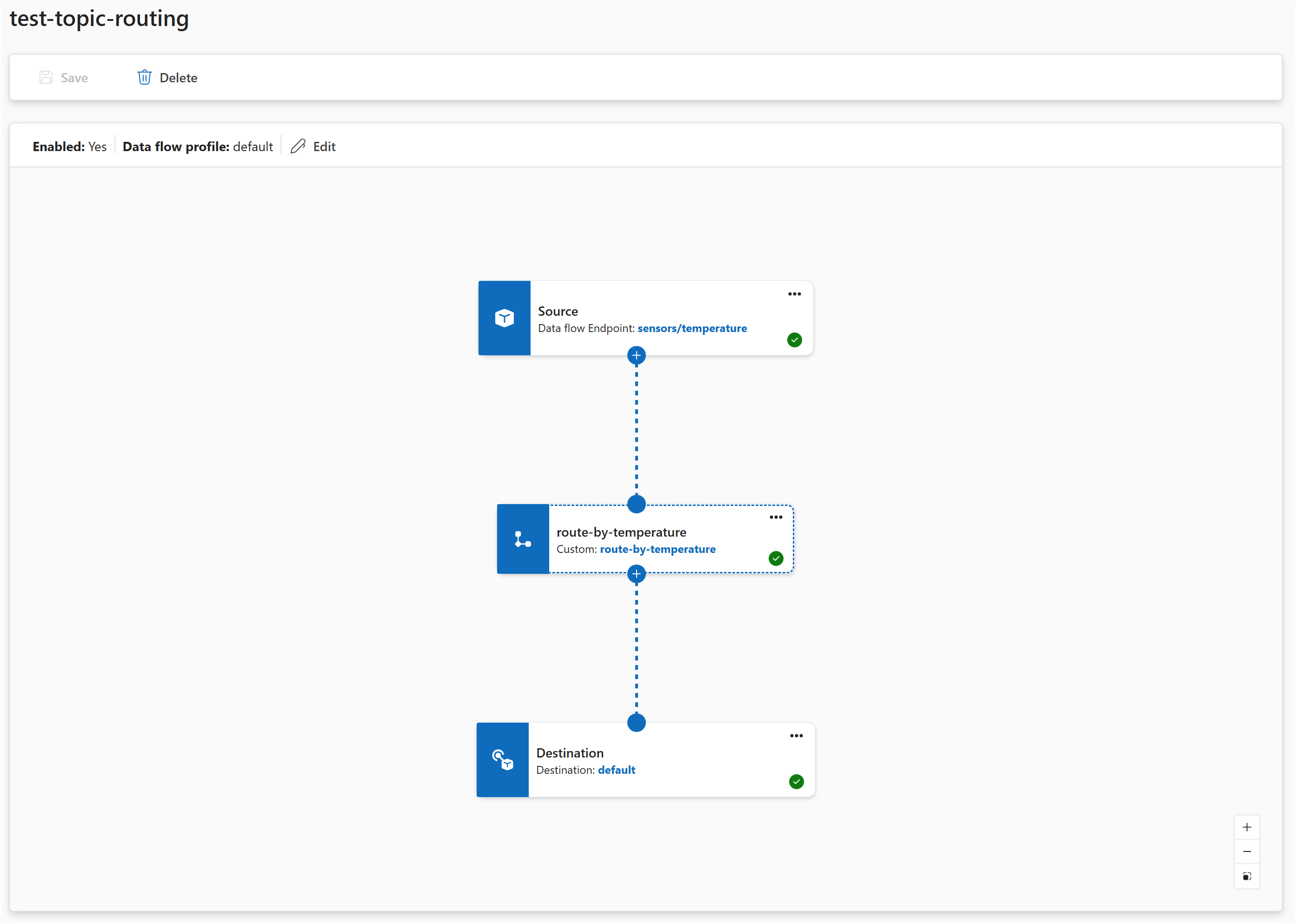
In the Operations experience:
- Select Data flow graph > Create data flow graph.
- Add a source with the default endpoint and topic
telemetry/temperature. - Add a map transform. Configure a rule with input
temperature, outputtemperature_f, and expressioncToF($1). - Add a destination with the default endpoint and topic
telemetry/converted. - Connect: source → map → destination.
- Select Save.
The pipeline defines three elements: a source, a transform (indicated by nodeType: Graph), and a destination. The connections describe how data flows between them. The transform's configuration passes rules as a JSON string under the rules key.
In the how-to articles that follow, examples focus on the transform rules themselves. For a step-by-step guide to creating a data flow graph, see Create a data flow graph.
Built-in transforms vs. WASM transforms
Data flow graphs support two kinds of transforms:
- Built-in transforms are pre-built by Microsoft (map, filter, branch, concatenate, window). You configure them with rules. No coding required.
- WASM transforms are custom WebAssembly modules that developers build and deploy. Use them when you need logic that the built-in transforms don't cover.
Both kinds of transforms run inside the same DataflowGraph resource and can be mixed in a single pipeline. For information on building and deploying custom transforms, see Use WASM transforms in data flow graphs.
Error handling
When a transform encounters an error while processing a message (for example, a missing field or an invalid expression), the message is dropped and an error is logged. The pipeline continues processing subsequent messages.
Common causes of processing errors:
- A field referenced in a rule's
inputsdoesn't exist in the message. - A filter or branch expression returns a non-boolean value.
- An expression references an incompatible data type (for example, using a JSON object in arithmetic).
- A state store used for enrichment is unreachable.
To monitor for processing errors, check the pod logs for the data flow graph or use the metrics endpoints. For more information, see Configure observability and monitoring.
Performance guidance
Each transform in the pipeline adds processing overhead. Keep these guidelines in mind:
- Prefer fewer transforms with more rules. If you have many transformation rules that operate on the same structure, put them in a single map transform rather than creating separate transforms for each rule.
- Use multiple transforms when the logic is distinct. Separate transforms make sense when different processing steps are fundamentally different (filtering vs. mapping vs. aggregating).
- Keep related rules together. A single map transform can handle field renaming, restructuring, computed fields, and metadata transformations all at once.
Prerequisites
To use data flow graphs, you need:
- An Azure IoT Operations instance deployed on an Arc-enabled Kubernetes cluster. For more information, see Deploy Azure IoT Operations.
- The default registry endpoint that points to
mcr.microsoft.com, which is created automatically during deployment.