Bemærk
Adgang til denne side kræver godkendelse. Du kan prøve at logge på eller ændre mapper.
Adgang til denne side kræver godkendelse. Du kan prøve at ændre mapper.
A map transform takes each incoming message and produces an output message based on your rules. You can rename fields, reorganize them into new structures, compute derived values, or remove unwanted fields. Wildcard rules let you copy all fields at once.
For an overview of data flow graphs and how transforms compose in a pipeline, see Data flow graphs overview.
Prerequisites
- An Azure IoT Operations instance deployed on an Arc-enabled Kubernetes cluster. For more information, see Deploy Azure IoT Operations.
- A default registry endpoint named
defaultthat points tomcr.microsoft.comis automatically created during deployment. The built-in transforms use this endpoint.
How map rules work
Each map rule has four parts:
| Property | Required | Description |
|---|---|---|
inputs |
Yes | List of field paths to read from the incoming message. |
output |
Yes | Field path where the result is written in the output message. |
expression |
No | Formula applied to the input values. If omitted, the first input value is copied directly. |
description |
No | Human-readable label for the rule, included in error messages. |
Inputs are assigned positional variables based on their order: the first input is $1, the second is $2, and so on. Use these variables in the expression.
Rename a field
To rename BirthDate to DateOfBirth, map one input to a different output path. No expression is needed. The value copies as-is.
In the map transform configuration, add a rule:
| Setting | Value |
|---|---|
| Input | BirthDate |
| Output | DateOfBirth |
Restructure fields
Use dot notation in the output path to move fields into a nested structure.
Add two rules:
| Input | Output |
|---|---|
Name |
Employee.Name |
BirthDate |
Employee.DateOfBirth |
Given this input:
{
  "Name": "Grace Owens",
  "BirthDate": "19840202",
  "Position": "Analyst"
}
These two rules produce:
{
  "Employee": {
    "Name": "Grace Owens",
    "DateOfBirth": "19840202"
  }
}
Only fields listed in a rule's output appear in the result. The Position field isn't included because no rule maps it.
Combine multiple inputs
When you list multiple inputs, their positional variables let you merge them in an expression.
Add a rule:
| Setting | Value |
|---|---|
| Inputs | Position, Office |
| Output | Employment.Position |
| Expression | $1 + ", " + $2 |
Given Position: "Analyst" and Office: "Kent, WA", the output is "Analyst, Kent, WA".
Transform values with expressions
Use the expression field to apply built-in functions or arithmetic.
Add a compute rule. For example, to convert Celsius to Fahrenheit:
| Setting | Value |
|---|---|
| Input | temperature |
| Output | temperature_f |
| Expression | cToF($1) |
To scale a sensor reading to a 0-100 range, use the expression scale($1, 0, 4095, 0, 100).
For the complete list of operators, functions, and advanced features, see Expressions reference.
Copy all fields with wildcards
When the output should closely match the input with only a few changes, use a wildcard rule to copy every field at once. Then add rules to override, add, or remove specific fields.
Add a passthrough rule that copies all fields. Set the input to * and the output to *.
Wildcard rule requirements
- A wildcard rule must be the first rule in your map configuration.
- Only one wildcard rule is allowed per map transform.
- The asterisk matches one or more path segments and must represent a complete segment. Patterns like
partial*aren't supported.
Prefix wildcards
You can scope the wildcard to a specific prefix. To flatten all fields from ColorProperties to the root level:
Add a rule with input ColorProperties.* and output *.
Given:
{
  "ColorProperties": {
    "Hue": "blue",
    "Saturation": "90%",
    "Brightness": "50%"
  }
}
The output is:
{
  "Hue": "blue",
  "Saturation": "90%",
  "Brightness": "50%"
}
Remove fields from the output
Set the output to an empty string to exclude specific fields. This approach is typically used after a wildcard rule: copy everything, then remove what you don't need.
- Add a passthrough rule to copy all fields.
- Add a remove rule and select the fields to exclude (for example,
passwordandinternal_id).
No expression is allowed on a removal rule.
Override wildcards for specific fields
When a wildcard rule and a specific rule both match the same field, the more specific rule takes precedence.
- Add a passthrough rule to copy all fields.
- Add a compute rule for
temperaturewith the expressioncToF($1).
The map transform applies the specific rule to temperature and copies all other fields as-is.
Use metadata fields
You can read from and write to message metadata like MQTT topics and user properties. See Metadata fields in the expressions reference.
Add a rule with input region and output $metadata.user_property.region to write a field value to an MQTT user property.
For a complete example of dynamic topic routing, see Route messages to different topics.
Use last known value and defaults
When sensor data arrives intermittently, you can fill in missing fields with the last known value or a static default. See Last known value and Default values in the expressions reference.
Add a rule for the temperature field and enable Last known value. Set a default value of 0 as a fallback.
This rule uses the current value when present, falls back to the last known value, and uses 0 if neither is available.
Enrich with external data
You can augment messages with data from an external state store by configuring datasets. For example, look up a device's metadata by its ID and include it in the output. For details, see Enrich with external data.
Data flow graph exclusive features
Data flow graphs support several features that aren't available in data flow builtInTransformation mappings.
Default values for missing fields
Use the ?? <default> syntax on an input to provide a static fallback when a field is missing. This is simpler than writing an if expression to check for empty values.
In the map transform configuration, set the input to include the ?? syntax followed by the default value. For example, enter temperature ?? 0 as the input field to use 0 when the temperature field is missing.
For details on supported default types and combining defaults with last known values, see Default values in the expressions reference.
Regex functions
Data flow graphs support regular expression matching and replacement:
str::regex_matches(string, pattern): Returns true if the string matches the regex pattern.str::regex_replace(string, pattern, replacement): Replaces all regex matches with the replacement string.
These functions are useful in filter expressions or for cleaning and transforming string data. For the full list of string functions, see String functions in the expressions reference.
Full configuration example
Here's a complete map configuration that copies all fields, removes sensitive data, restructures a field, and computes a derived value:
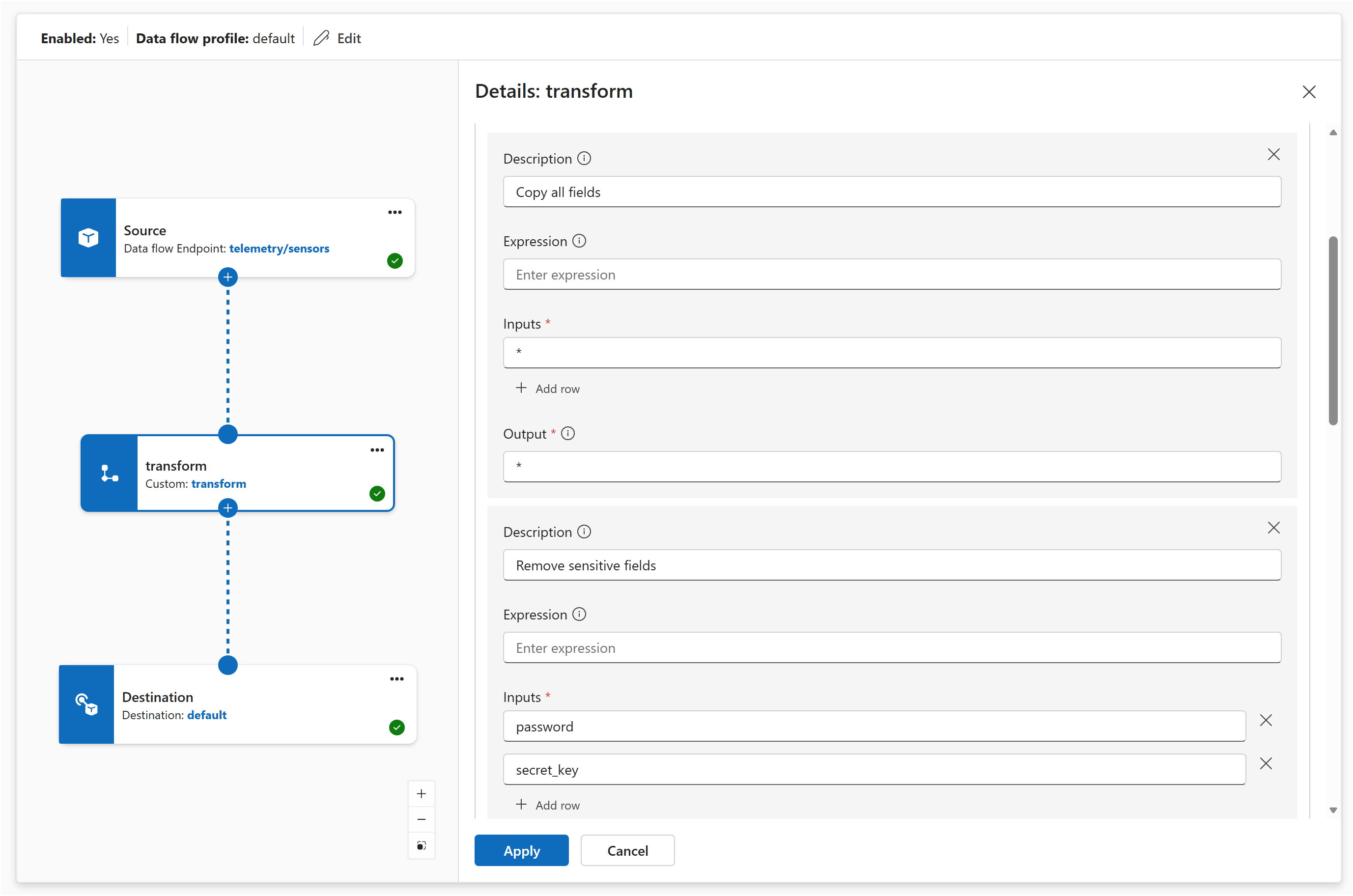
In the Operations experience, create a data flow graph and add a map transform. In the map configuration panel, add rules to:
- Copy all fields with a wildcard passthrough.
- Remove sensitive fields by setting the output to empty for
passwordandsecret_key. - Restructure the
BirthDatefield toEmployee.DateOfBirth. - Compute a Fahrenheit conversion using the formula
cToF($1)on thetemperaturefield. - Merge the
PositionandOfficefields with the formula$1 + ", " + $2.