Windows App SDKファイルとフォルダーピッカーを使用して、ユーザーが WinUI アプリ内のファイルまたはフォルダーを参照して選択できるようにします。 ピッカー API は、ユーザーがデバイスとクラウドストレージの場所を移動するのに役立つ使い慣れたWindowsエクスペリエンスを提供します。 この記事では、ファイルを開くピッカーとフォルダー ピッカーを実装し、その動作をカスタマイズし、アプリで選択した結果を処理する方法について説明します。
Windows App SDK FileOpenPicker クラスと FileSavePicker クラスは、ユーザーが開くか保存するファイルの名前と場所を指定できるピッカー ダイアログを作成します。 FolderPicker クラスを使用すると、フォルダーを選択できます。
ピッカーを使用してファイルを保存する方法については、「Windows App SDK ピッカーを使用してファイルを保存するを参照してください。
重要な API
この記事では、次の API を使用します。
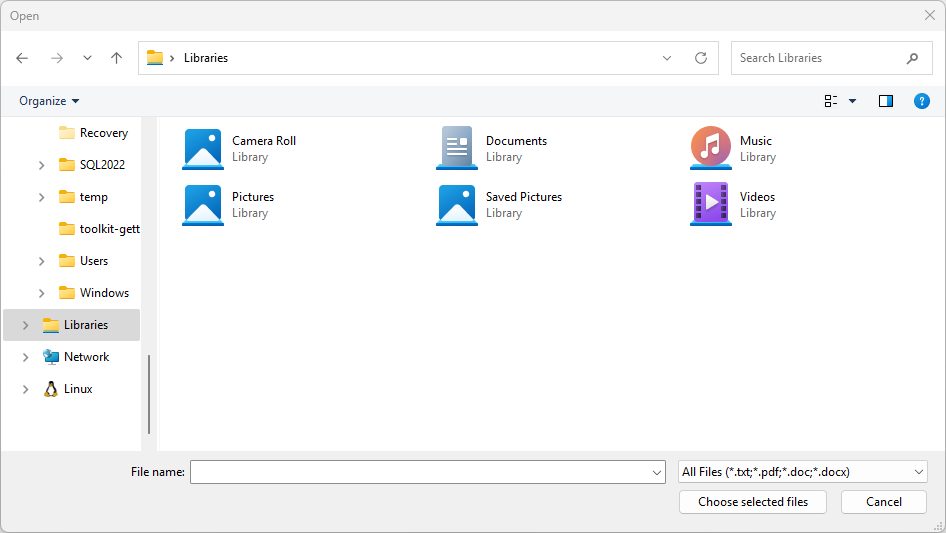
ファイル ピッカー UI
ファイル ピッカーには、ユーザーの方向を設定するための情報が表示され、ファイルを開いたり保存したりする際に一貫したエクスペリエンスが提供されます。
この情報には次のものが含まれます。
- 現在の場所
- ユーザーが選択したアイテム
- ユーザーが参照できる場所のツリー。 これらの場所には、ファイル システムの場所 (音楽フォルダーやダウンロード フォルダーなど) や、ファイル ピッカー コントラクトを実装するアプリ (カメラ、フォト、Microsoft OneDriveなど) が含まれます。
ユーザーがファイルを開いたり保存したりできるアプリがある場合があります。 ユーザーがそのアクションを開始すると、アプリによってファイル ピッカーが呼び出され、ファイル ピッカー UI が表示されます。
ピッカーとアプリの連携方法
ピッカーを使用すると、アプリはユーザーのシステム上のファイルとフォルダーにアクセスし、参照し、保存できます。 アプリは、選択したファイルまたはフォルダーへのパスを提供する、軽量の PickFileResult オブジェクトと PickFolderResult オブジェクトとしてこれらの選択を受け取ります。
ピッカーは、単一の統合インターフェイスを使用して、ユーザーがファイル システムまたは他のアプリからファイルとフォルダーを選択できるようにします。 他のアプリから選択されたファイルは、ファイル システムのファイルのようなものです。 一般に、アプリは他のオブジェクトと同じ方法で操作できます。 他のアプリでは、ファイル ピッカー コントラクトに参加してファイルを使用できるようにします。
たとえば、ユーザーがファイルを開くことができるように、アプリでファイル ピッカーを呼び出すことができます。 このアクションにより、アプリが呼び出し元アプリになります。 ファイル ピッカーは、システムやその他のアプリと対話して、ユーザーがファイルを移動して選択できるようにします。 ユーザーがファイルを選択すると、ファイル ピッカーはそのファイルのパスをアプリに返します。
開くファイルを選択する例
次のコードは、 FileOpenPicker クラスを使用して、ユーザーが写真などの 1 つのファイルを選択できるようにする方法を示しています。 このコードは、ピッカーのプロパティを設定して外観と動作をカスタマイズし、 PickSingleFileAsync メソッドを使用してユーザーにピッカーを表示します。 ユーザーがファイルを選択すると、アプリはファイルの内容を読み取り、変数に格納します。
using Microsoft.Windows.Storage.Pickers;

var openPicker = new FileOpenPicker(this.AppWindow.Id)
{
    // (Optional) Specify the initial location for the picker.
    //     If the specified location doesn't exist on the user's machine, it falls back to the DocumentsLibrary.
    //     If not set, it defaults to PickerLocationId.Unspecified, and the system will use its default location.
    SuggestedStartLocation = PickerLocationId.DocumentsLibrary,

    // (Optional) specify the text displayed on the commit button.
    //     If not specified, the system uses a default label of "Open" (suitably translated).
    CommitButtonText = "Choose selected files",

    // (Optional) specify file extension filters. If not specified, defaults to all files (*.*).
    FileTypeFilter = { ".txt", ".pdf", ".doc", ".docx" },

    // (Optional) specify the view mode of the picker dialog. If not specified, defaults to List.
    ViewMode = PickerViewMode.List,
};

var result = await openPicker.PickSingleFileAsync();
if (result is not null)
{
    var content = System.IO.File.ReadAllText(result.Path);
}
else
{
    // Add your error handling here.
}
#include <winrt/Microsoft.Windows.Storage.Pickers.h>
#include <fstream>
#include <string>

using namespace winrt::Microsoft::Windows::Storage::Pickers;

FileOpenPicker openPicker(this->AppWindow().Id());

// (Optional) Specify the initial location for the picker.
//     If the specified location doesn't exist on the user's machine, it falls back to the DocumentsLibrary.
//     If not set, it defaults to PickerLocationId.Unspecified, and the system will use its default location.
openPicker.SuggestedStartLocation(PickerLocationId::DocumentsLibrary);

// (Optional) specify the text displayed on the commit button.
//     If not specified, the system uses a default label of "Open" (suitably translated).
openPicker.CommitButtonText(L"Choose selected files");

// (Optional) specify file extension filters. If not specified, defaults to all files (*.*).
openPicker.FileTypeFilter().ReplaceAll({ L".txt", L".pdf", L".doc", L".docx" });

// (Optional) specify the view mode of the picker dialog. If not specified, defaults to List.
openPicker.ViewMode(PickerViewMode::List);

auto result{ co_await openPicker.PickSingleFileAsync() };
if (result)
{
    std::ifstream fileReader(result.Path().c_str());
    std::string text((std::istreambuf_iterator<char>(fileReader)), std::istreambuf_iterator<char>());
    winrt::hstring hText = winrt::to_hstring(text);
}
else
{
    // Add your error handling here.
}
複数のファイルを選択して開く例
また、ユーザーが複数のファイルを選択できるようにすることもできます。 次のコードは、 FileOpenPicker クラスを使用して、ユーザーが写真などの複数のファイルを選択できるようにする方法を示しています。 プロセスは同じですが、 PickMultipleFilesAsync メソッドは 1 つのパスではなくファイル パスのコレクションを返します。
using Microsoft.Windows.Storage.Pickers;

var openPicker = new FileOpenPicker(this.AppWindow.Id);

var results = await openPicker.PickMultipleFilesAsync();
if (results.Count > 0)
{
    var pickedFilePaths = results.Select(f => f.Path);
    foreach (var path in pickedFilePaths)
    {
        var content = System.IO.File.ReadAllText(path);
    }
}
else
{
    // Add your error handling here.
}
#include <winrt/Microsoft.Windows.Storage.Pickers.h>
#include <fstream>
#include <string>

using namespace winrt::Microsoft::Windows::Storage::Pickers;

FileOpenPicker openPicker(this->AppWindow().Id());
auto results{ co_await openPicker.PickMultipleFilesAsync() };
if (results.Size() > 0)
{
    for (auto const& result : results)
    {
        std::ifstream fileReader(result.Path().c_str());
        std::string text((std::istreambuf_iterator<char>(fileReader)), std::istreambuf_iterator<char>());
        winrt::hstring hText = winrt::to_hstring(text);
    }
}
else
{
    // Add your error handling here.
}
フォルダー選択例
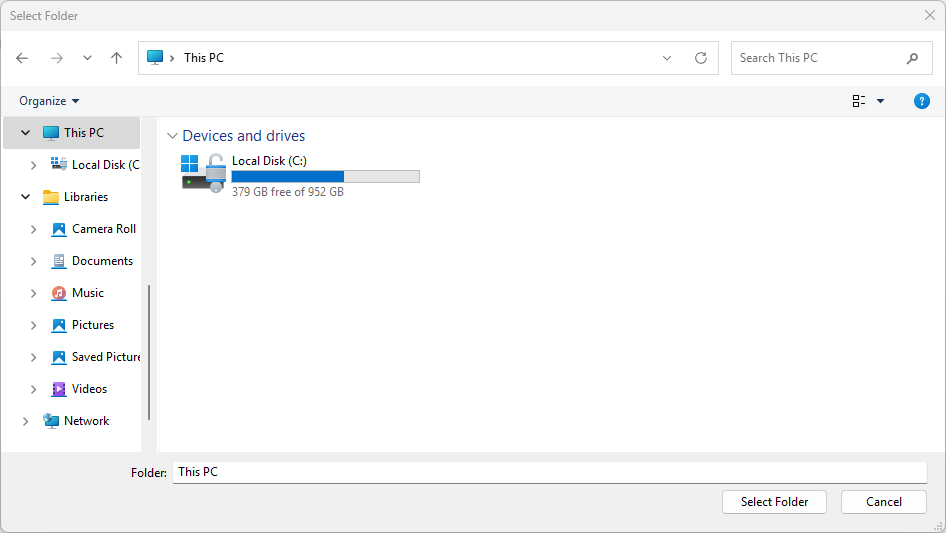
FolderPicker クラスを使用してフォルダーを選択するには、次のコードを使用します。 このコードでは、フォルダー ピッカーを作成し、 PickSingleFolderAsync メソッドを 使用してユーザーに表示し、選択したフォルダーのパスを PickFolderResult オブジェクトで取得します。 ユーザーがフォルダーを選択すると、アプリはフォルダーのパスを取得し、後で使用できるように変数に格納します。
using Microsoft.Windows.Storage.Pickers;

var folderPicker = new FolderPicker(this.AppWindow.Id)
{
    // (Optional) Specify the initial location for the picker.
    //     If the specified location doesn't exist on the user's machine, it falls back to the DocumentsLibrary.
    //     If not set, it defaults to PickerLocationId.Unspecified, and the system will use its default location.
    SuggestedStartLocation = PickerLocationId.DocumentsLibrary,

    // (Optional) specify the text displayed on the commit button.
    //     If not specified, the system uses a default label of "Open" (suitably translated).
    CommitButtonText = "Select Folder",

    // (Optional) specify the view mode of the picker dialog. If not specified, default to List.
    ViewMode = PickerViewMode.List,
};

var result = await folderPicker.PickSingleFolderAsync();

if (result is not null)
{
    var path = result.Path;
}
else
{
    // Add your error handling here.
}
#include <winrt/Microsoft.Windows.Storage.Pickers.h>

using namespace winrt::Microsoft::Windows::Storage::Pickers;

FolderPicker folderPicker(this->AppWindow().Id());

// (Optional) Specify the initial location for the picker.
//     If the specified location doesn't exist on the user's machine, it falls back to the DocumentsLibrary.
//     If not set, it defaults to PickerLocationId.Unspecified, and the system will use its default location.
folderPicker.SuggestedStartLocation(PickerLocationId::DocumentsLibrary);

// (Optional) specify the text displayed on the commit button.
//     If not specified, the system uses a default label of "Open" (suitably translated).
folderPicker.CommitButtonText(L"Select Folder");

// (Optional) specify the view mode of the picker dialog. If not specified, default to List.
folderPicker.ViewMode(PickerViewMode::List);

auto result{ co_await folderPicker.PickSingleFolderAsync() };
if (result)
{
    auto path{ result.Path() };
}
else
{
    // Add your error handling here.
}
ヒント
アプリがピッカーを介してファイルまたはフォルダーにアクセスするたびに、アプリの FutureAccessList または MostRecentlyUsedList に追加して、Windows Runtime (WinRT) API を使用して追跡します。 詳細については、「 最近使用したファイルとフォルダーを追跡する方法」を参照してください。
フォルダー ピッカー UI は次のようになります。
関連コンテンツ
GitHub で Microsoft と共同作業する
このコンテンツのソースは GitHub にあります。そこで、issue や pull request を作成および確認することもできます。 詳細については、共同作成者ガイドを参照してください。

Windows developer