Windows App SDKを使用してWindows アプリをビルドする場合、ユーザーは多くの場合、ドキュメント、画像、その他のコンテンツなどのファイルをデバイス上の特定の場所に保存する必要があります。 Windows App SDKは、FileSavePicker クラスを提供し、ユーザーがファイルを保存する場所とその名前を選択できる、一貫性のあるわかりやすいインターフェイスを作成します。
この記事では、WinUI アプリでファイル保存ピッカーを実装する方法について説明します。 ピッカーの外観と動作を構成し、ユーザーの選択を処理し、選択した場所にコンテンツを保存する方法について説明します。
ファイルの保存ピッカーには、ユーザーがファイルを簡単に保存できるように、推奨されるファイル名とその他の既定の設定を設定できます。
[前提条件]
開始する前に、次の内容を確認してください。
- Windows App SDKで設定された WinUI プロジェクト
- C# と XAML に関する基本的な知識
- C での非同期/待機パターンの理解#
重要な API
このトピックでは、次の API を使用します。
FileSavePicker を使用すると、ユーザーはアプリでファイルを保存する名前と場所を指定できます。
FileSavePicker を使用してドキュメントを保存する
FileSavePicker を使用して、ユーザーが保存するファイルの名前、種類、場所を指定できるようにします。 ファイル ピッカー オブジェクトを作成、カスタマイズ、表示した後、取得したファイルを表すStorageFile オブジェクトを使用してデータを保存します。
- FileSavePicker を作成してカスタマイズします。 まず、新しい FileSavePicker オブジェクトを作成し、オブジェクトのプロパティを設定して、アプリとユーザーのファイル ピッカーをカスタマイズします。
    using Microsoft.Windows.Storage.Pickers;
    ...
    var savePicker = new FileSavePicker(this.AppWindow.Id)
    {
        // (Optional) Specify the initial location for the picker.
        //     If the specified location doesn't exist on the user's machine, it falls back to the DocumentsLibrary.
        //     If not set, it defaults to PickerLocationId.Unspecified, and the system will use its default location.
        SuggestedStartLocation = PickerLocationId.DocumentsLibrary,

        // (Optional) specify the default file name. If not specified, use system default.
        SuggestedFileName = "My Document",

        // (Optional) Sets the folder that the file save dialog displays when it opens.
        //     If not specified or the specified path doesn't exist, defaults to the last folder the user visited.
        SuggestedFolder = @"C:\MyFiles",

        // (Optional) specify the text displayed on the commit button.
        //     If not specified, the system uses a default label of "Save" (suitably translated).
        CommitButtonText = "Save Document",

        // (Optional) categorized extension types. If not specified, "All Files (*.*)" is allowed.
        //     Note that when "All Files (*.*)" is allowed, end users can save a file without an extension.
        FileTypeChoices = {
            { "Documents", new List<string> { ".txt", ".doc", ".docx" } }
        },

        // (Optional) specify the default file extension (will be appended to SuggestedFileName).
        //      If not specified, no extension will be appended.
        DefaultFileExtension = ".txt",
    };
    #include <winrt/Microsoft.Windows.Storage.Pickers.h>
    using namespace winrt::Microsoft::Windows::Storage::Pickers;

    FileSavePicker savePicker(AppWindow().Id());

    // (Optional) Specify the initial location for the picker.
    //     If the specified location doesn't exist on the user's machine, it falls back to the DocumentsLibrary.
    //     If not set, it defaults to PickerLocationId.Unspecified, and the system will use its default location.
    savePicker.SuggestedStartLocation(PickerLocationId::DocumentsLibrary);

    // (Optional) specify the default file name. If not specified, use system default.
    savePicker.SuggestedFileName(L"NewDocument");

    // (Optional) Sets the folder that the file save dialog displays when it opens.
    //     If not specified or the specified path doesn't exist, defaults to the last folder the user visited.
    savePicker.SuggestedFolder = L"C:\\MyFiles",

    // (Optional) specify the text displayed on the commit button.
    //     If not specified, the system uses a default label of "Save" (suitably translated).
    savePicker.CommitButtonText(L"Save Document");

    // (Optional) categorized extension types. If not specified, "All Files (*.*)" is allowed.
    //     Note that when "All Files (*.*)" is allowed, end users can save a file without an extension.
    savePicker.FileTypeChoices().Insert(L"Text", winrt::single_threaded_vector<winrt::hstring>({ L".txt" }));

    // (Optional) specify the default file extension (will be appended to SuggestedFileName).
    //      If not specified, no extension will be appended.
    savePicker.DefaultFileExtension(L".txt");
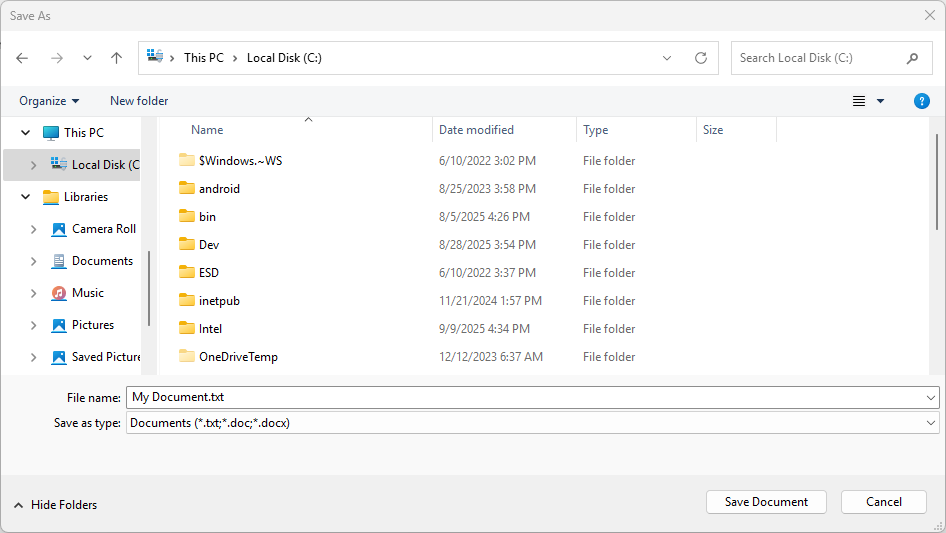
この例では、 SuggestedStartLocation、 SuggestedFileName、 SuggestedFolder、 CommitButtonText、 FileTypeChoices、 DefaultFileExtension の 6 つのプロパティを設定します。
ユーザーがドキュメントまたはテキスト ファイルを保存しているため、サンプルでは、PickerLocationId 列挙型の DocumentsLibrary 値を使用して、SuggestedStartLocation をドキュメント ライブラリ フォルダーに設定します。 SuggestedStartLocation を、保存するファイルの種類に適した場所 (音楽、画像、ビデオ、ドキュメントなど) に設定します。 開始場所から、ユーザーは他の場所に移動して選択できます。
ユーザーの入力を軽減するために、例では SuggestedFileName を設定します。 推奨されるファイル名は、保存するファイルに関連している必要があります。 たとえば、Wordと同様に、既存のファイル名がある場合は提案し、ユーザーがまだ名前を持たないファイルを保存している場合はドキュメントの最初の行を提案できます。
FileTypeChoices プロパティは、サンプルでサポートされるファイルの種類 (ドキュメントとテキスト ファイルMicrosoft Word) を指定するときに使用します。 これにより、保存後にアプリでファイルを開くことができます。 指定したすべてのファイルの種類がアプリでサポートされていることを確認します。 ユーザーは、指定した任意のファイルの種類としてファイルを保存できます。 また、指定した別のファイルの種類を選択して、ファイルの種類を変更することもできます。 既定では、リスト内の最初のファイルの種類の選択肢が選択されます。 制御するには、 DefaultFileExtension プロパティを 設定します。
注
ファイル ピッカーでは、現在選択されているファイルの種類を使用して、表示するファイルをフィルター処理して、選択したファイルの種類に一致するファイルの種類のみがユーザーに表示されるようにします。
注
FileSavePicker オブジェクトは 、 PickerViewMode.List ビュー モードを使用してファイル ピッカーを表示します。
- 次に、 FileSavePicker を表示し、選択したファイルの場所に保存します。 PickSaveFileAsync を呼び出してファイル ピッカーを表示します。 ユーザーが名前、ファイルの種類、場所を指定し、ファイルの保存を確認すると、 PickSaveFileAsync は、保存されたファイルへのパスとファイル名を含む軽量 の FilePickResult オブジェクトを返します。 このファイルに対する読み取りと書き込みのアクセス権がある場合は、このファイルをキャプチャして処理できます。
    using Microsoft.Windows.Storage.Pickers;
    ...
    var savePicker = new FileSavePicker(this.AppWindow.Id);
    var result = await savePicker.PickSaveFileAsync();
    if (result != null)
    {
        if (!System.IO.File.Exists(result.Path))
        {
            // Create a file and write to it.
            System.IO.File.WriteAllText(result.Path, "Hello world." + Environment.NewLine);
        }
        else
        {
            // Append to the existing file.
            System.IO.File.AppendAllText(result.Path, "Hello again." + Environment.NewLine);
        }
    }
    else
    {
        this.textBlock.Text = "Operation cancelled.";
    }
    #include <winrt/Microsoft.Windows.Storage.Pickers.h>
    #include <fstream>
    #include <string>
    using namespace winrt::Microsoft::Windows::Storage::Pickers;

    FileSavePicker savePicker(AppWindow().Id());
    auto result{ co_await savePicker.PickSaveFileAsync() };
    if (result)
    {
        // Check if the file exists.
        if (!std::ifstream(result.Path().c_str()))
        {
            std::ofstream outFile(result.Path().c_str());
            outFile << "Hello world.";
            outFile.close();
        }
        else
        {
            // Append to the existing file.
            std::ofstream outFile(result.Path().c_str(), std::ios::app);
            outFile << "Hello again.";
            outFile.close();
        }
    }
    else
    {
        textBlock().Text(L"Operation cancelled.");
    }
この例では、ファイルが存在するかどうかを確認し、新しいファイルを作成するか、既存のファイルに追加します。 ユーザーが操作を取り消すと、結果が nullされ、ユーザーにメッセージを表示するなど、そのケースを適切に処理できます。
ヒント
保存されたファイルが存在し、他の処理を実行する前に有効であることを常に確認する必要があります。 その後、アプリに合わせてファイルにコンテンツを保存できます。 選択したファイルが有効でない場合、アプリは適切な動作を提供する必要があります。
関連コンテンツ
GitHub で Microsoft と共同作業する
このコンテンツのソースは GitHub にあります。そこで、issue や pull request を作成および確認することもできます。 詳細については、共同作成者ガイドを参照してください。

Windows developer