Nota
L'accesso a questa pagina richiede l'autorizzazione. È possibile provare ad accedere o modificare le directory.
L'accesso a questa pagina richiede l'autorizzazione. È possibile provare a modificare le directory.
Importante
Questa funzionalità di Servizi di comunicazione di Azure è attualmente in anteprima. Le funzionalità in anteprima sono disponibili pubblicamente e possono essere usate da tutti i clienti Microsoft nuovi ed esistenti.
Le anteprime di API e SDK vengono fornite senza un contratto di servizio. È consigliabile non usarle per carichi di lavoro di produzione. Alcune funzionalità potrebbero non essere supportate o potrebbero essere vincolate.
Per altre informazioni, vedere le Condizioni supplementari per l'uso delle anteprime di Microsoft Azure.
Questa esercitazione è una continuazione di una serie in tre parti di esercitazioni sulla preparazione delle chiamate e segue le due parti precedenti:
- Verificare che l'utente sia in un browser supportato.
- Richiedere l'accesso alla fotocamera e al microfono.
Scaricare il codice
Accedere al codice completo per questa esercitazione su GitHub.
Consentire all'utente di scegliere la fotocamera, il microfono e l'altoparlante
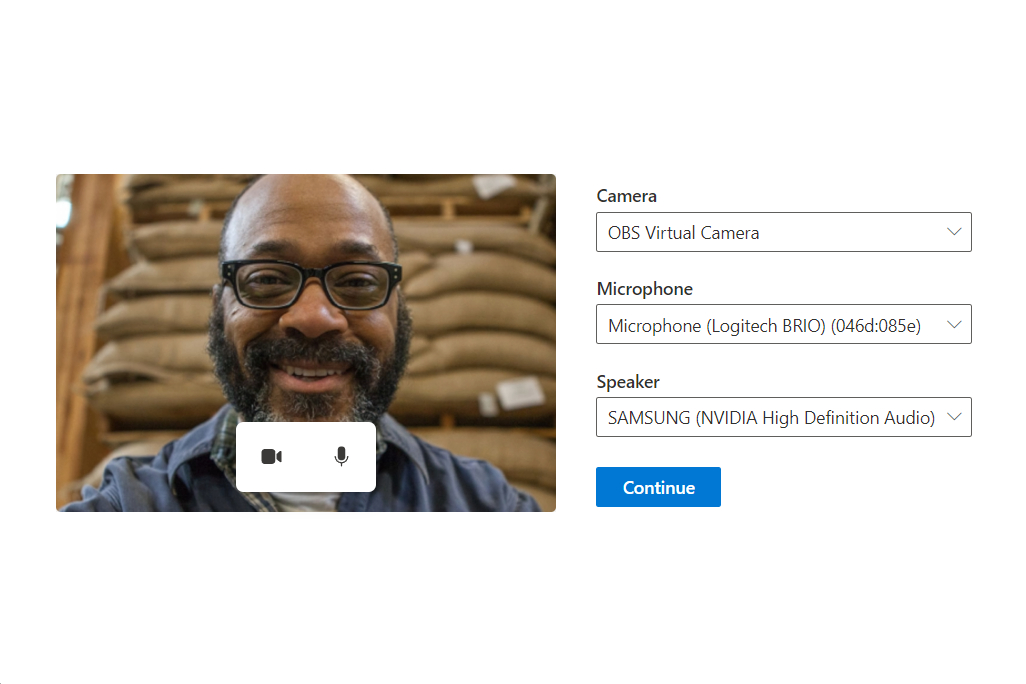
Dalle due parti precedenti dell'esercitazione, l'utente si trova in un browser supportato e ci ha concesso l'autorizzazione per accedere alla fotocamera e al microfono. Ora possiamo assicurarti che l'utente possa scegliere il microfono, la fotocamera e l'altoparlante corretti che vogliono usare per la chiamata. Presentiamo l'utente con un'interfaccia avanzata per scegliere la fotocamera, il microfono e l'altoparlante. L'interfaccia utente di configurazione del dispositivo finale è simile alla seguente:
Creazione di una schermata di configurazione
Prima di tutto, creiamo un nuovo file denominato DeviceSetup.tsx e aggiungiamo codice di installazione, con un callback che restituisce i dispositivi scelti dagli utenti all'app:
src/DeviceSetup.tsx
import { PrimaryButton, Stack } from '@fluentui/react';

export const DeviceSetup = (props: {
  /** Callback to let the parent component know what the chosen user device settings were */
  onDeviceSetupComplete: (userChosenDeviceState: { cameraOn: boolean; microphoneOn: boolean }) => void
}): JSX.Element => {
  return (
    <Stack tokens={{ childrenGap: '1rem' }} verticalAlign="center" verticalFill>
      <PrimaryButton text="Continue" onClick={() => props.onDeviceSetupComplete({ cameraOn: false, microphoneOn: false })} />
    </Stack>
  );
}
È quindi possibile aggiungere questo deviceSetup all'app.
- Al termine del componente PreCallChecks, reindirizza l'utente nello stato
deviceSetup. - Quando l'utente si trova nello stato
deviceSetup, renderizziamo il componenteDeviceSetup. - Al termine dell'installazione del dispositivo, l'utente viene inoltrato allo
finishedstato. In un'app di produzione, il passaggio successivo consiste generalmente nell'indirizzare l'utente a uno schermo di chiamata.
Importare innanzitutto il componente DeviceSetup creato:
src/App.tsx
import { DeviceSetup } from './DeviceSetup';
Aggiornare quindi l'app in modo che abbia un nuovo stato deviceSetupdi test:
type TestingState = 'runningEnvironmentChecks' | 'runningDeviceAccessChecks' | 'deviceSetup' | 'finished';
Aggiornare infine il App componente per eseguire la transizione dell'app alla configurazione del dispositivo dopo il completamento dei controlli di accesso del dispositivo:
/**
 * Entry point of a React app.
 *
 * This shows a PreparingYourSession component while the CallReadinessChecks are running.
 * Once the CallReadinessChecks are finished, the TestComplete component is shown.
 */
const App = (): JSX.Element => {
  const [testState, setTestState] = useState<TestingState>('runningEnvironmentChecks');

  return (
    <FluentThemeProvider>
      <CallClientProvider callClient={callClient}>
        {/* Show a Preparing your session screen while running the environment checks */}
        {testState === 'runningEnvironmentChecks' && (
          <>
            <PreparingYourSession />
            <EnvironmentChecksComponent onTestsSuccessful={() => setTestState('runningDeviceAccessChecks')} />
          </>
        )}

        {/* Show a Preparing your session screen while running the device access checks */}
        {testState === 'runningDeviceAccessChecks' && (
          <>
            <PreparingYourSession />
            <DeviceAccessChecksComponent onTestsSuccessful={() => setTestState('deviceSetup')} />
          </>
        )}

        {/* After the initial checks are complete, take the user to a device setup page call readiness checks are finished */}
        {testState === 'deviceSetup' && (
          <DeviceSetup
            onDeviceSetupComplete={(userChosenDeviceState) => {
              setTestState('finished');
            }}
          />
        )}

        {/* After the device setup is complete, take the user to the call. For this sample we show a test complete page. */}
        {testState === 'finished' && <TestComplete />}
      </CallClientProvider>
    </FluentThemeProvider>
  );
}
Recupero e aggiornamento degli elenchi di microfoni, videocamere e altoparlanti dal client con stato
Per presentare un elenco di fotocamere selezionabili, microfoni e altoparlanti all'utente, è possibile usare il client di chiamata con gestione dello stato.
Qui creiamo una serie di hook React. Questi hook React usano il client di chiamata per interrogare i dispositivi disponibili.
Gli hook assicurano che l'applicazione esegua nuovamente il rendering ogni volta che l'elenco cambia, ad esempio se una nuova fotocamera è collegata al computer dell'utente.
Per questi hook viene creato un file denominato deviceSetupHooks.ts e vengono creati tre hook: useMicrophonese useSpeakersuseCameras.
Ognuno di questi hook usa useCallClientStateChange per aggiornare gli elenchi ogni volta che l'utente collega/scollega un dispositivo:
src/deviceSetupHooks.ts
import { AudioDeviceInfo, VideoDeviceInfo } from "@azure/communication-calling";
import { CallClientState, StatefulDeviceManager, useCallClient, VideoStreamRendererViewState } from "@azure/communication-react";
import { useCallback, useEffect, useRef, useState } from "react";

/** A helper hook to get and update microphone device information */
export const useMicrophones = (): {
  microphones: AudioDeviceInfo[],
  selectedMicrophone: AudioDeviceInfo | undefined,
  setSelectedMicrophone: (microphone: AudioDeviceInfo) => Promise<void>
} => {
  const callClient = useCallClient();
  useEffect(() => {
    callClient.getDeviceManager().then(deviceManager => deviceManager.getMicrophones())
  }, [callClient]);

  const setSelectedMicrophone = async (microphone: AudioDeviceInfo) =>
    (await callClient.getDeviceManager()).selectMicrophone(microphone);

  const state = useCallClientStateChange();
  return {
    microphones: state.deviceManager.microphones,
    selectedMicrophone: state.deviceManager.selectedMicrophone,
    setSelectedMicrophone
  };
}

/** A helper hook to get and update speaker device information */
export const useSpeakers = (): {
  speakers: AudioDeviceInfo[],
  selectedSpeaker: AudioDeviceInfo | undefined,
  setSelectedSpeaker: (speaker: AudioDeviceInfo) => Promise<void>
} => {
  const callClient = useCallClient();
  useEffect(() => {
    callClient.getDeviceManager().then(deviceManager => deviceManager.getSpeakers())
  }, [callClient]);

  const setSelectedSpeaker = async (speaker: AudioDeviceInfo) =>
    (await callClient.getDeviceManager()).selectSpeaker(speaker);

  const state = useCallClientStateChange();
  return {
    speakers: state.deviceManager.speakers,
    selectedSpeaker: state.deviceManager.selectedSpeaker,
    setSelectedSpeaker
  };
}

/** A helper hook to get and update camera device information */
export const useCameras = (): {
  cameras: VideoDeviceInfo[],
  selectedCamera: VideoDeviceInfo | undefined,
  setSelectedCamera: (camera: VideoDeviceInfo) => Promise<void>
} => {
  const callClient = useCallClient();
  useEffect(() => {
    callClient.getDeviceManager().then(deviceManager => deviceManager.getCameras())
  }, [callClient]);

  const setSelectedCamera = async (camera: VideoDeviceInfo) =>
    (await callClient.getDeviceManager() as StatefulDeviceManager).selectCamera(camera);

  const state = useCallClientStateChange();
  return {
    cameras: state.deviceManager.cameras,
    selectedCamera: state.deviceManager.selectedCamera,
    setSelectedCamera
  };
}

/** A helper hook to act when changes to the stateful client occur */
const useCallClientStateChange = (): CallClientState => {
  const callClient = useCallClient();
  const [state, setState] = useState<CallClientState>(callClient.getState());
  useEffect(() => {
    const updateState = (newState: CallClientState) => {
      setState(newState);
    }
    callClient.onStateChange(updateState);
    return () => {
      callClient.offStateChange(updateState);
    };
  }, [callClient]);
  return state;
}
Creazione di elenchi a discesa per scegliere i dispositivi
Per consentire all'utente di scegliere la fotocamera, il microfono e l'altoparlante, usiamo il Dropdown componente di Fluent UI React.
Creiamo nuovi componenti che usano gli hook creati in deviceSetupHooks.tsx per popolare l'elenco a discesa e aggiornare il dispositivo scelto quando l'utente seleziona un dispositivo diverso dall'elenco a discesa.
Per ospitare questi nuovi componenti, viene creato un file denominato DeviceSelectionComponents.tsx che esporta tre nuovi componenti: CameraSelectionDropdowne MicrophoneSelectionDropdownSpeakerSelectionDropdown.
src/DeviceSelectionComponents.tsx
import { Dropdown } from '@fluentui/react';
import { useCameras, useMicrophones, useSpeakers } from './deviceSetupHooks';

/** Dropdown that allows the user to choose their desired camera */
export const CameraSelectionDropdown = (): JSX.Element => {
  const { cameras, selectedCamera, setSelectedCamera } = useCameras();
  return (
    <DeviceSelectionDropdown
      placeholder={cameras.length === 0 ? 'No cameras found' : 'Select a camera'}
      label={'Camera'}
      devices={cameras}
      selectedDevice={selectedCamera}
      onSelectionChange={(selectedDeviceId) => {
        const newlySelectedCamera = cameras.find((camera) => camera.id === selectedDeviceId);
        if (newlySelectedCamera) {
          setSelectedCamera(newlySelectedCamera);
        }
      }}
    />
  );
};

/** Dropdown that allows the user to choose their desired microphone */
export const MicrophoneSelectionDropdown = (): JSX.Element => {
  const { microphones, selectedMicrophone, setSelectedMicrophone } = useMicrophones();
  return (
    <DeviceSelectionDropdown
      placeholder={microphones.length === 0 ? 'No microphones found' : 'Select a microphone'}
      label={'Microphone'}
      devices={microphones}
      selectedDevice={selectedMicrophone}
      onSelectionChange={(selectedDeviceId) => {
        const newlySelectedMicrophone = microphones.find((microphone) => microphone.id === selectedDeviceId);
        if (newlySelectedMicrophone) {
          setSelectedMicrophone(newlySelectedMicrophone);
        }
      }}
    />
  );
};

/** Dropdown that allows the user to choose their desired speaker */
export const SpeakerSelectionDropdown = (): JSX.Element => {
  const { speakers, selectedSpeaker, setSelectedSpeaker } = useSpeakers();
  return (
    <DeviceSelectionDropdown
      placeholder={speakers.length === 0 ? 'No speakers found' : 'Select a speaker'}
      label={'Speaker'}
      devices={speakers}
      selectedDevice={selectedSpeaker}
      onSelectionChange={(selectedDeviceId) => {
        const newlySelectedSpeaker = speakers.find((speaker) => speaker.id === selectedDeviceId);
        if (newlySelectedSpeaker) {
          setSelectedSpeaker(newlySelectedSpeaker);
        }
      }}
    />
  );
};

const DeviceSelectionDropdown = (props: {
  placeholder: string,
  label: string,
  devices: { id: string, name: string }[],
  selectedDevice: { id: string, name: string } | undefined,
  onSelectionChange: (deviceId: string | undefined) => void
}): JSX.Element => {
  return (
    <Dropdown
      placeholder={props.placeholder}
      label={props.label}
      options={props.devices.map((device) => ({ key: device.id, text: device.name }))}
      selectedKey={props.selectedDevice?.id}
      onChange={(_, option) => props.onSelectionChange?.(option?.key as string | undefined)}
    />
  );
};
Aggiungere elenchi a discesa al programma di installazione del dispositivo
I menu a discesa fotocamera, microfono e altoparlante possono quindi essere aggiunti al componente Configurazione del dispositivo.
Per prima cosa, importare i nuovi menu a discesa:
src/DeviceSetup.tsx
import { CameraSelectionDropdown, MicrophoneSelectionDropdown, SpeakerSelectionDropdown } from './DeviceSelectionComponents';
Creare quindi un componente denominato DeviceSetup che ospita questi elenchi a discesa. Questo componente contiene l'anteprima video locale creata in un secondo momento.
export const DeviceSetup = (props: {
  /** Callback to let the parent component know what the chosen user device settings were */
  onDeviceSetupComplete: (userChosenDeviceState: { cameraOn: boolean; microphoneOn: boolean }) => void
}): JSX.Element => {
  return (
    <Stack verticalFill verticalAlign="center" horizontalAlign="center" tokens={{ childrenGap: '1rem' }}>
      <Stack horizontal tokens={{ childrenGap: '2rem' }}>
        <Stack tokens={{ childrenGap: '1rem' }} verticalAlign="center" verticalFill>
          <CameraSelectionDropdown />
          <MicrophoneSelectionDropdown />
          <SpeakerSelectionDropdown />
          <Stack.Item styles={{ root: { paddingTop: '0.5rem' }}}>
            <PrimaryButton text="Continue" onClick={() => props.onDeviceSetupComplete({ cameraOn: false, microphoneOn: false })} />
          </Stack.Item>
        </Stack>
      </Stack>
    </Stack>
  );
};
Creazione di un'anteprima video locale
Accanto ai menu a discesa, creiamo un'anteprima video locale per permettere all'utente di vedere cosa sta riprendendo la sua fotocamera. Contiene una piccola barra dei controlli delle chiamate con pulsanti fotocamera e microfono per attivare/disattivare la fotocamera e disattivare e disattivare l'audio del microfono.It contains a small call controls bar with camera and microphone button to toggle camera on/off and microphone mute/unmute.
Prima di tutto si aggiunge un nuovo hook al deviceSetupHooks.ts denominato useLocalPreview. Questo hook fornisce al componente react un localPreview per eseguire il rendering e le funzioni per avviare e arrestare l'anteprima locale:
src/deviceSetupHooks.ts
/** A helper hook to providing functionality to create a local video preview */
export const useLocalPreview = (): {
  localPreview: VideoStreamRendererViewState | undefined,
  startLocalPreview: () => Promise<void>,
  stopLocalPreview: () => void
} => {
  const callClient = useCallClient();
  const state = useCallClientStateChange();
  const localPreview = state.deviceManager.unparentedViews[0];

  const startLocalPreview = useCallback(async () => {
    const selectedCamera = state.deviceManager.selectedCamera;
    if (!selectedCamera) {
      console.warn('no camera selected to start preview with');
      return;
    }
    callClient.createView(
      undefined,
      undefined,
      {
        source: selectedCamera,
        mediaStreamType: 'Video'
      },
      {
        scalingMode: 'Crop'
      }
    );
  }, [callClient, state.deviceManager.selectedCamera]);

  const stopLocalPreview = useCallback(() => {
    if (!localPreview) {
      console.warn('no local preview ti dispose');
      return;
    }
    callClient.disposeView(undefined, undefined, localPreview)
  }, [callClient, localPreview]);

  const selectedCameraRef = useRef(state.deviceManager.selectedCamera);
  useEffect(() => {
    if (selectedCameraRef.current !== state.deviceManager.selectedCamera) {
      stopLocalPreview();
      startLocalPreview();
      selectedCameraRef.current = state.deviceManager.selectedCamera;
    }
  }, [startLocalPreview, state.deviceManager.selectedCamera, stopLocalPreview]);

  return {
    localPreview: localPreview?.view,
    startLocalPreview,
    stopLocalPreview
  }
}
Viene quindi creato un nuovo componente denominato LocalPreview.tsx che usa tale hook per visualizzare l'anteprima video locale all'utente:
src/LocalPreview.tsx
import { StreamMedia, VideoTile, ControlBar, CameraButton, MicrophoneButton, useTheme } from '@azure/communication-react';
import { Stack, mergeStyles, Text, ITheme } from '@fluentui/react';
import { VideoOff20Filled } from '@fluentui/react-icons';
import { useEffect } from 'react';
import { useCameras, useLocalPreview } from './deviceSetupHooks';

/** LocalPreview component has a camera and microphone toggle buttons, along with a video preview of the local camera. */
export const LocalPreview = (props: {
  cameraOn: boolean,
  microphoneOn: boolean,
  cameraToggled: (isCameraOn: boolean) => void,
  microphoneToggled: (isMicrophoneOn: boolean) => void
}): JSX.Element => {
  const { cameraOn, microphoneOn, cameraToggled, microphoneToggled } = props;
  const { localPreview, startLocalPreview, stopLocalPreview } = useLocalPreview();
  const canTurnCameraOn = useCameras().cameras.length > 0;

  // Start and stop the local video preview based on if the user has turned the camera on or off and if the camera is available.
  useEffect(() => {
    if (!localPreview && cameraOn && canTurnCameraOn) {
      startLocalPreview();
    } else if (!cameraOn) {
      stopLocalPreview();
    }
  }, [canTurnCameraOn, cameraOn, localPreview, startLocalPreview, stopLocalPreview]);

  const theme = useTheme();
  const shouldShowLocalVideo = canTurnCameraOn && cameraOn && localPreview;
  return (
    <Stack verticalFill verticalAlign="center">
      <Stack className={localPreviewContainerMergedStyles(theme)}>
        <VideoTile
          renderElement={shouldShowLocalVideo ? <StreamMedia videoStreamElement={localPreview.target} /> : undefined}
          onRenderPlaceholder={() => <CameraOffPlaceholder />}
        >
          <ControlBar layout="floatingBottom">
            <CameraButton
              checked={cameraOn}
              onClick={() => {
                cameraToggled(!cameraOn)
              }}
            />
            <MicrophoneButton
              checked={microphoneOn}
              onClick={() => {
                microphoneToggled(!microphoneOn)
              }}
            />
          </ControlBar>
        </VideoTile>
      </Stack>
    </Stack>
  );
};

/** Placeholder shown in the local preview window when the camera is off */
const CameraOffPlaceholder = (): JSX.Element => {
  const theme = useTheme();
  return (
    <Stack style={{ width: '100%', height: '100%' }} verticalAlign="center">
      <Stack.Item align="center">
        <VideoOff20Filled primaryFill="currentColor" />
      </Stack.Item>
      <Stack.Item align="center">
        <Text variant='small' styles={{ root: { color: theme.palette.neutralTertiary }}}>Your camera is turned off</Text>
      </Stack.Item>
    </Stack>
  );
};

/** Default styles for the local preview container */
const localPreviewContainerMergedStyles = (theme: ITheme): string =>
  mergeStyles({
    minWidth: '25rem',
    maxHeight: '18.75rem',
    minHeight: '16.875rem',
    margin: '0 auto',
    background: theme.palette.neutralLighter,
    color: theme.palette.neutralTertiary
  });
Aggiungere l'anteprima locale alla configurazione del dispositivo
Il componente di anteprima locale può quindi essere aggiunto al programma di installazione del dispositivo:
src/DeviceSetup.tsx
import { LocalPreview } from './LocalPreview';
import { useState } from 'react';
export const DeviceSetup = (props: {
  /** Callback to let the parent component know what the chosen user device settings were */
  onDeviceSetupComplete: (userChosenDeviceState: { cameraOn: boolean; microphoneOn: boolean }) => void
}): JSX.Element => {
  const [microphoneOn, setMicrophoneOn] = useState(false);
  const [cameraOn, setCameraOn] = useState(false);

  return (
    <Stack verticalFill verticalAlign="center" horizontalAlign="center" tokens={{ childrenGap: '1rem' }}>
      <Stack horizontal tokens={{ childrenGap: '2rem' }}>
        <Stack.Item>
          <LocalPreview
            cameraOn={cameraOn}
            microphoneOn={microphoneOn}
            cameraToggled={setCameraOn}
            microphoneToggled={setMicrophoneOn}
          />
        </Stack.Item>
        <Stack tokens={{ childrenGap: '1rem' }} verticalAlign="center" verticalFill>
          <CameraSelectionDropdown />
          <MicrophoneSelectionDropdown />
          <SpeakerSelectionDropdown />
          <Stack.Item styles={{ root: { paddingTop: '0.5rem' }}}>
            <PrimaryButton text="Continue" onClick={() => props.onDeviceSetupComplete({ cameraOn, microphoneOn })} />
          </Stack.Item>
        </Stack>
      </Stack>
    </Stack>
  );
};
Esecuzione dell'esperienza
Dopo aver creato la schermata di configurazione del dispositivo, è possibile eseguire l'app e visualizzare l'esperienza:
