Note
Access to this page requires authorization. You can try signing in or changing directories.
Access to this page requires authorization. You can try changing directories.
Appropriate roles: Microsoft AI Cloud Partner Program partner admin
Note
The Microsoft Partner Network is now called the Microsoft AI Cloud Partner Program.
This article describes the cloud services benefits that are available to partners in Partner Center. It also describes how to activate cloud subscriptions. The following screenshot shows the Benefits experience in Partner Center.

Modernized Cloud Benefits Redemption FAQ (Only for rolled out countries/regions)
Summary on what’s changing
| Feature | Before (Legacy) | Now (modernized) |
|---|---|---|
| Redemption method | Manual 5×5 license keys | Guided $0 purchase flow to admin center from Partner Center redemption page (no keys) |
| Tenant control | Any tenant (no restrictions) | Only tenants under your purchase MCA Billing Account |
| Expiry alignment | 12 months based on redemption date | Aligned to membership offer end date (irrespective of redemption) |
What is the modernized cloud benefits redemption experience?
It’s a new, streamlined way for partners to activate their cloud benefits without using 5*5 keys. Instead of copying license keys and manually activating them, partners now redeem cloud benefits through a streamlined and connected experience, which starts in Partner Center and that which completes with a $0 purchase in the Admin Center. This no-cost checkout automatically adds the benefit into your organization's purchase billing account, ready for you to use or assign to users straight away.
Is there any change for my benefits entitlement?
No. Your cloud benefits won't change, you will see a different benefits redemption experience. All cloud benefits entitled to your offer remain unchanged as part of modernization.
Who is the audience for this change?
The benefits modernization is being rolled out in a phased manner for different geographies, partners should wait for the change to be rolled out in their country/region. Most countries/regions are expected to be covered by end of July 2026.
Note: Post we go live for your country/region, any partner who has cloud products as part of their offer will be using the new modernized experience.
Will the current cloud benefits that I have also be modernized?
The benefits modernization experience and changes apply to all cloud benefits tied to offers which are bought after the change is live for your country/region.
The older benefits from offers purchased before the changes went live for your country/region will not be affected. You will continue to see the keys-based redemption experience.
Which benefits are affected by the new redemption process?
All “cloud” benefits in Partner Center will be redeemed via the modernized process. This means every seat-based cloud benefit provided as part of partner offer purchase is included, for example, Microsoft 365 E3/E5, Dynamics 365 product licenses, and so on. If it’s a cloud benefit granted through your partner benefits, it uses the new redemption model, provided you have purchased the parent offer after we went live for your country/region.
Put simply, any benefit that previously involved retrieving a 5×5 product key for a cloud benefit is now handled through the $0 checkout flow. You will no longer see license keys listed for these cloud offers in Partner Center. Instead, the Benefits section provides a redeem action for each applicable benefit.
If you still see the keys redemption experience, then we have not yet rolled this out in your country/region.
On the other hand, benefits that are not cloud subscriptions (for example, on-premises software keys, which are still downloaded and activated with a key, or Azure and Developer tools, Marketing benefits etc.) are not changed by this update.
What will partner notice as different in the new cloud benefits experience?
The new experience introduces several improvements to the old key-based method. Here's a summary of the key changes and enhancements:
Legacy vs Modernized Cloud Benefits Comparison
| Aspect | Legacy (Before) | Modernized (Once Live) | |
|---|---|---|---|
| Benefit Activation | Manual activation using 5×5 product keys (retrieved from Partner Center, then entered in the admin portal for activation). | One-step keyless activation via a guided Partner Center flow with an integrated $0 online checkout in the Admin Center. No copying or pasting of keys is needed, making the process quicker and more foolproof. | |
| Account Binding | Benefits were not linked to any specific billing account or tenant. | Benefits are bound to the partner’s purchase Microsoft Customer Agreement (MCA) Billing Account, meaning they can only be redeemed on the partner’s own tenant(s) associated with that account. This ensures the benefit stays within the partner organization’s control. | |
| Benefit Transferability | Once issued, Microsoft had no visibility or control over where the key was redeemed. | Cloud benefits are non-transferable outside the partner’s organization. All licenses or credits are delivered directly into the partner’s tenant account (via the purchase billing account), so they can’t be claimed on external tenants not part of the partner’s Billing Account. Partners retain flexibility to allocate licenses internally and can move benefits across tenants within the Billing Account boundary. | |
| Benefits Expiry (IMP) | 12 months from the redemption date. | Aligns with membership offer end date, irrespective of redemption date. |
How do I redeem my cloud benefits now?
Here are the basic steps to activate a cloud benefit:
1.Sign in to Partner Center and go to the Benefits section. Under Cloud services, find the specific cloud benefit you want to redeem and click on its name.
2. Click the Redeem button for that benefit. Partner Center will redirect you to the Microsoft 365 Admin Center in your browser, with a pre-configured no-cost order for the benefit ready to complete.
3.Review and place the order in the Admin Center checkout. Ensure the correct partner benefit plan is selected (the system usually does this automatically), then follow the prompts to confirm the $0 purchase. There is no charge this step simply provisions the benefit to your billing account under the chosen billing profile.
4.That’s it! After you place the order, the cloud benefit is activated immediately. The licenses or credits will appear in your Admin Center under Billing > Your products associated with your partner billing account. You can now go into the Admin Center and assign the new licenses to users in your organization.
Do I still need to track or store licence keys?
No. The new process eliminates the need for 5×5 product keys. All cloud benefits are redeemed through a secure, keyless flow.
Can I choose which tenant receives the benefit?
Yes, but only if the tenant is under your MCA Billing Account. During redemption, you can select from eligible tenants linked to your billing profile.
Why does selecting Redeem not redirect me to checkout, or why don't I see MAICPP benefits under Billing > Your products in the Admin Center?
If you have multiple billing accounts, both issues can happen when the default billing account in Admin Center isn't the same MCA billing account that was used to purchase the offer.
Use the below fix for both issues:
In the Admin Center, change the billing account to the MCA billing account used to purchase the offer.
Mark that billing account as the default billing account.


After completing these steps, the Redeem flow should successfully redirect to checkout, and MAICPP benefits should appear under Billing > Your products.
Can I use my benefits across multiple tenants?
Yes, if the tenants are associated with the same Microsoft Customer Agreement (MCA) billing account.
- Benefits are tied to the billing account used when you purchased your partner offer.
- You can redeem and use those benefits on any tenant linked to that billing account.
- If you manage multiple tenants, make sure they are associated with the same billing account.
The following actions aren't supported:
- Moving benefits to a different billing account.
- Redeeming benefits on unrelated or third-party tenants.
Can I transfer benefits from one billing account to another?
No. Benefits remain legally and technically tied to the billing account used for purchase. If you want to use benefits in another tenant, associate that tenant with the same billing account.
Who can complete a $0 cloud benefit purchase in the Microsoft 365 admin center?
To complete a $0 benefit checkout, the user must meet both role requirements:
- Partner Center role: Microsoft AI Cloud Partner Program partner admin.
- Billing role on the MCA billing account: Billing account owner or Billing account contributor.
Why do I see a permissions error when redeeming a $0 benefit?
This error usually means your user account doesn't have the required billing role on the MCA billing account.
To fix it:
- Sign in to the Microsoft 365 admin center with an account that has Billing account owner permissions.
- Go to Billing > Billing accounts and select the MCA billing account used for your MAICPP purchase.
- Select Billing account roles.
- Select Assign roles and assign either:
- Billing account owner, or
- Billing account contributor (recommended for day-to-day purchases).
How do I set up a tenant for multitenant benefit activation?
Add the tenant as an associated billing tenant under your MCA billing account.
In Azure portal:
- Sign in with a user who has Billing account owner permissions.
- Go to Cost Management + Billing.
- Select your MCA billing account.
- Go to Access control (IAM) > Associated billing tenants.
- Select Add, enter the tenant ID or primary domain, and enable:
- Billing management (required)
- Provisioning (recommended)
Allow time for permissions to sync.
How do I redeem a cloud benefit in one tenant and use it in another tenant?
If both tenants are associated with the same MCA billing account, redeem the benefit once and then move or assign the subscription in the associated tenant.
High-level flow:
- Associate the target tenant with your billing account.
- Redeem the cloud benefit through Partner Center (the $0 checkout is completed against your MCA billing account).
- In Microsoft 365 admin center, go to Billing > Your products and either:
- Move an eligible subscription to the associated tenant (if no licenses are assigned), or
- Switch tenant context and assign licenses to users in the associated tenant.
Limitations:
- Subscription move is supported only when no licenses are assigned.
- Benefits can't be used in tenants that aren't associated with the billing account.
- Benefits can't be moved across different billing accounts.
For more information, see:
- Manage billing across multiple tenants
- Manage billing across multiple tenants in Microsoft 365 admin center
Why can't I change the billing account during cloud benefit redemption?
Cloud benefits are redeemed against the MCA billing account used to purchase your partner membership. The billing account can't be changed during redemption.
If you need to use the benefit in another tenant, associate that tenant with the same billing account and then move eligible subscriptions or assign licenses after redemption.
Will I be able to extend my subscription going forward?
No. In the modernized experience, cloud benefit subscriptions can't be manually extended. The subscription end date is automatically aligned to your membership end date, regardless of when you redeem the benefit.
To continue using the product after expiry, renew your membership or purchase a paid subscription.
Why do I see a single aggregated subscription view in the admin portal instead of individual subscriptions?
When you have multiple MAICPP offers, the licensing page in the admin portal shows a single aggregated subscription view rather than listing each subscription individually. The displayed end date corresponds to the first offer purchase expiry. This is expected behavior and is consistent across all admin portal products and plans. It is not specific to the MAICPP modernization.
Key points to understand:
- The licensing page sums all active subscriptions into an aggregated view.
- The relationship between a specific assigned license and its original subscription source (the MAICPP offer) is not preserved once licenses are pooled.
- At the time of renewal, licenses are renewed for the entire pool, regardless of which offer originally provided them.
Is there a limitation with license traceability after assignment?
Yes. Once licenses from different subscriptions are consolidated and assigned to users, subscription-level traceability is lost. The system shows aggregated license counts rather than maintaining a one-to-one mapping back to each originating subscription. This can make it harder to track expiration and usage at the individual subscription level.
While warnings are shown when assigned licenses exceed those available, there are currently no hard restrictions on use beyond those warnings. This is a known limitation that is planned to be addressed in a future improvement cycle.
What if I wasn't redirected to checkout and landed on the admin center home page?
If redirect doesn't complete as expected, check your permissions and whether the billing account is the default BA on the Billing -> Your Products page. If the redirect still doesn't complete, you can still locate and complete the benefit order manually:
- Go to Marketplace and search for the product name in the bottom search bar and select the relevant product.
- Click on Details and on product details page, select Change plan.
- Choose the plan that includes MAICPP/program labeling.
- Confirm the amount is $0.
- Complete checkout and assign licenses.
Why do I see a "user location not set" error during license assignment?
This error occurs when the user's usage location isn't configured.
To fix it:
- Go to Microsoft Entra admin center (Global Administrator or User Administrator role required).
- Navigate to Identity > Users > All users.
- Select the affected user and open Properties.
- Set Usage location and select Save.
- Return to Microsoft 365 admin center and assign the license again.
View your cloud benefits
As a partner in the Microsoft AI Cloud Partner Program, you might have access to many technical and go-to-market benefits. If you're a Microsoft AI Cloud Partner Program partner admin, you can explore many of these benefits directly from Partner Center.
To see your cloud products benefits:
On the Partner Center Benefits menu, select Cloud.
On the Cloud services page that appears, you can see:
- The available cloud product subscription benefits.
- The membership and program that provisioned a specific benefit product.
- The license quantity assigned for each product.
- The date before which you need to activate the benefit.

On the Cloud services page, you can find all cloud products that require a product key for activation, such as Microsoft Dynamics, Microsoft Intune, and Power BI. Products are offered based on the type of membership or program available to you as a partner in the Microsoft AI Cloud Partner Program. Examples include Microsoft Action Pack, Solutions Partner designation, and legacy gold or silver benefits.

Activate a cloud subscription or cloud benefits
You can activate a new cloud subscription or reactivate a disabled or expired subscription.
In the Benefits workspace, select Cloud services.
Under Benefit Name, select the cloud service benefit that you want to activate.

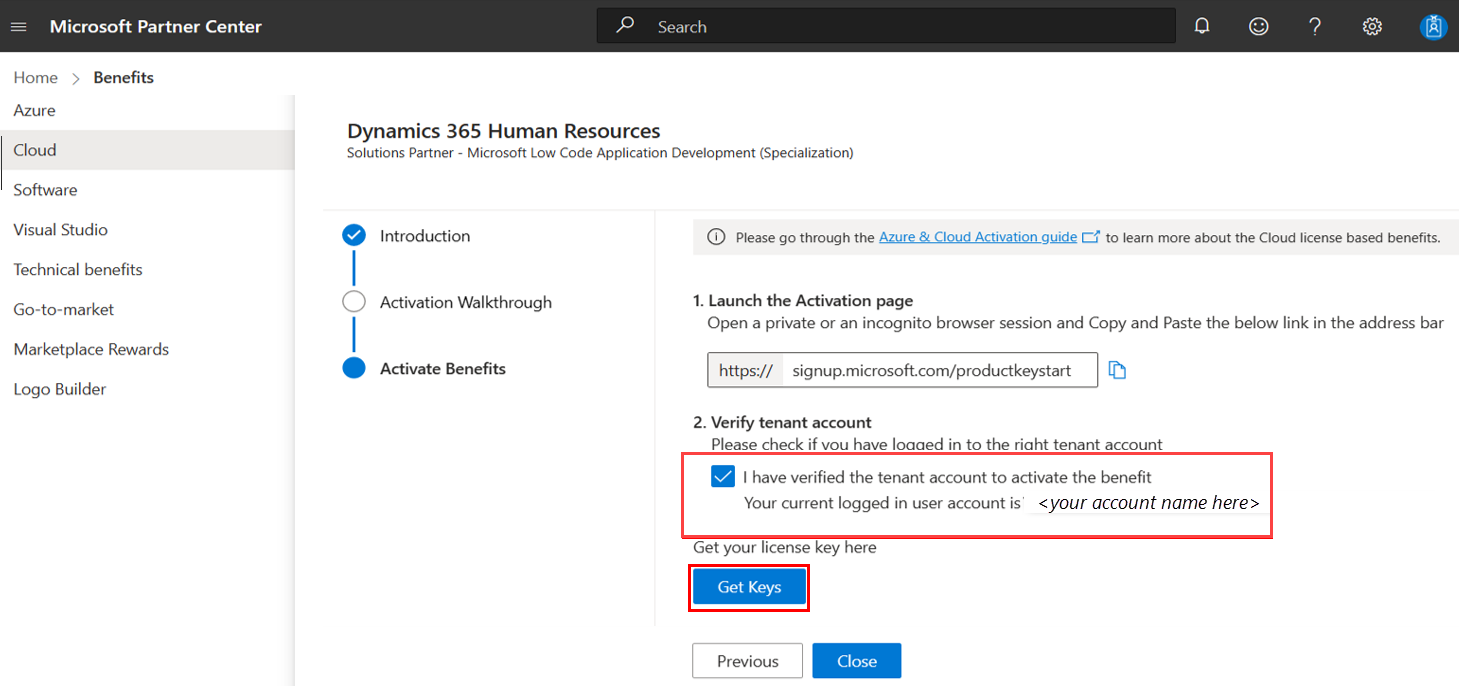
In the wizard, use Activate Benefits to learn how to redeem the keys.

Select Get Keys to retrieve the cloud license key.
Open a private or incognito browser window, and copy and paste this link. Follow the instructions to activate a new subscription or reactivate a disabled or expired subscription:
https://signup.microsoft.com/productkeystart.Paste the cloud license key in the sign-up portal, and follow the steps to redeem the cloud benefit.

Note
Office 365 E3, Office 365 E5, Enterprise Mobility + Security, Microsoft Intune, and Windows 10 Enterprise benefits are no longer a part of competency benefit packages. You can activate Microsoft 365 E3 or Microsoft 365 E5 benefits that act as replacements to the standalone benefit packages that are no longer supported.
After you redeem a key, that key can't be redeemed a second time. Also note the following important points:
- Confirm whether you need to add more licenses, how many, and whether to extend the end date. If you choose to add more licenses and you don't extend the end date, the system provides you with less than 12 months of active subscription.
- Confirm that you're signed in with the correct credentials and that you're activating the keys on the correct Microsoft Entra tenant. Always sign in with a private or incognito browser window to ensure that you're activating keys on the correct tenant.
- Note the benefit expiration date shown in Partner Center. It indicates the last date to exercise usage rights on that benefit. This date might differ from the subscription end date listed in the Microsoft 365 admin center portal. Factors such as the benefit activation date, the number of licenses associated with the key, and the licenses added or extended on the admin portal might cause the difference.
Extend the end date of an existing subscription
To extend the end date of an existing subscription, follow these steps:
- Copy and paste the following link into a private or incognito browser window, replacing
{prepaidKey}with your actual token:https://admin.microsoft.com/Adminportal/Home?flightupdatemode=add&flight=EnablePBPrepaid&paymenttype=1&open_token=true&pk={prepaidKey}&client-request-id=00000000-0000-0000-0000-000000000000&ru=signup#/purchase/prepaid-checkout. - When you sign in to your Microsoft 365 admin center portal, make sure to use the correct Microsoft Entra tenant.
- Select the cloud subscription from the list.
- Select Extend end date to renew the existing subscription. When you extend the end date, the duration of the subscription increases, and the number of licenses stays the same.
Important
If your subscription is disabled or expired, you might not find the option to extend the end date. Open a private or an incognito browser, copy and paste the following link, and follow the instructions to proceed with activation: https://signup.microsoft.com/productkeystart.
Add more licenses to an existing subscription
To add more licenses to an existing subscription, follow these steps:
Select Add licenses. If you also want to renew the existing subscription, don't select Add licenses. Selecting Add licenses reduces the subscription duration and increases the number of licenses in the subscription.

On the side pane, select Redeem product key.
Enter the product key and then select Validate to verify the key details.
Select Redeem to finish the process.
Note
Each product key provides users with 12 months of service from the date when you redeem the product key. If your existing users have an early renewal date, two dates are averaged out to make it easier to manage your subscriptions based on a single end date for all your users. No time is added or lost during the calculation. The calculation that averages out two dates is [A (initial users) x B (time remaining on subscription) + C (new users) x (12 months)] ÷ total number of users = new time remaining.
Activate a subscription for the first time
If you're activating a subscription for the first time or if your subscription is in a disabled or expired state, follow these steps:
Copy and paste the following link into a private or incognito browser window:
https://signup.microsoft.com/productkeystart.Make sure that you sign in to the correct Microsoft Entra tenant account. After you sign in, verify the tenant details.

Enter the 25-digit key that you get from Partner Center, and then select Next.
Verify the product details that appear, the number of licenses, and the subscription duration. Select Redeem to activate the subscription.
The newly activated subscription is available in the Microsoft 365 admin center from the Your products tab.
Activate Office 365 E3 benefit, activate cloud benefits, or renew Office 365 E3
First, check to see your current product status.
When your product subscription status is Active

If you have a new 25-character product key (example: AAAA1-BBBB2-CCCC3-DDDD4-EEEE5), which you're ready to redeem, you can redeem the key in any of the following three ways:
Renew the existing subscription for one more year.
If you want to renew the subscription for one more year, wait for the existing subscription to expire. To check the subscription expiry date, see Microsoft 365 admin center: Your products.
After the existing subscription expires, follow the steps to renew your subscription.
Add licenses to the existing subscription and extend the end date.
Adding a license increases the number of licenses in your subscription and extends the end date by a few months for all licenses.
Extend the end date of the existing subscription by a few months.
When you extend the end date, the subscription end date is extended by only a few months for all licenses. Extending the end date doesn't increase the license count of the subscription.
In a browser, open a new InPrivate or Incognito window.
Paste the following activation link and sign in by using the correct tenant: https://admin.microsoft.com/AdminPortal/Home#/subscription.
Select the product for which you want to add more licenses or extend the end date.

Select Add Licenses to add more licenses to the existing subscription. Select Extend end date.


When your product subscription status is No Active Subscription or Expired
On the Benefit Details pane, review your subscription status.

Get your product activation keys by selecting Get Keys.
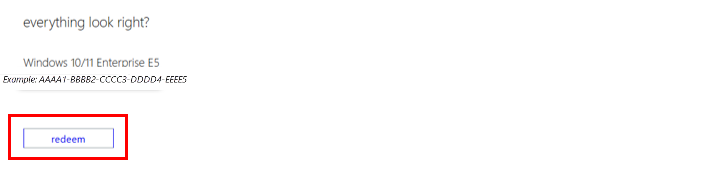
In a browser, open a new InPrivate or Incognito window. In that window, paste the following activation link: https://signup.microsoft.com/productkeystart.
In the Product Key box, enter the 25-character product key that you got from step 1.

Verify that the product name, license count, and duration are correct. Select Redeem to activate this subscription for the logged-in tenant account. After the activation, you can enjoy the subscription.
After you successfully redeem the key, the product is added to your Microsoft 365 admin center portal. You can add users to these products who can then use them. To learn more, see Assign Microsoft 365 licenses to users or Microsoft Admin Center help.

Select Redeem product key.
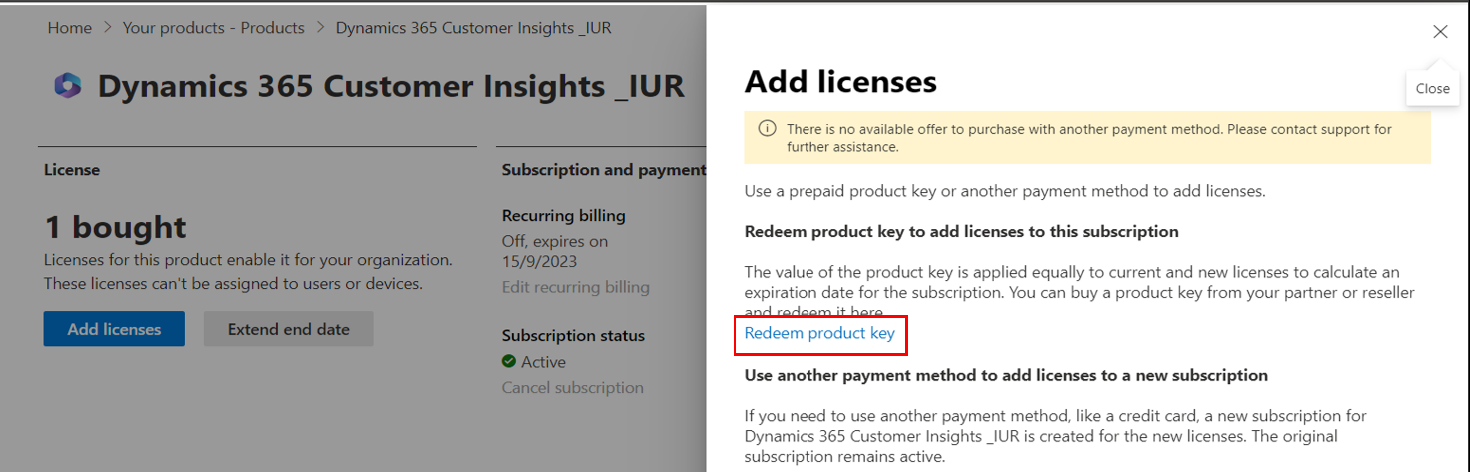
Enter the 25-character product key, and then select Validate.

After the key is validated, verify the new Total licenses and End date values. If you accept the new end date and license count data, select Redeem to add new licenses or extend the end date of the subscription.


Activate Copilot benefits
To redeem any of the following Copilot benefits, you must first activate the license keys of the Microsoft 365 E5 or Microsoft 365 E3 benefit and the Copilot for Microsoft 365 benefit. You can find these benefits under cloud services in the Benefits workspace:
- Copilot for Finance
- Copilot for Sales
- Copilot for Services
To redeem the Copilot for Microsoft 365 benefit, you must first activate the license keys of the Microsoft 365 E5 or Microsoft 365 E3 benefit. You can find these benefits under cloud services in the Benefits workspace.
Make sure that you activate all the benefit licenses on the same tenant. For more information, see View and use your cloud services benefits.
How do I set up users in Microsoft Copilot Studio after redeeming the Copilot Studio benefit?
After you redeem the Microsoft Copilot Studio benefit (Copilot Credit capacity pack) in the admin portal, you need to assign the correct security roles in Microsoft Copilot Studio so users can build, test, or manage agents. This is separate from assigning Copilot for Microsoft 365 licenses — Copilot Studio has its own role-based access managed through the Power Platform Admin Center.
You can assign roles through Microsoft Entra ID groups (recommended) or directly to individual users.
Using Microsoft Entra ID Groups (Recommended)
Open Power Platform Admin Center — Sign in at Power Platform Admin Center. Go to Manage > Environments and select the environment where Microsoft Copilot Studio is installed.
Create a Team linked to Entra ID Group — Select See all under Access > Teams. Select + Create team. Set properties and choose Team type as Microsoft Entra ID Security Group or Office Group. Search and select the desired group, then set the membership type.
Assign Security Role — In the Manage security roles step, select a role such as: Power CAT Copilot Studio Kit Administrator (full permissions), Configurator (configure agents), or Tester (create/run tests). Select Save.
Assigning Roles to Individual Users
Access User Management — In the same environment, go to Settings > Users + permissions > Users. If the user is not listed, add them first.
Assign Role — Select the user, then select Manage security roles. Choose the appropriate Copilot Studio role. Select Save.
Optional: Restrict Environment Access
You can link a Microsoft Entra ID security group to the environment to limit access:
- From the environment overview, select Edit in Details.
- Select a security group, then select Save.
Tip
After setup, have the user sign in to Microsoft Copilot Studio and confirm they can access features according to their assigned role. Use group-based role assignments for easier management and scalability.
Licensing scenarios
This section describes a few sample licensing scenarios for subscriptions associated with Azure and cloud products. In these scenarios, you learn how subscription end dates are calculated.
Scenario 1
If you have 100 licenses active on a subscription and you're trying to extend the end date by using a key with 25 licenses, the end date extends by three months for the subscription with 100 licenses.
Scenario 2
If you have 100 licenses active on a subscription and you're trying to extend the end date by using a key with 100 licenses, the end date extends by 12 months.
Scenario 3
If you have five licenses active on a subscription and you're trying to extend the end date by using a key with 10 licenses, the end date extends by 24 months for the subscription with five licenses.
Scenario 4
If you're trying to extend the end date by using a key with more than three times the active licenses, you get the following error message:

This message is by design because you can extend the subscription end date by a maximum of only three years.