Note
Access to this page requires authorization. You can try signing in or changing directories.
Access to this page requires authorization. You can try changing directories.
Azure DevOps Services | Azure DevOps Server | Azure DevOps Server 2022
If users no longer require access to a team, project, or organization, you can remove their access. Removing access ensures that only authorized users can view and interact with your organization's data and resources. This article provides step-by-step instructions on how to remove user access from a team, project, or organization in Azure DevOps. By following these guidelines, you can ensure that your organization's security and resource management practices remain robust and up-to-date.
Important
- Removing a user from a team or project doesn’t remove them from the organization.
- Work items assigned to the user aren't affected by removing their access.
- For Microsoft Entra ID-backed organizations:
- Removing a user from Microsoft Entra ID prevents assigning new artifacts (for example, work items or pull requests) to that user. However, the history of already assigned artifacts is preserved.
- Removing a user from the organization doesn't remove their memberships in any Microsoft Entra groups. If the user is a member of an access-granting Microsoft Entra group, they still have access to Azure DevOps. To completely remove the user, ensure they aren't in any access-granting Microsoft Entra groups. For more information, see Manage access with Microsoft Entra groups.
- For Managed Service Account (MSA)-backed organizations: Removing a user from your MSA-backed organization doesn't remove them from the tenant, and they can be re-added at any time.
Tip
You can use AI to help with this task later in this article, or see Enable AI assistance with Azure DevOps MCP Server to get started.
Prerequisites
| Category | Requirements |
|---|---|
| Permissions | Member of the Project Collection Administrators group. Organization owners are automatically members of this group. |
Remove users from your organization
Note
The images you see from your web portal may differ from the images you see in this article. These differences result from updates made to Azure DevOps. However, the basic functionality available to you remains the same unless explicitly mentioned.
Sign in to your organization:
https://dev.azure.com/{yourorganization}.Select
 Organization settings.
Select Users.
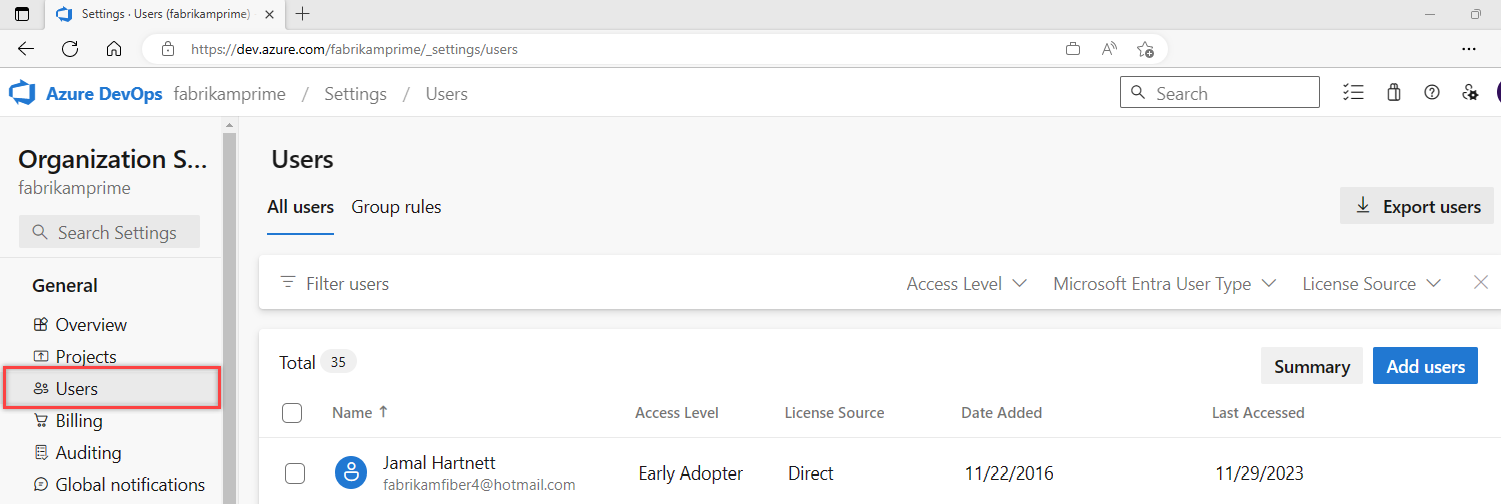
Select ... next to the user you want to remove. Then, choose Remove from organization. If this option isn't available, see the prerequisites.

Select Remove in the confirmation dialog.
If you deleted paid users with Basic or higher features, reduce the users in Organization settings to avoid charges in your next Azure billing cycle.
To reduce or cancel users for the next month, make updates before the last day of the current month. Your bill reflects these changes in the following month, as paid users get billed monthly.
Remove users from a team or project
To remove users from a project, remove them from the Teams groups they belong to or the Contributors group for the project. For more information, see Add users to a project or specific team. You can remove a user from the Members page of a team group or security group.

Use AI to manage user access
If you have the Azure DevOps MCP Server configured, you can use AI assistants to review and manage user access in your organization using natural language prompts. The MCP Server provides your AI assistant with secure access to your Azure DevOps data, allowing you to list users, check access levels, and review team memberships without navigating through the web interface.
Example prompts for user management
| Task | Example prompt |
|---|---|
| Offboard a team member | Remove <user-email> from all teams and projects in <organization-name> and show me what work items were assigned to them |
| Find orphaned assignments | List all active work items, pull requests, and pending approvals assigned to <user-email> in <organization-name> before I remove them |
| Bulk clean up inactive users | Show me all users in <organization-name> who haven't signed in for over 180 days and their current access levels |
| Pre-removal impact check | Before removing <user-email> from <organization-name>, show their team memberships, owned pipelines, and any service connections they created |
| Reassign and remove | Transfer all work items currently assigned to <user-email> in <project-name> to <new-user-email>, then remove them from the project |
| Audit removal history | Show me the audit log of users removed from <organization-name> in the last 30 days |
Tip
If you're using Visual Studio Code, agent mode is especially helpful for auditing user access and reviewing team memberships across projects.
- To avoid using stale or cached data from previous queries, add to your prompt,
Do not use previously fetched data.