Note
Access to this page requires authorization. You can try signing in or changing directories.
Access to this page requires authorization. You can try changing directories.
Azure DevOps Services
To control access to your team's critical resources and key business assets in Azure DevOps Services, use Microsoft services like Microsoft 365 or Microsoft Entra ID. Microsoft Entra ID works with your organization to control access and authenticate users.
Organize your directory members with Microsoft Entra groups and manage permissions in bulk for your organization. Add these groups to built-in groups like Project Collection Administrators or Contributors, or to custom groups like your project management team. Microsoft Entra group members inherit permissions from the Azure DevOps group, so you don't have to manage group members individually.
For more information on Microsoft Entra ID benefits and how to control organization access with Microsoft accounts or Microsoft Entra ID, see the provided links.
Note
Due to a functional limitation on Microsoft Graph, service principals don't appear in any list of Microsoft Entra group members on Azure DevOps. Permissions set on any Microsoft Entra groups still apply to any service principals in the group that were added to the organizations, even if they aren't displaying on the web UI.
Tip
You can use AI to help with this task later in this article, or see Enable AI assistance with Azure DevOps MCP Server to get started.
Prerequisites
| Category | Requirements |
|---|---|
| Permissions | - Member of the Project Collection Administrators group. Organization owners are automatically members of this group. - Microsoft Entra Administrator in the Azure portal. |
| Access levels | At least Basic access. |
Add a Microsoft Entra group to an Azure DevOps group
Note
To enable the preview feature, Organization Permissions Settings Page v2, see Enable preview features.
Sign in to your organization (
https://dev.azure.com/{yourorganization}).Why am I asked to choose between my work or school account and my personal account?
Go to Organization settings.

Choose Permissions, and then select the group you want to add a member to.

Select Members, and then select Add.
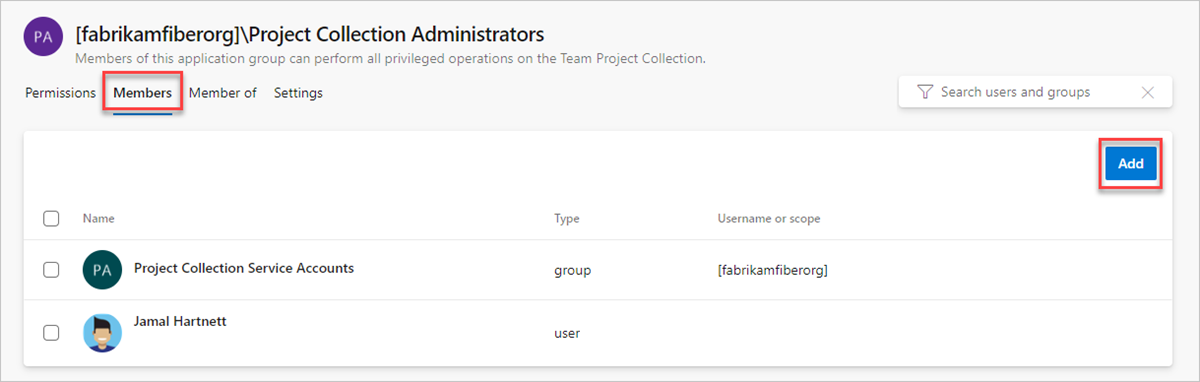
You invite guests into Microsoft Entra ID and into your Microsoft Entra ID-backed organizations, without waiting for them to accept. This invitation allows you to add those guests to your organization, grant access to projects, assign extensions, and more.
Add users or groups, and then Save your changes.


Microsoft Entra ID changes might take up to 1 hour to be visible in Azure DevOps, but you can immediately reevaluate your permissions.
Configure just-in-time-access for admin groups
If you have Project Collection Administrator and Project Administrator access, you can modify the configuration of your organization or project. To enhance security for these built-in administrator groups, consider implementing just-in-time access using a Microsoft Entra Privileged Identity Management (PIM) group. This approach allows you to grant elevated permissions only when needed, reducing the risk associated with permanent access.
Configure access
- Create a role-assignable group in Microsoft Entra ID.
- Add your Microsoft Entra group to the Azure DevOps group.
Note
When you configure just-in-time access using a Microsoft Entra Privileged Identity Management (PIM) group, ensure that any user with elevated access also retains standard access to the organization. This way, they can view the necessary pages and refresh their permissions as needed.
Use access
- Activate your access.
- Refresh your permissions in Azure DevOps.
- Take the action requiring administrator access.
Note
Users have elevated access in Azure DevOps for up to 1 hour after their PIM group access gets deactivated.
Use AI to manage Microsoft Entra group access
If you have the Azure DevOps MCP Server configured, you can use AI assistants to manage Microsoft Entra group access in Azure DevOps using natural language prompts. The MCP Server provides your AI assistant with secure access to your Azure DevOps data, allowing you to query group membership, check permissions, and manage group assignments without navigating through the web interface.
Example prompts for managing Microsoft Entra groups
| Task | Example prompt |
|---|---|
| Map Entra groups to project roles | Add the <entra-group-name> Microsoft Entra group to the Contributors group in the <project-name> project in <organization-name> |
| Audit nested group permissions | Show the effective permissions for the <entra-group-name> group in <project-name>, including any inherited from parent groups |
| Find groups with excessive access | List all Microsoft Entra groups in <organization-name> that have Project Collection Administrator or Project Administrator permissions |
| Compare group access across projects | Show me which projects the <entra-group-name> group has access to in <organization-name> and at what permission level |
| Clean up stale group assignments | Find Microsoft Entra groups in <organization-name> that have no active members or whose members haven't signed in for 90 days |
| Set up cross-project team access | Add the <entra-group-name> group to the Contributors role in projects <project-1>, <project-2>, and <project-3> in <organization-name> |
Tip
If you're using Visual Studio Code, agent mode is especially helpful for auditing group membership and permissions across multiple projects.
- To avoid using stale or cached data from previous queries, add to your prompt,
Do not use previously fetched data.