Note
Access to this page requires authorization. You can try signing in or changing directories.
Access to this page requires authorization. You can try changing directories.
Microsoft Entra authentication with Azure Container Registry (ACR) follows a two-hop process. First, users authenticate with Microsoft Entra ID to get an authentication token with a specific authentication audience scope (for example, az login). Next, users authenticate with the registry by using that Microsoft Entra authentication token (for example, az acr login). By default, in the second step during registry authentication, registries accept both ARM-scoped Microsoft Entra authentication (broad Azure Resource Manager access) and ACR-scoped Microsoft Entra authentication (narrow registry-specific access). For enhanced security, you can configure your registry to accept only ACR-scoped Microsoft Entra authentication.
Note
Some Azure services and integrations might not work when your registry is configured to accept only ACR-scoped Microsoft Entra authentication. Test compatibility in nonproduction environments before enforcing this configuration in production.
This article shows you how to configure a container registry for ACR-scoped Microsoft Entra authentication by using the Azure CLI or the Azure portal.
Prerequisites
- Install or upgrade Azure CLI version 2.40.0 or later. To find the version, run
az --version. - Sign in to the Azure portal.
Understanding Microsoft Entra authentication scopes for ACR
This section explains the two-hop authentication flow, the difference between authentication scopes, and how registry configuration controls access.
Two-hop authentication flow
Authentication with ACR involves two distinct steps that apply to Azure CLI users, Azure services, and programmatic code using Software Development Kits (SDKs):
First hop - Authenticate with Microsoft Entra ID: Run
az loginto authenticate with Microsoft Entra ID and get a Microsoft Entra authentication token. This token contains an audience scope that determines what Azure resources it can access:- By default,
az logingets an ARM-scoped Microsoft Entra authentication token (broad Azure Resource Manager access). - By using
az login --scope https://containerregistry.azure.net/.default, you get an ACR-scoped Microsoft Entra authentication token (narrow registry-specific access).
- By default,
Second hop - Authenticate with the ACR service: Run
az acr loginto authenticate with the ACR service by using the Microsoft Entra authentication token from the first hop. At this point, the registry's configuration determines whether to accept or reject your registry authentication attempt based on the scope of your Microsoft Entra authentication token.
Microsoft Entra authentication scope types
ARM-scoped Microsoft Entra authentication
- Provides broad access to the Azure Resource Manager (ARM), the control plane for managing all Azure resources.
- This scope type is the default when you run
az loginwith no other parameters. - ARM-scoped Microsoft Entra authentication tokens are overly permissive for container registry operations as they grant access beyond what you need for registry authentication.
ACR-scoped Microsoft Entra authentication
- Provides narrow, registry-specific access limited to ACR operations only.
- Requires explicitly specifying
--scope https://containerregistry.azure.net/.defaultduringaz login. - Follows the principle of least privilege by granting only the permissions necessary for container registry operations.
Registry configuration options
Your registry configuration, controlled by the azureADAuthenticationAsArmPolicy property, determines what happens during the second authentication hop (az acr login):
- When enabled (default): The registry accepts both ARM-scoped and ACR-scoped Microsoft Entra authentication.
- When disabled (recommended): The registry accepts only ACR-scoped Microsoft Entra authentication and rejects ARM-scoped authentication.
Why ACR recommends ACR-scoped authentication only
Configuring your registry to accept only ACR-scoped Microsoft Entra authentication provides several benefits:
- Enhanced security: Limits authentication to narrowly scoped Microsoft Entra authentication tokens, reducing the attack surface.
- Least privilege access: Ensures Microsoft Entra authentication tokens used for registry authentication have only the permissions necessary for container registry operations.
- Compliance alignment: Helps meet security and compliance requirements that mandate minimal privilege access patterns.
- Best practice: Aligns with Azure security best practices for identity and access management.
Configure registry for ACR-scoped Microsoft Entra authentication - Azure CLI
You can configure your registry to control which Microsoft Entra authentication scopes are accepted during the second authentication hop. The azureADAuthenticationAsArmPolicy property controls this configuration.
Requires Azure CLI version 2.40.0 or later. To find your version, run az --version.
Check current registry configuration
Run the following command to view your registry's current configuration:
az acr config authentication-as-arm show -r <registry>
The status value shows the current configuration:
- enabled (default): Registry accepts both ARM-scoped and ACR-scoped Microsoft Entra authentication.
- disabled (recommended): Registry accepts only ACR-scoped Microsoft Entra authentication.
Update registry configuration
To configure your registry to accept only ACR-scoped Microsoft Entra authentication, set the status to disabled:
az acr config authentication-as-arm update -r <registry> --status disabled
To revert to the default configuration that accepts both ARM-scoped and ACR-scoped Microsoft Entra authentication:
az acr config authentication-as-arm update -r <registry> --status enabled
Authenticate using ACR-scoped Microsoft Entra authentication
This section shows how to perform the two-hop authentication flow by using ACR-scoped Microsoft Entra authentication. This authentication method works with both registry configurations, but is required when your registry is configured to accept only ACR-scoped Microsoft Entra authentication.
First hop: Get ACR-scoped Microsoft Entra authentication token
To get an ACR-scoped Microsoft Entra authentication token, specify the --scope parameter when running az login:
az login --scope https://containerregistry.azure.net/.default
This command authenticates you by using Microsoft Entra ID and gets a Microsoft Entra authentication token with ACR-specific scope. The authentication token is stored in your local cache.
Note
To get a Microsoft Entra authentication token scoped for the ACR service, you must specify https://containerregistry.azure.net/.default.
You can't specify https://registryname.azurecr.io/ as the scope, as Microsoft Entra ID and ACR don't support registry-specific Microsoft Entra authentication audiences.
Second hop: Authenticate with the registry
After getting the ACR-scoped Microsoft Entra authentication token in the first hop, authenticate with your registry:
az acr login -n <registry>
During this second hop, the registry validates your Microsoft Entra authentication token. If you configure your registry to accept only ACR-scoped authentication, it rejects ARM-scoped tokens and only accepts the ACR-scoped Microsoft Entra authentication token you got in the first hop.
You can use the ACR-scoped Microsoft Entra authentication token to authenticate with all ACR registries that you have permissions to access.
Configure registry for ACR-scoped Microsoft Entra authentication - Azure portal
You can use Azure Policy to configure your registries to accept only ACR-scoped Microsoft Entra authentication. Assigning a built-in policy automatically configures the registry property for current and future registries within the policy scope. You can apply the policy at either the resource group level or the subscription level.
Azure Container Registry provides two built-in policy definitions for configuring ACR-scoped Microsoft Entra authentication:
Container registries should have ARM audience token authentication disabled.- This policy reports and blocks noncompliant resources, and can automatically update noncompliant registries to the recommended configuration.Configure container registries to disable ARM audience token authentication.- This policy offers remediation capabilities and updates noncompliant registries to accept only ACR-scoped authentication.
For more policy definitions, see Azure Container Registry built-in policy definitions.
Assign a built-in policy definition
To configure your registries to accept only ACR-scoped Microsoft Entra authentication by using Azure Policy:
Sign in to the Azure portal.
Go to the resource group that contains your Azure Container Registry.
In the service menu, under Settings, select Policies.
On the Policy page, under Authoring, select Assignments and select Assign policy.
On the Assign policy tab, use filters to search and find the Scope, Policy definition, and Assignment name.
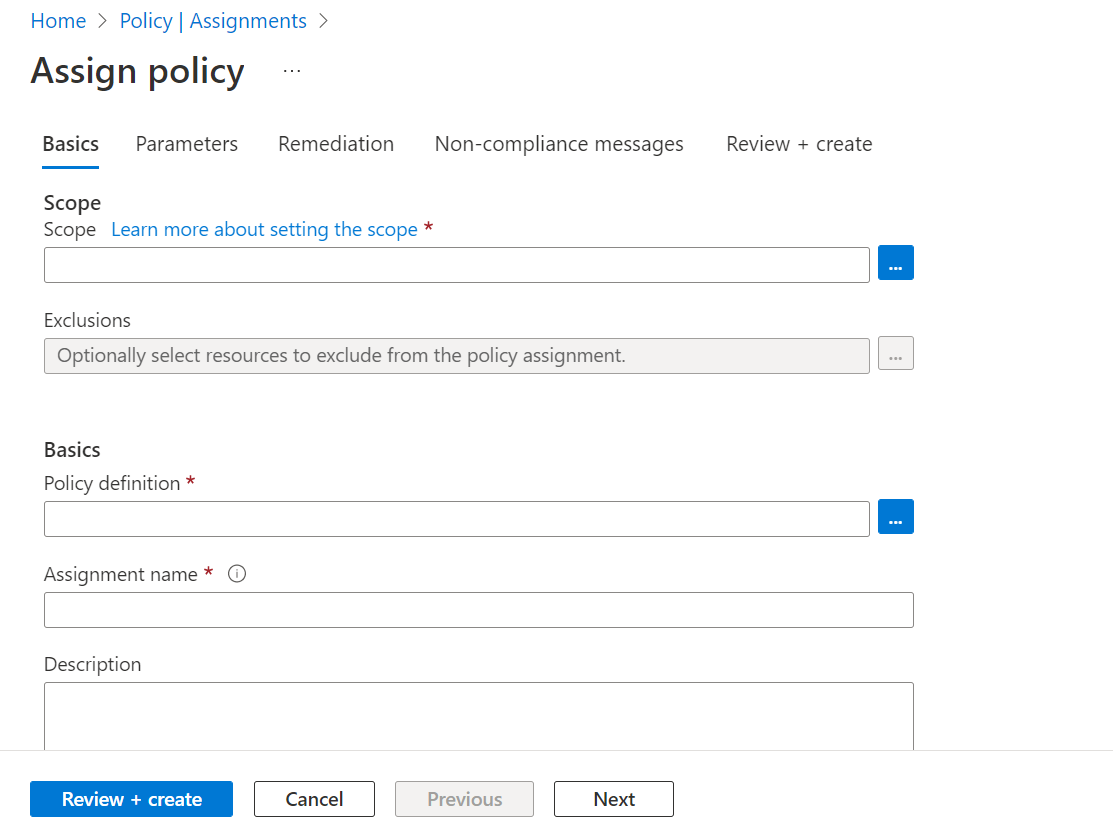
Select Scope to filter and search for the Subscription and Resource Group and choose Select.
Select Policy definition to filter and search for the built-in policy definitions that configure ACR-scoped authentication.
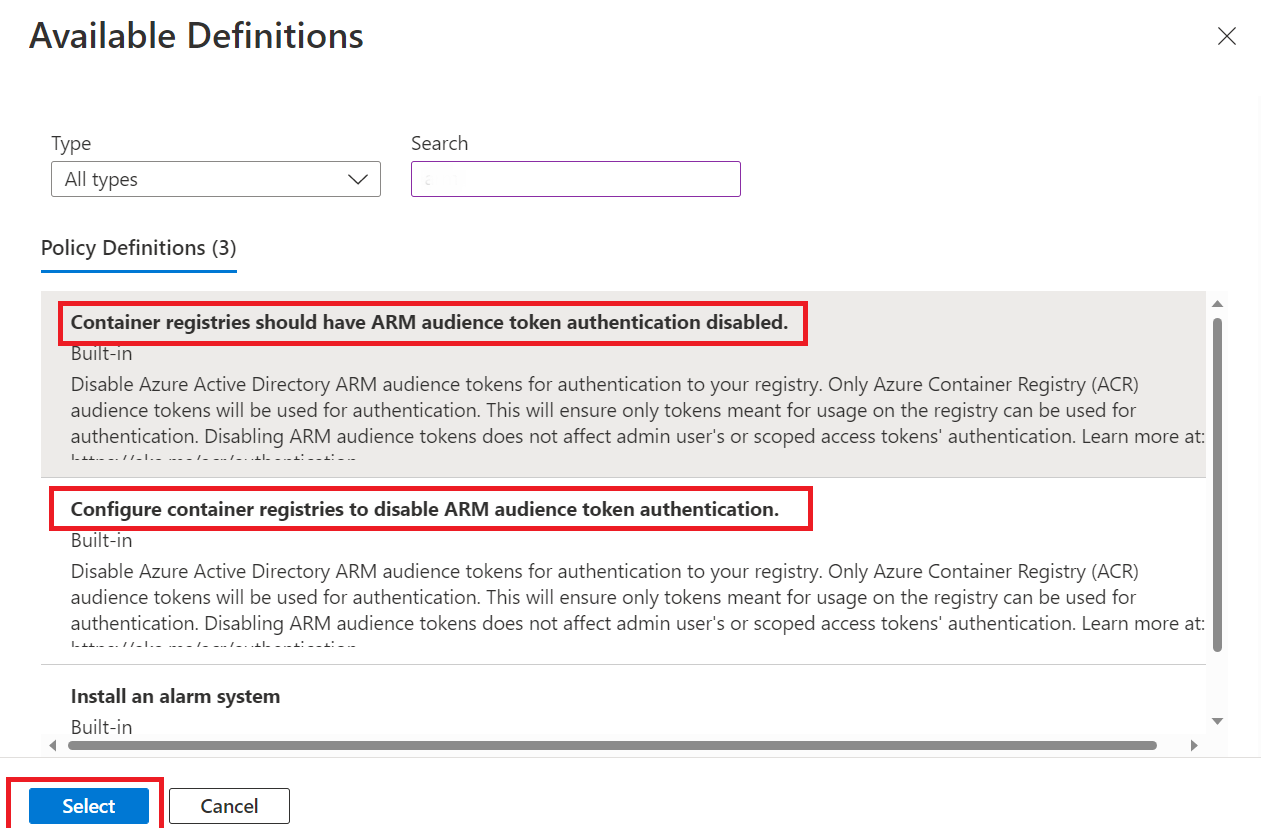
Use filters to select and confirm Scope, Policy definition, and Assignment name.
Use the filters to limit compliance states or to search for policies.
Confirm your settings and set policy enforcement as enabled. This setting ensures the policy configures registries within the scope to accept only ACR-scoped Microsoft Entra authentication.
Select Review+Create.