Note
Access to this page requires authorization. You can try signing in or changing directories.
Access to this page requires authorization. You can try changing directories.
Azure Container Registry (ACR) gives you the option to create and configure Microsoft Entra Conditional Access policies to enforce strong authentication and access controls.
The Conditional Access policy is designed to enforce strong authentication. The policy helps your organization meet compliance requirements and keeps data and user accounts safe.
Conditional access policies apply after a user authenticates to the Azure Container Registry. You can configure options to block or grant access based on your policy decisions.
Azure Container Registry supports Conditional Access policy for Microsoft Entra user accounts only. Conditional Access policy for service principal accounts isn't currently supported.
Important
To configure Conditional Access policy for the registry, first configure all registries in your tenant to accept only ACR-scoped Microsoft Entra authentication for all the registries within the desired tenant.
This article shows you how to create and configure a Conditional Access policy for Azure Container Registry, and how to troubleshoot common issues.
Prerequisites
- An Azure account with the Conditional Access Administrator role.
- An Azure Container Registry. If you don't have a registry, create one by following the Quickstart: Create a container registry using the Azure portal tutorial.
Create and configure a Conditional Access policy
Create a Conditional Access policy and assign your test group of users as follows:
Sign in to the Azure portal with an account that has the Conditional Access Administrator role.
Search for and select Microsoft Entra ID.
In the service menu, under Manage, select Security.
Select Conditional Access, select + New policy, and then select Create new policy.
Enter a name for the policy, such as demo.
Under What does this policy apply to?, select Users and groups.
Under Include, choose Select users and groups, and then select All users.
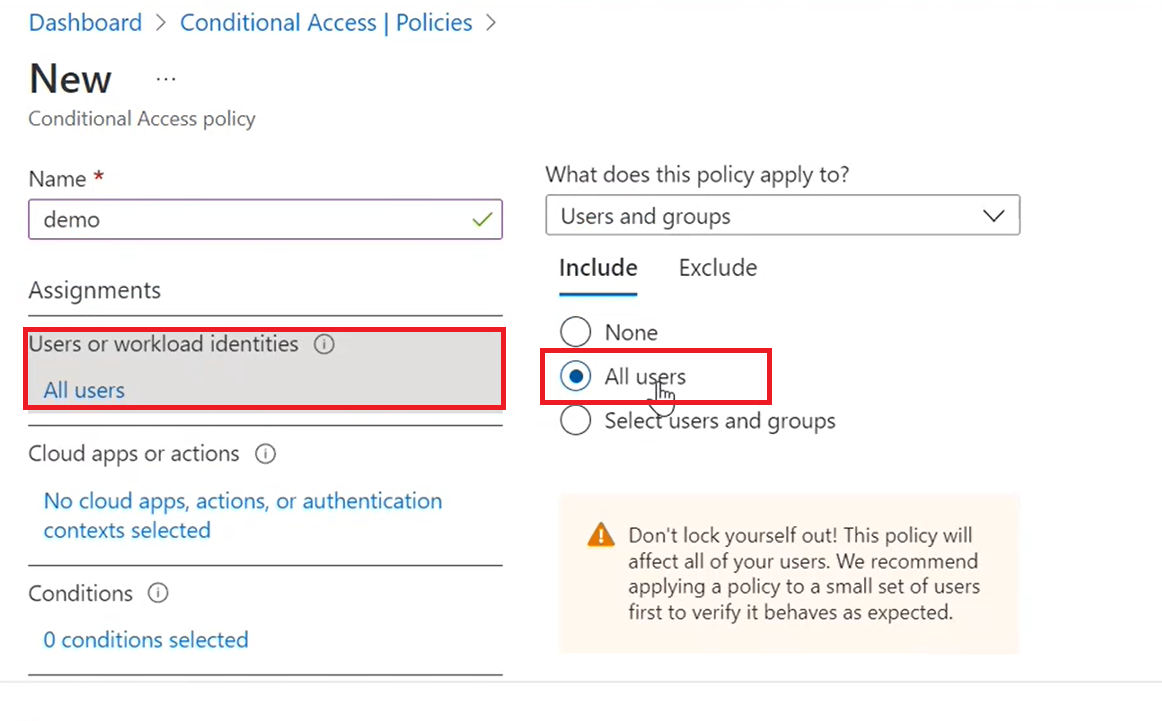
Under Exclude, choose Select users and groups, then make any selections for users or groups to exclude from the policy.
Under Cloud apps or actions, choose Cloud apps.
Under Include, choose Select apps.
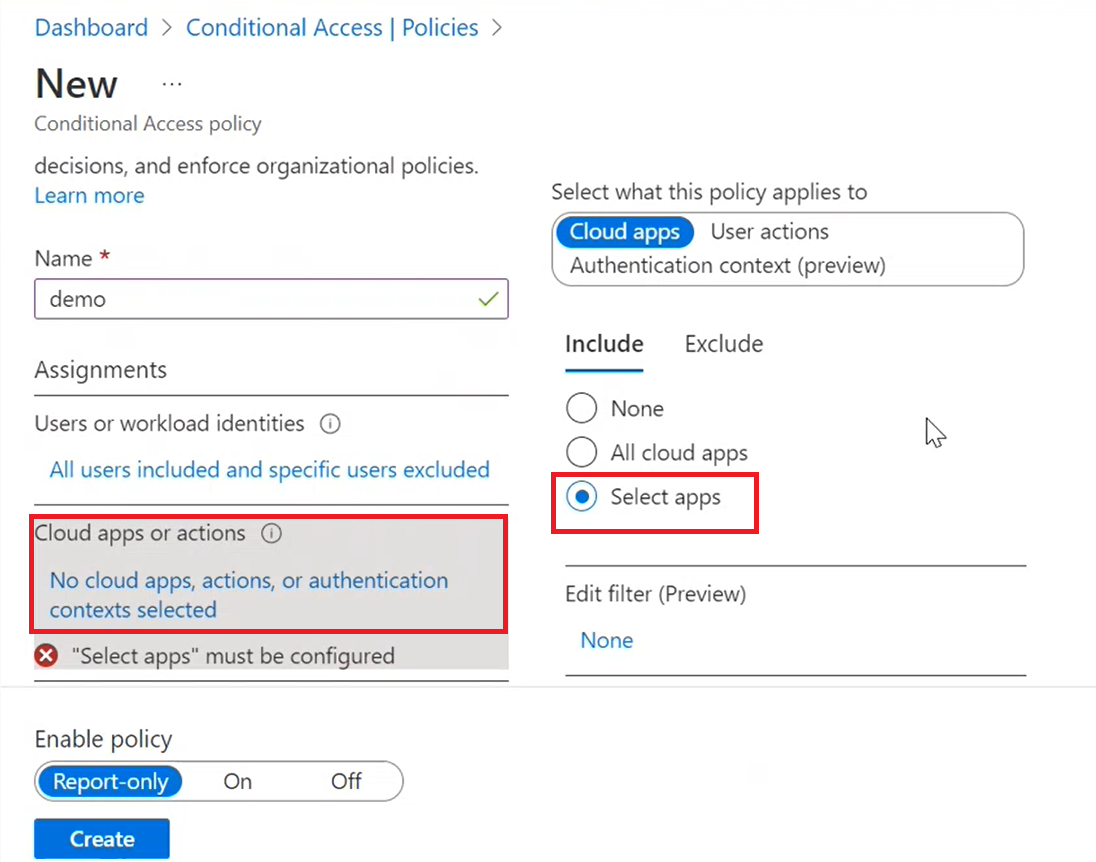
Select Azure Container Registry, then choose Select.
Under Conditions, set the conditions that you want to apply.
Under Access controls, select Grant. Select Grant access with Require multifactor authentication, then choose Select.
Tip
For details about how to configure and grant multifactor authentication, see Configure the conditions for multifactor authentication.
Under Session, optionally choose options to enable any control on session level experience of the cloud apps.
Set Enable policy to On, then select Create
You have now created a Conditional Access policy for your Azure Container Registry.
Troubleshoot Conditional Access policy problems
For problems with Conditional Access sign-in, see Troubleshoot Conditional Access sign-in.
For problems with Conditional Access policy, see Troubleshoot Conditional Access policy.
Next steps
- Learn more about Azure Policy definitions and effects.
- Review the > Conditional Access policy components.
- Learn about common access concerns that Conditional Access policies can help with.