Bemærk
Adgang til denne side kræver godkendelse. Du kan prøve at logge på eller ændre mapper.
Adgang til denne side kræver godkendelse. Du kan prøve at ændre mapper.
Azure Databricks has many administrator roles. From a Unity Catalog permissions perspective, the three most important are account admins, workspace admins, and metastore admins. Account admins and workspace admins are required for all deployments, and the metastore admin role is optional. Understanding each role's responsibilities helps you assign admins with the right scope.
- Account admins operate at the Azure Databricks account level. They create and link metastores and workspaces, and can assign admin roles.
- Workspace admins operate within a single workspace. They manage workspace membership, jobs, and workspace objects.
- Metastore admins (optional) operate within a single Unity Catalog metastore. They govern data access, ownership, and top-level Unity Catalog securable objects.
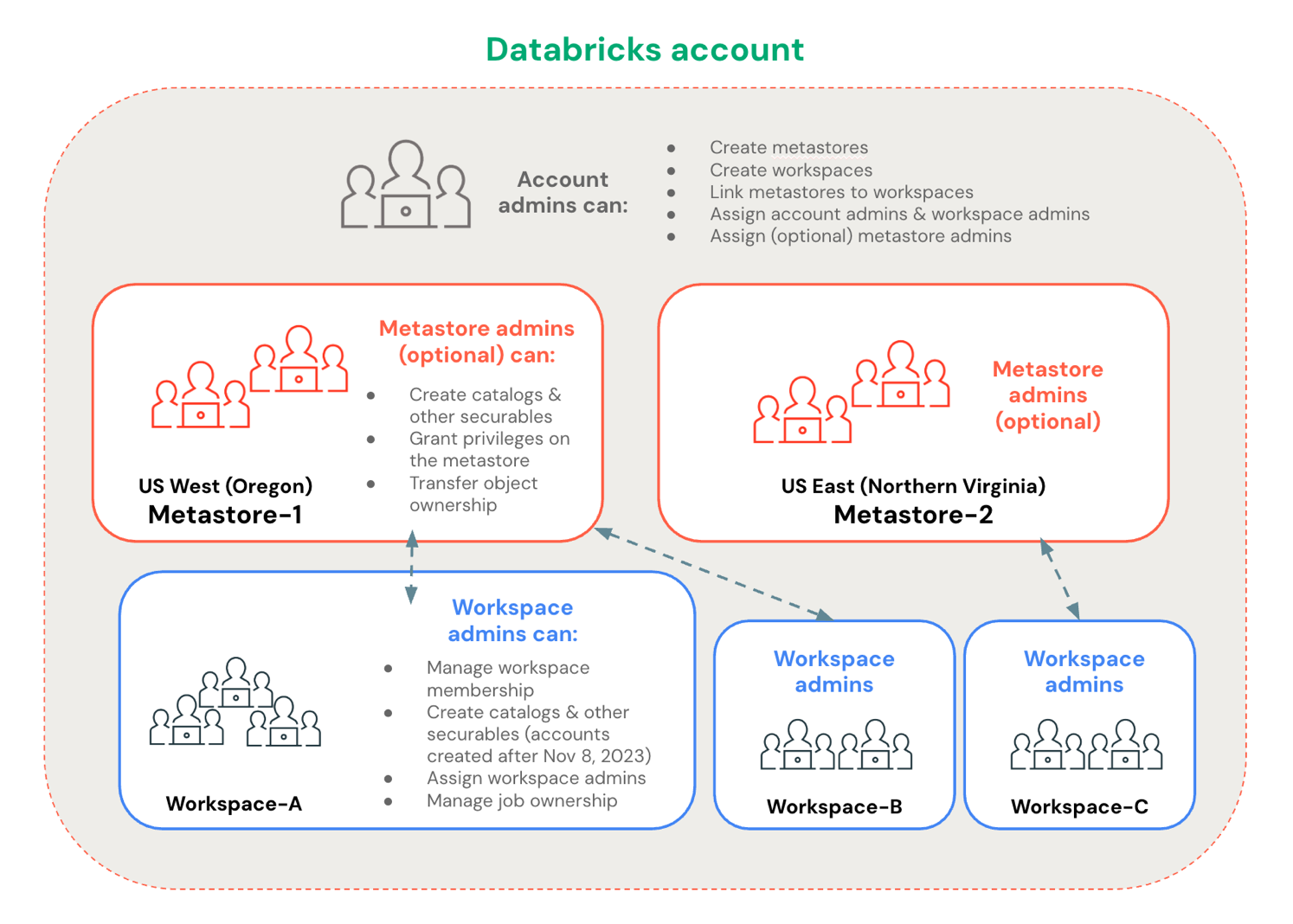
Admin roles at a glance
| Admin role | Scope | Required? | Primary purpose |
|---|---|---|---|
| Account admin | Entire Azure Databricks account | Yes | Create metastores and workspaces, link metastores to workspaces, assign admin roles |
| Workspace admin | Single workspace | Yes | Manage workspace membership, job ownership, and workspace objects; create catalogs and other top-level Unity Catalog securables |
| Metastore admin | Single Unity Catalog metastore (one per cloud region) | No (optional) | Create and govern top-level Unity Catalog securables: catalogs, connections, external locations, and other metastore objects |
Note
Account admins and metastore admins are separate roles. When an account admin creates a metastore, they become its initial metastore admin by default. They can then assign the metastore admin role to a different user, group, or service principal and relinquish it themselves.
Account admins
Account admin is a highly privileged role that you should distribute carefully. Account admins have privileges over the entire Azure Databricks account, which includes the following key capabilities:
| Capability | Description |
|---|---|
| Create metastores | Create metastores and become the initial metastore admin by default |
| Create workspaces | Create and manage workspaces in the account |
| Link metastores to workspaces | Associate metastores with specific workspaces |
| Assign the account admin role | Delegate the account admin role to any user |
| Assign the workspace admin role | Grant the workspace admin role to any user on any workspace in the account |
| Assign the (optional) metastore admin role | Assign the (optional) metastore admin role to users, service principals, or groups |
| Grant privileges on metastores | Manage permissions at the metastore level |
| Enable Delta Sharing for a metastore | Enable Delta Sharing functionality for a metastore |
| Configure storage credentials | Set up storage credentials for accessing cloud storage |
| Enable system tables | Enable system tables and control who can access them |
For more information, see What are account admins?.
To establish your first Azure Databricks account admin, see Establish your first account admin.
Workspace admins
Workspace admin is a highly privileged role that you should distribute carefully. Workspace admins have admin privileges within a single workspace, which includes the following key capabilities:
| Capability | Description |
|---|---|
| Create catalogs and other top-level Unity Catalog securables (applies to workspaces created after November 9, 2023) | Create catalogs, external locations, connections, and other metastore-level objects. See Workspace admin privileges when workspaces are enabled for Unity Catalog automatically for the full list. |
| Manage workspace membership | Add users, service principals, and groups to a workspace |
| Assign the workspace admin role | Assign the workspace admin role to users, service principals, or groups |
| Manage job ownership | Control job ownership. See Control access to a job. |
| Manage the job Run as setting | Configure job execution identity. See Configure the Run as user for job runs. |
| View and manage workspace objects | Access and control notebooks, dashboards, queries, and other workspace objects. See Access control lists. |
For more information, see What are workspace admins?.
Account admins can restrict workspace admin privileges using the RestrictWorkspaceAdmins setting. See Restrict workspace admins.
Workspace admin privileges when workspaces are enabled for Unity Catalog automatically
If your workspace was enabled for Unity Catalog automatically (applies to all workspaces created after November 9, 2023), the workspace is attached to a metastore by default. For more information see Automatic enablement of Unity Catalog. In addition, workspace admins have the following privileges on the attached metastore by default:
CREATE CATALOG
CREATE CLEAN ROOM
CREATE EXTERNAL LOCATIONCREATE SERVICE CREDENTIALCREATE STORAGE CREDENTIALCREATE CONNECTIONCREATE SHARECREATE RECIPIENTCREATE PROVIDERCREATE MATERIALIZED VIEW
Note
These privilege grants are visible in the metastore Permissions tab in the account console. Azure Databricks represents them with an auto-generated system group named _workspace_admins_databricks_<account_id>_workspace_<workspace_id>.
Workspace admins are the default owners of the workspace catalog, if a workspace catalog was provisioned for your workspace. Ownership of this catalog grants the following privileges:
Manage the privileges for or transfer ownership of any object within the workspace catalog.
This includes the ability to grant themselves read and write access to all data in the catalog (no direct access by default; granting permissions is audit-logged).
Transfer ownership of the workspace catalog itself.
All workspace users receive the USE CATALOG privilege on the workspace catalog. Workspace users also receive the USE SCHEMA, CREATE TABLE, CREATE VOLUME, CREATE MODEL, CREATE FUNCTION, and CREATE MATERIALIZED VIEW privileges on the default schema in the catalog.
Note
The default privileges granted on the attached metastore and workspace catalog are not maintained across workspaces (if, for example, the workspace catalog is also bound to another workspace).
Metastore admins
The metastore admin is an optional but highly privileged user or group in Unity Catalog. Metastore admins have privileges from two sources: default privileges granted by the role, and ownership privileges because they are the owners of the metastore.
When to assign a metastore admin
For workspaces created after November 9, 2023, the metastore admin role is optional. This is because workspace admins receive sufficient metastore-level privileges by default (see Workspace admin privileges when workspaces are enabled for Unity Catalog automatically). However, you must assign a metastore admin if you need to perform the following actions:
- Change ownership of objects or grant privileges on objects that you do not own. For example, this is required when taking over a catalog after the original owning account is removed. Workspace admins can create objects but cannot make grants on or change ownership of existing objects they do not own.
- Remove default workspace admin permissions.
- Add managed storage to the metastore, if it has none. This requires an account admin to add the storage location to the metastore definition. See Add managed storage to an existing metastore.
- Enable default access request destinations for objects that don't have destinations explicitly set. See Enable default email destinations.
Default metastore admin privileges
Metastore admins have the following privileges on the metastore by default:
| Privilege | Description |
|---|---|
CREATE CATALOG |
Create catalogs in the metastore |
CREATE CLEAN ROOM |
Create a clean room for securely collaborating on projects with other organizations without sharing underlying data |
CREATE CONNECTION |
Create a connection to an external database in a Lakehouse Federation scenario |
CREATE EXTERNAL LOCATION |
Create external locations |
CREATE SERVICE CREDENTIAL |
Create service credentials |
CREATE STORAGE CREDENTIAL |
Create storage credentials |
CREATE FOREIGN CATALOG |
Create foreign catalogs using a connection to an external database in a Lakehouse Federation scenario |
CREATE SHARE |
Create a share in Delta Sharing as a data provider |
CREATE RECIPIENT |
Create a recipient in Delta Sharing as a data provider |
CREATE PROVIDER |
Create a provider in Delta Sharing as a data recipient |
CREATE MATERIALIZED VIEW |
Create materialized views |
MANAGE ALLOWLIST |
Update allowlists that manage cluster access to init scripts and libraries |
Ownership privileges
As owners of the metastore, metastore admins have the following privileges:
| Privilege | Description |
|---|---|
| Manage privileges and transfer ownership | Manage privileges or transfer ownership of any object within the metastore, including storage credentials, external locations, connections, shares, recipients, and providers |
| Grant access to data | Grant anyone read and write access to any data in the metastore. This ability is indirect because metastore admins can transfer ownership of any object to themselves. There is no direct access by default. Permission grants are audit-logged. |
| Manage object metadata | Read and update the metadata of all objects in the metastore |
| Manage tags | Set tags on all objects in the metastore |
| Configure access request destinations | Enable default access request destinations in the metastore |
| Delete metastore | Delete the metastore |
Who has initial metastore admin privileges?
If an account admin creates the metastore manually, that account admin is the metastore's initial owner and metastore admin. All metastores created before November 9, 2023 were created manually by an account admin.
If the metastore was provisioned as part of automatic Unity Catalog enablement, the metastore was created without a metastore admin. Workspace admins in that case are automatically granted privileges that make the metastore admin optional. If needed, account admins can assign the metastore admin role to a user, service principal, or group. Groups are strongly recommended. See Automatic enablement of Unity Catalog.
Assign a metastore admin
Metastore admin is a highly privileged role that you should distribute carefully. It is optional.
Account admins can assign the metastore admin role. Databricks recommends nominating a group as the metastore admin. By doing this, any member of the group is automatically a metastore admin.
To assign the metastore admin role to a group:
- As an account admin, log in to the account console.
- Click
 Catalog.
 - Click the name of a metastore to open its properties.
- Under Metastore Admin, click Edit.
- Select a group from the drop-down. You can enter text in the field to search for options.
- Click Save.
Important
It can take up to 30 seconds for a metastore admin assignment change to be reflected in your account, and it may take longer to take effect in some workspaces than others. This delay is due to caching protocols.