Kommentar
Åtkomst till den här sidan kräver auktorisering. Du kan prova att logga in eller ändra kataloger.
Åtkomst till den här sidan kräver auktorisering. Du kan prova att ändra kataloger.
Important
Some information in this article relates to a prereleased product which may be substantially modified before it's commercially released. Microsoft makes no warranties, express or implied, with respect to the information provided here.
Security Analyst Agent in Defender helps security analysts quickly identify, assess and prioritize risks by providing:
Flexible Analysis: Perform ready-to-use or custom analyses on security data. Get actionable and prioritized insights, recommendations, and reports to uncover top vulnerabilities and risks.
Data Integration: Analyse data from Microsoft Defender XDR, Sentinel Log Analytics or Sentinel Data Lake, based on your instructions. You can also upload CSV files for custom dataset analysis (Available currently in Standalone experience, but will be shortly available in Defender)
Interactive Exploration: Visualize data to spot anomalies and risks faster.
Conversation Assistance: Chat with the agent, ask follow-up questions, and perform related analyses to deepen your understanding
Use Security Analyst Agent, if you want to perform basic analysis tasks such pattern analysis, trend analysis, time series and visualization and more complex analysis tasks such as anomaly detection, clustering, ranking, risk scoring and prioritization, forecasting and predictive modelling to uncover hidden risks. The agent generates prioritized insights with full evidence for defensibility. This is python-powered advanced analysis in a chat first experience, without need for writing any code or queries.
The agent can perform single or multi-step analysis on large volumes of data and iteratively reasons and uncovers hidden risks, prioritizes these risks with detailed evidence trail and justification.
Prerequisites and setup requirements
You must have access to Security Copilot and Defender XDR or Sentinel Log Analytics or Sentinel Data lake to use the Agent.
Access and setup requirements
- Access Requirements
You must have read access to either Microsoft Defender XDR, Microsoft Sentinel Log Analytics Workspace, or Microsoft Sentinel Data Lake, depending on the data source you chose.
- RBAC and User-specific Setup
When you configure the agent, it is tied to your identity and applies only to your user instance.
- Multi-user support
Other users in the same tenant can also configure the agent using their own identity, provided they have the required access to the selected data sources.
Data sources
The agent currently supports three data sources:
| Data source | Description |
|---|---|
| Defender XDR (default) | Microsoft Defender XDR telemetry |
| Sentinel Log Analytics | Microsoft Sentinel Log Analytics Workspace |
| Sentinel Data Lake | Microsoft Sentinel Data Lake |
There are two methods for specifying the data source:
Natural language prompts: Add the data source to your instruction. For example:
Analyze if there are privilege escalation or role elevation activities that are followed by sensitive data access in my enterprise. Please use Sentinel Log Analytics for this.
When you specify a data source in your instruction, the agent retrieves and analyzes security logs from that source. If there are multiple workspaces, the agent asks you to specify which one to use.
Once configured in a prompt, the data source setting persists for the entire session until changed. We recommend limiting data source changes in a given session to three for better performance.
Agent Settings: You can also specify the data source by editing the Agent Settings.
Important
The agent always honors your instructions. If there is a conflict between the Agent Settings and a prompt instruction, the prompt instruction takes precedence.
If no data source is specified using either method, the agent first tries to retrieve data from Defender XDR. If that fails due to data unavailability or a permission issue, the agent retries from Sentinel Log Analytics.
Configure the Security Analyst Agent
Important
Configuring the data source is optional. You can specify the data source directly in your prompt, and the agent prioritizes these prompt-based instructions when performing the analysis. If no data source is specified in the prompt, the agent uses the data source configured in the agent settings.
Sign in to Security Copilot (https://securitycopilot.microsoft.com).
Select the home menu icon.
Navigate to Agents.
In the Ready for setup section, select Security Analyst Agent.
For first-time setup, locate the agent in the Ready for setup section, and select Set up. If the agent is already configured for at least one user, search for "Security Analyst Agent" under "Agents in Use" section and click "Go to agent".

Provide your preferred data sources details to configure the agent:
Defender XDR: Leave all fields blank and specify
Use Defender XDRat the end of your instruction.Sentinel Data Lake:
- Enter
SentinelDataLakein the DataSource field. - Enter your workspace name in the Sentinel Data Lake Workspace Name field.
- Leave the remaining fields empty.
- Enter
Sentinel Log Analytics Workspace:
- Enter
SentinelLogAnalyticsWorkspacein the DataSource field. - Fill in the following field: Log Analytics Workspace Name.
- Leave the Sentinel Data Lake Workspace Name field blank and save your settings.
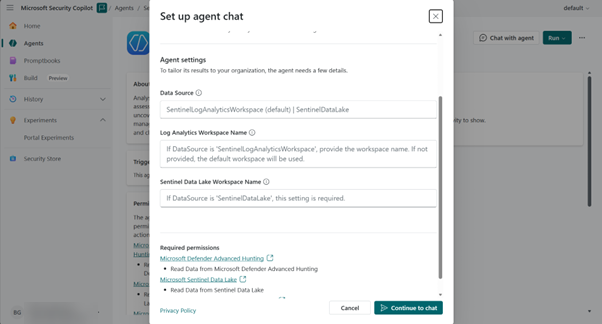
- Enter
Select Chat with agent at the top to interact with the agent.
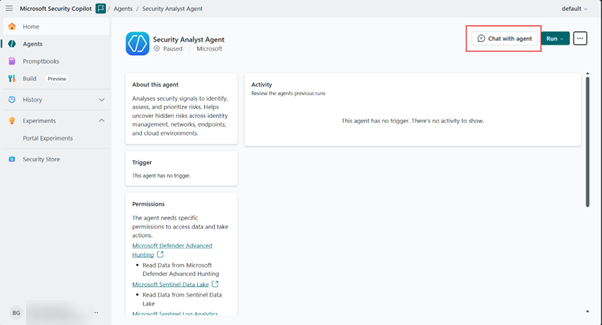
You can to start a new chat for a new analysis, view and access historical chats, and view agent setting details from any agent session.

Use the Security Analyst Agent
Go to Microsoft Defender at https://defender.microsoft.com, and then select Advanced hunting under Investigation and response.
Open Copilot, and then select Security Analyst Agent.
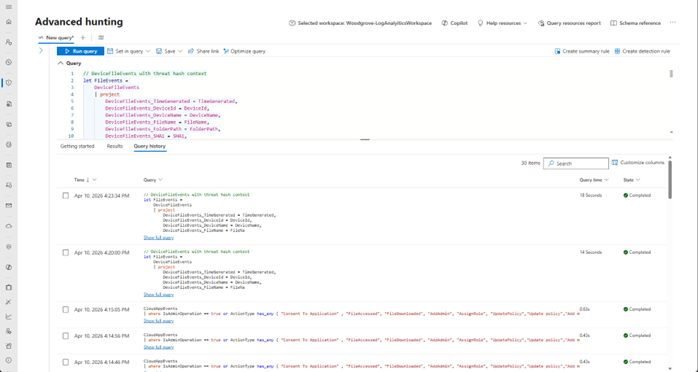
Enter your security analysis prompt in natural language, or select one of the suggested prompts.
If the task is broad, respond to the agent's clarifying questions so the agent can narrow the scope of analysis.
Optionally specify the data source in your prompt. If no data source is provided, the agent first tries Defender XDR and then Sentinel Log Analytics to identify and retrieve the needed data for analysis.
Review the response, including prioritized findings, supporting evidence, and recommendations.
In the following example, the agent summarizes its findings along with evidence and also provides contextual recommendations on next steps, either deeper investigation or containment. The response also contains a list of suggested next prompts that the user may ask to continue to interaction.
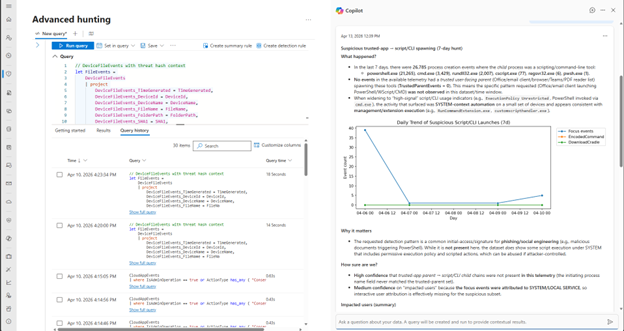
Continue with follow-up prompts in the same session, or start a new session for a separate investigation.
Note
The agent can take a few minutes to complete complex analyses.
If you ran a KQL query and are looking to analyze the results to understand security risks, select the Analyze with copilot below the results tab of the query. The agent reasons on the generated results and presents a summary of prioritized insights needing urgent attention.
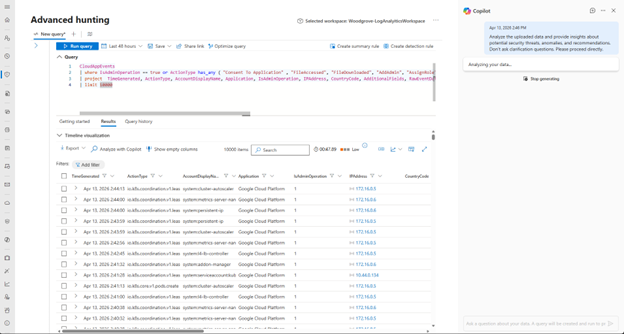
Use the feedback buttons on the response to share whether the output was helpful.
Interpreting the report
Executive summary
This section provides a clear narrative of how the analysis was performed, outlining the steps taken and the data considered. It explains the filtering criteria, time ranges, and any ranking applied, all in straightforward language so readers can easily follow the process.
Key insights
Here you’ll find the most significant findings from the analysis, presented in a concise and meaningful way. Each insight includes a brief explanation of why it matters and, where relevant, references to supporting evidence.
Visualizations
This section contains charts or graphs that add depth and clarity to the report, helping readers quickly interpret patterns or relationships in the data. Visuals are included only when they provide unique value to the analysis.
Artifacts
Artifacts are the supporting files that accompany the report, such as a comprehensive CSV of all analyzed entities and, when applicable, detailed evidence files. These resources allow readers to explore the full dataset behind the findings. Artifacts include the KQL query that was used by the agent to retrieve the data (please note the agent only uses KQL for data retrieval, analysis is done in python), comprehensive plan that was formulated for performing the task.