Merk
Tilgang til denne siden krever autorisasjon. Du kan prøve å logge på eller endre kataloger.
Tilgang til denne siden krever autorisasjon. Du kan prøve å endre kataloger.
Admins must keep Microsoft 365 Apps up-to-date so users have access to the latest security updates and performance improvements. In Intune, use the settings catalog to update Microsoft 365 apps on your Windows devices, including setting the update channel.
This article shows you how to use the settings catalog to manage Microsoft 365 app updates. It also provides guidance on confirming your policies apply successfully, which can help when troubleshooting.
In this scenario, you create a settings catalog policy in Intune that updates Microsoft 365 on your devices. For more information on settings catalog, see Use the Intune settings catalog to configure settings.
This feature applies to:
- Windows
- Microsoft 365
Prerequisites
 Licensing requirements
Requires Microsoft Intune and a Microsoft 365 subscription. For more information on Intune licensing, see Microsoft Intune licensing.
 Roles requirements
To configure the settings catalog policy, at a minimum, sign in to the Intune admin center with the Policy and Profile Manager role. For more information about the built-in roles in Intune, see Role-based access control (RBAC) with Microsoft Intune.
 Device configuration requirements
Add and enable Microsoft 365 Apps Automatic Updates for your Office apps. You can enable automatic updates using Group Policy, or the Intune Office settings catalog settings:


Set the Microsoft 365 update channel in the Intune settings catalog
Use an Intune policy to set the update channel for Microsoft 365 apps. The update channel determines how frequently Office checks for updates.
In your settings catalog policy, search for Update Channel, and select it. Close the settings picker.

Set the Update Channel to Enabled and select the channel name. For example, select
Semi-Annual Enterprise Channel:
Tip
- It's recommended to update more frequently. Semi-annually is only used as an example.
- For information on the different update channels, see Overview of update channels for Microsoft 365 Apps.
When the policy is ready, assign the policy to your Windows client devices. To test your policy sooner, you can also sync the policy.


Check the Intune registry keys
After you assign the policy and the device syncs, you can confirm the Intune policy is applied.
On the device, open the Registry Editor app.
Go to the Intune policy path:
Computer\HKEY_LOCAL_MACHINE\SOFTWARE\Microsoft\PolicyManager\Providers\<Provider ID>\default\Device\office16v2~Policy~L_MicrosoftOfficemachine~L_Updates.The
<Provider ID>in the registry key changes. To find the provider ID for your device, open the Registry Editor app, and go toComputer\HKEY_LOCAL_MACHINE\SOFTWARE\Microsoft\PolicyManager\AdmxInstalled. The provider ID is shown.When the policy is applied, you see the following registry key:
L_UpdatePath
Looking at the following example, you see
L_UpdatePathhas a value similar to<enabled/><data id="L_UpdatePathID" value="http://officecdn.microsoft.com/pr/7ffbc6bf-bc32-4f92-8982-f9dd17fd3114" />. This value means the update channel is set similar to the following image:
Tip
Manage Microsoft 365 Apps with Configuration Manager lists the values, and what they mean. The registry values are based on the distribution channel selected:
- Current Channel - value=
http://officecdn.microsoft.com/pr/492350f6-3a01-4f97-b9c0-c7c6ddf67d60 - Current Channel (preview) - value=
http://officecdn.microsoft.com/pr/64256afe-f5d9-4f86-8936-8840a6a4f5be - Monthly Enterprise Channel - value=
http://officecdn.microsoft.com/pr/55336b82-a18d-4dd6-b5f6-9e5095c314a6 - Semi-Annual Enterprise Channel - value=
http://officecdn.microsoft.com/pr/7ffbc6bf-bc32-4f92-8982-f9dd17fd3114 - Semi-Annual Enterprise Channel (preview) - value=
http://officecdn.microsoft.com/pr/b8f9b850-328d-4355-9145-c59439a0c4cf - Beta - value=
http://officecdn.microsoft.com/pr/5440fd1f-7ecb-4221-8110-145efaa6372f

At this point, the Intune policy is successfully applied to the device.
Check the Office registry keys
On the device, open the Registry Editor app.
Go to the Office policy path:
Computer\HKEY_LOCAL_MACHINE\SOFTWARE\Microsoft\Office\ClickToRun\Configuration.You see the following registry keys:
UpdateChannel: A dynamic key that changes, depending on the configured settings.CDNBaseUrl: Set when Microsoft 365 installs on the device.
Look at the
UpdateChannelvalue. The value tells you how frequently Office is updated. Manage Microsoft 365 Apps with Configuration Manager lists the values, and what they're set to.Looking at the following example, you see
UpdateChannelis set tohttp://officecdn.microsoft.com/pr/492350f6-3a01-4f97-b9c0-c7c6ddf67d60, which is the Current Channel (monthly):
This example means the policy isn't applied yet, as the registry setting is still set to monthly, instead of semi-annual.

This registry key updates when the Task Scheduler > Office Automatic Updates 2.0 runs, or when a user signs into the device. To confirm, open the Task Scheduler app > Microsoft > Office > Office Automatic Updates 2.0 task > Triggers. Depending on your triggers, it can take at least a day and more before the UpdateChannel registry key updates.
Force Office automatic updates to run on the device
To test your policy, force the policy settings on the device. The following steps update the registry. As always, be careful when updating the registry.
Clear the registry key:
- Go to
Computer\HKEY_LOCAL_MACHINE\SOFTWARE\Microsoft\Office\ClickToRun\Updates. - Double-select the
UpdateDetectionLastRunTimekey > delete the value data > OK.
- Go to
Run the Office Automatic Updates task:
Open the Task Scheduler app on the device.
Expand Task Scheduler Library > Microsoft > Office.
Select Office Automatic Updates 2.0 > Run:

Wait for the task to finish, which can take several minutes.
In the Registry Editor app, go to
Computer\HKEY_LOCAL_MACHINE\SOFTWARE\Microsoft\Office\ClickToRun\Configuration. Check theUpdateChannelvalue.It should be updated with the value set in the policy. In our example, the value should be set to
http://officecdn.microsoft.com/pr/7ffbc6bf-bc32-4f92-8982-f9dd17fd3114.

At this point, the Office update channel is successfully changed on the device. You can open a Microsoft 365 app for a user that receives this update to check status.
Force the Office synchronization to update account information
If you want to do more, you can force Office to get the latest version update. The following steps should only be done as a confirmation, or if you need the devices to get the latest version update from that channel quickly. Otherwise, let Office do its job, and update automatically.
Step 1: Force the Office version to update
Confirm the Office version supports the update channel you choose. Update history for Microsoft 365 Apps lists the build numbers that support the different update channels.
In your settings catalog policy, search for the Target Version setting, and close the settings picker:

Enter the version you want. Your Target version setting looks similar to the following setting:


Important
- Be sure to assign the policy.
- If you change an existing policy, your changes affect all assigned users.
- If you're testing this feature, create a test policy, and assign the policy to a test group of users.
Step 2: Check the Office version
To test your policy before deploying it to all users, use the following steps:
In the Registry Editor app, go to
Computer\HKEY_LOCAL_MACHINE\SOFTWARE\Microsoft\PolicyManager\Providers\<Provider ID>\default\Device\office16~Policy~L_MicrosoftOfficemachine~L_Updates.Look at the
L_UpdateTargetVersionvalue. When the policy applies, the value is set to the version you entered, such as<enabled /><data id="L_UpdateTargetVersionID" value="16.0.19127.20082" />.At this point, the Intune policy is successfully applied to the device.
Next, force Office to update. Open an Office app, such as Excel. Select to update now (possibly in the Account menu).
The update takes several minutes. You can confirm Office is trying to get the version you enter:
On the device, go to
C:\Program Files (x86)\Microsoft Office\Updates\Detection\Version.Open the
VersionDescriptor.xmlfile, and go to the<Version>section. The available version should be the same version you entered in the Intune policy, such as: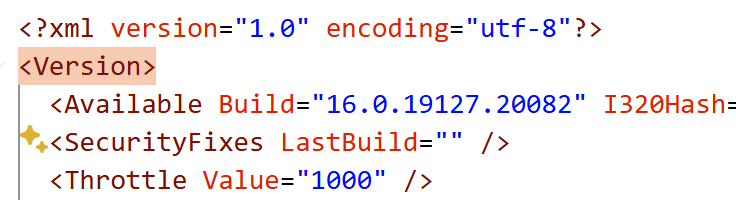
After the update is installed, the Office app shows the new version (for example, on the Account menu).
