Merk
Tilgang til denne siden krever autorisasjon. Du kan prøve å logge på eller endre kataloger.
Tilgang til denne siden krever autorisasjon. Du kan prøve å endre kataloger.
Tip
Prefer the portal UI? You can now create and manage hooks directly in the portal without using the REST API. The portal provides a visual form and code editor. No curl commands are required.
In this tutorial, you create a custom agent with a Stop hook that forces the agent to add a completion marker to every response. You configure the hook through the REST API, then test it in the portal's playground.
Estimated time: 15 minutes
Note
Agent-level vs. custom-agent-level hooks: This tutorial creates hooks on a custom agent (custom-agent-level hooks). These hooks only fire when that specific custom agent runs.
To create agent-level hooks that apply to the entire agent (all threads, all custom agents), use Builder > Hooks in the portal.
| Level | How to create | Scope |
|---|---|---|
| Agent level | Portal: Builder > Hooks | Applies to all threads and custom agents |
| Custom agent level | REST API (this tutorial) or Portal: Agent Canvas > Custom agent > Manage Hooks | Applies only to one custom agent |
In this tutorial, you learn how to:
- Create a custom agent with a Stop hook using the REST API
- Test hook behavior in the portal's Test playground
- Add a PostToolUse hook for auditing tool usage
- Block dangerous commands with a policy hook
Prerequisites
- An Azure SRE Agent in Running state
- curl to call the REST API
- Azure CLI logged in (
az login) to get an access token
Understand the hook API format
This tutorial uses the REST API v2 to create hooks on a custom agent. The portal's YAML editor tab shows v1 format and doesn't display hooks configured via the API, but the hooks are still active. You can verify them in the Builder > Hooks page or the Test playground.
Tip
When to use the API vs the portal:
- Portal (Builder > Hooks): Best for agent-level hooks in visual form. No code is necessary.
- API (this tutorial): Best for custom-agent-level hooks, CI/CD pipelines, or programmatic management.
Find your agent's API URL
Your agent's API base URL follows this pattern:
https://{agent-name}--{hash}.{hash}.{region}.azuresre.ai
To find it:
- Open sre.azure.com and select your agent.
- In the left sidebar, select Builder > Agent Canvas.
- Open your browser's Developer Tools (F12 or right-click > Inspect).
- Go to the Network tab, filter by "api", and look for requests to a URL ending in
.azuresre.ai. - The base URL is everything before
/api/....
Alternatively, check the src attribute in the Elements tab. Look for an <iframe> whose src starts with https://{agent-name}--.
Get an access token
Run the following command to get an access token for the SRE Agent API:
TOKEN=$(az account get-access-token \
  --resource <RESOURCE_ID> \
  --query accessToken -o tsv)
Create a custom agent with a Stop hook
This step creates a custom agent called my_hooked_agent with a Stop hook that checks whether the response ends with === RESPONSE COMPLETE ===. If the marker is missing, the hook rejects the response and tells the agent to add the marker.
AGENT_URL="https://your-agent--xxxxxxxx.yyyyyyyy.region.azuresre.ai"

curl -X PUT "${AGENT_URL}/api/v2/extendedAgent/agents/my_hooked_agent" \
  -H "Authorization: Bearer ${TOKEN}" \
  -H "Content-Type: application/json" \
  -d @- << 'EOF'
{
  "name": "my_hooked_agent",
  "properties": {
    "instructions": "You are a helpful assistant. Be concise.",
    "handoffDescription": "",
    "handoffs": [],
    "enableVanillaMode": true,
    "hooks": {
      "Stop": [
        {
          "type": "prompt",
          "prompt": "Check the agent response below.\n\n$ARGUMENTS\n\nDoes it end with === RESPONSE COMPLETE ===?\nIf yes: {\"ok\": true}\nIf no: {\"ok\": false, \"reason\": \"Add === RESPONSE COMPLETE === at the end.\"}",
          "timeout": 30
        }
      ]
    }
  }
}
EOF
You receive HTTP 202 Accepted with the full agent config in the response body.
The following example shows the same configuration in v2 YAML format for reference:
api_version: azuresre.ai/v2
kind: ExtendedAgent
metadata:
  name: my_hooked_agent
spec:
  instructions: |
    You are a helpful assistant. Be concise.
  handoffDescription: ""
  enableVanillaMode: true
  hooks:
    Stop:
      - type: prompt
        prompt: |
          Check the agent response below.

          $ARGUMENTS

          Does it end with === RESPONSE COMPLETE ===?
          If yes: {"ok": true}
          If no: {"ok": false, "reason": "Add === RESPONSE COMPLETE === at the end."}
        timeout: 30
How the Stop hook works
The Stop hook evaluates the agent's response before it returns to the user:
- Replaces
$ARGUMENTSwith the hook context JSON, which includes the agent's final response. - The LLM evaluates the prompt and returns
{"ok": true}or{"ok": false, "reason": "..."}. - If rejected, the agent continues working after the reason is injected as a user message.
- After three rejections (the default), the agent stops.
Test the hook in the portal
Follow these steps to test the Stop hook:
Go to your agent in the portal and select Builder > Agent Canvas.
Select the Test playground radio button.
Select the Subagent/Tool dropdown, find my_hooked_agent, and select Apply.

Type
What is 2+2?in the chat and select Send.

Watch what happens:
- The agent first responds with 4.
- The Stop hook evaluates and rejects the response (no completion marker).
- A Thought process step appears where the agent continues.
- The final response appears: 4 === RESPONSE COMPLETE ===.
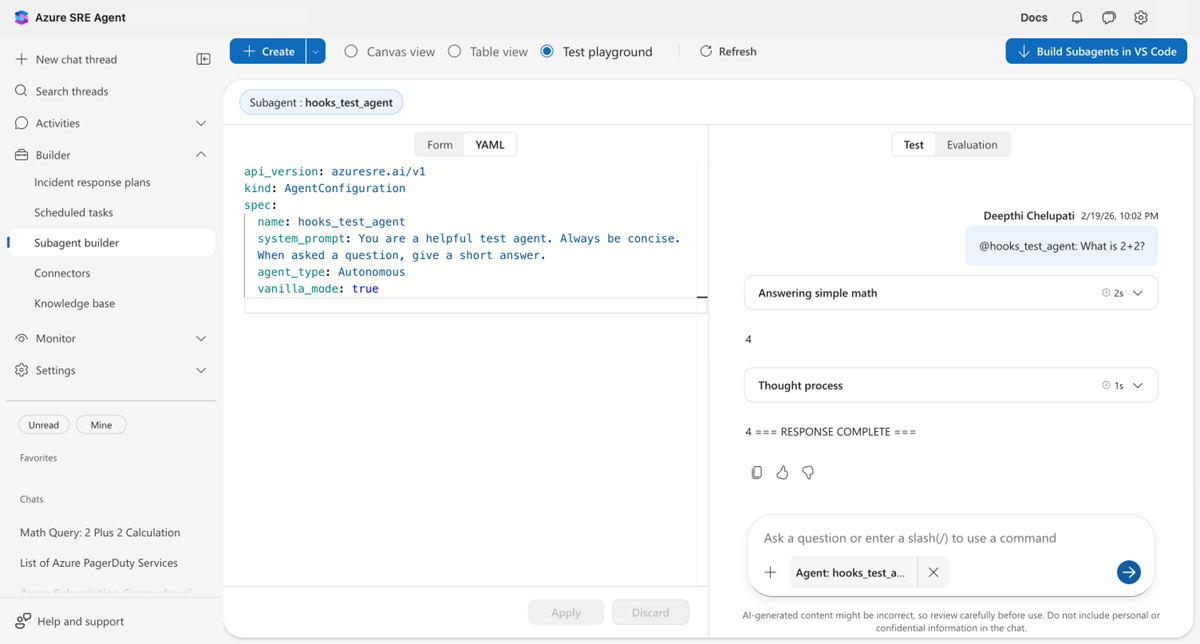
The hook worked. It forced the agent to add the marker before stopping.
Add a PostToolUse hook for auditing
Add a PostToolUse hook that logs every tool the agent uses. Update the same agent by sending a new PUT request with both hooks:
curl -X PUT "${AGENT_URL}/api/v2/extendedAgent/agents/my_hooked_agent" \
  -H "Authorization: Bearer ${TOKEN}" \
  -H "Content-Type: application/json" \
  -d @- << 'EOF'
{
  "name": "my_hooked_agent",
  "properties": {
    "instructions": "You are a helpful assistant. Be concise.",
    "handoffDescription": "",
    "handoffs": [],
    "enableVanillaMode": true,
    "hooks": {
      "Stop": [
        {
          "type": "prompt",
          "prompt": "Check the agent response below.\n\n$ARGUMENTS\n\nDoes it end with === RESPONSE COMPLETE ===?\nIf yes: {\"ok\": true}\nIf no: {\"ok\": false, \"reason\": \"Add === RESPONSE COMPLETE === at the end.\"}",
          "timeout": 30
        }
      ],
      "PostToolUse": [
        {
          "type": "command",
          "matcher": "*",
          "timeout": 30,
          "failMode": "allow",
          "script": "#!/usr/bin/env python3\nimport sys, json\ncontext = json.load(sys.stdin)\ntool = context.get('tool_name', 'unknown')\nprint(json.dumps({'decision': 'allow', 'hookSpecificOutput': {'additionalContext': f'[AUDIT] {tool} executed.'}}))"
        }
      ]
    }
  }
}
EOF
matcher: "*" means this hook runs for every tool call. The script logs the tool name and injects an [AUDIT] message into the conversation.
To test the hook, ask the agent a question that triggers a tool (for example, "Run echo hello").
Block dangerous commands
Add a second PostToolUse hook that blocks rm -rf, sudo, and chmod 777:
PostToolUse:
  # Audit hook (runs for all tools)
  - type: command
    matcher: "*"
    timeout: 30
    failMode: allow
    script: |
      #!/usr/bin/env python3
      import sys, json
      context = json.load(sys.stdin)
      tool = context.get('tool_name', 'unknown')
      print(json.dumps({"decision": "allow",
        "hookSpecificOutput": {"additionalContext": f"[AUDIT] {tool} executed."}}))

  # Policy hook (only for shell tools)
  - type: command
    matcher: "Bash|ExecuteShellCommand"
    timeout: 30
    failMode: block
    script: |
      #!/usr/bin/env python3
      import sys, json, re
      context = json.load(sys.stdin)
      command = context.get('tool_input', {}).get('command', '')
      for pattern in [r'\brm\s+-rf\b', r'\bsudo\b', r'\bchmod\s+777\b']:
          if re.search(pattern, command):
              print(json.dumps({"decision": "block", "reason": f"Blocked: {pattern}"}))
              sys.exit(0)
      print(json.dumps({"decision": "allow"}))
Key differences from the audit hook:
matcher: "Bash|ExecuteShellCommand"only runs for shell tools (pattern is anchored as^(Bash|ExecuteShellCommand)$).failMode: blockblocks the tool result if the script itself crashes (strict mode).- Returns
"block"with a reason when a dangerous pattern is found.
Hook response formats
Prompt hooks and command hooks use different response formats.
Prompt hooks
Prompt hooks return simple JSON:
{"ok": true}
{"ok": false, "reason": "Please fix X."}
Command hooks
Command hooks return expanded JSON:
{"decision": "allow"}
{"decision": "block", "reason": "Dangerous command."}
{"decision": "allow", "hookSpecificOutput": {"additionalContext": "Audit note."}}
Command hooks can also use exit codes instead of JSON:
| Exit code | Behavior |
|---|---|
0 with no output |
Allow |
0 with JSON |
Parse the JSON |
2 |
Block (stderr becomes the reason) |
| Other | Falls back to failMode |
Caution
A rejection without a reason is treated as approval. Always include reason when rejecting.
Verify
After you configure and test the hooks, confirm the following conditions:
- You configure custom-agent-level hooks by using REST API v2. They apply only to that custom agent.
- You create agent-level hooks in Builder > Hooks. They apply across the entire agent.
- The stop hook causes the agent to add the
=== RESPONSE COMPLETE ===marker before stopping. - The PostToolUse audit hook logs
[AUDIT]messages for tool calls. - The policy hook blocks dangerous commands like
rm -rfandsudo.
Troubleshooting
The following table lists common problems and solutions for agent hooks.
| Problem | Solution |
|---|---|
| Hooks not visible in portal YAML tab | Expected - the YAML tab shows v1 only. Custom agent-level hooks created through the API are active and visible in Builder > Hooks or the playground. |
Unsupported kind: ExtendedAgent |
Use the v2 endpoint: PUT /api/v2/extendedAgent/agents/{name}. |
Handoffs cannot be null |
Add "handoffs": [] to the JSON payload. |
| Hook has no effect | Include a reason field when rejecting. Without it, rejection is treated as approval. |
| Agent loops forever | Lower maxRejections (default: 3, range: 1-25). |