Merk
Tilgang til denne siden krever autorisasjon. Du kan prøve å logge på eller endre kataloger.
Tilgang til denne siden krever autorisasjon. Du kan prøve å endre kataloger.
GitHub Advanced Security for Azure DevOps adds GitHub Advanced Security's suite of security features to Azure Repos and includes the following features:
- Secret Scanning push protection: check if code pushes include commits that expose secrets such as credentials
- Secret Scanning repo scanning: scan your repository and look for exposed secrets that were committed accidentally
- Dependency Scanning – search for known vulnerabilities in open source dependencies (direct and transitive)
- Code Scanning – use CodeQL static analysis engine to identify code-level application vulnerabilities such as SQL injection and authentication bypass
You can bring the protection of Advanced Security to your enterprise with the flexibility to enable the right level of protection for your repositories. GitHub Advanced Security for Azure DevOps is available as GitHub Secret Protection for Azure DevOps and GitHub Code Security for Azure DevOps.
Secret Protection includes the following features:
- Push protection, to prevent secret leaks before they happen
- Secret scanning alerts with notifications, to catch existing exposures before they become a problem
- Security overview, which provides insight into your organization's level of risk and security protection
Code Security includes the following features:
- Dependency alerts, to find vulnerabilities in open-source dependencies
- CodeQL scanning, to detect vulnerabilities directly in your code
- Security findings for third-party tools
- Security overview, which provides insight into your organization's level of risk and security protection
GitHub Advanced Security for Azure DevOps is only available for Azure DevOps Services and specifically for code Git repositories.
GitHub Advanced Security for Azure DevOps works with Azure Repos. To use GitHub Advanced Security with GitHub repositories, see GitHub Advanced Security.
Prerequisites
| Category | Requirements |
|---|---|
| Permissions | - To view a summary of all alerts for a repository: Contributor permissions for the repository. - To dismiss alerts in Advanced Security: Project administrator permissions. - To manage permissions in Advanced Security: Member of the Project Collection Administrators group or Advanced Security: manage settings permission set to Allow. |
For more information about Advanced Security permissions, see Manage Advanced Security permissions.
Extra prerequisites for self-hosted agents
If your organization uses self-hosted agents, add the following URLs to your Allowlist so the dependency scanning task can fetch vulnerability advisory data. For more information, see Allowed IP addresses and domain URLs.
| Domain URL | Description |
|---|---|
https://governance.dev.azure.com |
For organizations using the dev.azure.com domain to access their DevOps instance |
https://dev.azure.com |
For organizations using the dev.azure.com domain to access their DevOps instance |
https://advsec.dev.azure.com |
For organizations using the dev.azure.com domain to access their DevOps instance |
https://{organization_name}.governance.visualstudio.com |
For organizations using the {organization_name}.visualstudio.com domain to access their DevOps instance |
https://{organization_name}.visualstudio.com |
For organizations using the {organization_name}.visualstudio.com domain to access their DevOps instance |
https://{organization_name}.advsec.visualstudio.com |
For organizations using the {organization_name}.visualstudio.com domain to access their DevOps instance |
Run a compatible version of the .NET runtime. As of April 2026, the current version is still .NET 8.x. If a compatible version isn't present on the agent, the dependency scanning build task downloads .NET.
Ensure the CodeQL bundle is installed to the agent tool cache on your agent. You might utilize the
enableAutomaticCodeQLInstall: truevariable with theAdvancedSecurity-Codeql-Init@1pipeline task for YAML pipelines or select theEnable automatic CodeQL detection and installationcheckbox for classic pipelines. Alternatively, for manual installation instructions, see Code scanning for GitHub Advanced Security for Azure DevOps.
Enable GitHub Advanced Security
You can enable Advanced Security at the organization, project, or repository level. To access each of the scanning tools and results, you need to first enable Advanced Security. Once you enable Advanced Security, any future pushes containing secrets to a repository with this policy enabled are blocked, and repository secret scanning happens in the background.
Repository-level onboarding
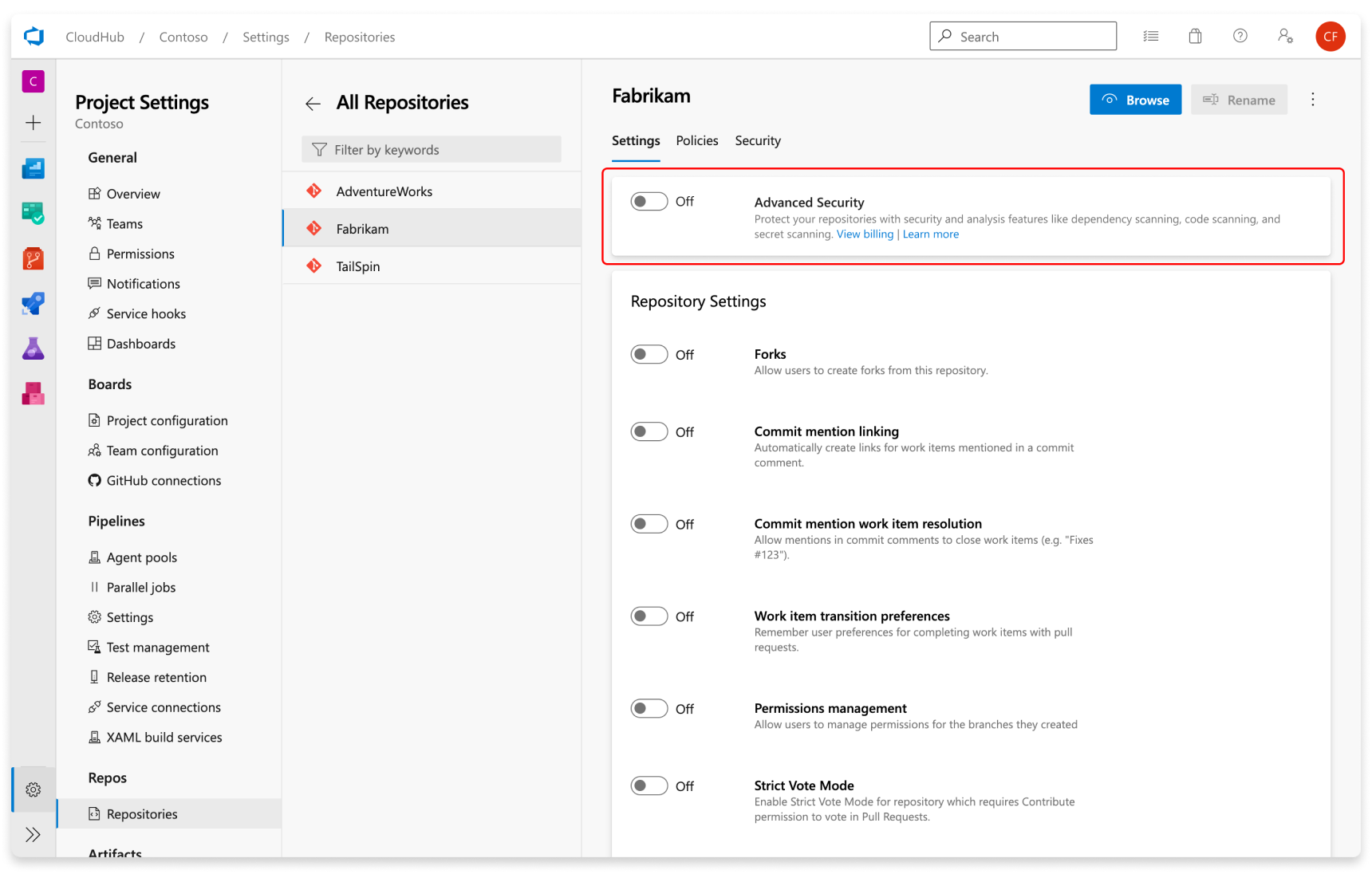
- Go to your Project settings for your Azure DevOps project.
- Select Repos > Repositories.
- Select the repository you want to enable Advanced Security for.
- Select Enable and Begin billing to activate Advanced Security. A shield icon now appears in the repository view for any repository with Advanced Security enabled.
Project-level onboarding
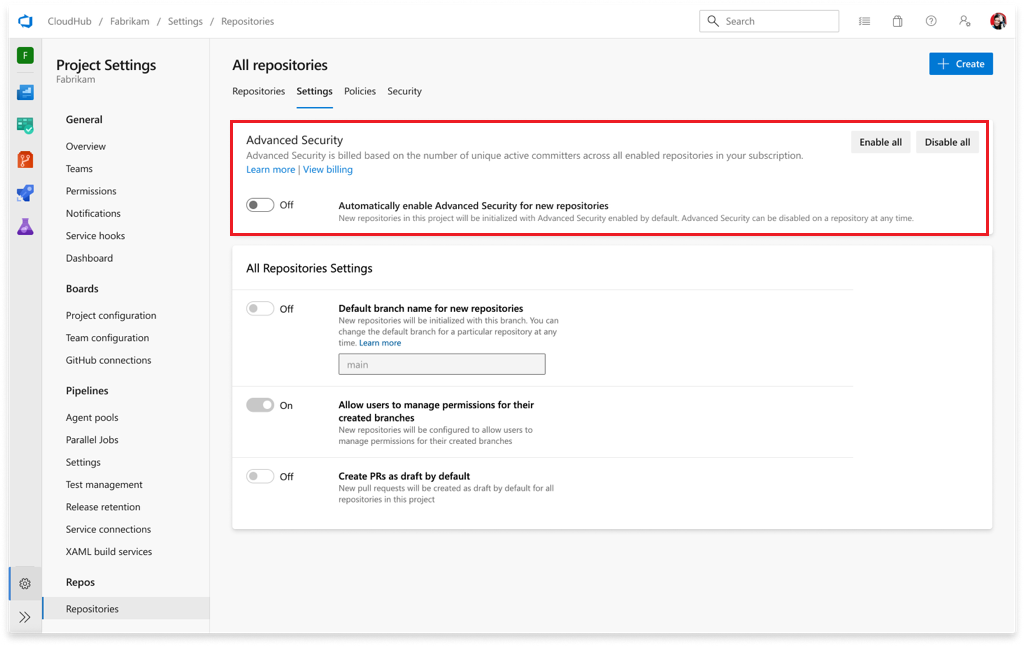
- Go to your Project settings for your Azure DevOps project.
- Select Repos.
- Select the Settings tab.
- Select Enable all and see an estimate for the number of active committers for your project appear. This action only enables the product for existing repositories.
- Select Begin billing to activate Advanced Security for every existing repository in your project.
- Optionally, select Automatically enable Advanced Security for new repositories so that any newly created repositories in the future have Advanced Security enabled upon creation. This setting is separate from the Enable all action and must be selected independently.
Organization-level onboarding
- Go to your Organization settings for your Azure DevOps organization.
- Select Repositories.
- Select Enable all and see an estimate for the number of active committers for your organization appear. This action only enables the product for existing repositories.
- Select Begin billing to activate Advanced Security for every existing repository in each project in your organization.
- Optionally, select Automatically enable Advanced Security for new projects so that any newly created projects in the future have Advanced Security enabled upon creation. This setting is separate from the Enable all action and must be selected independently.

Set up secret scanning
Secret scanning push protection and repository scanning are automatically enabled when you turn on Advanced Security. You can enable or disable secret push protection from the repository settings page.

Secret scanning repository scanning is automatically kicked off upon enabling Advanced Security for a selected repository.
Set up dependency scanning
You can enable Secret Protection or Code Security at the organization, project, or repository level.
Repository-level onboarding
- Go to your Project settings for your Azure DevOps project.
- Select Repos > Repositories.
- Select the repository you want to enable Advanced Security for.
- Toggle either Secret Protection or Code Security.
- Select Begin billing. A shield icon now appears in the repository view for any repository with either product enabled.
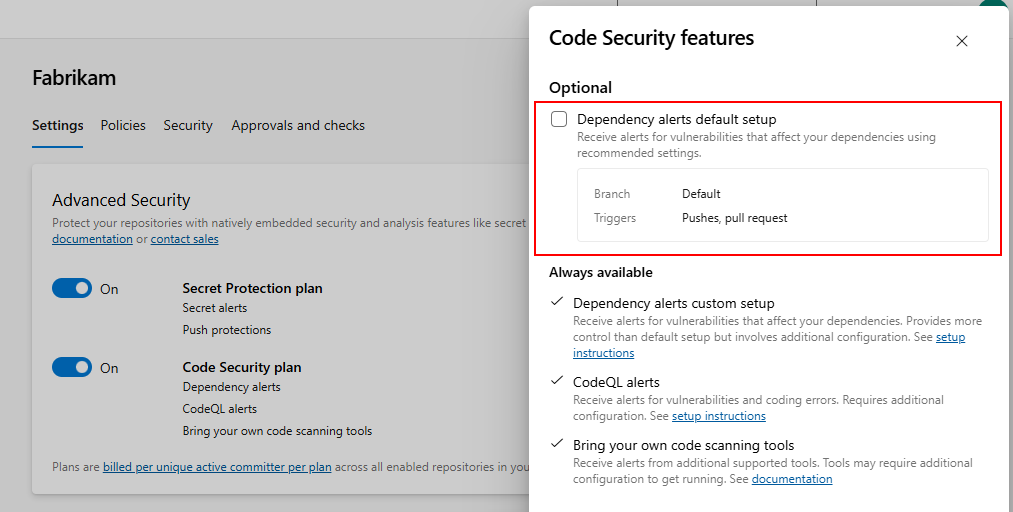
- To optionally enable dependency scanning default setup, select Options and enable the Dependency scanning default setup checkbox.

Project-level onboarding
- Go to your Project settings for your Azure DevOps project.
- Select Repos.
- Select the Settings tab.
- Select Enable all and see an estimate for the number of active committers per product for your project appear. This action only enables the selected product for existing repositories.
- Toggle your desired products of Secret Protection or Code Security and all associated subfeatures.
- Select Begin billing to activate Secret Protection and/or Code Security for every existing repository in your project.
- Optionally, toggle Automatically enable Advanced Security for new repositories so that any newly created repositories in the future have Secret Protection or Code Security enabled upon creation. This setting is separate from the Enable all action and must be selected independently.

Organization-level onboarding
- Go to your Organization settings for your Azure DevOps organization.
- Select Repositories.
- Select Enable all and see an estimate for the number of active committers per product for your organization appear. This action only enables the selected product for existing repositories.
- Toggle your desired products of Secret Protection or Code Security and all associated subfeatures.
- Select Begin billing to activate Advanced Security for every existing repository in each project in your organization.
- Optionally, toggle Automatically enable Advanced Security for new projects so that any newly created projects in the future have Secret Protection or Code Security enabled upon creation. This setting is separate from the Enable all action and must be selected independently.

Set up secret scanning
Secret scanning push protection and repository scanning are automatically enabled when you turn on Secret Protection. You can enable or disable secret push protection from the repository settings page.

As mentioned, secret scanning repository scanning is automatically kicked off upon enabling Secret Protection for a selected repository.
Set up dependency scanning
To gain access to dependency scanning features, you need the Code Security product enabled for your repository.
Dependency scanning is a pipeline-based scanning tool. Results are aggregated per repository. For scanning your default branch, you can utilize the "Scan for vulnerable dependencies" setting from the repository settings page. This feature will automatically include the dependency scanning task into any pipeline targeting your default branch, or any pull request build targeting your default branch.

For more advanced setup or if you want to scan all branches, we recommend that you add the dependency scanning task to all the pipelines that you want scanned. See Dependency scanning for GitHub Advanced Security for Azure DevOps for more details.
Set up code scanning
To gain access to code scanning features, you need the Code Security product enabled for your repository.
Code scanning is also a pipeline-based scanning tool where results are aggregated per repository. You can enable code scanning using default setup or advanced setup. You can run both in the same organization, depending on your needs and level of scanning control.
Default setup is the quickest way to enable code scanning. Default setup runs on a scheduled basis using Azure Pipelines, detects the CodeQL-supported languages in your repository, and automatically configures scanning for them. If the languages in your repository change, the scanning configuration updates automatically.


The agent pool and scan schedule for default setup are shared across all repositories in the organization. You can configure these options from Organization settings > Repositories under the CodeQL default setup configurable options dropdown. For more details on each option, see Configure default setup options.
Advanced setup gives you full control over the scanning configuration by adding CodeQL pipeline tasks directly to your pipelines. For details on configuring advanced setup, see Set up code scanning.
Tip
We recommend starting with default setup. If you need more control over your scanning configuration, such as different agent pools, custom build steps for compiled languages, or scanning across multiple branches, you can run both default setup and advanced setup in the same organization. For more information, see Set up code scanning.
To generate alerts, default setup runs on a weekly schedule. Any detected vulnerabilities are displayed in the Advanced Security tab.
Set up pull request annotations
For both dependency scanning and code scanning, annotations configure automatically for pull requests where a build validation policy applies with dependency scanning and/or code scanning tasks included in your pipeline. For more information on configuring build validation policies, see Build validation.
Pull request annotations also require an Advanced Security scan on your default branch and target branch before then scanning your source (pull request) branch. For more information on resolving alerts for pull request branches, see Managing dependency scanning alerts on pull requests and Managing code scanning alerts on pull requests.
Set up pull request status checks
Advanced Security status checks allow you to block pull requests from being merged when security vulnerabilities are detected. These status checks evaluate dependency scanning, code scanning, and secret scanning results and post a status to your pull request based on the findings.
There are two status checks available:
- Block on all critical and high vulnerabilities (
AdvancedSecurity/AllHighAndCritical): Use this check to enforce that all critical and high severity alerts across the repository are resolved before merging. - Block on new critical and high vulnerabilities (
AdvancedSecurity/NewHighAndCritical): Use this check to prevent new vulnerabilities from being introduced without requiring all existing vulnerabilities to be fixed first. This check requires a build validation policy with Advanced Security tasks to scan the PR branch.
Configure status checks as branch policies
To require Advanced Security status checks before pull requests can be merged, configure them as branch policies. You can set them per repository or for a project.
- Go to Project settings > Repos.
- Optionally, select the repository you want to configure.
- Select Policies and then select the branch you want to protect. By default, the default branch of your repositories will be protected.
- If not already created, add a Build validation policy. This is required for both status checks to run correctly. In your build validation pipeline, if you have multiple Advanced Security tasks, enable the
Wait for Processingproperty for the AdvancedSecurity-CodeQL-Analyze and AdvancedSecurity-Publish tasks. - Under Status checks, select + to add a new status check policy.
- In the Status to check menu, enter AdvancedSecurity for the Genre and AllHighAndCritical or NewHighAndCritical for the Name. (These options appear after the first successful pipeline run with Advanced Security tasks.)
- Choose the Policy requirement (required or optional) and set any other desired options. Leave Advanced Options at their defaults — changing the authorized identity or requiring an iteration ID prevents status checks from posting.
- Select Save.

For more information on configuring status check policies, see Status checks.
To disable Advanced Security, any alerts and state of alerts get retained in the Advanced Security tab for the next time you re-enable Advanced Security for your repository.
Related articles
- Code scanning alerts for GitHub Advanced Security for Azure DevOps
- Dependency scanning alerts for GitHub Advanced Security for Azure DevOps
- Secret scanning alerts for GitHub Advanced Security for Azure DevOps
- Permissions for GitHub Advanced Security for Azure DevOps
- Billing for GitHub Advanced Security for Azure DevOps