WinUI またはその他のデスクトップ アプリからファイルの既定のアプリを起動する方法について説明します。 多くのアプリでは、自分では処理できないファイルを操作する必要があります。 たとえば、電子メール アプリはさまざまな種類のファイルを受け取り、既定のハンドラーでこれらのファイルを起動する方法が必要です。 次の手順では、 Windows.System.Launcher Windows ランタイム (WinRT) API を使用して、アプリがそれ自体を処理できないファイルの既定のハンドラーを起動する方法を示します。
重要な API
このトピックでは、次の API が紹介されています。
注
特に明記されていない限り、このトピックで使用されるすべての WinRT API は、WinUI アプリと他のデスクトップ アプリの両方で使用できます。 デスクトップ アプリで WinRT API を使用できるようにする方法の詳細については、 デスクトップ アプリでの Windows ランタイム API の呼び出しに関する記事を参照してください。
ファイル オブジェクトを取得する
まず、ファイルの Windows.Storage.StorageFile オブジェクトを取得します。
ファイルがアプリのパッケージに含まれている場合は、 Package.InstalledLocation プロパティを使用して Windows.Storage.StorageFolder オブジェクトを取得し、 Windows.Storage.StorageFolder.GetFileAsync メソッドを使用して StorageFile オブジェクトを取得できます。
ファイルが既知のフォルダーにある場合は、 Windows.Storage.KnownFolders クラスのプロパティを使用して StorageFolder を取得し、 GetFileAsync メソッドを使用して StorageFile オブジェクトを取得できます。
ファイルを起動する
Windows には、ファイルの既定のハンドラーを起動するためのさまざまなオプションが用意されています。 これらのオプションについては、このグラフと以降のセクションで説明します。
| オプション | メソッド | 説明 |
|---|---|---|
| 既定の起動 | LaunchFileAsync(IStorageFile) | 既定のハンドラーを使用して、指定したファイルを起動します。 |
| 起動で開く | LaunchFileAsync(IStorageFile, LauncherOptions) | 指定したファイルを起動し、ユーザーが [プログラムから開く] ダイアログでハンドラーを選択できるようにします。 |
| 推奨されるアプリ フォールバックを使用して起動する | LaunchFileAsync(IStorageFile, LauncherOptions) | 既定のハンドラーを使用して、指定したファイルを起動します。 システムにハンドラーがインストールされていない場合は、ストア内のアプリをユーザーに推奨します。 |
| 必要な残りのビューで起動する | LaunchFileAsync(IStorageFile, LauncherOptions) (Windows 専用) | 既定のハンドラーを使用して、指定したファイルを起動します。 起動後も画面に残る設定を指定し、特定のウィンドウ サイズを要求します。 LauncherOptions.DesiredRemainingView は、モバイル デバイス ファミリではサポートされていません。 |
既定の起動
Windows.System.Launcher.LaunchFileAsync(IStorageFile) メソッドを呼び出して、既定のアプリを起動します。 この例では、 Windows.Storage.StorageFolder.GetFileAsync メソッドを使用して、アプリ パッケージに含まれるイメージ ファイル (test.png) を起動します。
async void DefaultLaunch()
{
   // Path to the file in the app package to launch
   string imageFile = @"images\test.png";

   var file = await Windows.ApplicationModel.Package.Current.InstalledLocation.GetFileAsync(imageFile);

   if (file != null)
   {
      // Launch the retrieved file
      var success = await Windows.System.Launcher.LaunchFileAsync(file);

      if (success)
      {
         // File launched
      }
      else
      {
         // File launch failed
      }
   }
   else
   {
      // Could not find file
   }
}
Windows::Foundation::IAsyncAction MainPage::DefaultLaunch()
{
    auto installFolder{ Windows::ApplicationModel::Package::Current().InstalledLocation() };

    Windows::Storage::StorageFile file{ co_await installFolder.GetFileAsync(L"images\\test.png") };

    if (file)
    {
        // Launch the retrieved file
        bool success = co_await Windows::System::Launcher::LaunchFileAsync(file);
        if (success)
        {
            // File launched
        }
        else
        {
            // File launch failed
        }
    }
    else
    {
        // Could not find file
    }
}
void MainPage::DefaultLaunch()
{
   auto installFolder = Windows::ApplicationModel::Package::Current->InstalledLocation;

   concurrency::task<Windows::Storage::StorageFile^> getFileOperation(installFolder->GetFileAsync("images\\test.png"));
   getFileOperation.then([](Windows::Storage::StorageFile^ file)
   {
      if (file != nullptr)
      {
         // Launch the retrieved file
         concurrency::task<bool> launchFileOperation(Windows::System::Launcher::LaunchFileAsync(file));
         launchFileOperation.then([](bool success)
         {
            if (success)
            {
               // File launched
            }
            else
            {
               // File launch failed
            }
         });
      }
      else
      {
         // Could not find file
      }
   });
}
起動で開く
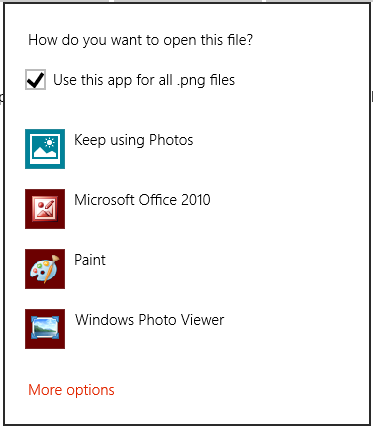
LauncherOptions.DisplayApplicationPicker を true に設定して Windows.System.Launcher.LaunchFileAsync(IStorageFile, LauncherOptions) メソッドを呼び出して、[開く] ダイアログ ボックスからユーザーが選択したアプリを起動します。
ユーザーが特定のファイルの既定以外のアプリを選択する場合は、[ファイルを 開く ] ダイアログ ボックスを使用することをお勧めします。 たとえば、アプリでユーザーがイメージ ファイルを起動できる場合、既定のハンドラーはビューアー アプリになる可能性があります。 場合によっては、ユーザーが画像を表示する代わりに編集したい場合があります。 AppBar またはコンテキスト メニューの別のコマンドと一緒に 他のプログラムで開く オプションを使用して、ユーザーが Open With ダイアログを呼び出し、このようなシナリオでエディター アプリを選択できるようにします。
async void DefaultLaunch()
{
   // Path to the file in the app package to launch
      string imageFile = @"images\test.png";

   var file = await Windows.ApplicationModel.Package.Current.InstalledLocation.GetFileAsync(imageFile);

   if (file != null)
   {
      // Set the option to show the picker
      var options = new Windows.System.LauncherOptions();
      options.DisplayApplicationPicker = true;

      // Launch the retrieved file
      bool success = await Windows.System.Launcher.LaunchFileAsync(file, options);
      if (success)
      {
         // File launched
      }
      else
      {
         // File launch failed
      }
   }
   else
   {
      // Could not find file
   }
}
Windows::Foundation::IAsyncAction MainPage::DefaultLaunch()
{
    auto installFolder{ Windows::ApplicationModel::Package::Current().InstalledLocation() };

    Windows::Storage::StorageFile file{ co_await installFolder.GetFileAsync(L"images\\test.png") };

    if (file)
    {
        // Set the option to show the picker
        Windows::System::LauncherOptions launchOptions;
        launchOptions.DisplayApplicationPicker(true);

        // Launch the retrieved file
        bool success = co_await Windows::System::Launcher::LaunchFileAsync(file, launchOptions);
        if (success)
        {
            // File launched
        }
        else
        {
            // File launch failed
        }
    }
    else
    {
        // Could not find file
    }
}
void MainPage::DefaultLaunch()
{
   auto installFolder = Windows::ApplicationModel::Package::Current->InstalledLocation;

   concurrency::task<Windows::Storage::StorageFile^> getFileOperation(installFolder->GetFileAsync("images\\test.png"));
   getFileOperation.then([](Windows::Storage::StorageFile^ file)
   {
      if (file != nullptr)
      {
         // Set the option to show the picker
         auto launchOptions = ref new Windows::System::LauncherOptions();
         launchOptions->DisplayApplicationPicker = true;

         // Launch the retrieved file
         concurrency::task<bool> launchFileOperation(Windows::System::Launcher::LaunchFileAsync(file, launchOptions));
         launchFileOperation.then([](bool success)
         {
            if (success)
            {
               // File launched
            }
            else
            {
               // File launch failed
            }
         });
      }
      else
      {
         // Could not find file
      }
   });
}
推奨されるアプリ フォールバックを使用して起動する
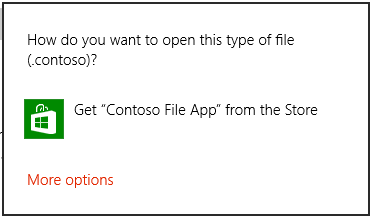
場合によっては、起動するファイルを処理するアプリがユーザーにインストールされていない場合があります。 既定では、Windows は、ストアで適切なアプリを検索するためのリンクをユーザーに提供することで、これらのケースを処理します。 このシナリオで取得するアプリに関する特定の推奨事項をユーザーに提供する場合は、起動するファイルと共にその推奨事項を渡すことで、これを行うことができます。 これを行うには、LauncherOptions.PreferredApplicationPackageFamilyName を推奨するストア内のアプリのパッケージ ファミリ名に設定して、Windows.System.Launcher.launchFileAsync(IStorageFile, LauncherOptions) メソッドを呼び出します。 次に、 LauncherOptions.PreferredApplicationDisplayName にそのアプリの名前を設定します。 Windows では、この情報を使用して、ストア内のアプリを検索する一般的なオプションを、ストアから推奨アプリを取得するための特定のオプションに置き換えます。
注
アプリを推奨するには、これらの両方のオプションを設定する必要があります。 もう一方を指定せずに設定すると、エラーが発生します。
async void DefaultLaunch()
{
   // Path to the file in the app package to launch
   string imageFile = @"images\test.contoso";

   // Get the image file from the package's image directory
   var file = await Windows.ApplicationModel.Package.Current.InstalledLocation.GetFileAsync(imageFile);

   if (file != null)
   {
      // Set the recommended app
      var options = new Windows.System.LauncherOptions();
      options.PreferredApplicationPackageFamilyName = "Contoso.FileApp_8wknc82po1e";
      options.PreferredApplicationDisplayName = "Contoso File App";

      // Launch the retrieved file pass in the recommended app
      // in case the user has no apps installed to handle the file
      bool success = await Windows.System.Launcher.LaunchFileAsync(file, options);
      if (success)
      {
         // File launched
      }
      else
      {
         // File launch failed
      }
   }
   else
   {
      // Could not find file
   }
}
Windows::Foundation::IAsyncAction MainPage::DefaultLaunch()
{
    auto installFolder{ Windows::ApplicationModel::Package::Current().InstalledLocation() };

    Windows::Storage::StorageFile file{ co_await installFolder.GetFileAsync(L"images\\test.png") };

    if (file)
    {
        // Set the recommended app
        Windows::System::LauncherOptions launchOptions;
        launchOptions.PreferredApplicationPackageFamilyName(L"Contoso.FileApp_8wknc82po1e");
        launchOptions.PreferredApplicationDisplayName(L"Contoso File App");

        // Launch the retrieved file, and pass in the recommended app
        // in case the user has no apps installed to handle the file.
        bool success = co_await Windows::System::Launcher::LaunchFileAsync(file, launchOptions);
        if (success)
        {
            // File launched
        }
        else
        {
            // File launch failed
        }
    }
    else
    {
        // Could not find file
    }
}
void MainPage::DefaultLaunch()
{
   auto installFolder = Windows::ApplicationModel::Package::Current->InstalledLocation;

   concurrency::task<Windows::Storage::StorageFile^> getFileOperation(installFolder->GetFileAsync("images\\test.contoso"));
   getFileOperation.then([](Windows::Storage::StorageFile^ file)
   {
      if (file != nullptr)
      {
         // Set the recommended app
         auto launchOptions = ref new Windows::System::LauncherOptions();
         launchOptions->PreferredApplicationPackageFamilyName = "Contoso.FileApp_8wknc82po1e";
         launchOptions->PreferredApplicationDisplayName = "Contoso File App";

         // Launch the retrieved file pass, and in the recommended app
         // in case the user has no apps installed to handle the file.
         concurrency::task<bool> launchFileOperation(Windows::System::Launcher::LaunchFileAsync(file, launchOptions));
         launchFileOperation.then([](bool success)
         {
            if (success)
            {
               // File launched
            }
            else
            {
               // File launch failed
            }
         });
      }
      else
      {
         // Could not find file
      }
   });
}
必要な残りのビューを使用して起動する (UWP のみ)
LaunchFileAsync を呼び出すソース アプリは、ファイルの起動後も画面に残ることを要求できます。 既定では、Windows は、ソース アプリとファイルを処理するターゲット アプリの間で、使用可能なすべての領域を均等に共有しようとします。 ソースアプリでは、DesiredRemainingView プロパティ を使用して、使用可能な領域をより多くまたは少なく占めるようにアプリウィンドウが好ましいことをオペレーティングシステムに示すことができます。 DesiredRemainingView を使用して、ファイルの起動後にソース アプリを画面に残す必要がなく、ターゲット アプリに完全に置き換えることができることを示すこともできます。 このプロパティは、呼び出し元アプリの優先ウィンドウ サイズのみを指定します。 同時に画面に表示される可能性がある他のアプリの動作は指定されません。
注
Windows では、ソース アプリの最終的なウィンドウ サイズ (ソース アプリの基本設定、画面上のアプリの数、画面の向きなど) を決定するときに、複数の異なる要因が考慮されます。 DesiredRemainingView を設定することで、ソース アプリの特定のウィンドウ動作は保証されません。
async void DefaultLaunch()
{
   // Path to the file in the app package to launch
   string imageFile = @"images\test.png";

   var file = await Windows.ApplicationModel.Package.Current.InstalledLocation.GetFileAsync(imageFile);

   if (file != null)
   {
      // Set the desired remaining view
      var options = new Windows.System.LauncherOptions();
      options.DesiredRemainingView = Windows.UI.ViewManagement.ViewSizePreference.UseLess;

      // Launch the retrieved file
      bool success = await Windows.System.Launcher.LaunchFileAsync(file, options);
      if (success)
      {
         // File launched
      }
      else
      {
         // File launch failed
      }
   }
   else
   {
      // Could not find file
   }
}
Windows::Foundation::IAsyncAction MainPage::DefaultLaunch()
{
    auto installFolder{ Windows::ApplicationModel::Package::Current().InstalledLocation() };

    Windows::Storage::StorageFile file{ co_await installFolder.GetFileAsync(L"images\\test.png") };

    if (file)
    {
        // Set the desired remaining view.
        Windows::System::LauncherOptions launchOptions;
        launchOptions.DesiredRemainingView(Windows::UI::ViewManagement::ViewSizePreference::UseLess);

        // Launch the retrieved file.
        bool success = co_await Windows::System::Launcher::LaunchFileAsync(file, launchOptions);
        if (success)
        {
            // File launched
        }
        else
        {
            // File launch failed
        }
    }
    else
    {
        // Could not find file
    }
}
void MainPage::DefaultLaunch()
{
   auto installFolder = Windows::ApplicationModel::Package::Current->InstalledLocation;

   concurrency::task<Windows::Storage::StorageFile^> getFileOperation(installFolder->GetFileAsync("images\\test.png"));
   getFileOperation.then([](Windows::Storage::StorageFile^ file)
   {
      if (file != nullptr)
      {
         // Set the desired remaining view.
         auto launchOptions = ref new Windows::System::LauncherOptions();
         launchOptions->DesiredRemainingView = Windows::UI::ViewManagement::ViewSizePreference::UseLess;

         // Launch the retrieved file.
         concurrency::task<bool> launchFileOperation(Windows::System::Launcher::LaunchFileAsync(file, launchOptions));
         launchFileOperation.then([](bool success)
         {
            if (success)
            {
               // File launched
            }
            else
            {
               // File launch failed
            }
         });
      }
      else
      {
         // Could not find file
      }
   });
}
注釈
起動したアプリをアプリで選択することはできません。 ユーザーは、起動するアプリを決定します。 ユーザーは、WinUI アプリまたは Windows デスクトップ アプリを選択できます。
ファイルを起動するときは、アプリがフォアグラウンド アプリである必要があります。つまり、ユーザーに表示されている必要があります。 この要件は、ユーザーが制御を維持するのに役立ちます。 この要件を満たすために、すべてのファイル起動をアプリの UI に直接関連付ける必要があります。 ほとんどの場合、ユーザーは常に何らかのアクションを実行してファイルの起動を開始する必要があります。
コードまたはスクリプトを含むファイルの種類は、.exe、.msi、.js ファイルなど、オペレーティング システムによって自動的に実行される場合は起動できません。 この制限は、オペレーティング システムを変更する可能性のある悪意のあるファイルからユーザーを保護します。 このメソッドを使用すると、スクリプトを分離するアプリ (.docx ファイルなど) によってスクリプトを含めることができるファイルの種類を起動できます。 Microsoft Word などのアプリでは、.docx ファイル内のスクリプトがオペレーティング システムを変更しないようにします。
制限付きファイルの種類を起動しようとすると、起動は失敗し、エラー コールバックが呼び出されます。 アプリがさまざまな種類のファイルを処理していて、このエラーが発生することが予想される場合は、ユーザーにフォールバック エクスペリエンスを提供することをお勧めします。 たとえば、デスクトップにファイルを保存するオプションをユーザーに提供し、そこでファイルを開く場合があります。
関連するコンテンツ
GitHub で Microsoft と共同作業する
このコンテンツのソースは GitHub にあります。そこで、issue や pull request を作成および確認することもできます。 詳細については、共同作成者ガイドを参照してください。

Windows developer