Nota
L'accesso a questa pagina richiede l'autorizzazione. È possibile provare ad accedere o modificare le directory.
L'accesso a questa pagina richiede l'autorizzazione. È possibile provare a modificare le directory.
Note
Community interest groups have now moved from Yammer to Microsoft Viva Engage. To join a Viva Engage community and take part in the latest discussions, fill out the Request access to Finance and Operations Viva Engage Community form and choose the community you want to join.
This article describes how to use metadata search to search your code and metadata for any patterns and content.
Given the large volume of the code base and metadata, you often need to find things in the code that meet certain criteria. For example, you might not know the name of the metadata element that contains the pattern or meets the criteria. Visual Studio exposes metadata search through two user interfaces: the Metadata Search tool window and the Navigate To window.
Metadata Search tool window
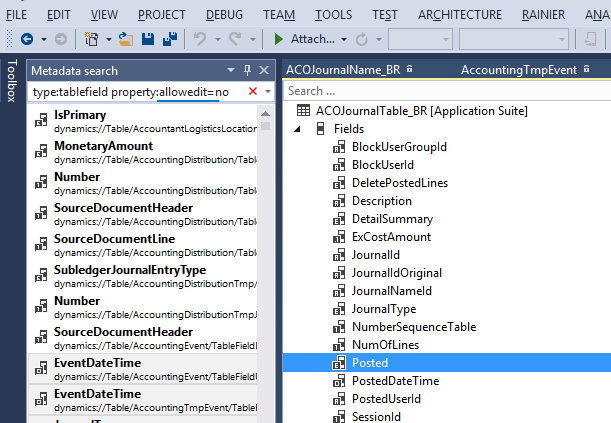
You can access the Metadata Search tool window from the Dynamics 365 > Metadata Search menu command. Enter your search query to start the search. Results start populating in the window asynchronously as you type. You can double-click any result line to go to the corresponding X++ code or metadata that matches your search query.
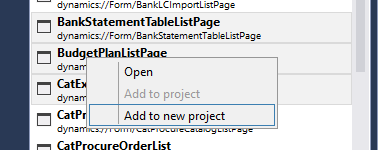
You can also select one or more results, right-click, and then add these elements to a project. You don't need to wait for the search to complete before you start interacting with the search results.
Navigate To window
Invoke the Navigate To window by pressing Ctrl+‘,’ (the comma character) shortcut keys. Pressing Ctrl+‘,’ displays the query entry box in top-right corner of the Visual Studio main document window. You can also access the Navigate To window from the Visual Studio Edit menu. Enter your search query and see the results appear as you type. A progress indicator stops when the search is complete. You don't need to wait for the search to complete to start interacting with the results.

Search query syntax
This section describes the search query syntax and provides example queries.
Syntax
The search query is a search string that consists of a set of filters in this general form:
<filter_1>:<filter_1_value> [<filter_2>:<filter_2_value> … [ <filter_N>:<filter_N\_value>]]
Where <filter_i> is one of the acceptable filter names, and <filter_i_value> are comma-separated (and possibly quoted) filtering values.
Filter names
Name: Filter by element name. This is the default filter, so if you just type a filter value, it's assumed to be an element name. Each comma-separated value is an acceptable element name.
Type: Filter by element type. Each comma-separated value should be the name of an element or subelement type (root type or subtype) such as table, class, or field. The logic of filtering is:
(roottype_1 OR roottype_2 OR … OR roottype_N) AND (subtype_1 OR subtype_2 OR … OR subtype_N)Model: Filter by model name. Each comma-separated value should be the name of a model in your application.
Property: Apply property filters. Each comma-separated value should be in the form
property_name=property_value.Code: Filter using code snippets. Use quotes around code snippets. The matching source code is the elements that contain the specified code snippet.
You can get help about using filters and filter syntax by opening the drop-down menu available in the search box.

Examples
| Query string | What it does |
|---|---|
TrvExpTable |
If the token is by itself, it is assumed to be the name. So this will find everything in the application that has "TrvExpTable" in the name. |
type:form ccount |
Finds all forms that have "ccount" in their names. |
type:form property:formtemplate=listpage |
Finds all forms that contain the property "FormTemplate" equal to ListPage. |
type:table,formDesign property:"WorkflowDataSource=TrvExpTable" |
Finds formDesign nodes under tables, but doesn't find anything. |
type:form,formmenufunctionbuttoncontrol property:Text=@SYS311998 |
Finds all menu function button controls with the Text property equal to (a label) @SYS311998. |
type:table,method name:insert |
Finds tables with a method containing "insert" in the method name. |
type:table,tableindex name:Export |
Finds tables with an index name containing the word "Export". |
type:table,tableindexfield name:xpNum |
Finds table indexes with "xpNum" in the index field name. |
type:table,tablefieldgroup name:EPNew |
Finds FieldGroups (in tables) containing EPNew in their names. |
type:form,formgridcontrol property:allowedit=no,heightmode=column |
Finds form grid controls, with properties allowedit equal to no and heightmode equal to column. |
type:form,formtabcontrol property:arrangeMethod=Vertical,ViewEditMode=view,WidthMode=Auto |
Finds form tab controls, with properties arrangeMethod equal to Vertical and ViewEditMode equal to view and WidthMode equal to Auto. |
type:form,formDesign property:"WorkflowDataSource=TrvExpTable" |
Finds all forms with the "WorkflowDataSource" property in the FormDesign node set to the value TrvExpTable. |
model:”Application Suite” type:formdesign property:style=simplelistdetail |
Find all forms in Application Suite model that has the style property set to simpleListDetail in the FormDesign node. |
code:"return null" |
Finds all places in the source code that contains "return null". |
code:"element.lock()" type:form |
Finds all places in the forms source code that contain the snippet "element.lock()". |
code:"insert" type:table,form |
Finds all places in the source code of either forms or tables that contain "insert". |
code:"public display" type:form,method |
Finds all form methods that contain the code "public display". |
type:formbuttoncontrol property:text= |
Finds all form Button Controls that have empty text properties. |