Muistiinpano
Tämän sivun käyttö edellyttää valtuutusta. Voit yrittää kirjautua sisään tai vaihtaa hakemistoa.
Tämän sivun käyttö edellyttää valtuutusta. Voit yrittää vaihtaa hakemistoa.
Large development teams often collaborate by using a single large solution with many projects. However, individual developers typically work on a small subset of these projects. To improve performance when opening large solutions, Visual Studio 2019 introduced solution filtering. Solution filtering lets you open a solution with only selective projects loaded. Loading a subset of projects in a solution decreases solution load, build, and test run time, and enables more focused review.
The following features are available:
You can get to code faster by opening a solution without loading any of its projects. After the solution opens, you can selectively choose which projects to load.
When you reopen a solution, Visual Studio remembers which projects were loaded in your previous session and only loads those projects.
You can create a solution filter file to save one or more project-load configurations or share the configuration with teammates.
Note
This topic applies to Visual Studio on Windows.
Open a filtered solution
You can open a solution without loading any of its projects directly from the Open Project dialog or through the command line.
Open Project dialog
To open a solution without loading any of its projects by using the Open Project dialog:
Choose File > Open > Project/Solution from the menu bar.
In the Open Project/Solution dialog, select the solution, and then select Do not load projects.
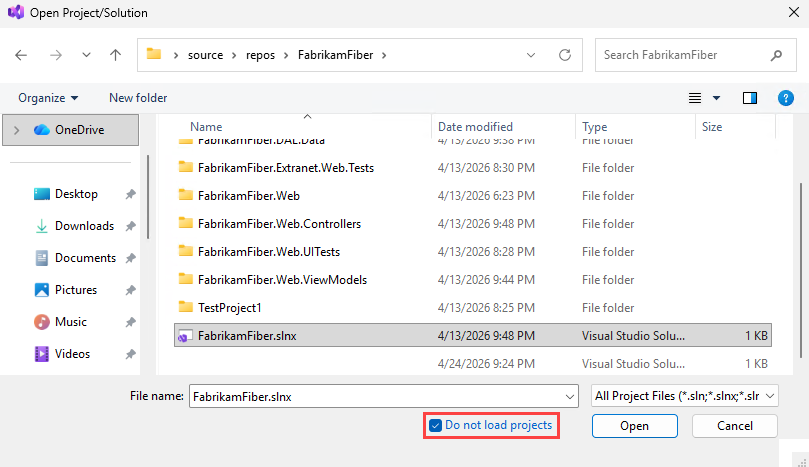
Choose Open.
The solution opens with all of its projects unloaded.
In Solution Explorer, select the projects you want to load (press Ctrl while clicking to select more than one project), and then right-click the projects and select Reload Project.

Visual Studio will remember which projects are loaded the next time you open the solution locally.
Command line
(New in Visual Studio 2019 version 16.1.)
To open a solution without loading any of its projects from the command line, use the /donotloadprojects switch as shown in the following example:
devenv /donotloadprojects MySln.sln
Toggle unloaded project visibility
You can choose to see either all the projects in the solution or just the loaded ones using one of the following choices in Solution Explorer:
Right-click on your solution and select Show Unloaded Projects or Hide Unloaded Projects.
Select the solution node to enable the Show All Files button; then, click the button to toggle the visibility of unloaded projects.

Load project dependencies
In a solution where only selected projects are loaded, you may not have all of a project's project dependencies loaded. Use the load project dependencies menu options to ensure that any projects that a project depends on are also loaded. Right-click one or more loaded projects in Solution Explorer and select either Load Direct Dependencies or Load Entire Dependency Tree.

Solution filter files
If you want to share your project-load configuration or commit it to source control, you can create a solution filter file (it has the extension .slnf). When you open a solution filter file, the solution opens in Visual Studio with the specified projects loaded and all the unloaded projects hidden. You can toggle to view the unloaded projects.
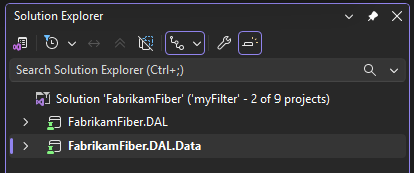
Solution filter files are visually differentiated from regular solution files by the additional funnel glyph in the icon next to the solution in Solution Explorer. The name of the filter and the number of loaded projects are also shown next to the solution name.
Note
If new projects are added to the original solution after you create the solution filter file, they appear as unloaded projects in Solution Explorer.
Create a solution filter file
On the File menu, select Save Solution As Filter.

Choose a name and location for the solution filter file.
After you create a solution filter file, it's added to your recent projects and solutions list for easy access:
