Muistiinpano
Tämän sivun käyttö edellyttää valtuutusta. Voit yrittää kirjautua sisään tai vaihtaa hakemistoa.
Tämän sivun käyttö edellyttää valtuutusta. Voit yrittää vaihtaa hakemistoa.
Note
Community interest groups have now moved from Yammer to Microsoft Viva Engage. To join a Viva Engage community and take part in the latest discussions, fill out the Request access to Finance and Operations Viva Engage Community form and choose the community you want to join.
You can run many tasks in Microsoft Dynamics 365 Finance as part of a batch job. Typically, you create batch jobs for tasks such as processing reports, coordinating scheduled maintenance, and creating and sending documents like invoices. By using batch jobs, you avoid slowing down your computer or the server during typical working hours. The tasks in a batch job can run either sequentially or at the same time.
In India, every legal entity must file Goods and Services Tax (GST) returns. Typically, the transaction volume is very high because all details of sales and purchase invoices are reported to the government. Currently, you can generate GST return (GSTR) reports either directly from the report dialog box or by using the batch process. However, report generation can sometimes take quite a while. To make the process more dynamic and efficient, the multibatch processing feature is provided for GSTR reports. This feature significantly improves the performance of report generation.
Turn on the multibatch processing feature
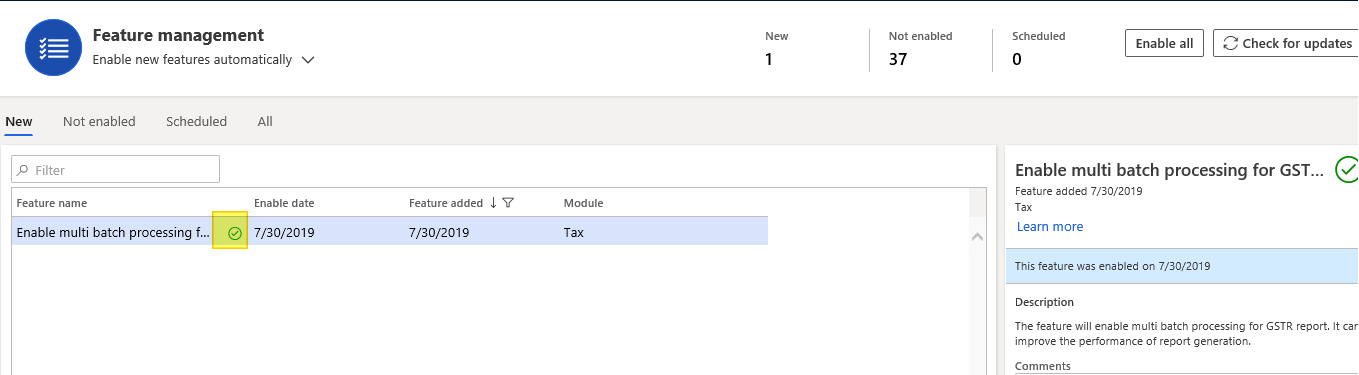
- Go to Workspaces > Feature management, and turn on the Enable multibatch processing for GSTR reports feature.
Generate a GSTR report
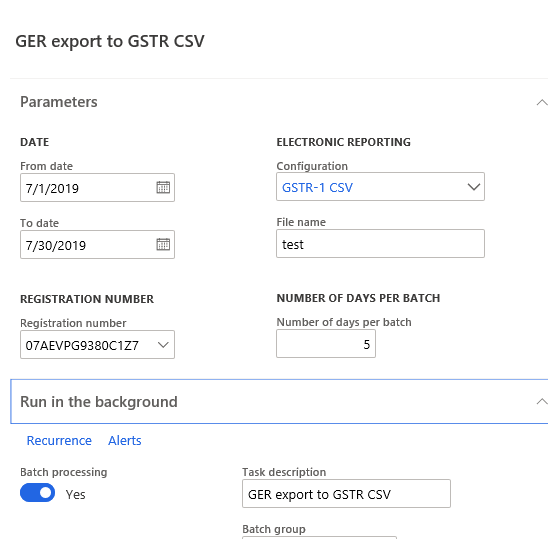
- Go to Tax > Inquiries and reports > Sales tax reports > GER export to GSTR CSV.
- On the Run in the background FastTab, set the Batch processing option to Yes.
- On the Parameters FastTab, in the Number of days per batch field, enter a number that's greater than 0.
- Select OK.
Get CSV files
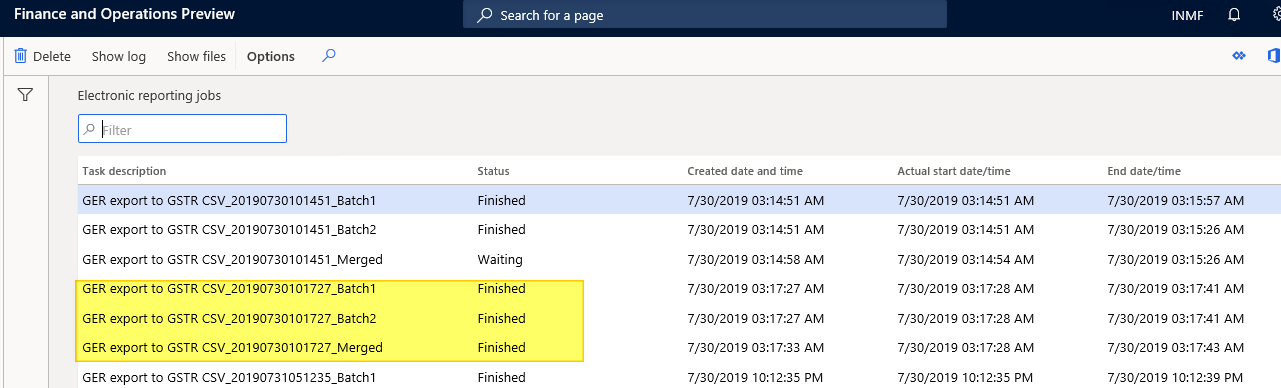
- Go to Organization administration > Electronic reporting > Electronic reporting jobs.
- Select the comma-separated values (CSV) files that you want. For example, select GER export to GSTR CSV__Merged. This file is generated as a merged file.