Copilot in Microsoft Defender for Cloud
Microsoft Defender for Cloud integrates both Microsoft Security Copilot and Microsoft Copilot for Azure into its experience. These integrations allow you to ask security-related questions, receive responses, and automatically trigger the necessary skills to analyze, summarize, remediate, and delegate recommendations using natural language prompts.
Note
The list of Copilot capabilities embedded in Microsoft Defender for Cloud is continually growing. This unit provides just a sampling of those capabilities. For more information, see the documentation on Microsoft Security Copilot in Defender for Cloud.
How the integration works
Copilot in Defender for Cloud uses a dual-platform architecture. When you enter a prompt in the Copilot interface, Copilot for Azure receives the prompt and evaluates it along with the active page to determine the skills needed. If the prompt is security related and a matching Security Copilot skill is available, Security Copilot executes the skill and sends the response back through Copilot for Azure for presentation. If the skill is unavailable, Copilot for Azure searches its own available skills to find the most relevant match and responds accordingly.
This distinction matters for SCU consumption. Only prompts that invoke Security Copilot skills consume Security Compute Units. Prompts handled entirely by Copilot for Azure don't consume SCUs.
Prerequisites
Copilot in Defender for Cloud is available for all users when you:
- Enable Defender for Cloud on your environment.
- Have access to Azure Copilot, which is available by default to all Azure portal users unless restricted by a Global Administrator.
- Have Security Compute Units (SCUs) assigned for Security Copilot.
Copilot in Defender for Cloud doesn't rely on any of the available Defender for Cloud plans. However, to enjoy the full range of Copilot capabilities, enabling the Defender Cloud Security Posture Management (DCSPM) plan is recommended. The DCSPM plan includes extra security features such as attack path analysis and risk prioritization, all of which can be navigated and managed using Security Copilot. Without the DCSPM plan, you can still use Copilot in Defender for Cloud, but with limited capacity.
Analyze recommendations
Copilot's integration with Defender for Cloud enables you to analyze all recommendations presented on the recommendations page using natural language prompts. From the recommendations page, selecting Analyze with Copilot opens the Copilot interface where you can use natural language prompts to narrow the scope of the recommendations and focus on specific areas of concern.

Some sample prompts include:
- Show risks for publicly exposed resources
- Show risks for resources with sensitive data
- Show risks for critical resources
Copilot generates an initial analysis and you can filter the list of recommendations based on the results. You can further refine the results by selecting suggested follow-up prompts or entering prompts manually. The recommendations page updates with the appropriate filters applied based on the prompts you provided.

Summarize recommendations
Once you select a specific recommendation, Copilot can summarize it to provide a quick, natural-language overview of the risks and vulnerabilities associated with that recommendation. The summary helps you understand the context and effect of the recommendation, enabling you to prioritize remediation efforts effectively.
By summarizing a recommendation, you gain insight into what the recommendation addresses, why it matters, and the potential impact of implementing it—all without having to interpret the technical details manually.

Once you have a better understanding of the recommendation, you can decide how best to handle it. For example, you can ask Copilot to help remediate the recommendation, delegate the remediation to the resource owner, or enter other prompts as needed.
Remediate recommendations
After summarizing a recommendation, Copilot can assist with remediation by providing step-by-step guidance to address the identified risk. Remediating recommendations with Copilot allows you to improve your security posture by directly addressing vulnerabilities in your environment.
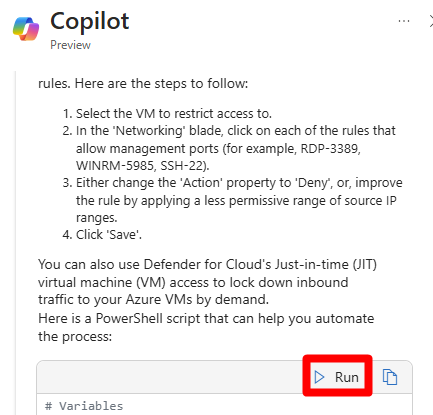
When you ask Copilot to help with remediation, it provides suggested remediation information along with instructions. In some cases, a recommendation might include a script that can be run to apply the remediation directly.
Delegate recommendations
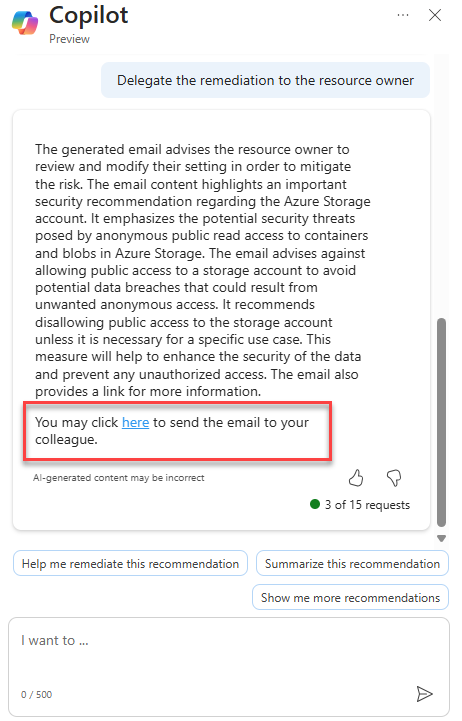
Copilot can also help you delegate recommendations to the appropriate person or team. Delegating recommendations ensures that the right people address the risks and vulnerabilities in your environment, improving overall security posture.
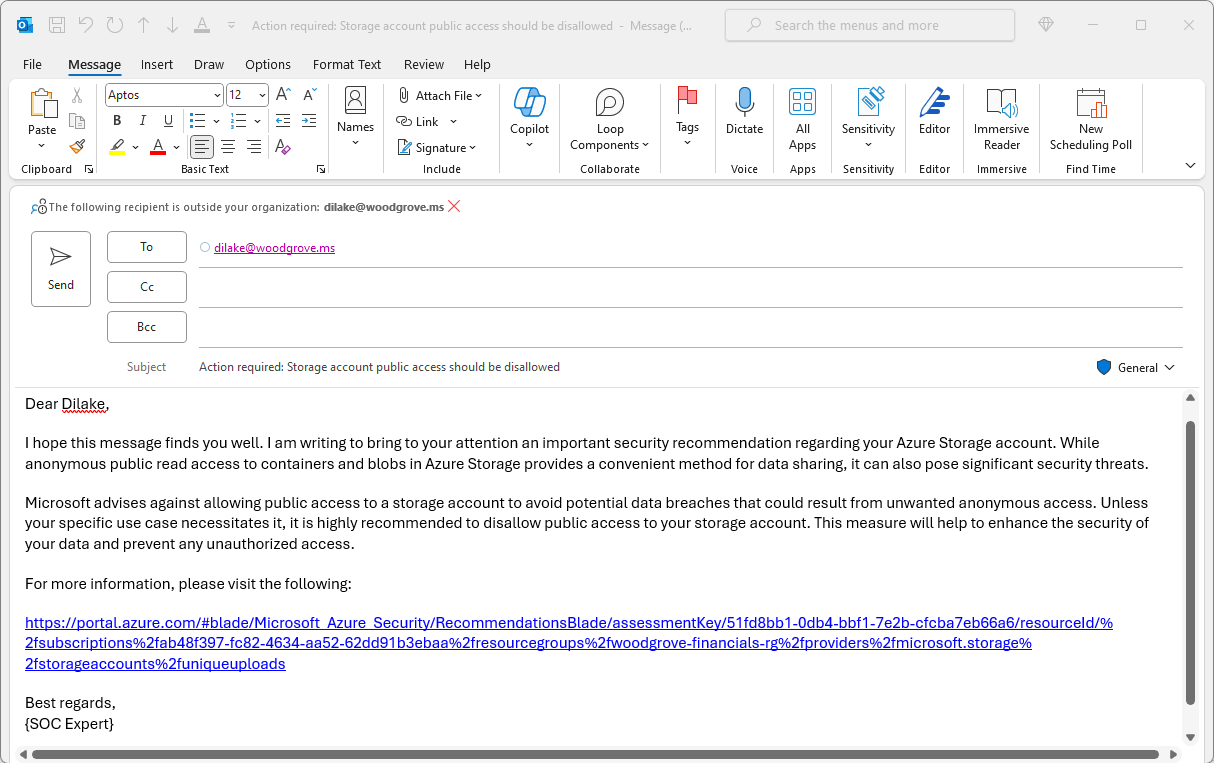
When you choose to delegate, Copilot drafts an email summarizing the recommendation and the suggested remediation actions. You can review the email, add recipients, and send it directly from the interface. Once delegated, you can monitor the progress of the remediation on Defender for Cloud's recommendations page.
Remediate code
Copilot in Defender for Cloud can also help remediate Infrastructure as Code (IaC) misconfigurations discovered in your code repositories. This capability allows you to address security misconfigurations and vulnerabilities early in the development cycle by automatically generating pull requests (PRs) that correct the identified weaknesses.
This capability requires additional prerequisites beyond the standard Copilot requirements, including connecting your Azure DevOps environment to Defender for Cloud, configuring the Microsoft Security DevOps Azure DevOps extension, and meeting the DevOps security support and prerequisites requirements.
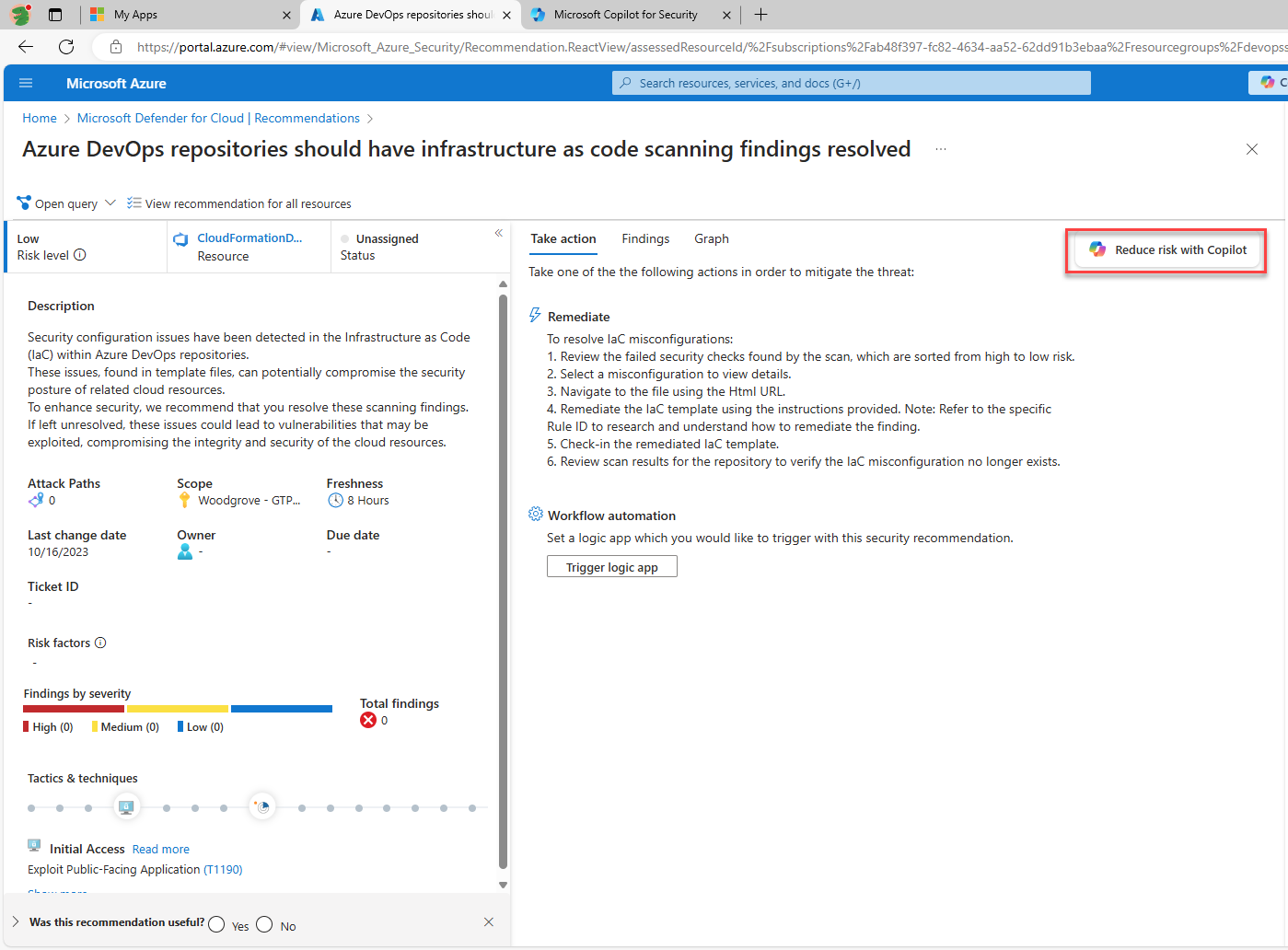
When a recommendation related to IaC scanning findings is identified, you can select Reduce risk with Copilot to have Copilot generate a code fix. Copilot identifies the relevant security check, generates a remediation, and creates a pull request in your code repository. A developer should then review and approve the PR before merging it into the code base.

Providing feedback
As with other embedded experiences, Copilot in Defender for Cloud provides a mechanism to give feedback on the accuracy of AI-generated responses. After each completed prompt, you can select from available options including Looks right if the results are accurate, Needs improvement if the results are incomplete or incorrect, or Inappropriate if the results contain questionable information. Whenever possible, provide additional details to help improve future responses.