Copilot in Microsoft Intune
Microsoft Intune has capabilities that are powered by Microsoft Security Copilot. These capabilities access your Intune data and can help you manage your policies and settings, understand your security posture, and troubleshoot device issues, including Windows 365 Cloud PCs.
Access to your Intune data is supported through the standalone Security Copilot experience or embedded within the Intune admin center, referred to as Copilot in Intune. This unit focuses on the embedded experience.
Note
The list of Copilot capabilities embedded in Microsoft Intune is continually growing. This unit provides just a sampling of those capabilities. For more information, see the documentation on Microsoft Copilot in Intune.
Before you begin
To use Copilot in Intune, Security Copilot must be configured, the Microsoft Intune plugin must be enabled in Security Copilot, and you need the appropriate role permissions. Copilot in Intune is included with Security Copilot—there are no other licensing requirements or Intune-specific licenses needed.
Access to Copilot in Intune is managed through Security Copilot or Microsoft Entra ID. The Intune Administrator role in Microsoft Entra ID has access to Copilot in Intune by default. Other roles can be assigned access through Security Copilot. There isn't a built-in Intune role that includes access to Copilot.
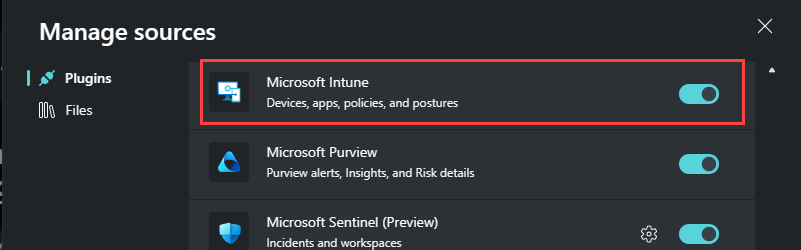
Copilot uses your Intune data. When an admin submits a prompt, Copilot can only access the data that the admin has permissions to, which includes the RBAC roles and scope tags assigned to them. You can also check the status of Copilot in Intune from the Intune admin center under Tenant administration > Copilot.

To use Copilot in Intune for Windows 365 Cloud PCs, you must also enable the Windows 365 plugin in Security Copilot.
Copilot in Intune
To access Copilot in Intune, sign into the Intune admin center and select the Copilot button in the banner at the top. Copilot Chat opens, where you can use natural language to ask questions. An intelligent search matches your request to available prompts built into Intune, which are offered as dynamic suggestions that update as you type.
The prompt suggestions are organized into three sections:
- Suggestions – Prompts specific to Intune scenarios, such as device troubleshooting, policy and setting management, Surface device troubleshooting, and Windows 365 Cloud PC insights.
- Explore your data – Prompts for querying and exploring your Intune data. Results might include an Explore further option that redirects you to the data explorer with your prompt already filled out.
- Check documentation – Allows you to ask a question directly to the Microsoft documentation.
Copilot in Intune supports the following scenarios:
- Data exploration using natural language
- Policy and setting management
- Device details and troubleshooting
- Device query
- Analyzing Endpoint Privilege Management (EPM) requests
- Troubleshooting Microsoft Surface devices
- Gaining insights about Windows 365 Cloud PCs
Policy and setting management
Copilot is embedded in policy settings and with your existing policies, on the following policy types in Intune:
- Compliance policies
- Device configuration policies, including the settings catalog
- Most endpoint security policies
When you create a new policy, you can use Copilot to learn more about individual settings, their impact, and recommended values through the Copilot tooltips that appear next to each setting. Selecting the Copilot icon displays detailed information about that setting, including whether it's been configured in other policies, Microsoft's recommended value, and how the setting could affect users or security.

From an existing policy, you can use Copilot to summarize the policy. The summary describes what the policy does, the users and groups assigned to the policy, and the settings in the policy. This feature can help you understand the impact of a policy and its settings on your users and devices. For compliance policies, Copilot can also help identify policies that have conflicting settings.

Whether you're learning about settings for a new policy or summarizing an existing policy, the Copilot window provides more prompts that you can use. You can also select the prompt guide icon on the bottom right and select from an existing list of prompts.

Device details and troubleshooting
You can use Copilot to get device-specific information, like the installed apps, group membership, and other information that can help troubleshoot a device.
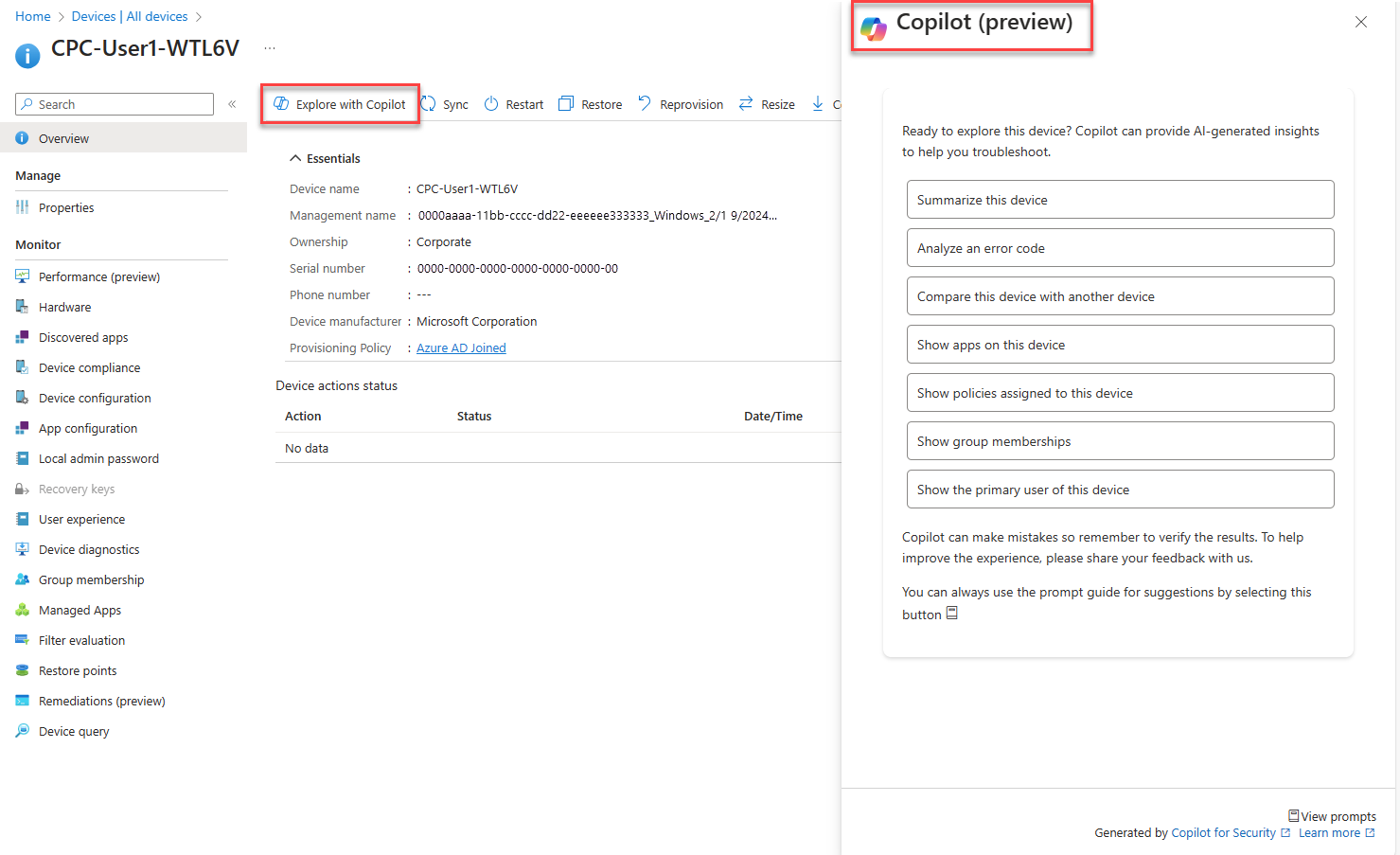
Prompts include summarizing a device, analyzing an error code, comparing a device with another device, showing apps or policies on a device, showing group memberships, and showing the primary user. You can also use the error analyzer prompt to enter an error code, get more information about the error, and get a possible resolution.
Data exploration
Using natural language, you can query and explore your Intune data, including data about your devices, users, apps, policies, updates, and compliance. Copilot summarizes the results and recommends actions you can take based on the query results. You can also use the query output to add users or devices to groups, and create custom reports.
Device query
You can use Copilot to help you create Kusto Query Language (KQL) queries to run when using device query in Intune. You can use this feature for an individual device or across many devices. In Copilot Chat, enter your question about the device and, if device query supports the properties needed, Copilot generates a KQL query that you can use, along with an explanation of how it created the query. Device query requires a license that includes Microsoft Intune Advanced Analytics.
Endpoint Privilege Management
Copilot can help you analyze Endpoint Privilege Management (EPM) elevation requests. When reviewing EPM requests, Copilot provides insights and context to help you make informed decisions about whether to approve or deny elevation requests.
Surface device troubleshooting
The Surface Management Portal in the Intune admin center integrates with Security Copilot, bringing AI-powered insights to IT teams managing Surface devices. This enables automated troubleshooting, proactive device management, and security-driven intelligence, helping administrators resolve issues faster and strengthen security postures.
Windows 365 Cloud PC insights
Copilot in Intune includes Windows 365 integrations that help IT administrators manage Cloud PCs. Key use cases include Cloud PC performance optimization through recommendations for resizing, user experience improvements by summarizing connectivity issues such as high latency or dropped connections, license optimization by identifying unused or underutilized Cloud PCs, and Cloud PC management assistance for diagnosing provisioning issues and Cloud PCs in grace period.