Copilot in Microsoft Purview
Microsoft Security Copilot is accessible from within Microsoft Purview solutions as part of the embedded experience. With Copilot in Microsoft Purview, data security and compliance admins can use the power of AI to assess risk exposure, summarize alerts, investigate user activities, and gain insights into policies—directly from within Microsoft Purview solutions.
You can open Security Copilot in Microsoft Purview by selecting the Copilot icon in the top navigation bar. It's available across all Microsoft Purview solutions.
Note
The list of Copilot capabilities embedded in Microsoft Purview is continually growing. This unit provides just a sampling of those capabilities. For more information, see the documentation on Security Copilot in Microsoft Purview.
Getting started
For all use cases supported through the embedded experience, your organization must be onboarded to Security Copilot, the Microsoft Purview plugin must be enabled, and your organization must be licensed and onboarded to the applicable Microsoft Purview solutions. To enable the Microsoft Purview plugin, the option to allow Security Copilot to access data from your Microsoft 365 services must be enabled as part of the owner plugin settings.

Users must have the appropriate role permissions for both Copilot and the Purview solutions. For Copilot, users need, at a minimum, the Copilot workspace contributor role or the Microsoft Entra Security operator role. For Microsoft Purview, Copilot assumes the permissions of the user when it tries to access data, so you need the required permissions for the specific Purview solution you're working with.
The embedded experience in Microsoft Purview supports scenarios across the following solutions:
- Data Security Posture Management (DSPM)
- Data Loss Prevention (DLP)
- Insider Risk Management
- Communication Compliance
- eDiscovery
Data Security Posture Management
Data Security Posture Management (DSPM) integrates with Security Copilot to help you quickly explore details and get answers about unprotected sensitive data assets and potentially risky user activities. Data security insights come from scanned data across DLP, Information Protection, and Insider Risk Management solutions.
DSPM provides built-in promptbooks—sequences of prompts that automatically run in order—to help you investigate risky users and protect sensitive data. The Risky user investigation promptbook helps you investigate a specific user's sensitive data activities, anomalies, exfiltration patterns, and related alerts. The Sensitive data protection promptbook helps you identify where specific types of sensitive data are stored, how that data has been transferred, and how to prevent unauthorized transfers.
DSPM also offers a prompt gallery with built-in prompts organized into categories such as alerts and policies, data at risk, potentially risky users, potentially suspicious activity, and sensitive data. You can customize these prompts or run them directly in Copilot.
Data Loss Prevention
Security Copilot helps data security teams manage the volume of DLP alerts they receive daily. From the DLP alerts queue, you can select an alert and have Copilot generate a comprehensive summary that accelerates your investigation.
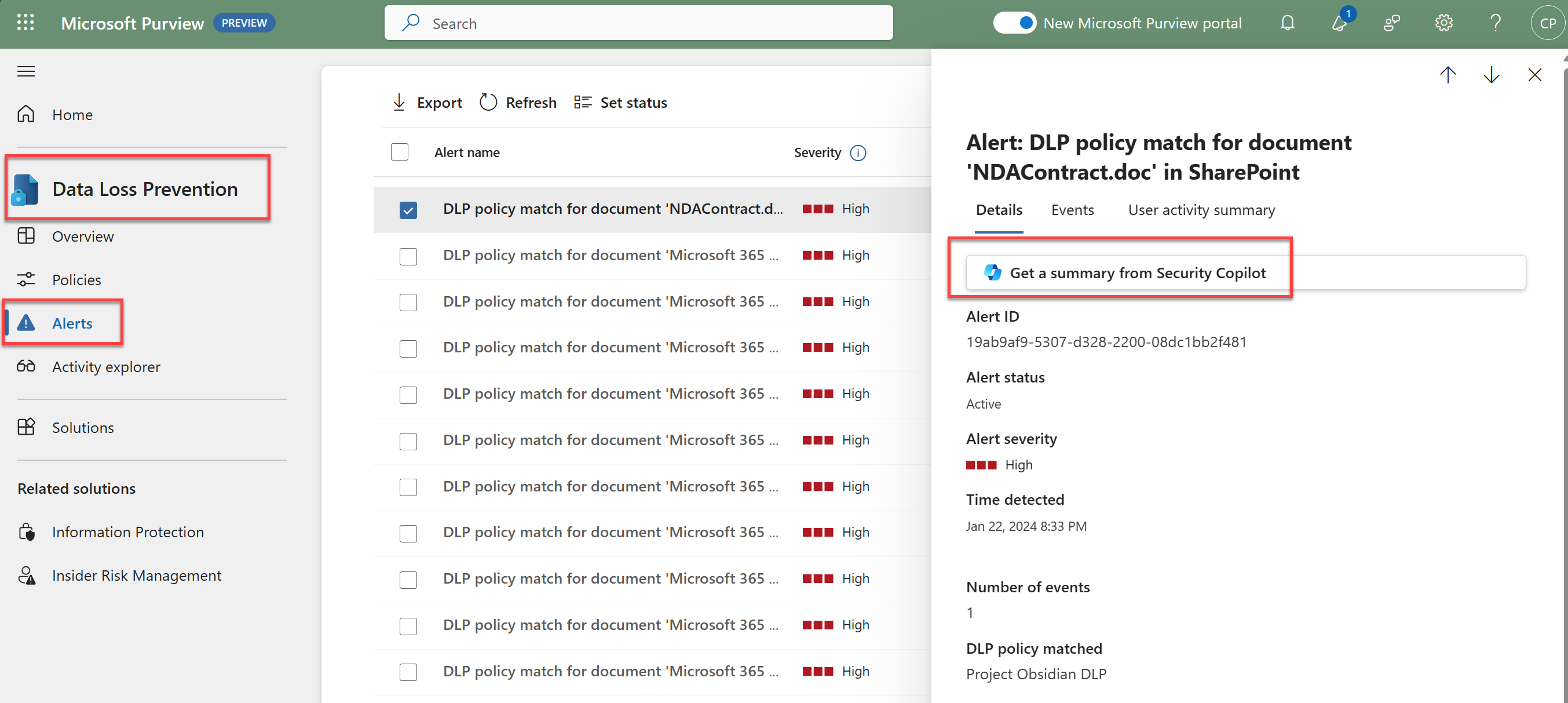
From the alert summary, you can copy the response to clipboard, regenerate, or transition to the standalone experience by selecting Open in Security Copilot.

Beyond alert summaries, Copilot can also help you understand what your DLP policies are doing in your organization and where they're active, providing insights into policy configurations and effectiveness.
Insider Risk Management
Copilot in Insider Risk Management enables you to quickly gain the highlights of a potential incident by summarizing alerts. The summary identifies critical user details like exfiltration activities, patterns, user roles, and unusual activities that might lead to potential security incidents.

From the alerts queue, select the alert you want to review and select Summarize to have Copilot generate the alert summary. From the summary, you can copy the response to clipboard, regenerate, or open it in the standalone Copilot experience.

Copilot can also summarize user activities in Insider Risk Management, helping you understand a user's risk profile and activity patterns across a specified time period.
Activity explorer
Security Copilot is embedded in the activity explorer to help you efficiently drill down into activity data and identify activities, files with sensitive information, users, and other details that are relevant to an investigation. You can use natural language prompts to explore top activities, filter and investigate specific activities, or find files used in specific activities.
Activity explorer also supports natural language to filter set generation. You can enter complex natural language queries—for example, "Filter and investigate files copied to cloud with sensitive info type credit card number for past 30 days"—and Copilot generates a filter set that you can review and apply to the data.
Communication Compliance
Reviewing communications is an integral part of protecting your organization's communication landscape, but it can be time-consuming to review lengthy content and attachments. Copilot in Communication Compliance provides contextual summaries of messages and their attachments in the context of the classifier conditions that flagged the message. You can also ask follow-up contextual questions to dig deeper into the summary.

Contextual summarization currently supports trainable classifiers as context and is only available for messages and attachments with a combined length of 100 words or more. To get contextual summaries, you must have the Communication Compliance or Communication Compliance Investigator role.

eDiscovery
Copilot embedded with Microsoft Purview eDiscovery helps admins and managers optimize the time spent reviewing evidence collected in review sets. Copilot can generate a contextual summary of a single item in a review set and you can ask follow-up contextual questions about the summary. Contextual summary is supported only for file types with text extraction support.

eDiscovery also supports natural language search to help you find relevant content across your cases, and Copilot can generate case summaries to help you quickly understand the scope and key details of eDiscovery cases.
Feedback
For any AI-generated content, you can provide feedback on the accuracy of the response. Select the feedback prompt on the bottom right of the content window and select from the available options: confirmed, it looks great; off target, inaccurate; or potentially harmful, inappropriate.
