Exercise - Bring your own SDOH datasets into the lakehouse
In this exercise, you learn how to prepare a dataset for ingestion into the lakehouse as a social determinant dataset.
Bring your own SDOH data
To bring your own social determinants of health (SDOH) data, follow these steps:
Open the SDOH_State_Level_DATASET_Starter.xlsx file located in the lab resource folder.
Confirm that the Sensitivity setting on the spreadsheet isn't marked as Confidential. If it’s marked as Confidential, the spreadsheet fails during the ingestion process.
Edit the worksheet name by replacing the spaces with an underscore (_). This step ensures that the name is properly formatted for use during ingestion.
The following image shows the correct format for the worksheet name.

Select New sheet and then create three new worksheets with the following names:
- Layout
- LocationConfiguration
- DataSetMetadata
Note
If you paste these names, make sure that they don't have an extra trailing space at the end.
You now have four worksheets, as shown in the following screenshot.

Select the Layout worksheet and then add the following headers and rows.
Category SubCategory SocialDeterminantDescription SocialDeterminantName Units HarmonizationKey Socioeconomic Schools % drop out of school PercentDropout Percentile Socioeconomic Socioeconomic Schools % graduated PercentGraduated Percentile Socioeconomic Socioeconomic Schools % financial aid PercentFinancialAid Percentile Socioeconomic The Layout worksheet should resemble the following image.

Select the LocationConfiguration worksheet and then add the header and rows as follows.
ColumnName StandardColumnName AssociatedWithSDOHValue SchoolDistrict SCHOOL_DISTRICT TRUE City CITY FALSE State STATE FALSE The LocationConfiguration worksheet should resemble the following image.

Select the DataSetMetadata worksheet and then add the header and rows as follows.
DataSetName PublisherName PublishedDate ValidUntil Training State School Data Fabrikam Statistics 4/27/2023 The DataSetMetadata worksheet should resemble the following screenshot.

Save your changes.
Go to https://app.powerbi.com/ and sign in.
Select the FL HC Cloud workspace that you created. Replace FL with your initials.
Locate and select the FLHeathcare_msft_bronze lakehouse. Replace FL with your initials.
Expand Files > Ingest > SDOH > XLSX and then select the ellipsis (...) on the node. Select New subfolder.
Enter Fabrikam as the folder name and then select Create. In this example, you conform to the unified folder structure and create a new publisher.
Select the ellipsis (...) button on the Fabrikam folder and then select Upload > Upload files.

Select the folder icon. Locate and select the Excel file that you edited. Select Upload.
After the upload completes, close the Upload files pane.
Select the workspace that you created. Locate and select the FLHealthcare_msft_sdoh_ingest data pipeline.
Review the pipeline activities and then select Run.

Wait for the pipeline run to complete.


Query the silver lakehouse
To query the silver lakehouse, follow these steps:
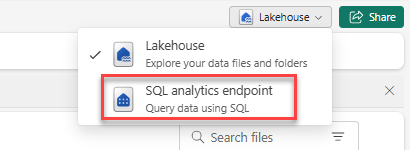
Select Lakehouse in the upper-right corner and then switch to SQL analytics endpoint.
Select New SQL query.
Paste the query as follows.
SELECT
    sd.SocialDeterminantId,
    sd.SocialDeterminantName,
    sd.SocialDeterminantValue,
    sd.HarmonizationKey,
    loc.SocialDeterminantCategoryName AS Category,
    sub.SocialDeterminantSubCategoryName AS SubCategory,
    uom.UnitOfMeasureName AS MeasurementUnit
FROM SocialDeterminant sd
JOIN SocialDeterminantSubCategory sub ON sd.SocialDeterminantSubCategoryId = sub.SocialDeterminantSubCategoryId
JOIN SocialDeterminantCategory loc ON sub.SocialDeterminantCategoryId = loc.SocialDeterminantCategoryId
JOIN UnitOfMeasure uom ON sd.UnitOfMeasureId = uom.UnitOfMeasureId
WHERE sd.HarmonizationKey = 'Socioeconomic'
Select Run.

The query results are as follows.


