Note
Access to this page requires authorization. You can try signing in or changing directories.
Access to this page requires authorization. You can try changing directories.
Applies to:  Canvas apps
Copilot Studio
Desktop flows
Model-driven apps
Power Platform CLI
Dataverse functions
Canvas apps
Copilot Studio
Desktop flows
Model-driven apps
Power Platform CLI
Dataverse functions
Modifies or creates one or more records in a data source, or merges records outside of a data source.
Use the Patch function to modify records in complex situations, such as when you do updates that require no user interaction or use forms that span multiple screens.
To update records in a data source more easily for simple changes, use the Edit form control instead. When you add an Edit form control, you provide users with a form to fill in and then save the changes to a data source. For more information, see Understand data forms.
Watch this video to learn how to use the Patch function:
Overview
Use the Patch function to modify one or more records of a data source. It updates the values of specific fields without affecting other properties. For example, this formula changes the phone number for a customer named Contoso:
Patch( Customers, LookUp( Customers, Name = "Contoso" ), { Phone: "1-212-555-1234" } )
Use Patch with the Defaults function to create records. Use this behavior to build a single screen for both creating and editing records. For example, this formula creates a record for a customer named Contoso:
Patch( Customers, Defaults( Customers ), { Name: "Contoso" } )
Note
When you patch a collection by using a record from a data source with default values, the patch operation updates the collection with both the specified patch values and the default values from the data source. The DataSource of the patch statement and the DataSource of the Defaults function must match to create a new record.
Even if you're not working with a data source, you can use Patch to merge two or more records. For example, this formula merges two records into one that identifies both the phone number and the location for Contoso:
Patch( { Name: "Contoso", Phone: "1-212-555-1234" }, { Name: "Contoso", Location: "Midtown" } )
Description
Modify or create a record in a data source
To use this function with a data source, specify the data source, and then specify a base record:
- To modify a record, the base record needs to come from a data source. You might get the base record through a gallery's Items property, place it in a context variable, or obtain it through some other path. But, you must be able to trace the base record back to the data source. This requirement is important because the record includes extra information that helps you find the record again for modification.
- To create a record, use the Defaults function to create a base record with default values.
Then specify one or more change records, each of which contains new property values that override property values in the base record. Change records are processed in order from the beginning of the argument list to the end, with later property values overriding earlier ones.
The return value of Patch is the record that you modified or created. If you created a record, the return value might include properties that the data source generated automatically. However, the return value doesn't provide a value for fields of a related table.
For example, you use Set(MyAccount, Patch(Accounts, First(Account), 'Account Name': "Example name")); and then MyAccount.'Primary Contact'.'Full Name'. You can't yield a full name in this case. Instead, to access the fields of a related table, use a separate lookup such as:
LookUp(Accounts, Account = MyAccount.Account).'Primary Contact'.'Full Name'
When you update a data source, one or more issues might arise. Use IfError and IsError with the return value from Patch to detect and respond to errors, as Error Handling describes. You can also use the Errors function to identify and examine issues, as Working with Data Sources describes.
Related functions include the Update function to replace an entire record, and the Collect function to create a record. Use the UpdateIf function to modify specific properties of multiple records based on a condition.
Modify or create a set of records in a data source
You can also use Patch to create or modify multiple records with a single call.
Instead of passing a single base record, provide a table of base records in the second argument. Provide change records in a table as well, corresponding one-for-one with the base records. The number of records in each change table must be the same as the number of records in the base table.
When you use Patch in this manner, the return value is also a table with each record corresponding one-for-one with the base and change records.
Merge records outside of a data source
Specify two or more records that you want to merge. The function processes records in the order from the beginning of the argument list to the end, with later property values overriding earlier ones.
Patch returns the merged record and doesn't modify its arguments or records in any data sources.
Syntax
Modify or create a record in a data source
Patch( DataSource, BaseRecord, ChangeRecord1 [, ChangeRecord2, … ])
- DataSource – Required. The data source that contains the record that you want to modify or will contain the record that you want to create.
- BaseRecord – Required. The record to modify or create. If the record came from a data source, the function finds and modifies the record. If the result of Defaults is used, the function creates a record. The DataSource of the patch statement and the DataSource of the Defaults function must match in order to create a new record.
- ChangeRecord(s) – Required. One or more records that contain properties to modify in the BaseRecord. The function processes change records in order from the beginning of the argument list to the end, with later property values overriding earlier ones.
Modify or create a set of records in a data source
Patch( DataSource, BaseRecordsTable, ChangeRecordTable1 [, ChangeRecordTable2, … ] )
- DataSource – Required. The data source that contains the records that you want to modify or will contain the records that you want to create.
- BaseRecordTable – Required. A table of records to modify or create. If the record came from a data source, the function finds and modifies the record. If the result of Defaults is used, the function creates a record. The DataSource of the patch statement and the DataSource of the Defaults function must match in order to create a new record.
- ChangeRecordTable(s) – Required. One or more tables of records that contain properties to modify for each record of the BaseRecordTable. The function processes change records in order from the beginning of the argument list to the end, with later property values overriding earlier ones.
Merge records
Patch( Record1, Record2 [, …] )
- Record(s) - Required. At least two records that you want to merge. The function processes records in order from the beginning of the argument list to the end, with later property values overriding earlier ones.
Examples
Modify or create a record (in a data source)
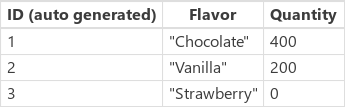
In these examples, you modify or create a record in a data source named IceCream. The data source contains the data in this table and automatically generates the values in the ID column:

To create an in-memory version of this data source so you can try these examples, evaluate this formula:
ClearCollect( IceCream,
    { ID: 1, Flavor: "Chocolate", Quantity: 100 },
    { ID: 2, Flavor: "Vanilla", Quantity: 200 }
)
| Formula | Description | Result |
|---|---|---|
| Patch( IceCream, LookUp( IceCream, Flavor = "Chocolate" ), { Quantity: 400 } ) |
Modifies a record in the IceCream data source:
|
{ ID: 1, Flavor: "Chocolate", Quantity: 400 } The Chocolate entry in the IceCream data source is modified. |
| Patch( IceCream, Defaults( IceCream ), { Flavor: "Strawberry" } ) | Creates a record in the IceCream data source:
|
{ ID: 3, Flavor: "Strawberry", Quantity: 0 } The Strawberry entry in the IceCream data source is created. |
After the previous formulas are evaluated, the data source ends with these values:
Merge records (outside of a data source)
| Formula | Description | Result |
|---|---|---|
| Patch( { Name: "James", Score: 90 }, { Name: "Jim", Passed: true } ) | Merges two records outside of a data source:
|
{ Name: "Jim", Score: 90, Passed: true } |
Modify or create a set of records (in a data source)
When you use Patch with tables instead of single records, you can create or modify multiple records in a single call. The return value is a table of records that corresponds one-for-one with the input tables.
This example updates the Quantity for multiple flavors in the IceCream data source at once:
Patch(
    IceCream,
    Table(
        { ID: 1, Flavor: "Chocolate", Quantity: 150 },
        { ID: 2, Flavor: "Vanilla", Quantity: 200 }
    ),
    Table(
        { Quantity: 300 },
        { Quantity: 400 }
    )
)
The result is a table with the updated records: { ID: 1, Flavor: "Chocolate", Quantity: 300 } and { ID: 2, Flavor: "Vanilla", Quantity: 400 }.
This example creates multiple new records using Defaults:
Patch(
    IceCream,
    Table( Defaults( IceCream ), Defaults( IceCream ) ),
    Table(
        { Flavor: "Mint", Quantity: 60 },
        { Flavor: "Peach", Quantity: 80 }
    )
)
Note
When you use Patch with tables, the number of records in each change table must match the number of records in the base table. Otherwise, an error occurs.
To detect errors when you modify multiple records, use IfError. IfError is the preferred mechanism and works across Power Fx hosts:
IfError(
    Patch(
        IceCream,
        baseRecords,
        changeRecords
    ),
    Notify( "Some records failed to update: " & FirstError.Message, NotificationType.Error )
)
Patch with Dataverse column types
The following examples apply specifically to Microsoft Dataverse data sources. Record shapes vary by data source (for example, SharePoint and SQL Server have different formats).
Choice column: To set a Choice column, use the enum value directly. This example sets a Status choice column on an Accounts table:
Patch(
    Accounts,
    LookUp( Accounts, 'Account Name' = "Contoso" ),
    { 'Status': 'Status (Accounts)'.Active }
)
Lookup column: To set a Lookup column, provide a record with the primary key of the related table. This example sets the Primary Contact lookup on an Accounts record:
Patch(
    Accounts,
    LookUp( Accounts, 'Account Name' = "Contoso" ),
    { 'Primary Contact': LookUp( Contacts, 'Full Name' = "John Smith" ) }
)
Note
These column-type examples are Dataverse-specific. Other data sources, such as SharePoint or SQL Server, might require different record shapes for similar column types. Refer to the documentation for your specific data source for the correct format.
Delegation in formulas that use Patch
The Patch function itself isn't subject to delegation because it writes to the data source rather than querying it. However, delegation warnings might appear in formulas that use Patch if the record-selection portion of the formula (such as Filter, LookUp, or ForAll) involves a query that exceeds the data source delegation limits.
When you see a delegation warning in a formula that includes Patch, check whether the warning applies to the data retrieval functions rather than to Patch itself. For more information about delegation, see Understand delegation in a canvas app.
Common errors with the Patch function
When you use the Patch function, errors might occur because of data source connectivity, permissions, or data conflicts. Use IfError and IsError to detect errors and respond appropriately.
"Network error when using Patch function": This error typically indicates that the app can't reach the data source. Common causes include a lost internet connection, the data source being temporarily unavailable, or insufficient permissions for the current user. Wrap the Patch call in IfError to provide a meaningful message to users.
"Conflicts exist with changes on the server": This error occurs when another user or process modifies the same record between the time your app reads the record and writes the change. Refresh the data source by calling the Refresh function and retry the operation.
Permission errors: If the user doesn't have permission to create or modify records in the data source, the Patch call fails. Use IfError to catch permission-related errors and guide the user.
For general error-handling patterns, see Error handling.
Use of As or ThisRecord
Use the As or ThisRecord keyword in your formula to avoid ambiguous evaluation context.
In the following example, consider the first Lookup in the If statement. (OrderID = A[@OrderID]) is expected to compare the OrderId in the Lookup scope with the OrderId of collection A in the ForAll scope. In this case, you likely want A[@OrderId] to resolve as a local parameter. But it's ambiguous.
Power Apps currently interprets both the left-hand side OrderId and right-hand side A[@OrderId] as a field in the Lookup scope. Therefore, Lookup always finds the first row in [dbo].[Orders1] because the condition is always true (that is, any row's OrderId is equal to itself).
ClearCollect(
    A,
    Filter(
        '[dbo].[Orders1]',
        OrderId = 8888888
    )
);
ForAll(
    A,
    If(
        LookUp(
            '[dbo].[Orders1]',
            OrderId = A[@OrderId],
            "OK"
        ) = "OK",
        Patch(
            '[dbo].[Orders1]',
            LookUp(
                '[dbo].[Orders1]',
                OrderId = A[@OrderId]
            ),
            {
      OrderName: "val1"
       }
   ),
   Patch(
            '[dbo].[Orders1]',
            Defaults('[dbo].[Orders1]'),
            {
      OrderName: "val2"
       }
   )
    )
)
Using As or ThisRecord
Whenever possible, use the As operator or the ThisRecord keyword to disambiguate the left-hand side. As is recommended for the preceding scenario.
When your formula uses multiple scopes with ForAll, Filter, and Lookup on the same data source or table, scope parameters might collide with a same field elsewhere. Therefore, use the As operator or ThisRecord to resolve the field name and avoid ambiguity.
For example, you can use the As operator to disambiguate in the following example.
ClearCollect(
    A,
    Filter(
        '[dbo].[Orders1]',
        OrderId = 8888888
    )
);
ForAll(
    A,
    If(
        LookUp(
            '[dbo].[Orders1]' As B,
            B.OrderId = A[@OrderId],
            "OK"
        ) = "OK",
        Patch(
            '[dbo].[Orders1]',
            LookUp(
                '[dbo].[Orders1]' As C,
                C.OrderId = A[@OrderId]
            ),
            {
      OrderName: "val1"
       }
   ),
   Patch(
            '[dbo].[Orders1]',
            Defaults('[dbo].[Orders1]'),
            {
      OrderName: "val2"
       }
   )
    )
)
Alternatively, you can use ThisRecord for the same purpose.
ClearCollect(
    A,
    Filter(
        '[dbo].[Orders1]',
        OrderId = 8888888
    )
);
ForAll(
    A,
    If(
        LookUp(
            '[dbo].[Orders1]',
            ThisRecord.OrderId = A[@OrderId],
            "OK"
        ) = "OK",
        Patch(
            '[dbo].[Orders1]',
            LookUp(
                '[dbo].[Orders1]',
                ThisRecord.OrderId = A[@OrderId]
            ),
            {
      OrderName: "val1"
       }
   ),
   Patch(
            '[dbo].[Orders1]',
            Defaults('[dbo].[Orders1]'),
            {
      OrderName: "val2"
       }
   )
    )
)
To learn more about the usage of the As operator and ThisRecord, see the Operators article.