Note
Access to this page requires authorization. You can try signing in or changing directories.
Access to this page requires authorization. You can try changing directories.
This article explains how to set up and use the Microsoft Dataverse model context protocol (MCP) server with GitHub Copilot in Visual Studio Code and GitHub Copilot CLI.
GitHub Copilot in Visual Studio Code
Prerequisites
- The Microsoft GitHub Copilot MCP client must be allowed in the environment. More information: Configure and manage the Dataverse MCP server for an environment
- Visual Studio Code installed with GitHub Copilot extension. More information: GitHub Copilot extension for Visual Studio Code
Steps to connect to Dataverse MCP server in Visual Studio Code
Open Visual Studio Code. Select View > Command Palette (Ctrl+Shift+P), type MCP: Add Server, and then select HTTP or Server Sent Events.
Paste your instance URL, such as
https://contoso.crm.dynamics.com/, append /api/mcp to it, and press Enter. You can get the instance URL at make.powerapps.com > Settings (gear icon) > Session details > Instance url.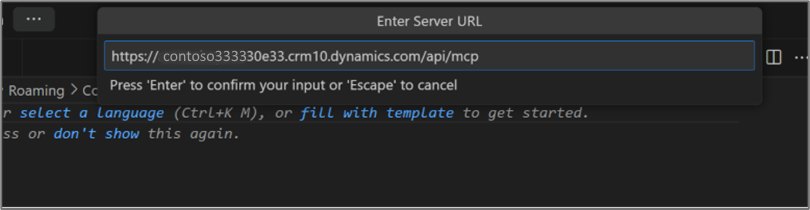
This step generates the MCP server configuration in Visual Studio Code.
Type a MCP server name or press Enter to accept the default name.
Choose Global or workspace.
Press Ctrl+Alt+I and ensure that agent mode is selected.

GitHub Copilot CLI
Prerequisites
- GitHub Copilot CLI installed. More information: GitHub Copilot CLI
- The Microsoft GitHub Copilot MCP client must be allowed in the environment. More information: Configure and manage the Dataverse MCP server for an environment
Option 1: Manually add the MCP server
You can configure the Dataverse MCP server in GitHub Copilot CLI by editing the MCP configuration file directly.
Open your MCP configuration file. For global configuration, edit
~/.copilot/mcp-config.json. For project-scoped configuration, edit.mcp/copilot/mcp.jsonin your project directory.Add the following JSON snippet. Replace
<your org URL>with your Dataverse environment URL (for example,https://contoso.crm.dynamics.com).{ "mcpServers": { "DataverseMcp": { "type": "http", "url": "<your org URL>/api/mcp" } } }Save the file and restart GitHub Copilot CLI for the changes to take effect.
Option 2: Use the Dataverse plugin from the Awesome Copilot marketplace
The Awesome Copilot marketplace provides a Dataverse plugin that includes an mcp-configure skill. This skill guides you through configuring the Dataverse MCP server interactively, including environment discovery and endpoint selection.
Add the Awesome Copilot marketplace to your Copilot CLI:
copilot plugin marketplace add github/awesome-copilotInstall the Dataverse plugin:
copilot plugin install dataverse@awesome-copilotIn a Copilot chat session, use the
/dataverse:mcp-configureskill to configure the Dataverse MCP server. The skill walks you through selecting your environment and choosing between the generally available (/api/mcp) and preview (/api/mcp_preview) endpoints.