Note
Access to this page requires authorization. You can try signing in or changing directories.
Access to this page requires authorization. You can try changing directories.
To help customers experiment with new capabilities and provide early feedback, the Microsoft Dataverse model context protocol (MCP) server includes preview tools that enable upcoming features before they're generally available (GA).
This article explains what preview tools are, what to expect when you use them, and how administrators can turn on the the preview features for Dataverse MCP server setting from the Power Platform admin center to access the latest Dataverse MCP server enhancements.
What are preview tools?
Preview tools are early versions of Dataverse MCP server capabilities released for customer evaluation. They allow makers, developers, and system integrators to:
- Try out new API endpoints and behaviors before GA.
- Validate integration scenarios.
- Provide feedback that shapes final product design.
- Prepare internal systems for upcoming releases.
Preview tools might not yet support full functionality, scale, or GA features.
Prerequisites
The environment must be enabled and configured for Dataverse MCP server. More information: Configure the Dataverse MCP server for an environment
Enable preview features for Dataverse MCP server
Administrators can enable preview features using feature settings available in the Power Platform admin center. Once enabled, all users and copilots in the environment gain access to the new tools.
Follow these steps to enable preview capabilities:
- Sign in to the Power Platform admin center
- Select Manage > Environments.
- Open the Environment where you want to turn on the Dataverse MCP server, and then select Settings on the command bar.
- Expand Product, and then select Features.
- Scroll down to locate Dataverse Model Context Protocol and enable Allow MCP clients to interact with Dataverse MCP server (Preview version).
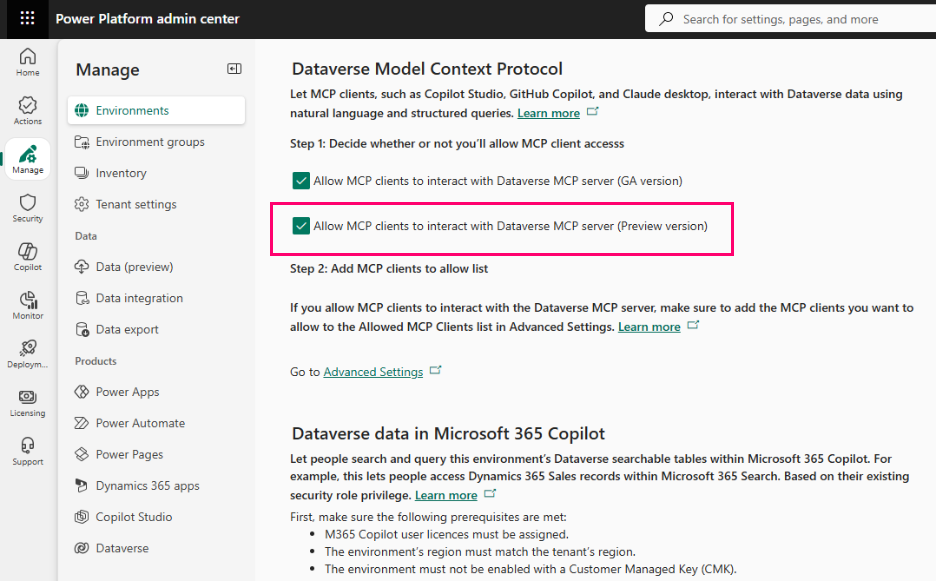
The environment might take a few minutes to apply the changes.
Connect to Dataverse MCP server (preview)
Once the environment setting for preview features are enabled, you can connect to the Dataverse MCP server preview endpoint.
Connect from Microsoft Copilot Studio
When adding a connector in Copilot Studio, select the connector named Microsoft Dataverse MCP Server (Preview).
This connector is different from the standard Microsoft Dataverse MCP Server connector and is required specifically for preview features.
Connect using Claude, GitHub, or other non-Microsoft MCP clients
Use the preview endpoint https://<orgUrl>/api/mcp_preview.
Examples:
https://contoso.crm.dynamics.com/api/mcp_previewhttps://org123.crm4.dynamics.com/api/mcp_preview
This endpoint makes available all preview tools and capabilities.
What happens after enabling preview for Dataverse MCP server
Once preview is enabled:
- MCP Server makes available the corresponding preview tools automatically.
- Agents and Copilots can begin calling these new endpoints immediately.
- You might notice additional system-generated logs or messages marked as Preview.
- Behavior might change as Microsoft iterates based on feedback.
If you encounter any issues, you can disable the Allow MCP clients to interact with Dataverse MCP server (Preview version) environment setting at any time.
About preview tools
| Topic | Details |
|---|---|
| Support | Preview tools aren't covered by Microsoft support agreements. |
| Breaking changes | Preview APIs might change without notice. |
| Performance | Features might not meet production-grade reliability. |