Note
Access to this page requires authorization. You can try signing in or changing directories.
Access to this page requires authorization. You can try changing directories.
Generative answers nodes using SharePoint as a knowledge source at the topic level work by pairing your agent with a SharePoint URL, such as contoso.sharepoint.com/sites/policies. When a user asks a question and the agent doesn't have a topic to use for an answer, the agent searches the URL and all subpaths. For example, a URL such as contoso.sharepoint.com/sites also includes subpaths like contoso.sharepoint.com/sites/policies. Generative answers summarize this content into a targeted response.
Important
Knowledge sources defined in generative answers nodes take priority over knowledge sources at the agent level. Agent level sources function as a fallback. For instructions on how to add SharePoint as a knowledge source at the agent level, see Add SharePoint as a knowledge source. Agent responses that use SharePoint as a knowledge source at either the topic or agent level aren't included in conversation transcripts.
When you publish your agent, the calls using generative answers are made on behalf of the user chatting with the agent, using the authentication settings configured in the agent. By default, agents created in Copilot Studio and in Microsoft Teams are configured with the Authenticate with Microsoft authentication option, which works in environments such as Microsoft Teams, Power Apps, and Microsoft 365 Copilot.
Note
It's possible to use generative answers with SharePoint data in Microsoft Teams chats, and not require manual authentication. To use this method for a previously published agent, reconfigure the agent to use Authenticate with Microsoft and then publish it again to Microsoft Teams. It might take a few hours before this change takes effect. If a user is in the middle of a conversation and the change doesn't appear to have taken effect, they can type "start over" in the chat to force the conversation to restart with the latest version of the agent. These changes are now available for Teams 1:1 chats between the user and the agent. They're not yet available for group chats or channel messages.
If you want to use manual authentication for your agent, see Advanced authentication scenarios.
Note
For a list of limits and supported SharePoint functionality, see SharePoint web app limits.
Copilot Studio agents require Dataverse search to use this knowledge source. If you can't add a Dataverse-enabled file to an agent, ask your administrator to turn on Dataverse search in your environment. For more information about Dataverse search and how to manage it, see What is Dataverse search and Configure Dataverse search for your environment.
Use SharePoint in a generative answers node
Important
When using a generative answers node in a topic, you might encounter an error on the authoring canvas and in the Topic Checker when Integrated Security has been chosen. This error is benign, and doesn't prevent the feature from working.
In a topic, add a generative answers node.
In the relevant topic's generative answers node, open the Data source configuration pane from one of two places:
On the Create generative answers node, select Edit under Data sources.

Alternatively, in the Create generative answers node select the three dots (…), then select Properties and select Data source.
Under Knowledge sources, select Add knowledge. Ensure that Search only selected sources is turned on.
In the Featured section, select SharePoint.
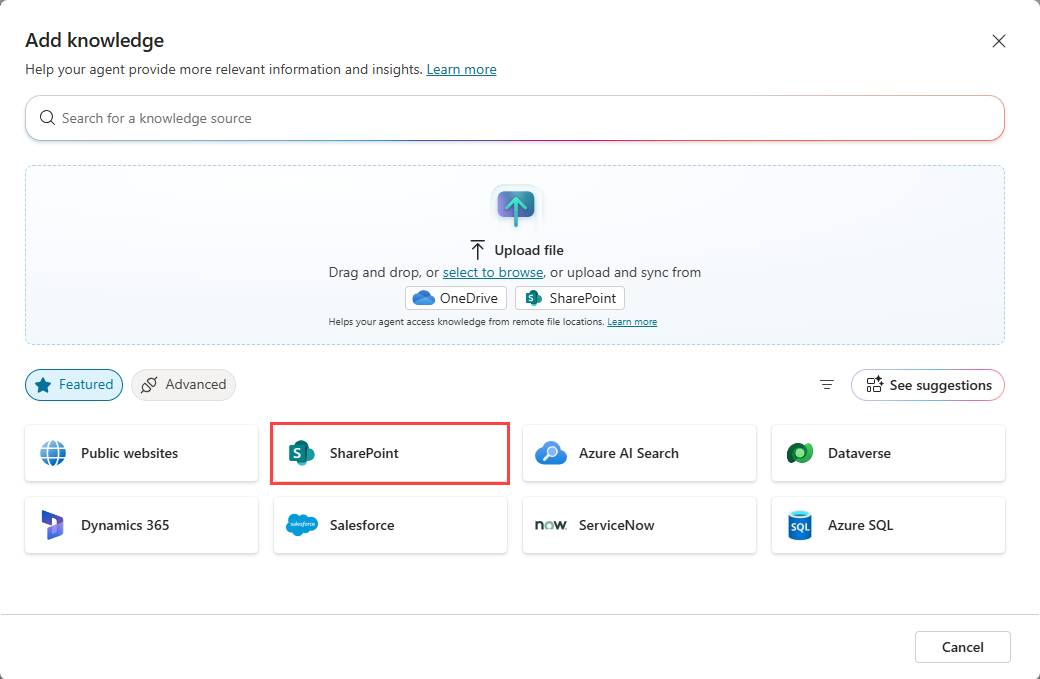
Provide the SharePoint URL. Separate multiple URLs with manual line breaks (use Shift + Enter).
Note
For a list of limits and supported SharePoint functionality, see SharePoint web app limits.
Add a name and a description. The description should be as detailed as possible, especially if generative AI is enabled, as the description aids generative orchestration.
Select Save at the top to save your topic changes.
Test your agent with phrases that you expect to return content.
Note
If the user account you used to sign in to copilotstudio.microsoft.com doesn't have access to the SharePoint site, you don't get content or you might see a system error.
Use variables as URLs
Use variables in public website or SharePoint knowledge source URLs to dynamically control the scope of content your agent uses.
Instead of creating multiple knowledge sources for different scenarios, define a single knowledge source and insert a variable into the URL. At runtime, Copilot Studio resolves the variable and uses the resulting URL for grounding.
Variable support
When you add or edit a public website or SharePoint knowledge source URL, you can insert a variable into the URL field.
Use a variable to:
Append a path to a base URL
https://www.contoso.com/{variable}Replace the entire URL
{variable}
At runtime, the variable resolves to a string value. The knowledge source is scoped to the resolved URL.
Note
Using a variable changes which URL is used for grounding. It doesn't change URL structure requirements or depth limitations for public websites.
Create and set a variable
To use a variable in a public website or SharePoint knowledge source:
Create a string variable with Global scope.
Set the variable value using one of the following options:
- Topic inputs
- User profile properties, such as language
- Environment variables
- Agent flows or connectors
Insert the variable into the URL field by selecting {x} (Insert variable).
Test the agent to confirm the variable resolves to the expected URL.
Example: Scope by product
You can scope knowledge to different product areas based on the user's query.
Use a topic input to capture the product name as a variable named
Product.Add a Set variable value node after the Trigger node, and create a new variable named
ProductTable.Use a Power Fx formula to define and map the product names to URL paths.
 Table(
     { Product: "Copilot", Path: "microsoft-365-copilot" },
     { Product: "Teams", Path: "microsoft-teams" },
     { Product: "Surface", Path: "surface" }
 )
Add another Set variable value node and use it to create a new string type global variable named
GlobalProductURL.In the To value setting, select Formula and use a Power Fx function to perform a lookup into the table based on the value of
Productinput variable,Topic.Product, as follows:LookUp(Topic.ProductTable, Product = Topic.Product, Path)Use the variable in the knowledge source URL:
https://www.microsoft.com/en-us/{GlobalProductURL}
The agent queries only the scoped section of the website at runtime.
Common scenarios
Use variables in public website knowledge sources for:
Product-based routing: Scope queries to specific product documentation.
Region or language filtering: Map
User.Languageto localized URLs (for example,en-us,it-it).Environment-specific URLs: Switch between development, test, and production sites.
Considerations
- Public website knowledge sources use Bing search and rely on indexed content.
- URL depth limits still apply when you use variables.
- Variables change the target URL only. They don't affect how content is indexed or retrieved.
Important
The variable must resolve to a valid public URL that meets the requirements for public website knowledge sources. Invalid or unsupported URLs might not return results.
Advanced authentication scenarios
By default, Copilot Studio preconfigures agents to authenticate users using Microsoft authentication to access SharePoint sources when they're connecting to an agent through Microsoft Teams, Power Apps, or Microsoft 365 Copilot. However, if you need to manually configure authentication, the following steps are required for generative answers to work with SharePoint data sources.
Important
If Restricted SharePoint Search is enabled, use of SharePoint is blocked.
Generative answers from SharePoint sources aren't available to guest users in SSO-enabled apps.
To authenticate your agent, see Authentication.
For instructions on how to create the needed Microsoft Entra ID application registration, see Configure user authentication with Microsoft Entra ID. When creating this registration you or your admin must specify the
Sites.Read.AllandFiles.Read.Allscopes in the Microsoft Entra ID app registration.Selecting No authentication specifies that your agent doesn't retrieve information from SharePoint.
When you configure authentication, scopes control user access. Specify
Sites.Read.AllandFiles.Read.Allin the scopes field near the existingprofileandopenidvalues in Copilot Studio. These scopes don't give users increased permissions when using the agent, but allow their permissible content from the SharePoint site as configured for generative answers.SharePoint supports the Authenticate manually setting with the following authentication service providers:
- Microsoft Entra ID
- Microsoft Entra ID V2 with federated credentials
- Microsoft Entra ID V2 with certificates
- Microsoft Entra ID V2 with client secrets
SharePoint doesn't support manual authentication using Generic OAuth.
This configuration only applies to generative answers, and doesn't apply to Power Platform Connectors.