Note
Access to this page requires authorization. You can try signing in or changing directories.
Access to this page requires authorization. You can try changing directories.
In this article, you learn how to get events from Real-Time hub into either a new or existing table.
Prerequisites
- A workspace with a Microsoft Fabric-enabled capacity
- A KQL database with editing permissions
- An eventstream with a data source
Step 1: Source
To get data from Real-Time hub, you need to select a Real-time stream as your data source. You can select Real-Time hub in the following ways:
On the lower ribbon of your KQL database, either:
Select Get Data and then select a stream from the Real-Time hub section.

From the Get Data dropdown menu, select Select more data sources, * Select Get Data and then select a stream from the Real-Time hub section.

Step 2: Configure
Select a target table. If you want to ingest data into a new table, select + New table and enter a table name.
Note
Table names can be up to 1024 characters including spaces, alphanumeric, hyphens, and underscores. Special characters aren't supported.
Under Configure the data source, fill out the settings using the information in the following table. Some setting information automatically fills from your eventstream.

Setting Description Workspace Your eventstream workspace location. Your workspace name is automatically filled. Eventstream Name The name of your eventstream. Your eventstream name is automatically filled. Data connection name The name used to reference and manage your data connection in your workspace. The data connection name is automatically filled. Optionally, you can enter a new name. The name can only contain alphanumeric, dash, and dot characters, and be up to 40 characters in length. Process event before ingestion in Eventstream This option allows you to configure data processing before data is ingested into the destination table. If selected, you continue the data ingestion process in Eventstream. For more information, see Process event before ingestion in eventstream. Select Next

Step 3: Inspect
The Inspect tab shows a preview of the data.
Select Finish to complete the ingestion process.

Optional:
Use the file type dropdown to explore Advanced options based on data type.
Use the Table_mapping dropdown to define a new mapping.
Select </> to open the command viewer to view and copy the automatic commands generated from your inputs. You can also open the commands in a queryset.
Select the pencil icon to Edit columns.
Edit columns
Note
- For tabular formats (CSV, TSV, PSV), you can't map a column twice. To map to an existing column, first delete the new column.
- You can't change an existing column type. If you try to map to a column having a different format, you may end up with empty columns.
The changes you can make in a table depend on the following parameters:
- Table type is new or existing
- Mapping type is new or existing
| Table type | Mapping type | Available adjustments |
|---|---|---|
| New table | New mapping | Rename column, change data type, change data source, mapping transformation, add column, delete column |
| Existing table | New mapping | Add column (on which you can then change data type, rename, and update) |
| Existing table | Existing mapping | none |

Mapping transformations
Some data format mappings (Parquet, JSON, and Avro) support simple ingest-time transformations. To apply mapping transformations, create or update a column in the Edit columns window.
Mapping transformations can be performed on a column of type string or datetime, with the source having data type int or long. For more information, see the full list of supported mapping transformations.
Advanced options based on data type
Tabular (CSV, TSV, and PSV): If you're ingesting tabular formats in an existing table, you can select Table_mapping > Use existing mapping. Tabular data doesn't always include the column names used to map source data to the existing columns. When this option is checked, mapping is done by-order, and the table schema remains the same. If this option is unchecked, new columns are created for incoming data, regardless of data structure.
JSON: Select Nested levels to determine the column division of JSON data, from 1 to 100.
Step 4: Summary
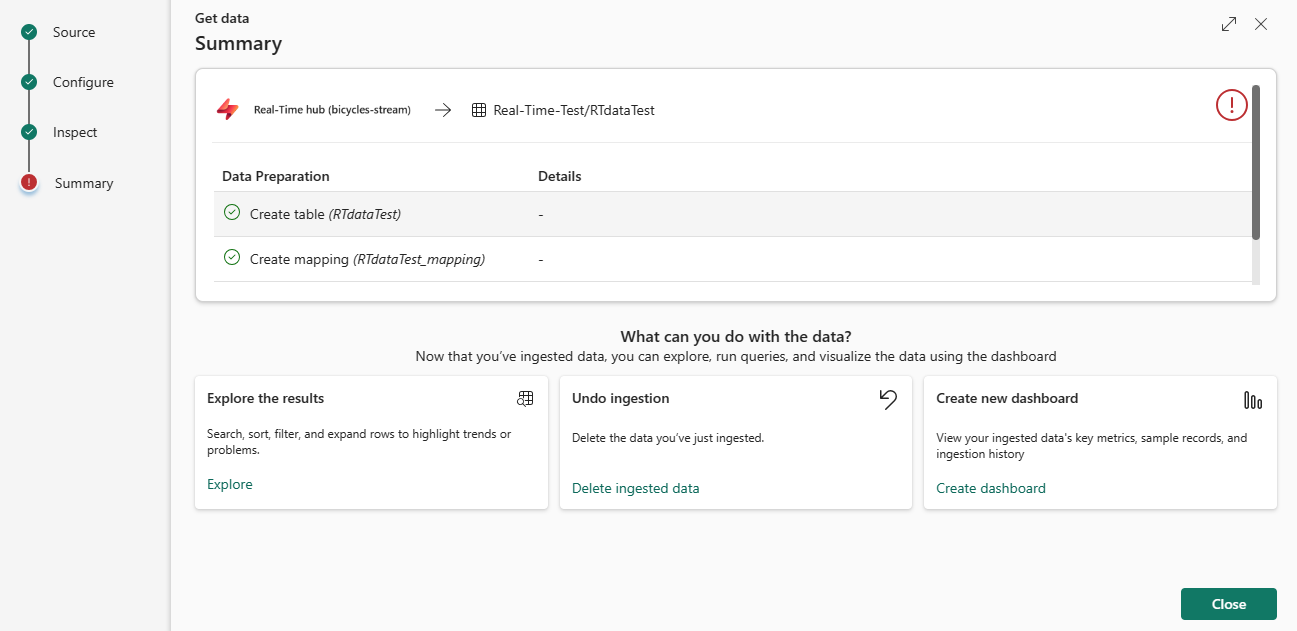
In the Data preparation window, all three steps are marked with green check marks when data ingestion finishes successfully. You can select a card to query, drop the ingested data, or see a dashboard of your ingestion summary. Select Close to close the window.
Related content
- To manage your database, see Manage data
- To create, store, and export queries, see Query data in a KQL queryset
- To get data from a new eventstream, see Get data from a new eventstream