Note
Access to this page requires authorization. You can try signing in or changing directories.
Access to this page requires authorization. You can try changing directories.
A SQL operator, also called a SQL code editor, is a new data transformation capability in Microsoft Fabric eventstreams. SQL operators provide a code editing experience where you can easily define your own custom data transformation logic by using simple SQL expressions. This article describes how to use a SQL operator for data transformations in an eventstream.
Note
Eventstream artifact names that include an underscore (_) or dot (.) aren't compatible with SQL operators. For the best experience, create a new eventstream without using underscores or dots in the artifact name.
Prerequisites
- Access to a workspace in the Fabric capacity license mode or the trial license mode with Contributor or higher permissions.
Add a SQL operator to an eventstream
To perform stream processing operations on your data streams by using a SQL operator, add a SQL operator to your eventstream by using the following instructions:
Create a new eventstream. Then add a SQL operator to it by using one of the following options:
On the ribbon, select Transform events, and then select SQL.
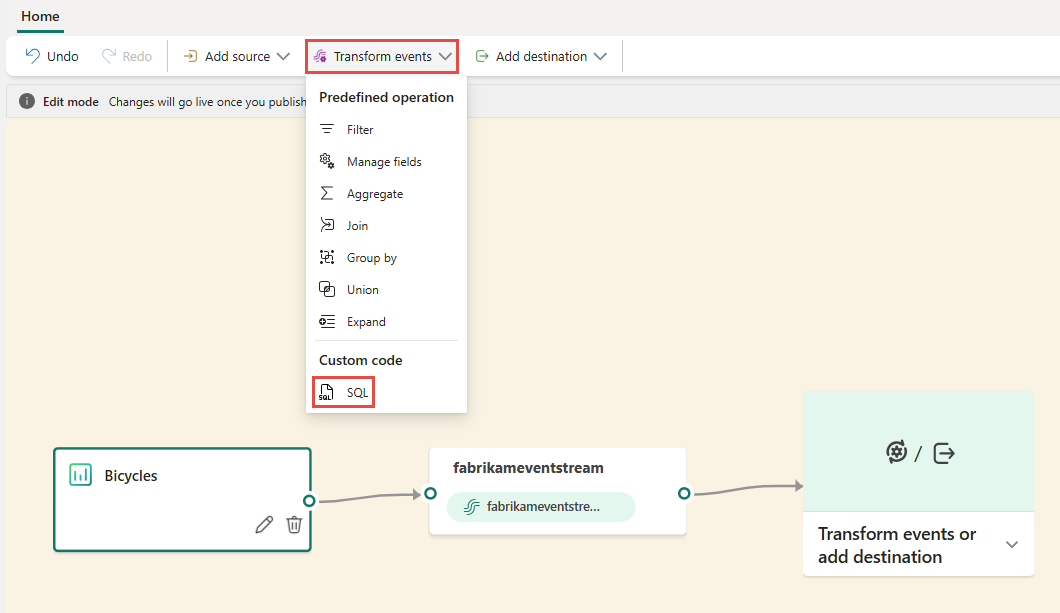
On the canvas, select Transform events or add destination, and then select SQL Code.

A new SQL node is added to your eventstream. Select the pencil icon to continue setting up the SQL operator.
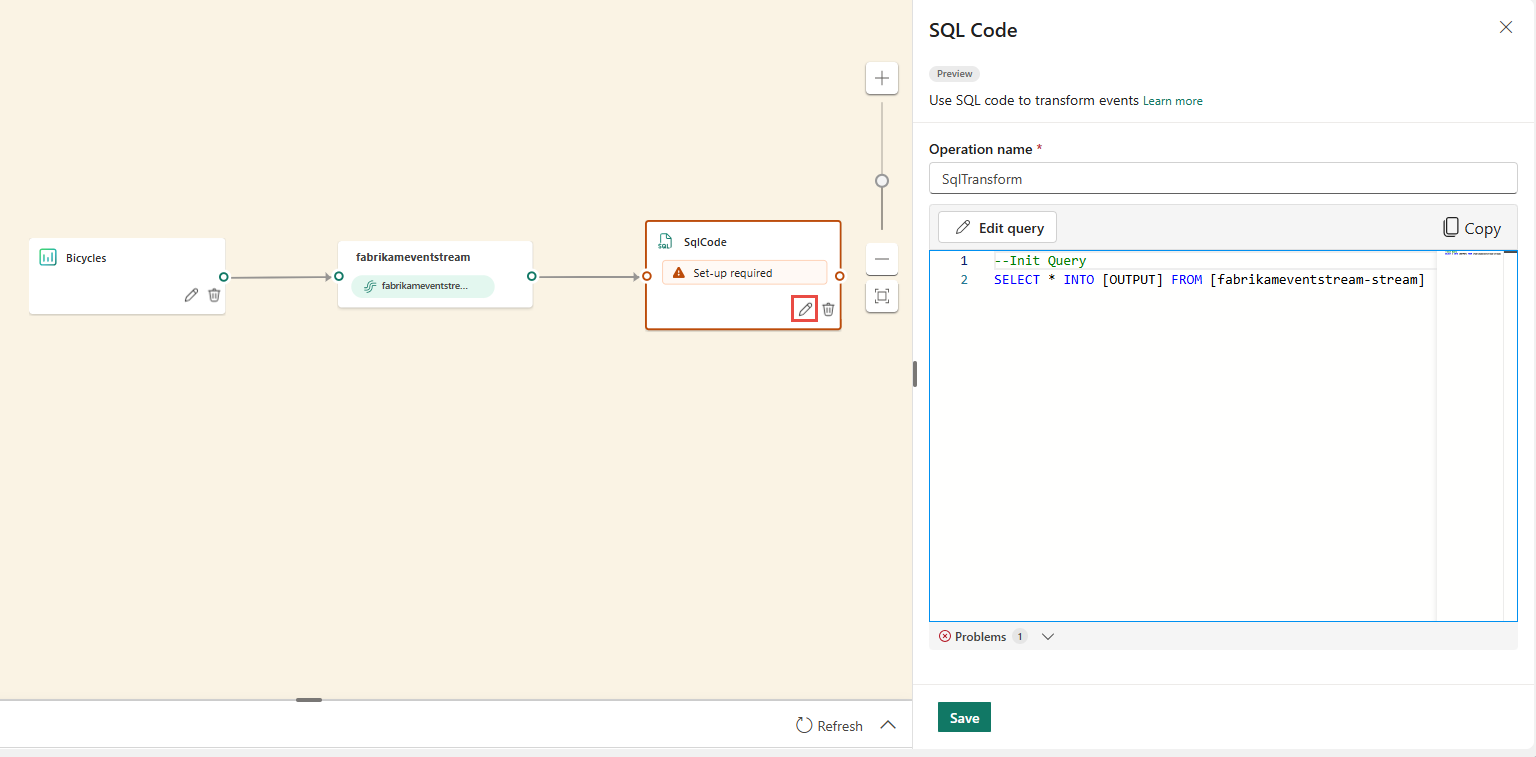
On the SQL Code pane, specify a unique name for the SQL operator node in the eventstream.
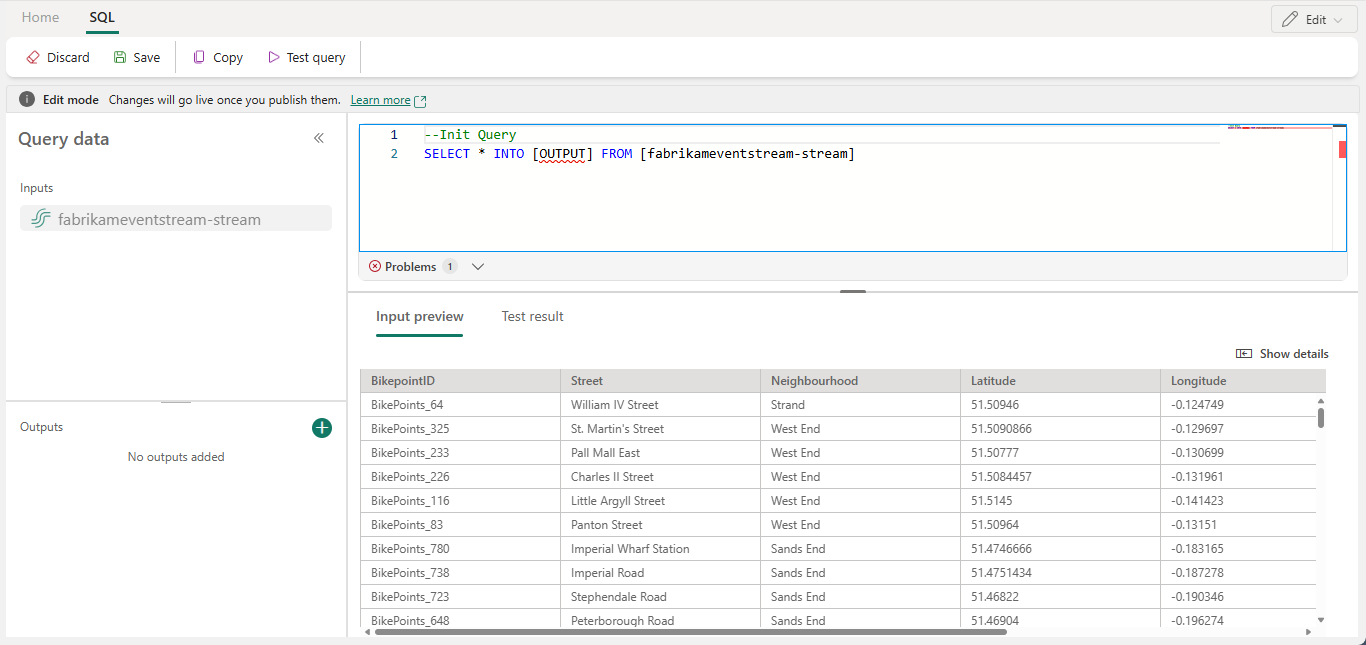
Edit the query in the query area, or select Edit query to enter the full-screen code editor view.

The full-screen code editor mode features an input/output explorer pane on the left side. The code editor section is adjustable, so you can resize it according to your preferences. The preview section at the bottom enables you to view both your input data and your query's test result.
Select the text in the Outputs section, and then enter a name for the destination node. The SQL operator supports all Real-Time Intelligence destinations, including an eventhouse, lakehouse, activator, or stream.
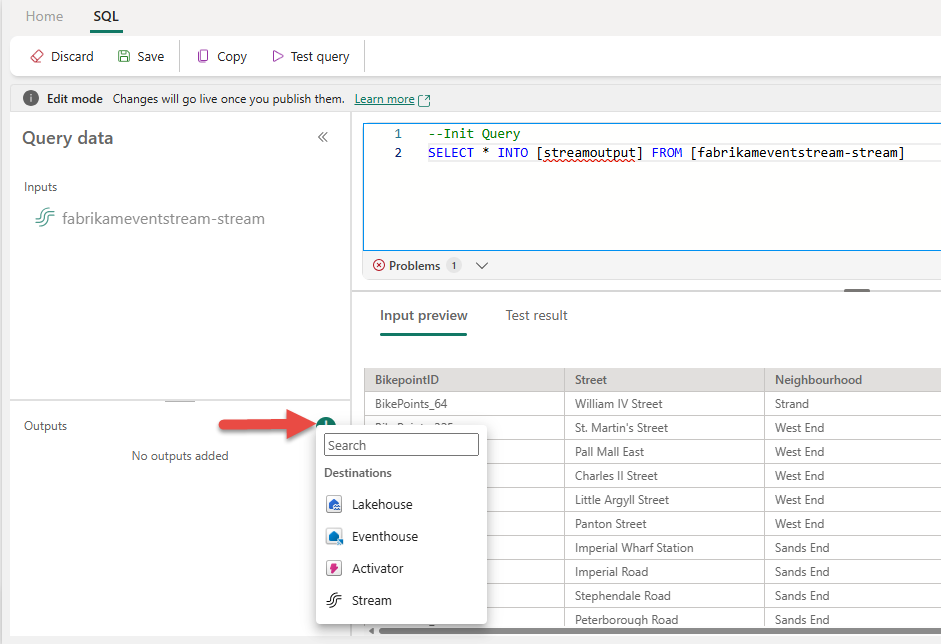
Specify an alias or name for the output destination where the data processed through the SQL operator is written.

Add SQL query for the required data transformation.
An eventstream is built on top of Azure Stream Analytics, and it supports the same query semantics of the Stream Analytics query language. To learn more about the syntax and usage, see Azure Stream Analytics and Eventstream Query Language Reference.
Here's the basic query structure:
SELECT

    column1, column2, ...

INTO

    [output alias]

FROM

    [input alias]
This query example shows the detection of high temperatures in a room every minute:
    SELECT
    System.Timestamp AS WindowEnd,
    roomId,
    AVG(temperature) AS AvgTemp
INTO
    output
FROM
    input
GROUP BY
    roomId,
    TumblingWindow(minute, 1)
HAVING
    AVG(temperature) > 75
This query example shows a
CASEstatement to categorize temperature:SELECT deviceId, temperature, CASE WHEN temperature > 85 THEN 'High' WHEN temperature BETWEEN 60 AND 85 THEN 'Normal' ELSE 'Low' END AS TempCategory INTO CategorizedTempOutput FROM SensorInputOn the ribbon, use the Test query command to validate the transformation logic. Test query results appear on the Test result tab.
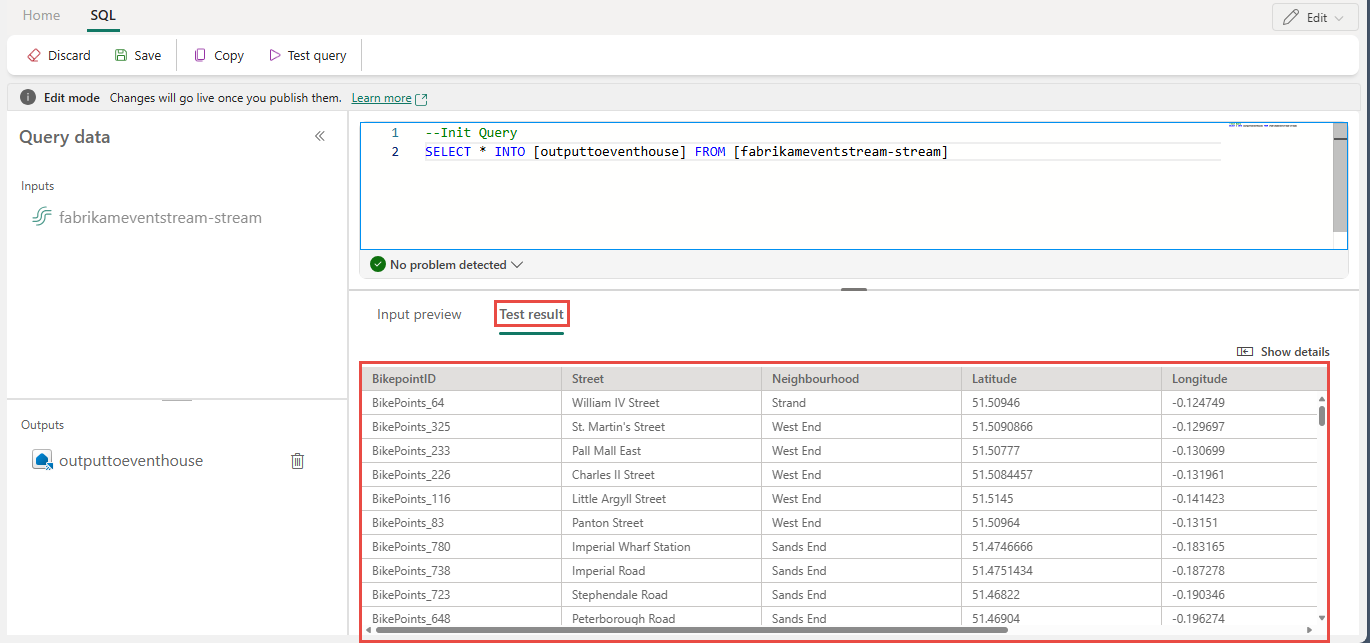
When you finish testing, select Save on the ribbon to get back to the eventstream canvas.
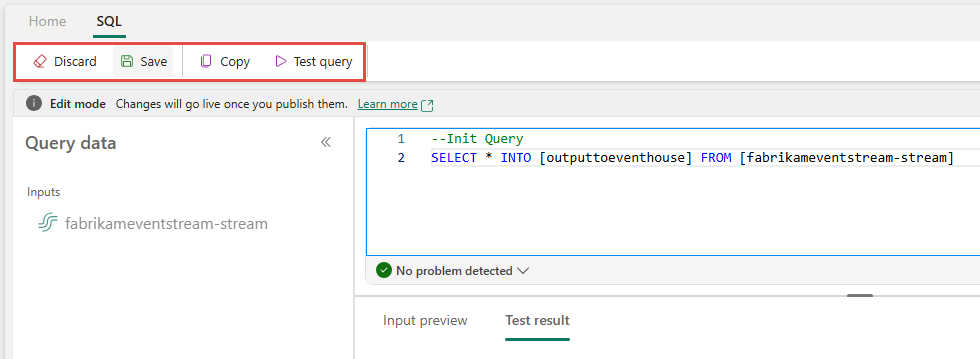
On the SQL Code pane, if the Save button is enabled, select it to save the settings.

Configure the destination.


More examples
The following examples show common real-time analytics scenarios you can implement with the SQL operator.
Per-minute city sales aggregation - Use TumblingWindow to compute fixed, nonoverlapping one-minute sales totals grouped by city:
SELECT
    System.Timestamp AS WindowEnd,
    city,
    SUM(salesAmount) AS TotalSales
INTO
    output
FROM
    input
GROUP BY
    city,
    TumblingWindow(minute, 1)
Burst and bot detection - Use HoppingWindow to detect users who place an unusually high number of orders within a five-minute rolling window, evaluated every minute:
SELECT
    System.Timestamp AS WindowEnd,
    userId,
    COUNT(*) AS OrderCount
INTO
    output
FROM
    input
GROUP BY
    userId,
    HoppingWindow(minute, 5, 1)
HAVING
    COUNT(*) > 10
Anomaly flagging against a rolling baseline - Use HoppingWindow to compute a rolling average and flag devices whose maximum metric value exceeds twice the average within the window, which indicates a potential anomaly:
SELECT
    System.Timestamp AS WindowEnd,
    deviceId,
    AVG(metricValue) AS RollingAvg,
    MAX(metricValue) AS CurrentMax
INTO
    output
FROM
    input
GROUP BY
    deviceId,
    HoppingWindow(minute, 10, 1)
HAVING
    MAX(metricValue) > 2 * AVG(metricValue)
Write to multiple destinations from a single SQL operator
With SQL operator, you can send data to multiple output sinks or destinations by adding multiple INTO clauses in your SQL query and by defining multiple outputs.
Define multiple outputs in the query editor
Select Edit (Pencil icon) on the SQL operator node to open the SQL Code pane.
In the SQL Code pane, select Edit query to open the full-screen code editor.

In the full-screen code editor, select + in the Outputs section to add a new output. Select the output type of your choice. It creates an alias of the output that you can use it in a query. Select the name of the created output and enter a name of your choice.
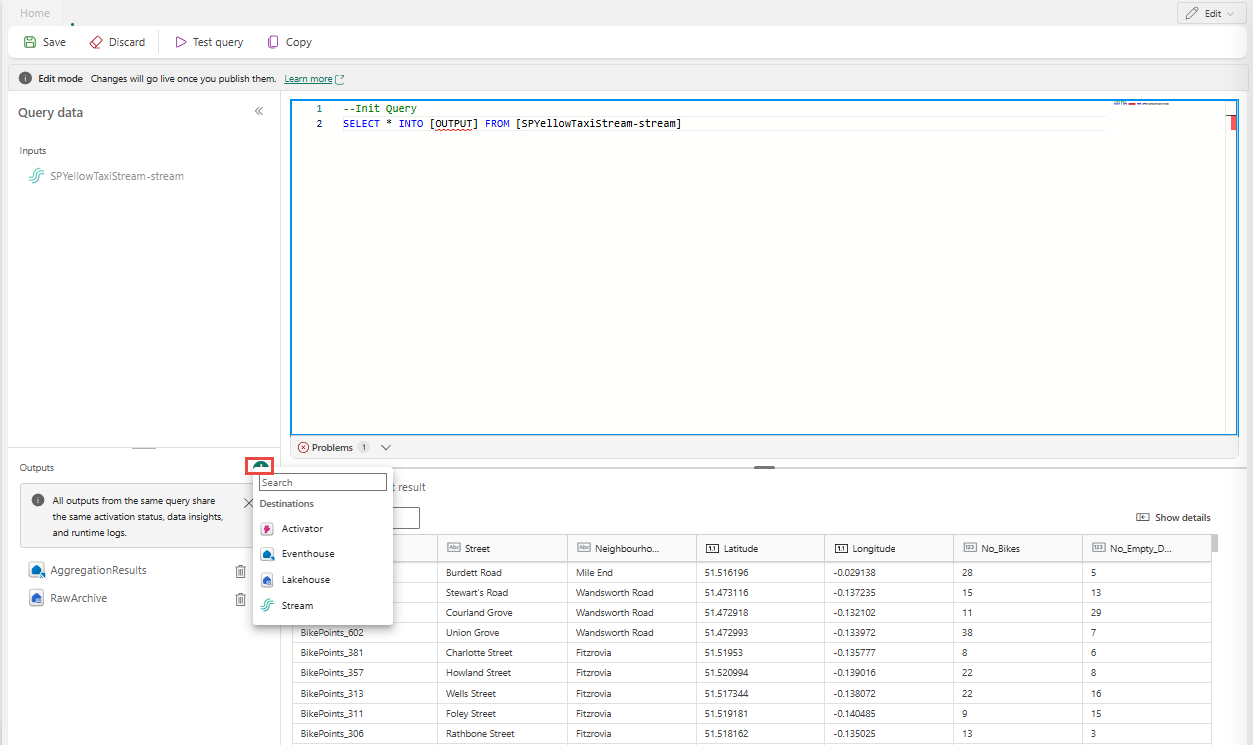

Use multiple SELECT ... INTO statements
Each SELECT statement can write to a different output. Add the query to write output to multiple destinations.
In the following query example, the first SELECT statement writes to an output named RawArchive (type: Lakehouse), and the second SELECT statement writes to an output named AggregationResults (type: Eventhouse).
-- Query 1: Archive all data to Lakehouse
SELECT *
INTO [RawArchive]
FROM [SQLDemoES-stream]

-- Query 2: Aggregate and filter data to create a real time dashboard to an Eventhouse
SELECT System.Timestamp() AS EventTime, COUNT(*) AS EventCount
INTO [AggregationResults]
FROM [SQLDemoES-stream]
GROUP BY TumblingWindow(minute, 1)
HAVING COUNT(*) > 100
Reuse intermediate logic (best practice)
If you want to avoid duplicating logic, use a WITH clause and fan out to multiple outputs from there. In the following example, the InputStream common table expression (CTE) is defined to read from the input stream once, and then the two SELECT statements reference the InputStream CTE to write to different outputs. This approach is more efficient because it avoids reading from the input stream multiple times.
Enter the following query in the SQL code editor to read from the input stream once and write to multiple outputs.
--Base query:  Reading input stream once
With InputStream AS(
SELECT *
FROM [SQLDemoES-stream] )

-- Query 1: Archive all data to Lakehouse
SELECT *
INTO [RawArchive]
FROM InputStream

-- Query 2: Aggregate and filter data to create a real time dashboard to an Eventhouse
SELECT System.Timestamp() AS EventTime, COUNT(*) AS EventCount
INTO [AggregationResults]
FROM InputStream
GROUP BY TumblingWindow(minute, 1)
HAVING COUNT(*) > 100
Select Test query to validate the query result. Each output defined in the query has a separate tab in the Test results panel.
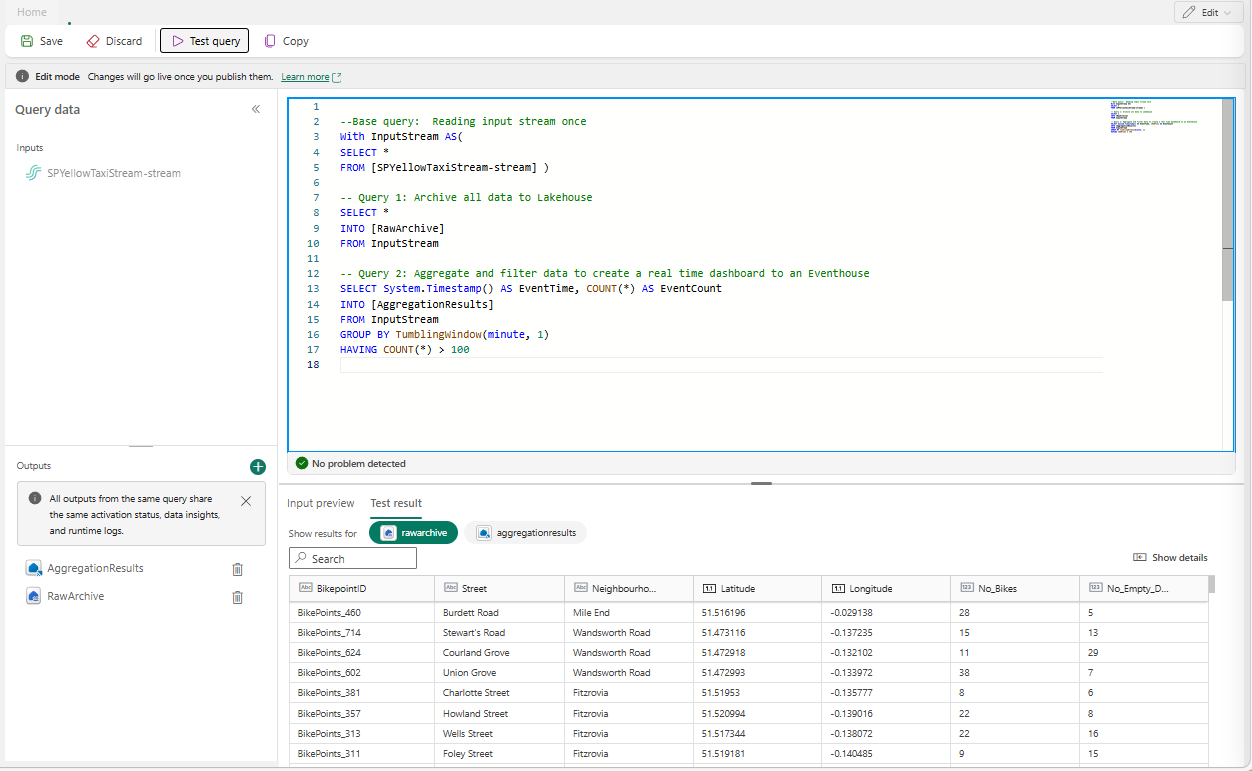
Select Save to save the query and exit the editor.

Select Save again in the SQL Editor pane.
Select each destination node created from the SQL operator, and then configure the destination settings for each of them.

After you finish the configuration, your eventstream should look like the following example, where the SQL operator node has two output destinations.


Configure event ordering policies in SQL operator
With SQL operator, you can process data using event or application time. By default, Eventstream uses arrival time. To process by event time, you must explicitly configure it using TIMESTAMP BY in your query.
Sample input
{
    "deviceId": "device123",
    "temperature": 72,
    "eventTime": "2024-01-01T12:00:00Z"
}
Sample query using event time
SELECT
    deviceId,
    temperature,
    System.Timestamp() AS EventTimestamp
INTO
    Output
FROM
    Input
TIMESTAMP BY eventTime;
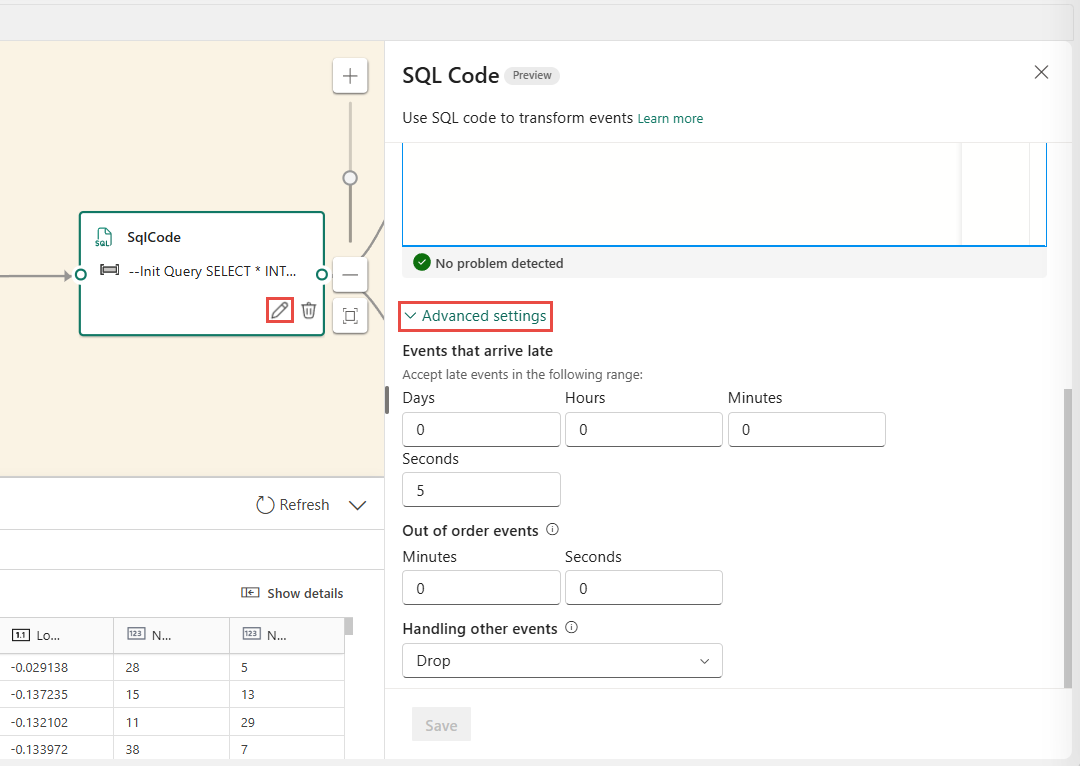
You can also add thresholds for late arrival and out of order events under advanced settings of the SQL operator.
Limitations
The SQL operator is designed to centralize all your transformation logic. As a result, you can't use it alongside other built-in operators within the same processing path. Chaining multiple SQL operators in a single path is also not supported.
If you add a SQL operator to your topology, you must create new destination nodes. Existing destination nodes cannot be reused with the SQL operator.