Note
Access to this page requires authorization. You can try signing in or changing directories.
Access to this page requires authorization. You can try changing directories.
This article explains how to subscribe to the trial offer and deploy Dynamics 365 Project Operations Core.
Note
This process changes in upcoming releases of Project Operations.
Prerequisites
- The user who deploys the preview must have tenant administrator rights. You can create a tenant during the first offer redemption.
Important
Only one person, the tenant administrator, in an organization needs to perform this task. If you're not the subscriber to this release, wait until your organization is signed up and you receive your user credentials.
Trials are single use in the tenant. You can only run a trial one time. Create a new tenant for the purpose of the trial.
Dynamics 365 Project Operations trial
Before you begin, make sure you're signed in to a browser by using the user work account in the tenant where you want the Project Operations preview.
- Go to Project Operations Trial to redeem the first offer code, Dynamics 365 Project Operations.
- Confirm your order.
You see the confirmation that the offer was successfully redeemed.
Assign licenses
Important
You need administrative access to your organization's Microsoft 365 Portal to complete the following steps.
- Go to Microsoft 365 admin center to assign the licenses to your users.
- On the Active users page, select the users that you want to assign a license to.
- Verify that the Dynamics 365 Project Operations license is selected.
- Select Save changes.
Create a new Dataverse environment
- Provision a new Project Operations Dataverse deployment environment by following instructions in the article, Dataverse deployment model. When you select the environment type, make sure to use Trial (Subscription based).
- Select the Enable Dynamics 365 apps setting, and leave Automatically deploy these apps blank.
- Select Save to create the environment.

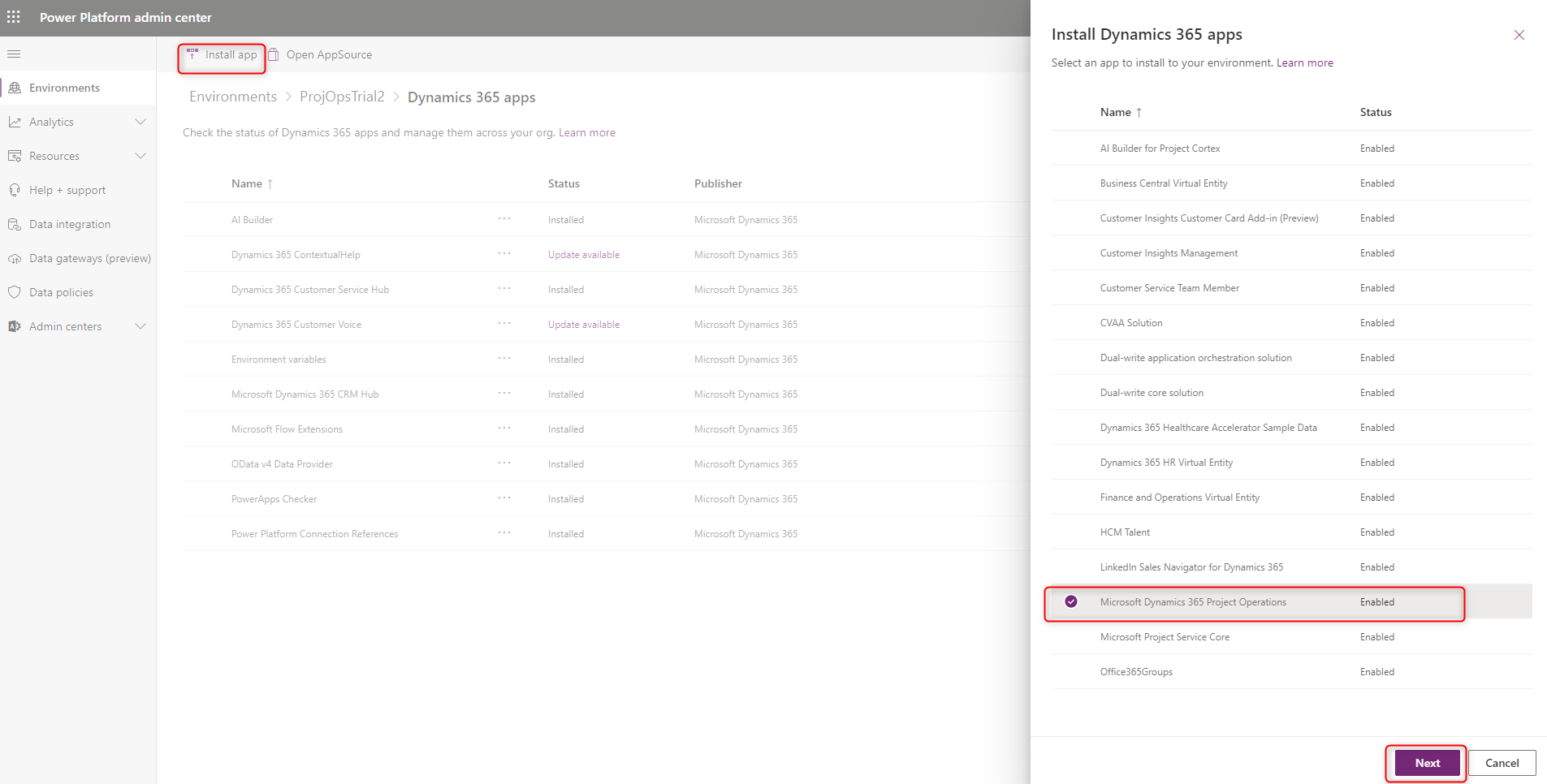
- After the environment is created, install Microsoft Dynamics 365 Project Operations solution.
Set up demo data
Set up demo data by following instructions in the article, Apply demo setup and configuration data.