Note
Access to this page requires authorization. You can try signing in or changing directories.
Access to this page requires authorization. You can try changing directories.
Note
Community interest groups have now moved from Yammer to Microsoft Viva Engage. To join a Viva Engage community and take part in the latest discussions, fill out the Request access to Finance and Operations Viva Engage Community form and choose the community you want to join.
This article describes how to create new forms by using the Gantt control. Review the code in the Tutorial_Gantt form. This code demonstrates the full capabilities of the Gantt control, and shows how to load data and work with the application programming interface (API).
What's new for Gantt
In Microsoft Dynamics AX 2012, the client was a Win32 application, and extensions used Microsoft ActiveX, WinForm, or Microsoft Windows Presentation Foundation (WPF) controls. ActiveX and ManagedHost controls are incompatible with the HTML-based platform, so you can't use them to add custom controls. Instead, use the new extensible control framework to add controls by using HTML and JavaScript. This framework implements the new Gantt control. Unlike earlier versions, you don't have to pay an extra license fee to use the control in your own forms or to extend the control.
High-level overview of the control
The following illustration shows the visual elements of the Gantt control.
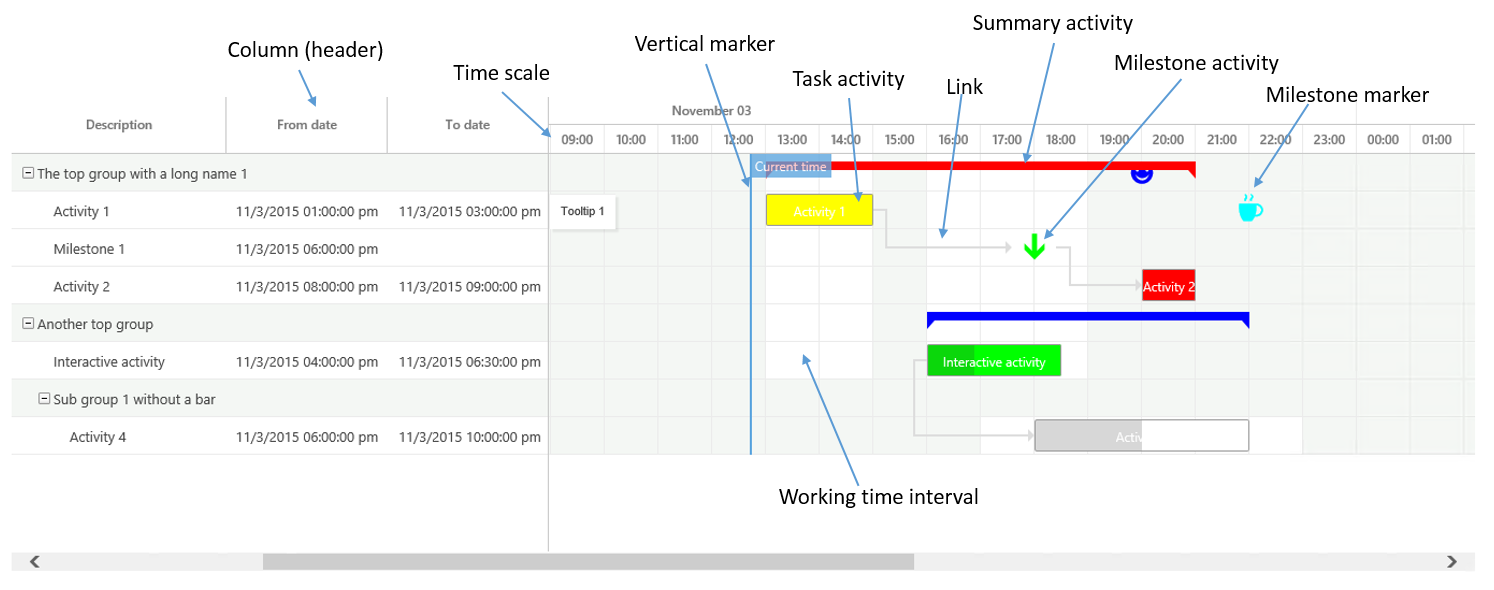
To add the control to a new form, right-click the top node in the form design, and then select Add new > Gantt. After you set the Height and Width properties to SizeToAvailable, you don't need to set any other properties in the designer. Unlike many other controls, Gantt controls can't be bound to data sources. Instead, you must add all data to the control from code.
Adding activities, links, and milestone markers
The most basic element of a Gantt chart is the task activity. Each activity gets its own row in the chart. Activities can form a hierarchy, like a tree, by referencing a parent activity. Additionally, you can connect any two activities to each other through links (across hierarchies). To add data to the control, build up a list that contains the instances of the element that you want to add. Then assign the list to the control by using a parm method. When you modify data, don't just modify the content of the list. To notify the client that data changed and to trigger a refresh, you must reassign the list to the control by using the parm method.
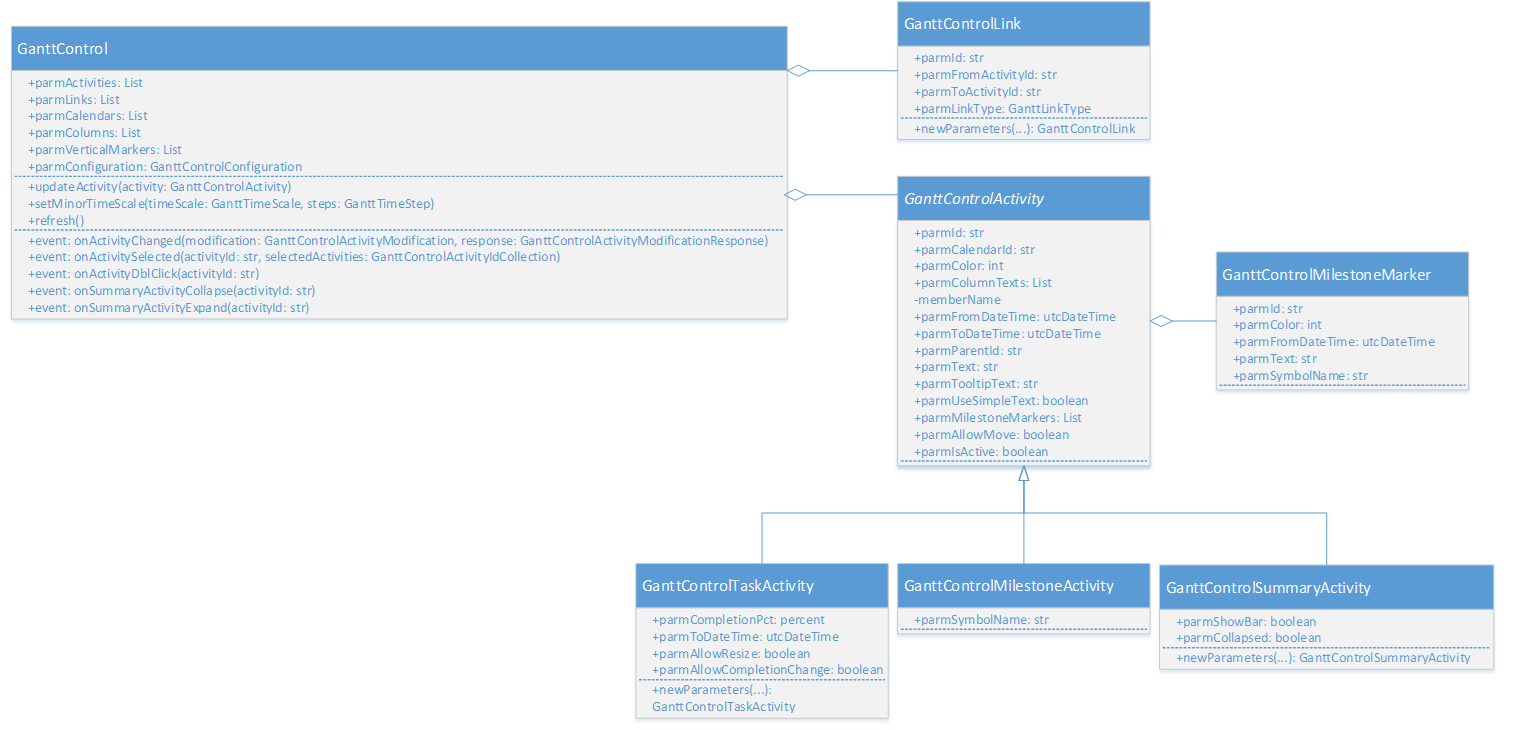
Each activity must have a unique ID across all activity types. This ID is required to build the hierarchy and the links. The ID also identifies the activity when the server is notified after a user interaction. There are two types of milestones: The milestone activity is a stand-alone activity that gets its own row in the chart and can be referenced from the links. The milestone markers appear on the same row as the related activity. Both types of markers use symbols from the Dynamics Symbol font.
Column headers and content
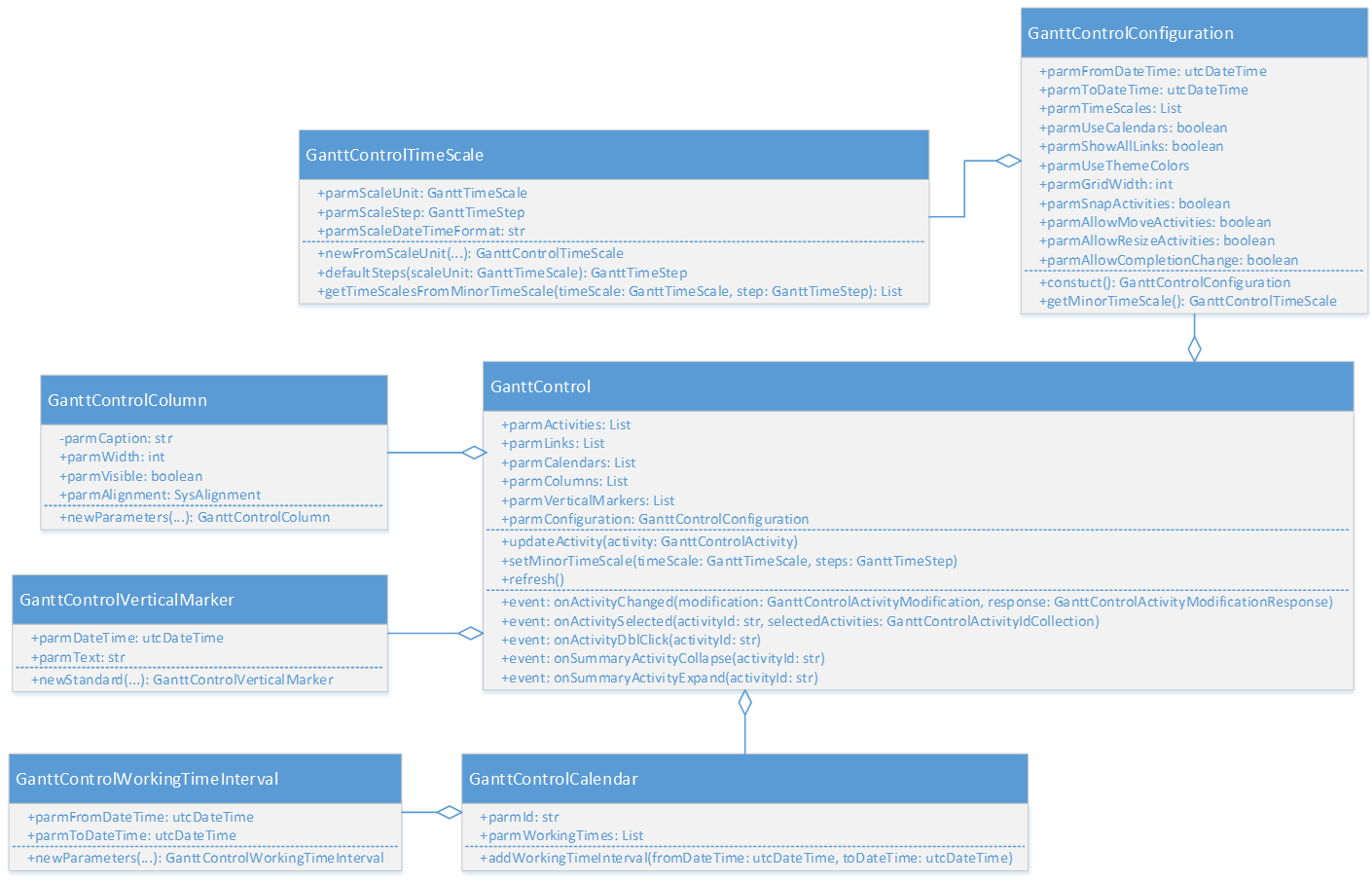
In the grid on the left side of the control, you can arrange the data into columns. Provide the column definitions through the GanttControl.parmColumns property, which is a list of GanttControlColumn objects. Give the content of the columns as a simple List object that contains the text strings for an activity through the GanttControlActivity.parmColumnTexts property. The values in the column list must be strings. Therefore, format any numbers, enumerations, dates, and so on on the server. When formatting utcdatetime, take into account the user's preferred time zone because the Gantt chart uses that time zone when rendering.
Working times
An activity can reference a calendar. A calendar is basically a list of working time intervals. Use a calendar to visually separate working time from non-working time by giving the cells (intersections of a row and a time scale interval) a different background color. These working time intervals don't have to come from the standard calendar tables. The intervals are just data that you can load from anywhere. Although calendars are a nice feature that can give you a good overview, you must consider some performance issues. When you turn calendars on (by setting GanttControlConfiguration.parmUseCalendars to true), the control renders each cell in HTML by using a DIV element. If a calendar shows many activities for a long period at a very granular minor timescale, many DIV elements exist. Depending on the browser and hardware, the large number of DIV elements can cause performance problems for the user. In this case, you might need to turn calendars off. By using this approach, you significantly reduce the number of DIV elements that the control must render. The control can't turn off calendars by itself to improve performance. Based on your specific scenario, determine what works best for your users.
Color use
Elements such as the activities and milestone markers have a color property. Typically, you calculate the int value for a specific color by using the WinAPI::RGB2int method, or the user sets the value by using the color picker (which you open by calling ColorSelection::selectColor). Instead of controlling the colors yourself, you can specify that the colors adhere to the current theme. When you set the GanttControlConfiguration.parmUseThemeColors option to true, the control overrides any color values you set that aren't part of the current theme. You don't need to specify colors manually. When you use theme colors, the parmIsActive flag on an activity determines whether the activity appears in a dark color or a light color.
Interactions
Whenever the user interacts with the Gantt, the control raises an event to notify the server-side code. The following events are currently available:
- onActivitySelected(str _activityId, GanttControlActivityIdCollection _allSelectedActivityIds)
- onActivityDblClick(str _activityId)
- onSummaryActivityExpand(str _activityId)
- onSummaryActivityCollapse(str _activityId)
- onActivityChanged(GanttControlActivityModification _modification, GanttControlActivityModificationResponse _response)
All these events are one-way notifications from the client. However, the onActivityChanged event is somewhat special, because you can set a response. Typically, when a user makes a modification (for example, dragging an activity to a new time), you must either update other activities or make some adjustments to the activity itself (for example, change the column texts). In the GanttControlActivityModificationResponse response, you can provide a list of activities that must be updated. If the change that the user makes is just accepted as is, don't set a response. However, at the very least, you must update the column texts of the current activity to guarantee that the new from and to dates appear. On an activity, the parmAllowMove flag determines whether the activity can be moved. However, higher-level flags on GanttControlConfiguration determine whether you can move any activity (parmAllowMoveActivities), resize any activity (parmAllowResizeActivities), or change the completion percentage for the activity (parmAllowCompletionChange).