Note
Access to this page requires authorization. You can try signing in or changing directories.
Access to this page requires authorization. You can try changing directories.
Note
Community interest groups have now moved from Yammer to Microsoft Viva Engage. To join a Viva Engage community and take part in the latest discussions, fill out the Request access to Finance and Operations Viva Engage Community form and choose the community you want to join.
Important
The finance and operations (Dynamics 365) mobile app and platform are no longer supported. The platform components supporting the mobile app will be removed in a future update. The mobile app has also been removed from app stores. Previously installed instances of the app will continue to work. For more information, see Removed or deprecated platform features.
You can use workspace classes to provide localization support to workspaces.
Use config objects to pass localized labels
Add a config object to the workspace metadata when the mobile app requests it. Later, use the config object to provide localization support.
For example, the following workspace requires localized labels for the pageLink control that you added through the business logic.

The business logic for the app contains a call to the addLink method, as shown in the following illustration. This addLink method adds a link to the Rentals page for the current customer. In this case, the label for the link is Rentals. However, because there's no localized label for the link, the link always appears as Rentals.

To use a config object to provide localized labels, follow these steps:
Create a config class that contains the fields for the labels. Add one field, rentalLinkLabel, to the class that contains the label for the pageLink control. The config class must be a data contract class.

Use the config class in a workspace class for the workspace. The workspace class requires the appId value of the workspace. You can find the app ID in the App designer, as shown in the following illustration.

The following illustration shows what the workspace class looks like when you set the appId value on the attribute. The class also contains a method, addConfig, that sets a config object that contains the value for the label.

The following illustration shows the config object in the appInit call in the mobile app.

Use the config object and pass it to the addLink method instead of the hard-coded label.

Use a workspace class to update the workspace title and description
Use a workspace class to provide localized strings for the workspace title and description. If you don't localize the title and description, the fields appear in the language that you implemented them in. In this example, you localize a workspace where MyWorkspace is the title and A sample workspace is the description.


If you don't have a workspace class for your workspace, create a workspace class.
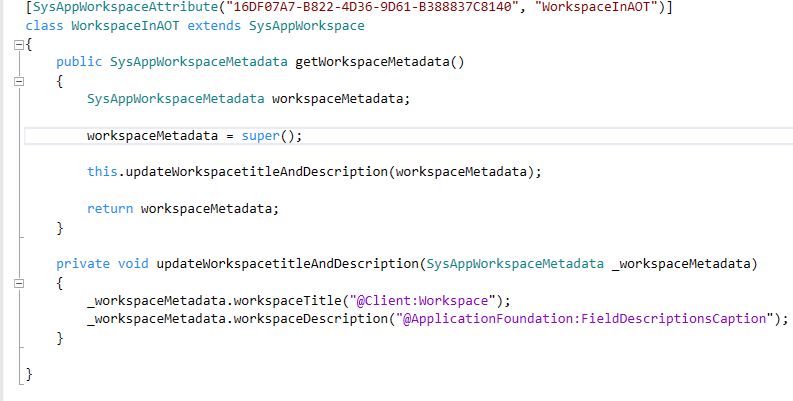
Override the getWorkspaceMetadata method to get the workspace metadata. You must have the workspace metadata to provide labels for the workspace title and description fields.
Use the workspaceTitle and workspaceDescription properties to set the workspace title and description from a label. In the following illustration, placeholders are assigned to the workspaceTitle and workspaceDescription properties.
Build the workspace class.
Update the app list on the mobile client.
The following illustration shows the title and description on a phone that uses English and Danish.
