Note
Access to this page requires authorization. You can try signing in or changing directories.
Access to this page requires authorization. You can try changing directories.
Note
Community interest groups have now moved from Yammer to Microsoft Viva Engage. To join a Viva Engage community and take part in the latest discussions, fill out the Request access to Finance and Operations Viva Engage Community form and choose the community you want to join.
This article provides troubleshooting information for dual-write integration between finance and operations apps and Microsoft Dataverse. Specifically, it provides information that can help you fix problems with live synchronization.
Important
Some of the problems that this article addresses might require either the system admin role or Microsoft Entra tenant admin credentials. Each section explains whether a specific role or specific credentials are required.
Live synchronization shows an error when you create a row
You might receive the following error message when you create a row in a finance and operations app:
[{\"error\":{\"code\":\"0x80072560\",\"message\":\"The user isn't a member of the organization.\"}}], The remote server returned an error: (403) Forbidden."}}".
This error occurs if you don't configure dual-write application users and owning teams correctly. To fix the problem, follow the steps in System requirements and prerequisites. To complete those steps, dual-write application users who are created in Dataverse must have the system admin role. The default owning team must also have the system admin role.
In a cloud-hosted development environment, you must also grant the application user that you configured for the environment a role and permissions for dual-write. For steps to configure the required permissions, see Configure app user for one-box environments.
Live synchronization shows an error when you try to save table data
Required role to fix the problem: System admin
You might receive the following error message when you try to save table data in a finance and operations app:
Can't save the changes to the database. Unit of Work can't commit transaction. Unable to write data to entity uoms. Writes to UnitOfMeasureEntity failed with error message Unable to sync with entity uoms.
To fix the issue, make sure that prerequisite reference data exists in both the finance and operations app and Dataverse. For example, if a customer record belongs to a specific customer group, make sure that the customer group record exists in Dataverse.
If data exists in both places, and you confirm that the issue isn't data related, follow these steps:
- Open the DualWriteProjectConfigurationEntity entity by using the Excel add-in. To use the add-in, enable design mode in the finance and operations Excel add-in, and add DualWriteProjectConfigurationEntity to a worksheet. For more information, see View and update entity data with Excel.
- Select and delete the records that have problems in the dual-write map and project. Two records exist for every dual-write mapping.
- Publish the changes by using the Excel add-in. This step deletes the records from the entity and underlying tables.
Handle read or write privilege errors when you create data in a finance and operations app
You might receive a "Bad Request" error message when you create data in a finance and operations app.

To fix the issue, enable the missing privilege by assigning the correct security role to the team of mapped Dynamics 365 Sales or Dynamics 365 Customer Service business units.
In the finance and operations app, find the business unit that the Data Integration connection set maps.

In the customer engagement app, sign in to the environment, go to Setting > Security, and find the team of the mapped business unit.
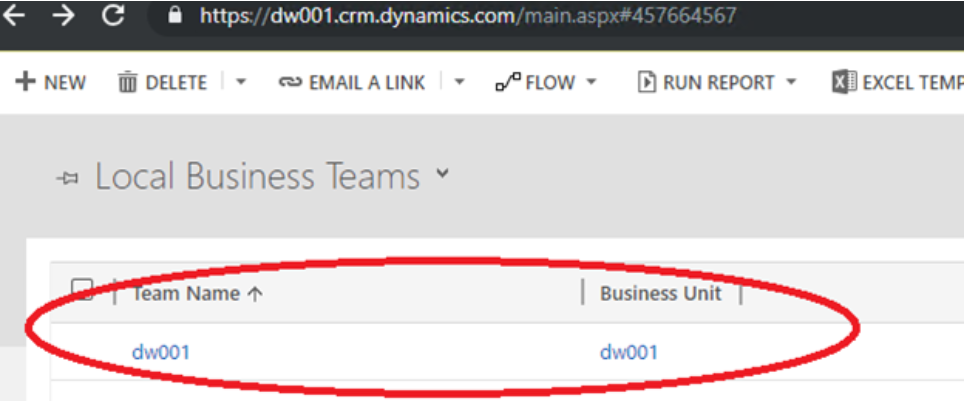
Open the page for the team for editing, and then select Manage roles.

In the Manage Team Roles dialog box, assign the role that has the read/write privilege for the relevant tables, and then select OK.
Fix synchronization problems in an environment that has a recently changed Dataverse environment
Required role to fix the problem: System admin
You might receive the following error message when you create data in a finance and operations app:
{"entityName":"CustCustomerV3Entity","executionStatus":2,"fieldResponses":[],"recordResponses":[{"errorMessage":"Unable to generate payload for entity CustCustomerV3Entity","logDateTime":"2019-08-27T18:5152.5843124Z","verboseError":"Payload creation failed with error Invalid URI: The URI is empty."}],"isErrorCountUpdated":true}
Here's the error message in the customer engagement app:
An unexpected error occurred from ISV code. (ErrorType = ClientError) Unexpected exception from plug-in (Execute): Microsoft.Dynamics.Integrator.DualWriteRuntime.Plugins.PostCommitPlugin: System.Exception: failed to process entity account - A connection attempt failed because the connected party didn't properly respond after a period of time, or established connection failed because connected host didn't respond.
This error occurs if you incorrectly reset the Dataverse environment when you try to create data in the finance and operations app.
Important
If you relink the environments, you must stop all the entity maps before you continue with the mitigation steps.
To fix the problem, you must complete steps in both Dataverse and the finance and operations app.
In the finance and operations app, follow these steps:
- Open the DualWriteProjectConfigurationEntity entity by using the Excel add-in. To use the add-in, enable design mode in the finance and operations Excel add-in, and add DualWriteProjectConfigurationEntity to a worksheet. For more information, see View and update entity data with Excel.
- Select and delete the records that have problems in the dual-write map and project. Two records exist for every dual-write mapping.
- Publish the changes by using the Excel add-in. This step deletes the records from the entity and underlying tables.
- To help prevent errors when you relink the finance and operations or Dataverse environments, make sure that no dual-write configurations remain.
In Dataverse, follow these steps:
- Sign in to your Dataverse environment (for example,
https://*****.crm.dynamics.com/). - Go to Advanced Settings > Advanced Find.
- Select DualWrite Runtime Configuration.
- Select the column to view.
- Select Results to view the configurations.
- Delete all the instances.
- Sign in to your Dataverse environment (for example,
In the finance and operations app, follow these steps:
- Open the DualWriteProjectConfigurationEntity entity by using the Excel add-in. To use the add-in, enable design mode in the finance and operations Excel add-in, and add DualWriteProjectConfigurationEntity to a worksheet. For more information, see View and update entity data with Excel.
- Select and delete the records that have problems in the dual-write map and project. Two records exist for every dual-write mapping.
- Publish the changes by using the Excel add-in. This step deletes the records from the entity and underlying tables.
- To help prevent errors when you relink the finance and operations or Dataverse environments, make sure that no dual-write configurations remain.
Live synchronization error after you do a full database copy
You might receive the following error message after you run a full database copy from one system to another system and then try to run a database operation:
SecureConfig Organization (???) doesn't match actual CRM Organization (???).
The dual-write runtime plug-in shows the error message to ensure that you can't use dual-write configuration that you set up in one system in another system.
To fix the problem, delete all the records in the msdyn_dualwriteruntimeconfig table after you restore the database. For more information, see Unlink and relink dual-write environments.
Live synchronization problems caused by incorrect query filter syntax on the dual-write maps
Even if the query expression for a dual-write map filter is syntactically correct, it might not work as expected. The filter expression applies to an entity, not to an individual data source of a query object. Therefore, the generated SQL query doesn't return the expected results.
Here's an example.
Query entity = PROJECTENTITY
Query expression = (ParentProject == "")
You might expect the filter to exclude projects that don't have a parent. However, the filter doesn't work because it's translated to a query that resembles the following example.
SELECT T1.RECID,T1.MODIFIEDDATETIME,T1.RECVERSION,T1.RECID,T1.DIMENSION,
T1.LOCATION,T1.PROJECTCONTROLLER,T1.PROJECTID,T1.PROJECTMANAGER,T1.REFERENCE,
T1.SALESMANAGER,T1.SCHEDULED,T1.RECVERSION#8,T1.RECVERSION#7,
T1.RECVERSION#6,T1.RECVERSION#5,T1.RECVERSION#4,T1.RECVERSION#3,
T1.RECVERSION#2,T1.RECID#8,T1.RECID#7,T1.RECID#6,T1.RECID#5,
T1.RECID#4,T1.RECID#3,T1.RECID#2,T1.PARTITION FROM PROJECTENTITY T1
WHERE(((((((((((PARTITION=5637144576) AND (DATAAREAID=N'usmf')) AND
((PARTITION#2=5637144576) OR (PARTITION#2 IS NULL))) AND
((PARTITION#3=5637144576) OR (PARTITION#3 IS NULL))) AND
((PARTITION#4=5637144576) OR (PARTITION#4 IS NULL))) AND
((PARTITION#5=5637144576) OR (PARTITION#5 IS NULL))) AND
((PARTITION#6=5637144576) OR (PARTITION#6 IS NULL))) AND
((PARTITION#7=5637144576) OR (PARTITION#7 IS NULL))) AND
((PARTITION#8=5637144576) OR (PARTITION#8 IS NULL))) AND
((DATAAREAID#8=N'usmf') OR (DATAAREAID#8 IS NULL))) AND
(PARENTPROJECT=''))
ORDER BY T1.PROJECTID
The actual result is that the parentProject field is evaluated to null. However, null isn't the same as the empty string. Because of this mismatch, the query filter doesn't return valid results.
To fix the problem, follow these steps:
Add a computed column in an extension model. This column uses logic that converts
nullto the empty string.SysComputedColumn::if(SysComputedColumn::isNullExpression(ParentProject), SysComputedColumn::returnLiteral(""), fieldName);Use the filter on the new computed column instead of the default column.
To evaluate the filter in a development environment, use the following X++ code to validate the results. Run this code as a standalone program. You can use it to evaluate different kinds of filters that are applicable for an entity before you use those filters on dual-write maps. The query can be run against the database to evaluate discrepancies.
var entityName = "PROJECTENTITY";
var filterExpression = '(ParentProject == "")';
Query query = new Query();
query.literals(NoYes::Yes);
QueryBuildDataSource qbd = query.addDataSource(tablename2id(entityName));
qbd.addRange(fieldname2id(qbd.table(),identifierStr(RecVersion))).value(filterExpression);
qbd.addSelectionField(fieldname2id(qbd.table(),identifierStr(RecId)));
QueryRun qRun = new QueryRun(query);
// This provides the actual sql statement to execute
var actualSqlStatement = query.getSQLStatement();
while(qRun.next())
{
    var rec = qRun.get(tableName2Id(entityName));
}
Data from finance and operations apps isn't synced to Dataverse
During live synchronization, you might encounter an issue where only part of the data is synced from finance and operations apps to Dataverse, or data isn't synced at all.
Note
You must fix this issue during development.
Before you start to fix the issue, review the following prerequisites:
- Make sure that your custom changes are written in a single transaction scope.
- Business events and the dual-write framework don't handle
doinsert(),doUpdate(), andrecordset()operations, or records whereskipBusinessEvents(true)is marked. If your code is inside these functions, dual-write isn't triggered. - You must register business events for the data source that is mapped. Some data sources use an outer join and are marked as read only in finance and operations apps. These data sources aren't tracked.
- Changes trigger only if the modifications are on the mapped fields. Unmapped field modifications don't trigger dual-write.
- Make sure that filter evaluations provide a valid result.
Troubleshooting steps
Review field mappings on the dual-write admin page. If a field isn't mapped from finance and operations apps to Dataverse, it's not tracked. For example, in the following illustration, the Description field is tracked from Dataverse, but not from finance and operations apps. No changes to that field inside finance and operations apps are tracked.

Determine whether the data source is tracked in the business events definition. For example, in the following illustration, no field from the DefaultDimensionDAVs table and underlying tables are tracked for changes. Data sources that use an outer join and that are marked as read only aren't tracked.

Determine whether the mapped table fields appear in the BUSINESSEVENTSDEFINITION table, as shown in the following illustration. If you don't find the field that you're looking for in the query result, dual-write doesn't trigger it.

Sample scenario
In finance and operations apps, you update the address for a contact record, but the address change isn't synced to Dataverse. This scenario occurs because no record in the BusinessEventsDefinition table has the combination of the affected table and the entity. Specifically, the LogisticsPostalAddress table isn't the direct data source for the smmContactpersonCDSV2Entity entity. The smmContactpersonCDSV2Entity entity has smmContactPersonV2Entity as the data source, and smmContactPersonV2Entity, in turn, has LogisticsPostalAddressBaseEntity as the data source. The LogisticsPostalAddress table is the data source for LogisticsPostalAddressBaseEntity.
A similar situation can occur in some nonstandard patterns, such as cases where the table that you're modifying in finance and operations apps isn't linked to the entity that contains it. For example, the primary address data is computed on the smmContactPersonCDSV2Entity entity. The dual-write framework tries to determine how a change to an underlying table is mapped back to entities. Usually, this approach is sufficient. However, in some cases, the link is so complex that you must be specific. You must make sure that the RecId of the related table is directly available on the entity. Then add a static method to monitor the table for changes.
For an example, review the smmContactPersonCDSV2Entity::getEntityDataSourceToFieldMapping() method. CustCustomerV3entity and VendVendorV2Entity are modified to handle this situation.
To fix the problem, follow these steps:
Add a PrimaryPostalAddressRecId field to the smmContactPersonV2Entity entity. Make it internal.

Add the same field to the smmContactPersonCDSV2Entity entity.

Add the following method to the smmContactPersonCDSV2Entity class.
public static container getEntityDataSourceToFieldMapping(container mapping)
{
    mapping += [[tablestr(smmContactPersonCDSV2Entity), tablenum(LogisticsPostalAddress), fieldstr(smmContactPersonCDSV2Entity, PrimaryPostalAddressRecId)]];
    return mapping;
}
Sync the database, and build the application.
Stop all the dual-write maps that you created on the smmContactPersonCDSV2Entity entity.
Start the map. You should see the new table (LogisticsPostalAddress in this example) that you started to track by using the RefTableName column for the row where the refentityname value equals smmContactPersonCDSV2Entity in the BusinessEventsDefinition table.
Error when you create a record where multiple records are sent from a finance and operations app to Dataverse in the same batch
For any transaction, a finance and operations app creates data in a batch and sends it as a batch to Dataverse. If you create two records as part of the same transaction, and they reference each other, you might receive an error message that resembles the following example in the finance and operations app:
Unable to write data to entity aaa_fundingsources. Unable to look up ebecsfs_contracts with values {PC00...}. Unable to look up aaa_fundingsources with values {PC00...}. Writes to aaa_fundingsources failed with error message Exception message: The remote server returned an error: (400) Bad Request.
To fix the issue, create entity relationships in the finance and operations app to indicate that the two entities are related to each other, and that the related records are handled in the same transaction.
Enable verbose logging of error messages
In a finance and operations app, you might encounter errors that are related to the Dataverse environment. The error message might not contain the full text of the message or other relevant data. To get more information, you can enable verbose logging by setting the IsDebugMode flag that is present on the DualWriteProjectConfigurationEntity entity in all project configurations in finance and operations apps.
- Open the DualWriteProjectConfigurationEntity entity by using the Excel add-in. To use the add-in, enable design mode in the finance and operations Excel add-in, and add DualWriteProjectConfigurationEntity to a worksheet. For more information, see View and update entity data with Excel.
- Set the IsDebugMode flag to Yes on the project.
- Run the scenario.
- The verbose logs are available in the DualWriteErrorLog table. To look up data by using the table browser, use the following URL:
https://XXXaos.cloudax.dynamics.com/?mi=SysTableBrowser&tableName=DualWriteErrorLog. - To capture more logs in debug mode, install the update in KB 4595434 (Fix for blank values being propagated in Dual write live sync).
Error when you add an address for a customer or contact
You might receive the following error message when you try to add an address for a customer or contact in finance and operations apps or Dataverse:
Unable to write data to entity msdyn_partypostaladdresses. Writes to DirPartyPostalAddressLocationCDSEntity failed with error message Request failed with status code BadRequest and CDS error code: 0x80040265 response message: An error occurred in plugin. A record that has the attribute values Location ID already exists. The entity key Location ID Key requires that this set of attributes contains unique values. Select unique values and try again.
To fix the issue, install the dual-write orchestration package version 2.2.2.60, so that the keys on the Address table are defined as shown in the following table.
| Property | Value |
|---|---|
| Display Name | Location Key |
| Name | msdyn_locationkey |
| Fields | msdyn_locationid, parentid |
| Status | Active |
| System job | Blank |
Error when you add a customer in Dataverse
You might receive the following error message when you try to add a customer in Dataverse:
"RecordError0":"Write failed for entity Customers V3 with unknown exception - Party record not found for party type 'Organization'"}.
When you create a customer in Dataverse, a new party number is generated. The error message appears when you sync the customer record and the party to finance and operations apps, but a customer record already exists with a different party number.
To fix the problem, find the customer through party lookup. If the customer doesn't exist, create a new customer record. If the customer does exist, use the existing party to create the new customer record.
Error when you create a new customer, vendor, or contact in Dataverse
You might receive the following error message when you try to create a new customer, vendor, or contact in Dataverse:
Cannot update a party's type from 'DirOrganization' to 'DirPerson', a delete of the existing party followed by an insert with the new type should be performed instead.
In Dataverse, there's a number sequence on the msdyn_party table. When you create an account in Dataverse, you also create a new party (for example, Party-001 of the Organization type). This data is sent to the finance and operations app. If you reset the Dataverse environment or link the finance and operations environment to a different Dataverse environment, and then create a new contact record in Dataverse, you create a new party value that starts with Party-001. This time, the party record you create is Party-001 of the Person type. When you sync this data, the finance and operations apps show the preceding error message, because party record Party-001 of the Organization type already exists.
To fix the issue, change the automatic number sequence for the msdyn_partynumber field of the msdyn_party table in Dataverse to a different automatic number sequence.
Performance issue with customer or contact mappings
You can marginally improve the performance of live synchronization for customers and contacts by customizing the getEntityDataSourceToFieldMapping method (in the CustCustomerV3Entity entity) and the getEntityDataSourceToFieldMapping method (in the smmContactPersonCDSV2Entity entity). These customizations reduce the number of records in the BusinessEventsDefinition table. This reduction in the number of events, in turn, reduces the number of records that are raised.
The getEntityDataSourceToFieldMapping method in the CustCustomerV3Entity entity makes sure that an update of the customer's electronic address or postal address triggers business events, so that the updated data is sent to Dataverse. If you don't use all the fields and don't need the information in dual-write, comment out the appropriate lines in the method. Every tracked field and table that you add in this method adds a record in the BusinessEventsDefinition table for the combination of the tracked table and tracked entity.
public static container getEntityDataSourceToFieldMapping(container mapping)
{
    mapping += [
        [tablestr(DirPartyBaseEntity), tablenum(LogisticsPostalAddress), fieldstr(CustCustomerV3Entity, AddressRecordId)],
        [identifierstr(DirPartyBaseEntity), tablenum(LogisticsElectronicAddress), fieldstr(CustCustomerV3Entity, PrimaryContactURLRecordId)],
        [identifierstr(DirPartyBaseEntity1), tablenum(LogisticsElectronicAddress), fieldstr(CustCustomerV3Entity, PrimaryContactPhoneRecordId)],
        [identifierstr(DirPartyBaseEntity2), tablenum(LogisticsElectronicAddress), fieldstr(CustCustomerV3Entity, PrimaryContactEmailRecordId)],
        [identifierstr(DirPartyBaseEntity3), tablenum(LogisticsElectronicAddress), fieldstr(CustCustomerV3Entity, PrimaryContactFaxRecordId)],
        [identifierstr(DirPartyBaseEntity4), tablenum(DirPartyLocation), fieldstr(CustCustomerV3Entity, DirPartyLocationRecordId)],
        [identifierstr(DirPartyBaseEntity5), tablenum(LogisticsPostalAddress), fieldstr(CustCustomerV3Entity, InvoiceAddressRecordId)],
        [identifierstr(DirPartyBaseEntity6), tablenum(LogisticsPostalAddress), fieldstr(CustCustomerV3Entity, DeliveryAddressRecordId)],
        [identifierStr(DirPartyBaseEntity7), tablenum(DirPartyTable), fieldstr(CustCustomerV3Entity, PartyRecordId)]];
    return mapping;
}
In a similar manner, the getEntityDataSourceToFieldMapping method in the smmContactPersonCDSV2Entity entity makes sure that any update of the contact's electronic address or postal address triggers business events, so that the updated data is sent to Dataverse. In the method, you can comment out the lines for any fields that you don't use.
public static container getEntityDataSourceToFieldMapping(container mapping)
{
    mapping += [
        [tablestr(DirPartyBaseEntity), tablenum(LogisticsPostalAddress), fieldstr(smmContactPersonCDSV2Entity, PrimaryPostalAddressRecId)],
        [identifierStr(DirPartyBaseEntity), tablenum(DirPartyTable), fieldstr(smmContactPersonCDSV2Entity, PrimaryAddressLocation)],
        [identifierStr(DirPartyBaseEntity1), tablenum(LogisticsElectronicAddress), fieldstr(smmContactPersonCDSV2Entity, PrimaryContactEmailRecordId)],
        [identifierStr(DirPartyBaseEntity2), tablenum(LogisticsElectronicAddress), fieldstr(smmContactPersonCDSV2Entity, PrimaryContactFaxRecordId)],
        [identifierStr(DirPartyBaseEntity3), tablenum(LogisticsElectronicAddress), fieldstr(smmContactPersonCDSV2Entity, PrimaryContactPhoneRecordId)],
        [identifierStr(DirPartyBaseEntity4), tablenum(LogisticsElectronicAddress), fieldstr(smmContactPersonCDSV2Entity, PrimaryContactFacebookRecordId)],
        [identifierStr(DirPartyBaseEntity5), tablenum(LogisticsElectronicAddress), fieldstr(smmContactPersonCDSV2Entity, PrimaryContactTwitterRecordId)],
        [identifierStr(DirPartyBaseEntity6), tablenum(LogisticsElectronicAddress), fieldstr(smmContactPersonCDSV2Entity, PrimaryContactURLRecordId)],
        [identifierStr(DirPartyBaseEntity7), tablenum(LogisticsElectronicAddress), fieldstr(smmContactPersonCDSV2Entity, PrimaryContactLinkedInRecordId)],
        [identifierStr(DirPartyBaseEntity8), tablenum(LogisticsElectronicAddress), fieldstr(smmContactPersonCDSV2Entity, PrimaryContactTelexRecordId)],
        [identifierStr(DirPartyBaseEntity9), tablenum(DirPartyTable), fieldstr(smmContactPersonCDSV2Entity, PartyRecordId)]];
    return mapping;
}
After you update the methods, follow these steps:
- Sync the database, and build the application.
- Stop all the dual-write maps on the smmContactPersonCDSV2Entity and CustCustomerV3Entity entities.
- Start the maps. You should see fewer records in the smmContactPersonCDSV2Entity and CustCustomerV3Entity entities and the BusinessEventsDefinition table, and performance might marginally improve.
Live sync fails when configuration keys for the entity are disabled
Required role to fix the problem: System admin
The live sync for a table mapping fails if you disable the configuration keys for the fields on the entity. For example, the Customers V3 entity fails to sync if you disable the Retail configuration key. The Customers V3 entity includes fields from the RetailCustTable, which requires the Retail configuration key to be enabled to make these fields available for the entity. You must enable all configuration keys for fields included in an entity for the entity to be available for dual-write live sync operations.
To resolve this issue, use one of the following methods.
- The system administrator can enable the configuration keys for all fields on the entity.
- Create a new entity that includes only fields covered by enabled configuration keys, and create a new dual-write map for the new data entity.
For more information, see Configuration keys and data entities.