Note
Access to this page requires authorization. You can try signing in or changing directories.
Access to this page requires authorization. You can try changing directories.
By default, customer service representatives (service representatives or representatives) can consult with other representatives and transfer conversations to queues to resolve customer issues efficiently.
For advanced consult and transfer scenarios, you can enable the following settings:
- Consult to queue: Helps the system to intelligently select the most eligible representative to consult with.
- Direct transfer: Lets representatives select another representative directly without initiating a consult.
Prerequisite
System administrator or Omnichannel administrator role.
Enable consult and transfer settings
You can enable the settings in Copilot Service admin center under Channels > Consult and transfer.
Enable consult to queue
Turn on the toggle for Consult to queue.
Enter countdown numbers for voice and messaging channels to specify how long the system searches for representatives to consult with.

Save and close.
Enable blocking of capacity during consult
By default, representative capacity is blocked for consult to queue sessions. For direct consult sessions, you must explicitly enable capacity blocking.
- On the Consult and transfer page, select the checkbox to block capacity of the representatives when they engage in a consultation using the consult with representatives option on the communication panel.
Enable direct transfer of conversations
When you enable the transfer to representative setting, representatives can select another representative directly and initiate transfer.
- On the Consult and transfer page, in Transfer settings turn on the transfer to representatives toggle.
- Select Save.
Enable wrap-up time for transfer
In a transfer scenario, service representatives need time for post-interaction tasks like finalizing notes after transferring their conversation.
In Transfer settings, enable Wrap up after transfer. The system blocks dedicated time for the wrap-up activities as configured in the workstream.
When a service representative transfers a conversation to another representative, queue, AI agent, or external representatives, the system automatically provides wrap-up time after the transfer is completed. The Block capacity for wrap up under work distribution settings of the workstream determines the wrap-up behavior. Learn more about wrap up in Understand conversation states.
Configure custom inbox view for consult sessions
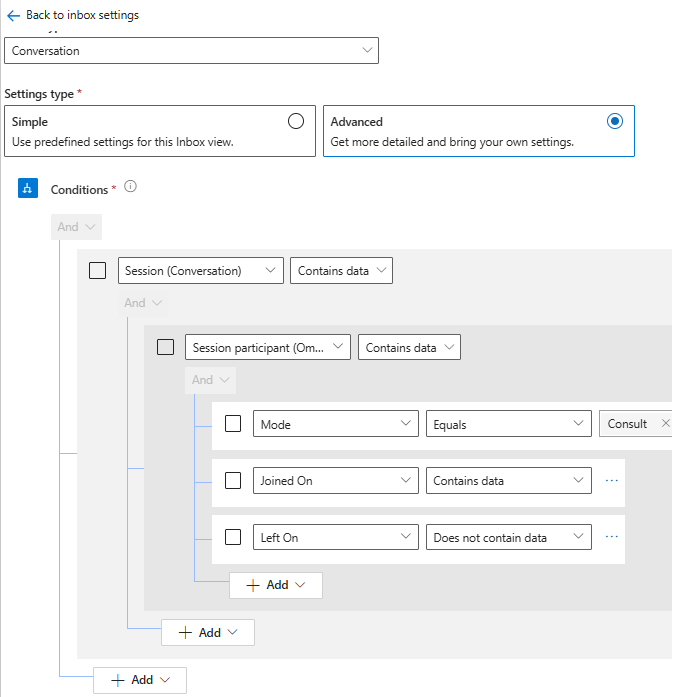
Representatives can configure the inbox to show their consult sessions. The inbox view helps representatives rejoin the consulted sessions and leave the consultation to release their capacity.
Create a view by using the Advanced option in Configure custom views for the inbox.
To configure the view, use the conditions shown in the following screenshot.
Configure filters to display representatives selectively in consult and transfer scenarios
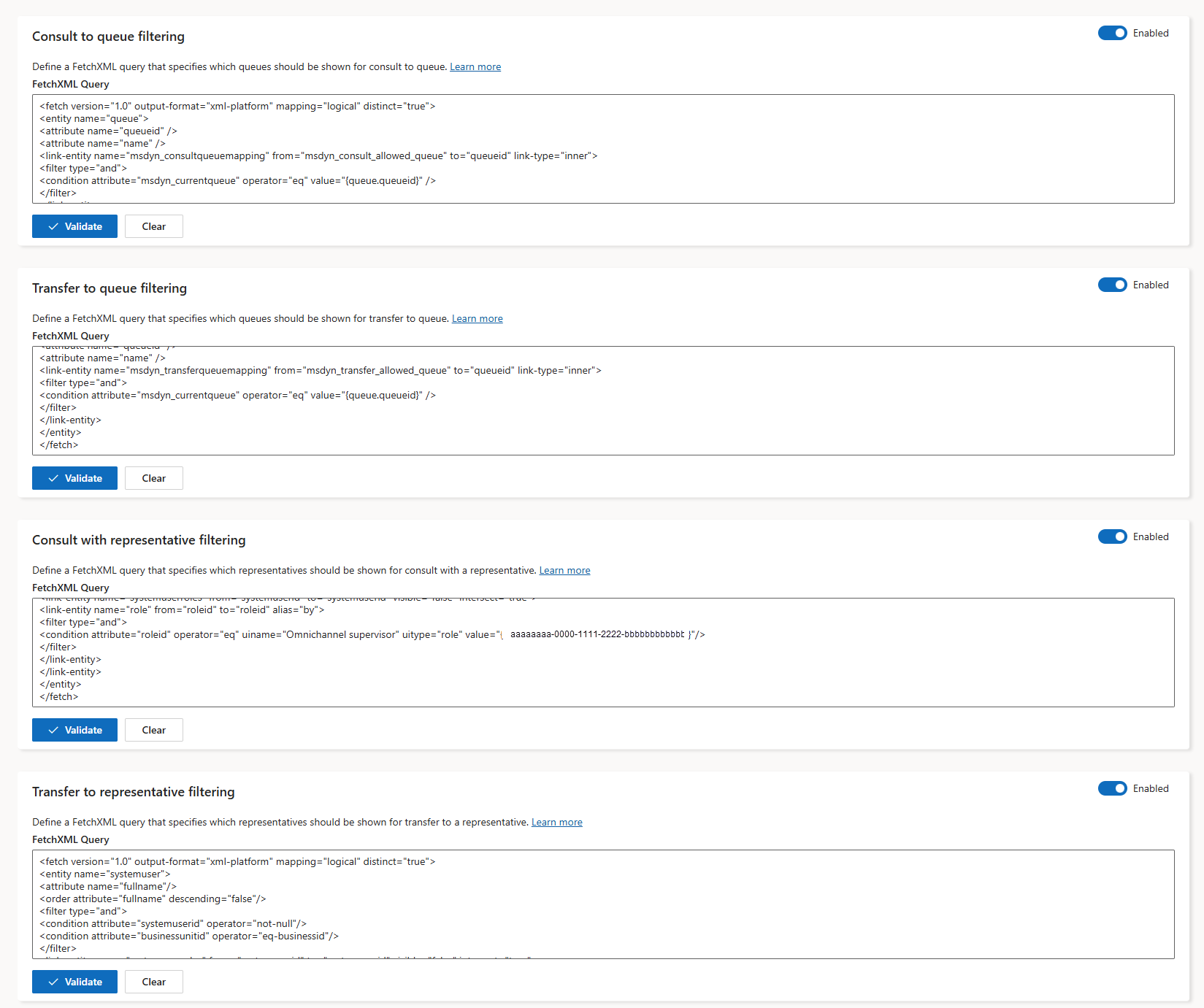
In the various consult and transfer scenarios that you enable for your representatives, you can define FetchXML filter rules to display the right set of representatives or queues. At runtime, eligible representatives or queues only appear for the consult or transfer session.
By default, all filtering options are disabled.
In Copilot Service admin center, go to Channels > Consult and transfer.
Enable the toggle for each of the following settings:
- Consult to queue filtering
- Transfer to queue filtering
- Consult with representative filtering
- Transfer to representative filtering
Enter and validate a FetchXML query for each setting. The FetchXML can be a simple filter or a complex query that uses linked entities with a custom mapping table based on your business rules.
Save the changes.
Use sample FetchXMLs to filter queues
For queues, the primary entity must be a queue.
In the sample scenario, the FetchXML uses a mapping table to filter records based on the current queue of the representative. To support runtime filtering, you must include {queue.queueid} in linked-entity conditions that rely on the current conversation’s queue.
During runtime,
- The placeholder is replaced with the actual queue ID of the active conversation.
- The system evaluates the query dynamically.
- Eligible queues only appear for consult or transfer.
Simple FetchXML for filtering queues
<fetch version="1.0" output-format="xml-platform" mapping="logical" distinct="false">
	<entity name="queue">
		<attribute name="name"/>
		<attribute name="emailaddress"/>
		<attribute name="queueid"/>
		<order attribute="name" descending="false"/>
		<filter type="and">
			<condition attribute="queueid" operator="eq" uitype="queue" value="{aaaaaaaa-0000-1111-2222-bbbbbbbbbbbb}"/>
		</filter>
	</entity>
</fetch>
Mapped entity filtering FetchXML for filtering queues
<fetch version="1.0" output-format="xml-platform" mapping="logical" distinct="true">
	<entity name="queue">
		<attribute name="queueid" />
		<attribute name="name" />
		<link-entity name="msdyn_consultqueuemapping" from="msdyn_consult_allowed_queue" to="queueid" link-type="inner">
			<filter type="and">
				<condition attribute="msdyn_currentqueue" operator="eq" value="{queue.queueid}" />
			</filter>
		</link-entity>
	</entity>
</fetch>
Use sample FetchXMLs to filter representatives
For representatives, the primary entity must be a system user.
In this example, the FetchXML retrieves supervisors who belong to the same business unit as the representative who might invoke a consult or transfer session.
At runtime,
- The query runs in the context of the signed-in representative.
- The representative’s business unit ID is used for filtering.
- Representatives who match the criteria only appear in the consult or transfer list.
Use the FetchXML for
- Role-based visibility
- Restrict consults and transfers to business units
- Filter via custom mapping tables
Simple FetchXML for filtering representatives
<fetch version="1.0" output-format="xml-platform" mapping="logical" distinct="false">
	<entity name="systemuser">
		<attribute name="fullname"/>
		<order attribute="fullname" descending="false"/>
		<filter type="and">
			<condition attribute="systemuserid" operator="eq" uitype="systemuser" value="{bbbbbbbb-1111-2222-3333-cccccccccccc}"/>
		</filter>
	</entity>
</fetch>
FetchXML with multiple filters for representatives
<fetch version="1.0" output-format="xml-platform" mapping="logical" distinct="true">
	<entity name="systemuser">
		<attribute name="fullname"/>
		<order attribute="fullname" descending="false"/>
		<filter type="and">
			<condition attribute="systemuserid" operator="not-null"/>
			<condition attribute="businessunitid" operator="eq-businessid"/>
		</filter>
		<link-entity name="systemuserroles" from="systemuserid" to="systemuserid" visible="false" intersect="true">
			<link-entity name="role" from="roleid" to="roleid" alias="by">
				<filter type="and">
					<condition attribute="roleid" operator="eq" uiname="Omnichannel supervisor" uitype="role" value="{cccccccc-2222-3333-4444-dddddddddddd}"/>
				</filter>
			</link-entity>
		</link-entity>
	</entity>
</fetch>
Runtime experience of consult and transfer
When you enable the consult to queue setting, your service representatives can see the Queue tab on the communication panel.
Similarly, when you enable the direct transfer setting, the Representatives tab appears. The tab also appears when the representative wants to transfer conversations to another representative after engaging in a consultation with them.
The representative capacity is released in the following scenarios:
- The primary representative ends the call or conversation and closes their session.
- The primary representative ends the consult.
Related information
Consult with representative or supervisor
Use consult to collaborate with other representatives or supervisors
Transfer conversations to representatives
Transfer calls to representatives