Note
Access to this page requires authorization. You can try signing in or changing directories.
Access to this page requires authorization. You can try changing directories.
Use filters on the schedule board to narrow down which resources and requirements are displayed. Filtering helps dispatchers quickly find the right resources for a job.
Filter resources
Apply filters to define which resources show on the schedule board. Filter values are pulled from the Bookable Resource entity. You can configure the board settings so filters also apply to requirements.
In Resource filters, select the ellipsis (…) > Select Resources to choose a subset of all resources for the schedule board. Select Apply to see the changes on the schedule board.
To make the applied filter configuration the default for all schedule boards, select … > Save as default.
To remove all applied filters, select Reset to default. The list of selected resources resets when you remove the resources from the selection.
Filter requirements
The requirement pane shows unscheduled requirements. Each column can be sorted and filtered by accessing a drop-down menu next to each column header.
Note
Filtering isn't supported on the Owner column on the Unscheduled Work Orders tab.
Select a single requirement from the requirement pane and select Find availability to launch the schedule assistant. The schedule assistant lists available and matching resources that you can book for the requirement.
Use the map view to find nearby resources
To see resources and requirements on a map, select the Map view icon on the schedule board.
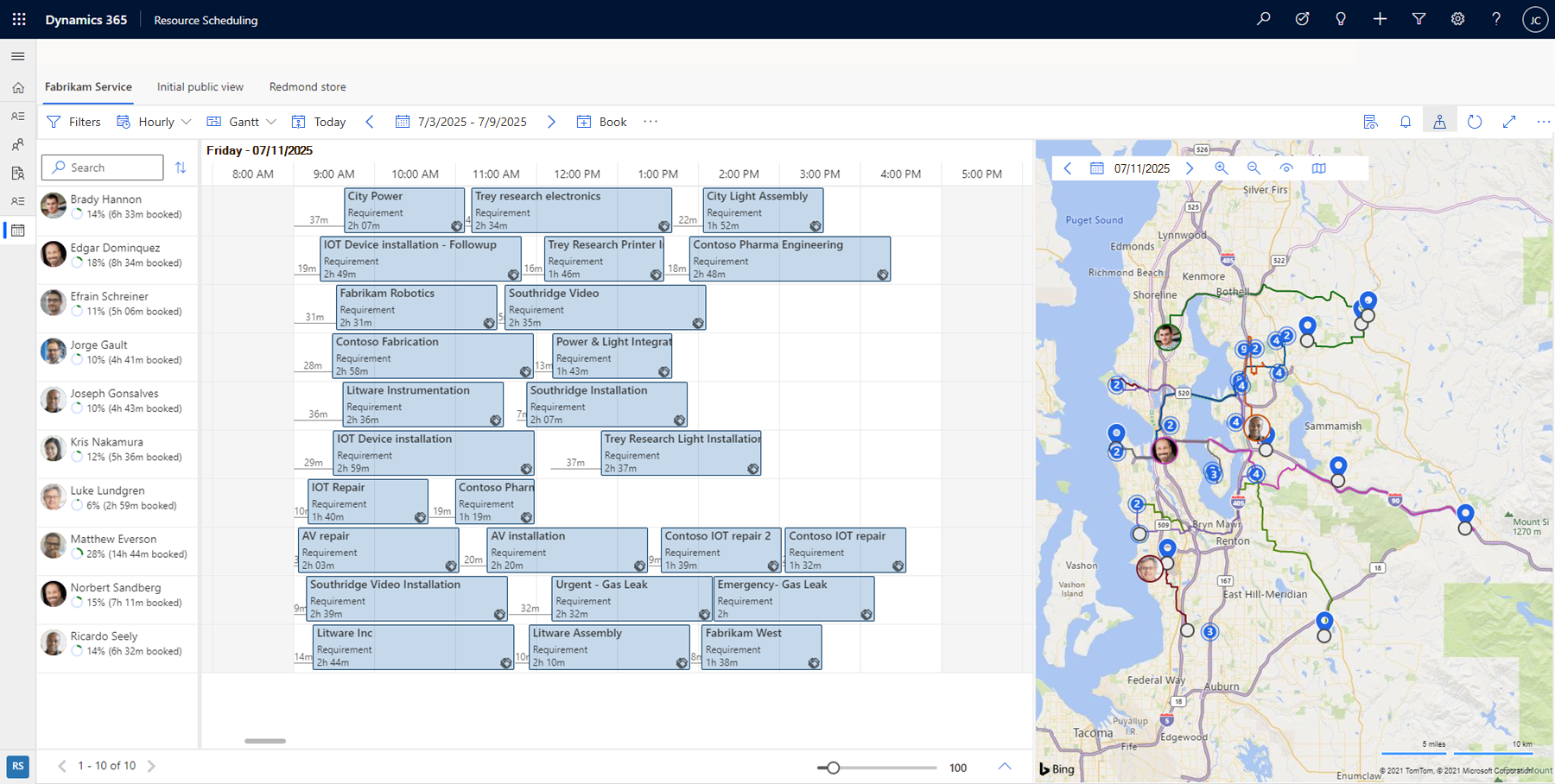
On the map view, select a resource to see their planned route. The numbers indicate in which order requirements are scheduled to a resource.
Change the date to see the map for a different day. Zoom out of the map to see grouped requirements and resources. Quickly identify areas with unscheduled jobs and start scheduling these jobs to the nearest resources. Select the View settings icon to set which items show on the map.
On each resource pin associated with a user, there's an indicator icon representing how long ago the resource's location was detected. Green indicates that the user was seen since the start of the current day. A grey question mark indicates that the location was last detected yesterday or earlier.