Note
Access to this page requires authorization. You can try signing in or changing directories.
Access to this page requires authorization. You can try changing directories.
The schedule assistant recommends resources that match criteria like availability, skills, and location. You can launch it from multiple places, depending on your workflow.
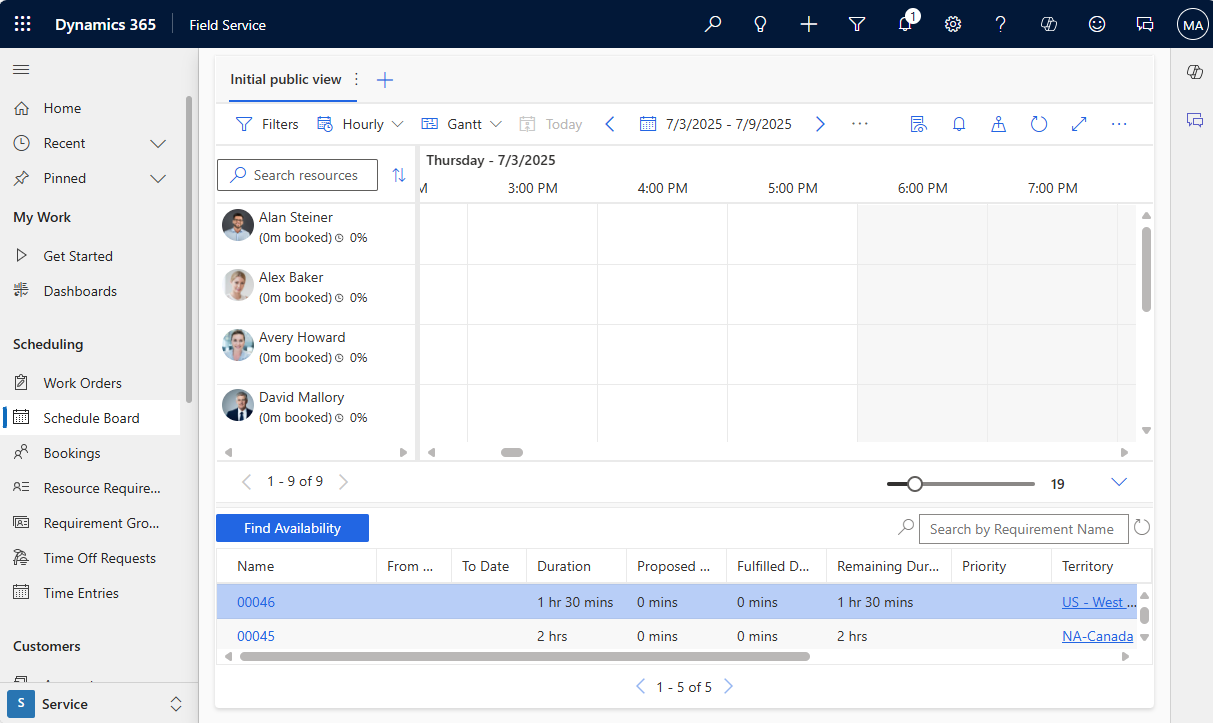
Launch from the schedule board
Open the requirements pane on the schedule board, choose a requirement, and select Find availability. Using the schedule assistant on the schedule board lets you configure your schedule board view to your needs.
Launch from the Book button
Select the Book option from one of the following areas:
- The record form of a scheduling-enabled entity. The schedule assistant uses that entity's associated time zone. You can view or change the time zone by opening the entity and selecting Modify Calendar in the command bar.
- The resource requirement form.
- The requirement group form.
- The list view of a scheduling-enabled entity, after selecting a record.
Reschedule bookings
To rebook a requirement:
Go to the schedule board, right-click a booking, and then select Rebook.

The schedule assistant opens with the requirement details pre-filled.
Select a new resource and time slot to reassign.
Book the same work order again
You can schedule the same job to multiple resources with the schedule assistant. Trigger the schedule assistant for a given work order and book it to a resource's time slot. Before exiting the search, select another resource's time slot and select Book again.