Note
Access to this page requires authorization. You can try signing in or changing directories.
Access to this page requires authorization. You can try changing directories.
Note
The Retail Interest Group by Dynamics 365 Commerce has moved from Yammer to Viva Engage. If you don't have access to the new Viva Engage community, fill out this form (https://aka.ms/JoinD365commerceVivaEngageCommunity) to be added and stay engaged in the latest discussions.
This article explains how to find events from Microsoft Dynamics 365 Commerce components.
To enable diagnostics and troubleshooting, Commerce components, which include self-hosted components such as the Retail Modern POS and cloud-hosted components such as Commerce Scale Unit and Commerce modules, log their events locally to Event Viewer or to the browser developer tools console such as F12. The Microsoft Dynamics Lifecycle Services (LCS) log search experience also logs events.
Viewing events in Event Viewer
You can use Event Viewer to view events for components that you install on computers that run Microsoft Windows. You need physical access to the computer where the events are logged. For more information about Event Viewer, see Event Viewer on TechNet. You can also use Event Viewer to view events remotely from computers that you access. For more information about how to use Event Viewer to view events remotely, see Work with Event Logs on a Remote Computer on TechNet. Typically, you use Event Viewer for troubleshooting in the following use cases:
- Development on a developer topology or on a downloadable virtual hard disk (VHD) that provides access to Event Viewer.
- Client components, when you're running a conference room pilot and have access to Event Viewer for that computer.
However, for most other cases, and especially when you don't have access to Event Viewer for the computer, you can use Log Search on LCS. For Commerce modules, events are currently available only in browser developer tools such as F12. Log Search is discussed later in this article. This section applies to the following components:
- Commerce Scale Unit
- Retail Modern POS
- Retail Hardware Station
Find Commerce-specific events in Event Viewer
To start Event Viewer on a computer, right-click the Start button, and then select Event Viewer.
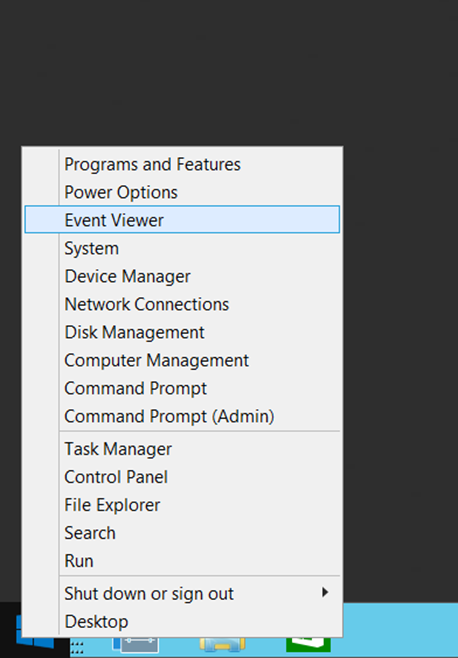
You can find all Commerce-specific event logs under the following path in Event Viewer: Application and Services Logs\Microsoft\Dynamics. The Commerce-specific event logs include the following options:
- Commerce-RetailServer – This log contains events that the Commerce Scale Unit components register.
- Commerce-ModernPos – This log contains events that Retail Modern POS registers. These events include events from the TypeScript and C# (CRT) layer.
- Commerce-LoggingProvider – This log contains events that all other Commerce components register that aren't included in the earlier list.
Enable debug event logs
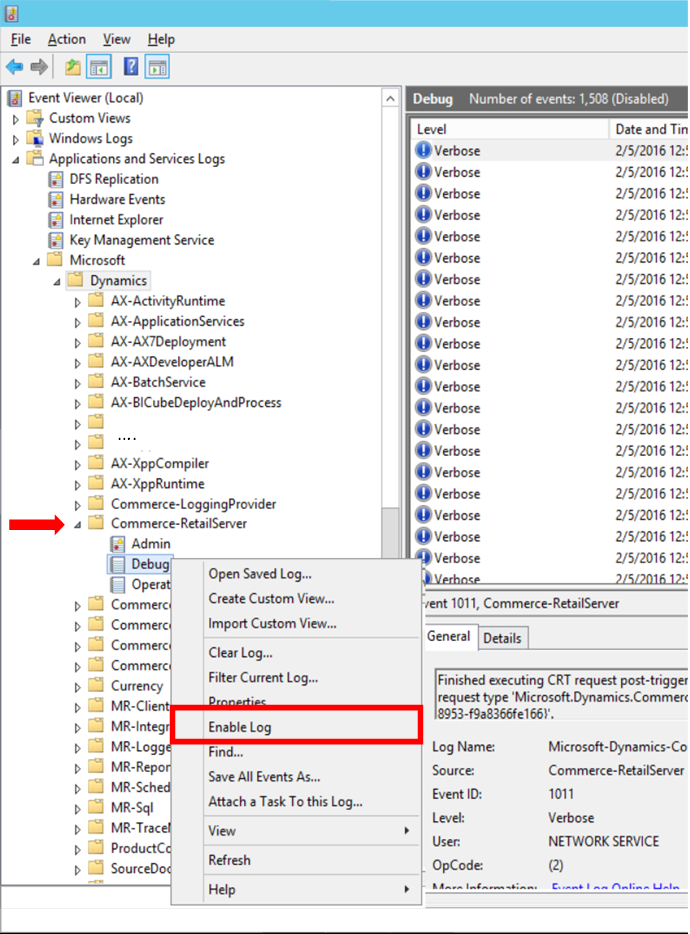
Currently, various components send some events to debug event logs. These events are verbose events that the system logs at high rates. They're useful only for detailed debugging scenarios. Follow this step to enable the debug event logs in Event Viewer.
- Right-click a debug log, and then select Enable Log.
Viewing events by using the (F12) browser developer tools console
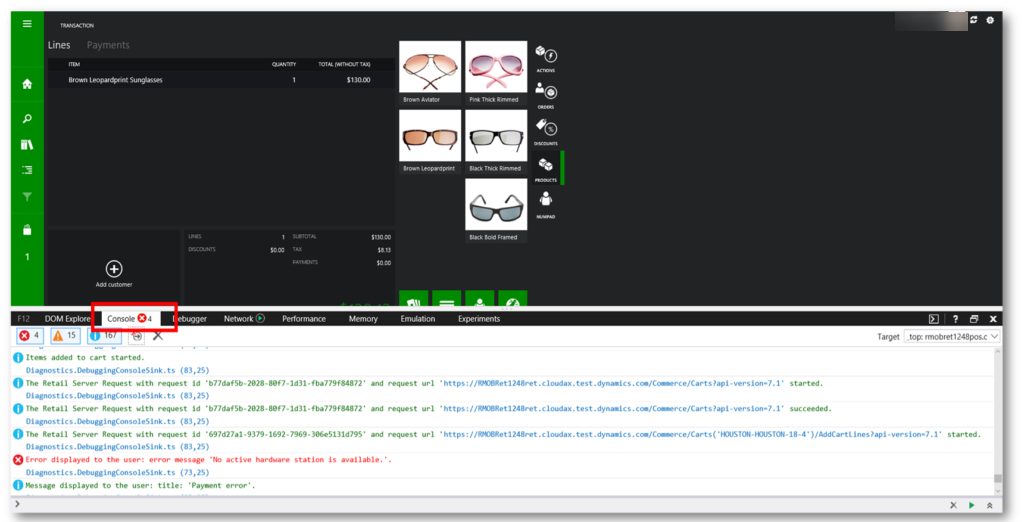
Because Retail Cloud POS and Commerce modules are browser-based components, you can use the browser developer tools console to view events for them. For information about the Microsoft browser developer tools console, see Using the Console to view errors and debug. To use the browser developer tools for Retail Cloud POS or Commerce modules, you must use a supported browser version.
View events in the browser developer tools console
- Start your browser, and go to Retail Cloud POS or your Commerce website.
- Press F12, and then select the Console tab.
- As you perform operations on Retail Cloud POS or on your Commerce website, the console logs events. You can filter by event severity to view events that have different severity levels.
Correlating events
This section explains how to correlate events from various Commerce components.
POS client startup
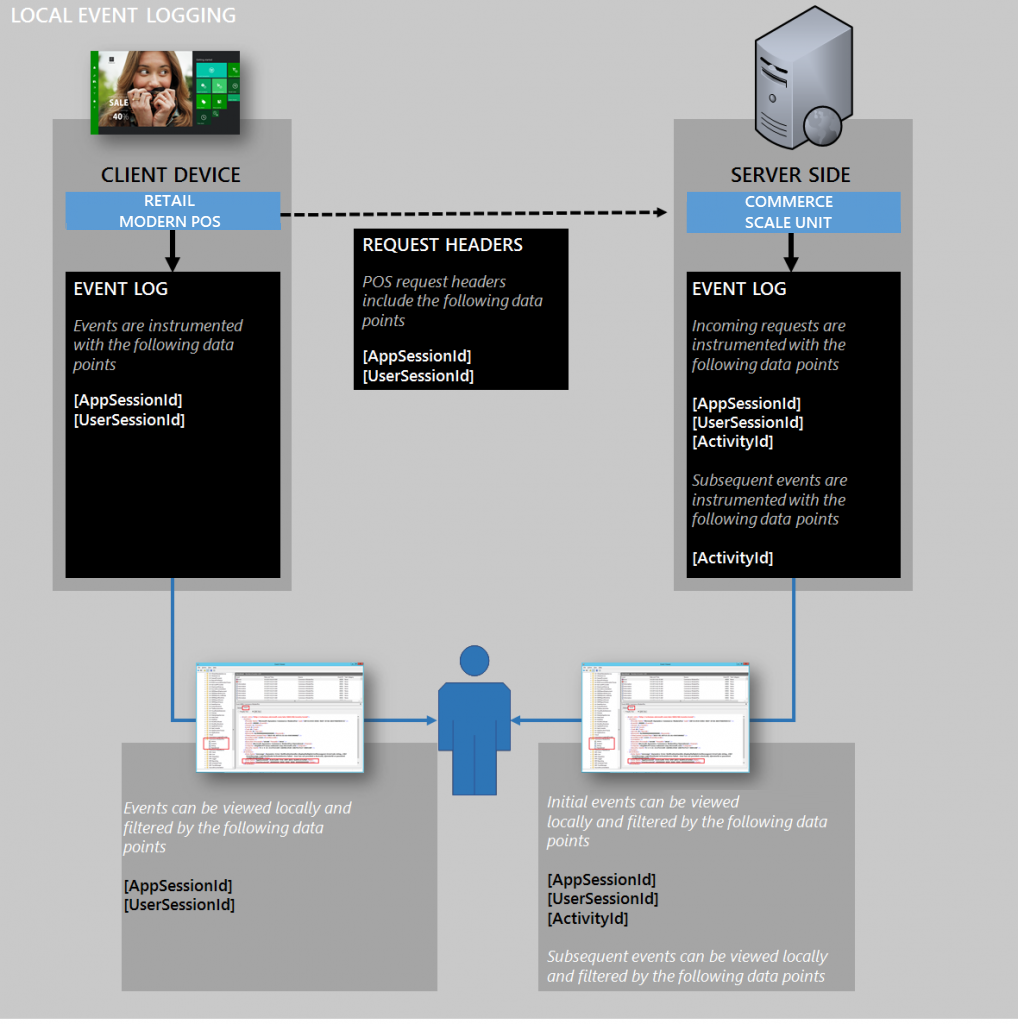
When a user starts a POS client, the client generates a new AppSessionID. The POS client uses the AppSessionID to log every event that it instruments. All events that the client logs to Event Viewer and App Insights include this ID.
User sign-in
When a user signs in to a POS client, the client generates a new UserSessionID. The POS client uses the UserSessionID to log every event that it instruments. All user events that the client logs to Event Viewer include this ID. The client maintains this ID for as long as the user is signed in. When the current user signs out and a new user signs in, the client generates a new UserSessionID.
POS client calls to Commerce Scale Unit
Whenever a POS client makes a call to the Commerce Scale Unit, the client sends the AppSessionID and UserSessionID as headers. The Commerce Scale Unit logs an event for the incoming request (Event ID 5000). This event includes those two IDs and also an ActivityID. The Commerce Scale Unit then uses the ActivityID for all related events. The event log where Commerce Scale Unit is hosted makes the AppSessionID, UserSessionID, and ActivityID available. LCS Log Search also makes these IDs available.
Request activity on Commerce Scale Unit
Every event that the Commerce Scale Unit logs as part of a request has the same ActivityID as the initial event that the Commerce Scale Unit logged for the initial incoming request event (Event ID 5000). Both Event Viewer and LCS Log Search make these events available.
Finding Retail Modern POS events in Event Viewer
Every event that Retail Modern POS logs includes the following data points:
- AppSessionID – A unique ID generated when you start the app. Every event you log includes this ID.
- UserSessionID – A unique ID generated when a user signs in to Retail Modern POS. Every event you log includes this ID as long as the user stays signed in. When a new user signs in, a new UserSessionID is created.
You can find the AppSessionID and UserSessionID values on the Details tab in Event Viewer on the machine where Retail Modern POS is installed.
Finding incoming Commerce Scale Unit request events in Event Viewer
To correlate data for incoming Commerce Scale Unit requests in Event Viewer, you must first enable the Analytic channel. To enable the Analytic channel, follow these steps:
- In Event Viewer, in the left pane, select Commerce-RetailServer.
- Select View > Enable Analytic and Debug log. A new node for the Analytic channel appears under the Commerce-RetailServer logging provider.
- Right-click the Analytic node, and then select Enable log.
In Event Viewer, the system logs all incoming Commerce Scale Unit requests to the Analytic channel of the Commerce-RetailServer source as event 5000. These events also have the AppSessionID and UserSessionID values that were described earlier. Every event also has a unique ActivityID instrumented for every logged event for the same request.
Using LCS Log Search
LCS Log Search lets you view data from all the components from a single portal. You can access events from both cloud-hosted components (such as Commerce Scale Unit) and in-store components (such as Retail Modern POS and Retail Hardware Station). Event data from all cloud-hosted and in-store components flows to LCS Log Search, where it's indexed and made searchable. Data is typically available within five minutes after it's logged. For POS clients and Retail Hardware Station, all events are locally queued in persistent storage and then uploaded in batches after the queue is filled. This behavior enables network traffic to be optimized. It also enables events to be saved even when there's no Internet connectivity. After connectivity is restored, all pending events are uploaded.
LCS Log Search is available for the HA production topology. You can use it for the following Commerce components:
- Retail Modern POS
- Retail Cloud POS
- Commerce Scale Unit (running on Retail Cloud Scale Unit)
LCS Log Search doesn't include logs from the following Commerce components:
- Commerce layout designer
- Commerce receipt designer
- Self-service installer for Retail Modern POS
- Self-service installer for Retail Hardware Station
- Commerce Scale Unit (running on Retail Store Scale Unit)
- Retail Hardware Station
Access LCS Log Search
To access LCS Log Search, follow these steps:
Go to Lifecycle Services.
Sign in by using the credentials that are associated with your project.
On the project page, select the correct project.
On the Project details page, select the correct environment.
On the Environment details page, select Environment Monitoring.
On the Environment monitoring page, select View raw logs.
On the Log Search page, select one of the following queries:
- Commerce client events query, which includes events from Retail Modern POS, Retail Cloud POS, and Commerce Scale Unit (running on Retail Cloud Scale Unit)
- All logs query, which includes data from Commerce Scale Unit, Commerce Data Exchange, and Commerce Data Exchange: Real-time Service
You can filter by the following criteria to refine your query:
- Start and end dates and times (in Coordinated Universal Time [UTC])
- Device ID
- POS user
- POS application session ID
- POS user session ID
- Severity level
