Note
Access to this page requires authorization. You can try signing in or changing directories.
Access to this page requires authorization. You can try changing directories.
Azure DevOps Services | Azure DevOps Server | Azure DevOps Server 2022
There are many ways you can manage your personal notifications in Azure DevOps:
- View your notifications
- Set notifications only for yourself
- View and edit all notification subscriptions
- Add a custom notification subscription
- Unsubscribe or opt out of a team or project notification subscription
You receive personal notifications as email messages when changes occur to builds, code, pipelines, work, artifacts, extensions, releases, and more.
For information about team and project-level notifications, see Team and project-level notifications and Manage team or group notifications.
Note
For on-premises Azure DevOps Server, configure an SMTP server so team members can see the Notifications option from their organization or user profile menu and receive notifications.
Tip
You can use AI to help with this task later in this article, or see Enable AI assistance with Azure DevOps MCP Server to get started.
Prerequisites
| Category | Requirements |
|---|---|
| Project access | Project member. |
View your personal notifications
The following table lists examples of events for which you might receive personal notification email. For more information, see a full representation in About notifications.
| Category | Notification triggers |
|---|---|
| Work item | - You're assigned a work item - You're unassigned from a work item - Comments are added/changed on a work item to which you're assigned |
| Code reviews | - A code review to which you're assigned changes - A code review to which you're assigned completes |
| Pull request | - You're added or removed as a reviewer on a pull request - A pull request to which you're assigned fails to build - Comments are added/changed on a pull request to which you're assigned |
| Code under source control | - A code file is added to a project under version or source control - A commit is pushed to a code file under version or source control |
| Build | - A build succeeds - A build fails |
Follow these steps to view your personal notifications:
Sign in to your organization (
https://dev.azure.com/<organization>).Select User settings
 , and then select Notifications: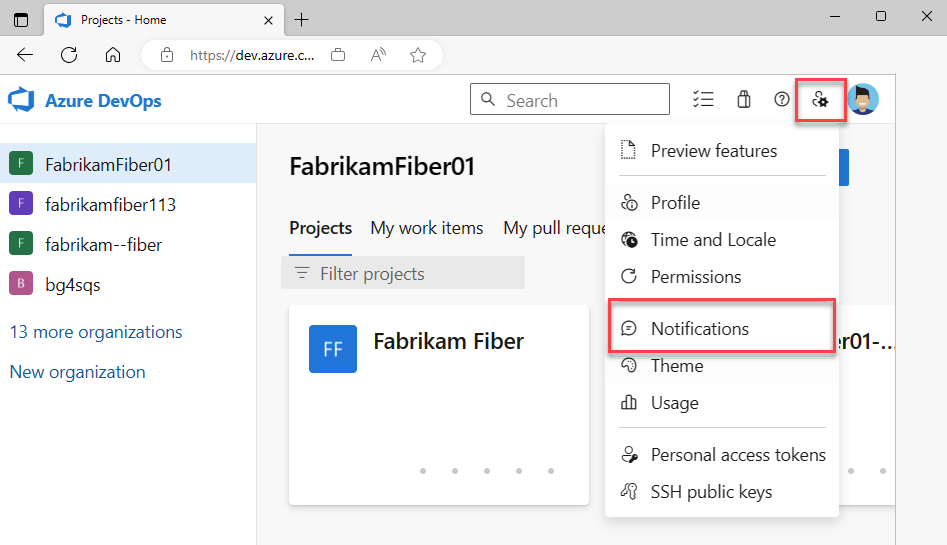
Your personal Notifications page opens:


Sign in to your organization (
https://dev.azure.com/<organization>).Open User settings, and then select Notification settings:

Your personal Notifications page opens:


Team administrators and recipients
As a team administrator, you can set up a notification subscription that's only for yourself. However, you can ensure that other team members receive specific notifications in the subscription. For each notification setting, you can identify the team recipients to receive the email.
Add custom notification subscription
Custom personal notification subscriptions let you identify precise criteria about events for which you want to receive notifications. You can use custom notification subscriptions to receive messages about any event that occurs in Azure DevOps.
Keep in mind that custom notification subscriptions aren't the same as default notification subscriptions. A default notification sends email only to users or groups directly associated with an event. Custom notifications enable you to define the set of message recipients.
From your Notifications page, select New subscription:


Select the Category and the Template type to use in the new subscription, and then select Next. For a list of supported templates, see Default and supported notifications.
The following example shows a subscription to receive notifications when a pull request is created within a specific project:


Configure your specific details for the new notification subscription:
- Modify the description to help you identify the notification subscription later.
- Provide the email address for delivery of the notifications. By default, your preferred contact email address is used.
- Include zero or more fields to further specify the event criteria.


Note
The fields available for filtering event criteria differ depending on the category and template you select. For more information about event types, see Supported event types.
Select Finish. The new notification subscription appears in the list under the category you selected:


Unsubscribe (opt out) from team or OOB notification subscription
You can unsubscribe or opt out of receiving notifications for specific team notification subscriptions, including out-of-the-box (OOB) subscriptions:
Sign in to your organization (
https://dev.azure.com/<organization>).Select User settings
, and then select Notifications.In your list of Notification subscriptions, locate the notification you want to disable.
To unsubscribe from the notification, move the State toggle to the Off position, which changes the toggle color from blue to gray.
The following example shows the user unsubscribed from the "Build completes" notification subscription:

Note
Whether you're an administrator or a regular team member, when you change the State value for a shared team notification subscription in your personal settings, the change affects only your personal notifications. The change doesn't affect the setting value of the same shared notification for other team members.
Disable work item notifications for project
To override organization settings and disable all work item notifications for a project in Azure DevOps, complete the following steps:
Sign in to your project (
https://dev.azure.com/<organization>/<project>).Select Project settings > Notifications.
In the Notification list, select the work notification you want to disable, which highlights the row.
Select User settings
 and then select Delivery settings.
Select Do not deliver, and then select Save.
Use AI to manage personal notifications
Tip
You can use AI to help with this task later in this article, or see Enable AI assistance with Azure DevOps MCP Server to get started.
If you use GitHub Copilot, the Azure DevOps MCP Server can help you configure and fine-tune your personal notification settings through natural language prompts.
Example prompts for personal notification management
| Task | Example prompt |
|---|---|
| Cut notification overload | I'm getting too many Azure DevOps notification emails. Show me my current personal subscriptions and recommend which ones to disable or consolidate so I only get notified about events that need my direct action |
| Track critical work item changes | Set up a personal notification that alerts me whenever a work item with Priority 1 is created, reassigned, or moved to the Resolved state in any project I'm a member of |
| Monitor PR activity in specific repos | Create a personal notification subscription that sends me an email whenever a pull request is created or updated in the main branch of our API and frontend repositories |
| Consolidate cross-project alerts | I work across four Azure DevOps projects. Help me set up personal notifications so I get a single consolidated view of build failures and blocked pull requests across all of them |
| Watch for deployment-related changes | I want to be notified when any release pipeline targeting our production environment fails or is manually intervened. Walk me through creating a personal subscription with the right filter criteria |
| Temporarily reduce notifications | I'm going into a focus sprint and want to disable all non-critical personal notifications for the next two weeks, keeping only Severity 1 bug assignments and failed builds. Show me how to adjust my subscriptions |
Tip
For the best results, use these prompts in agent mode with the Azure DevOps MCP Server connected. Customize the prompts with your specific projects, repos, or notification preferences.