Note
Access to this page requires authorization. You can try signing in or changing directories.
Access to this page requires authorization. You can try changing directories.
Azure DevOps Services
This article guides you through managing billing in Azure DevOps, which is essential for controlling costs associated with users, CI/CD concurrency, and extensions. Learn how to set up billing, change your Azure subscription, remove your billing subscription, and give a user access to manage billing.
All services are billed through Azure. You don't need to use any other Azure services.
Important
- When you remove the billing subscription from your organization, the paid quantities for the following types of users immediately revert to the free tier:
- Basic
- Azure Artifacts
- Azure Test Plans
- Microsoft-hosted CI/CD
- Self-hosted CI/CD
- When you cancel or change billing, a resource group remains in the old Azure subscription. Despite Azure's warning that "Dependent resources will be deleted," it's safe to delete these resource groups. The Azure DevOps organization isn't deleted or harmed. These resource groups use the naming format,
VisualStudioOnline-<DEVOPS-ORG-HOSTID-WITHOUT-DASHES>.
Tip
You can use AI to help with this task later in this article, or see Enable AI assistance with Azure DevOps MCP Server to get started.
Prerequisites
| Category | Requirements |
|---|---|
| Permissions | - Member of the Project Collection Administrators group. Organization owners are automatically members of this group. - To give another user access to manage billing: Azure Account Administrator. - To change your organization's billing subscription: - Project Collection Administrators group. Organization owners are automatically members of this group. - Owner or Contributor permission for the Azure subscription, which you can use to purchase. |
| Subscription | An Azure subscription in the same Microsoft Entra ID as your Azure DevOps organization. |
Note
Azure DevOps doesn't support the Azure Free Trial.
Set up billing for your organization
Set up billing in Azure DevOps before making any purchases. This action is a one-time setup per organization. After you select an Azure subscription for billing, you can add users and assign licenses.
Sign in to your organization (
https://dev.azure.com/{Your_Organization}).Select
 Organization settings.
Select Billing.

Select Set up billing.
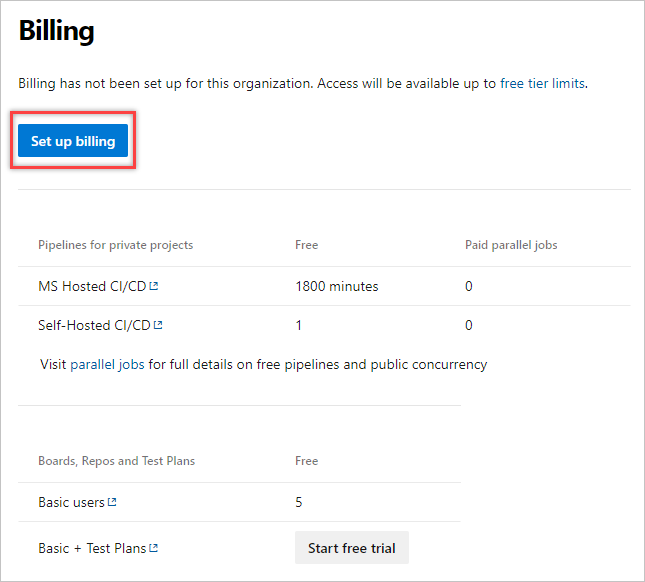
Select your Azure subscription, and then select Save.

You set up billing for your Azure DevOps organization. You can review your individual Azure subscription bill at any time.
Change your billing subscription
You might need to change the Azure subscription for your Azure DevOps organization's billing if the subscription is linked to a former user. Consider switching to a shared subscription or removing the billing arrangement. You can remove your billing subscription anytime. Migrating between resource groups isn't supported. If billing is set up for an organization that you don't recognize, you can look up the owner for organizations connected to your Microsoft Entra ID.
Sign in to your organization (
https://dev.azure.com/{yourorganization}).Select
Organization settings.
Select Billing > Change billing. If you don't see the Change billing button, you don't have the right permissions for access.

Choose your Azure subscription, and then select Save.
Azure DevOps bills the newly saved subscription for your organization.
Remove your billing subscription
Sign in to your organization, choose
Organization settings > Billing > Change billing, and do steps 1 through 4 of the Change the subscription section.Select Remove billing > Save.
Azure DevOps removes your billing subscription from your organization.
Give a user access to manage billing
Assign the Owner or Contributor role to a user under the subscription your organization uses for billing. For more information, see Azure roles.
Sign in to the Azure portal as the Azure Account Administrator.
Enter subscriptions in the search box and select Subscriptions.
Select the subscription > Access control (IAM) > + Add.
Select the appropriate role from the dropdown menu.

Select + Select members, search for a user by name or email address, highlight the user, and then choose Select.

Select Review + assign.
Note
The user must accept their email invitation before they can access the Azure subscription, if they aren't in your directory.
Use AI to manage billing
Tip
You can use AI to help with this task later in this article, or see Enable AI assistance with Azure DevOps MCP Server to get started.
If you use GitHub Copilot, the Azure DevOps MCP Server can help you set up and manage billing for your Azure DevOps organization through natural language prompts.
Example prompts for billing management
| Task | Example prompt |
|---|---|
| Migrate billing after a reorg | Our team moved to a new Azure subscription after a company reorganization. Walk me through changing the billing subscription for my Azure DevOps organization without losing any paid features |
| Troubleshoot billing removal | I removed the billing subscription from my organization and users lost their access levels. Explain what happened and how to restore paid access quickly |
| Set up billing for a new org | I just created a new Azure DevOps organization and need to connect it to our corporate Azure subscription for billing. Guide me through the setup and explain what happens if the subscription is in a different Microsoft Entra tenant |
| Audit billing access | List everyone who currently has Owner or Contributor access to the Azure subscription we use for Azure DevOps billing, so I can verify only authorized people can change billing settings |
| Delegate billing to finance | Our finance team needs to monitor and manage Azure DevOps billing costs. Walk me through granting the minimum permissions they need on the Azure subscription without giving them access to DevOps projects |
| Prepare for subscription change | We're switching from a Pay-As-You-Go subscription to an Enterprise Agreement. What steps should I take to change billing subscriptions with zero downtime for my Azure DevOps users? |
Tip
For the best results, use these prompts in agent mode with the Azure DevOps MCP Server connected. Customize the prompts with your specific organization name, subscription details, or billing scenario.