Note
Access to this page requires authorization. You can try signing in or changing directories.
Access to this page requires authorization. You can try changing directories.
In this article, you learn about how to use the self-service maintenance orchestration feature to schedule or reschedule planned maintenance directly from the Azure portal. For more information, see Host maintenance and lifecycle management.
Prerequisites
Before scheduling or rescheduling maintenance, ensure the following:
- An Azure VMware Solution private cloud in place.
- Contributor Level access is required to view and edit the information on Maintenance blade.
Schedule maintenance
To schedule maintenance, follow these steps:
Access the Maintenance pane by clicking the Schedule link in the banner. You see a list of upcoming maintenance events.
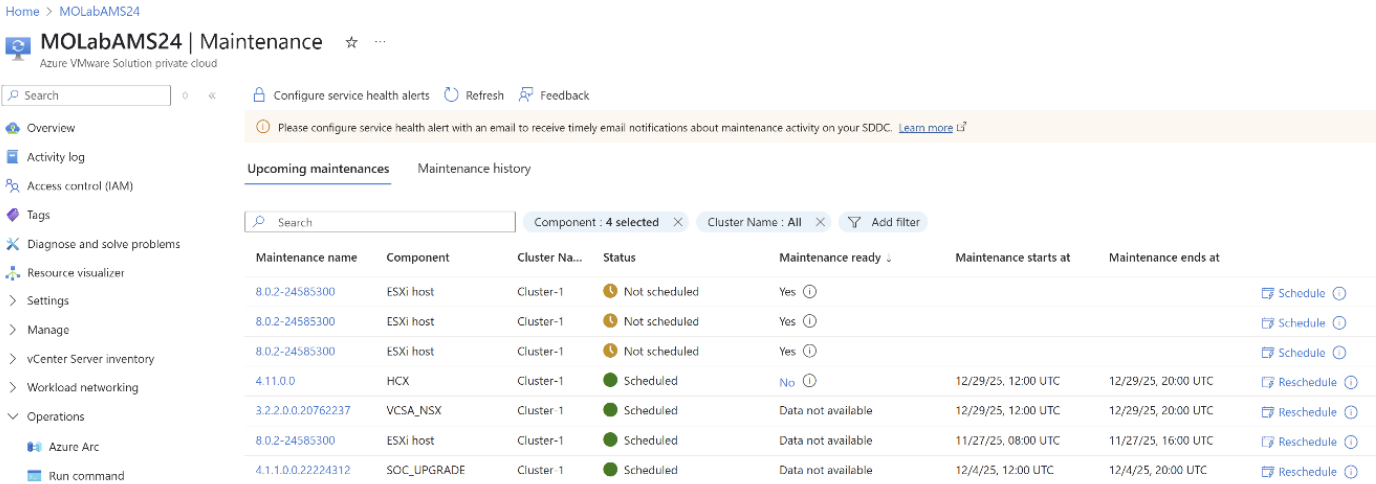
Hover over the info icon near the Schedule button to view the scheduling deadline for each maintenance event.
Select Schedule, input your preferred date and time, and confirm the selection.
Note
If maintenance is not scheduled before the deadline, the system will automatically assign a maintenance window based on availability.
Check maintenance readiness
Before scheduling, verify the Maintenance Ready status for the event:
- If the status is No, there may be configuration issues blocking maintenance.
- To view detailed information with an action plan to address the issues, select the provided hyperlink.
Addressing readiness issues ensures a smooth maintenance process and prevents automatic cancellations.
Reschedule maintenance
If the assigned maintenance slot isn't suitable, you can reschedule the event using the following steps:
- Navigate to Operations in the left menu and select Maintenance.
- Under the Upcoming Maintenance tab, select the Reschedule option next to the event.
- Input your revised date and time, then confirm by clicking Reschedule. Once rescheduled, the system updates the schedule with the new date, visible in the portal.
Note
Users cannot reschedule maintenance after the upgrade deadline, on freeze days, or for tasks addressing critical security vulnerabilities.
Errors and restrictions
The following system error or warning messages appear while trying to reschedule maintenance tasks:
Each maintenance event has an internal deadline. You can schedule/reschedule maintenance only before the maintenance deadline. Dates beyond this appear greyed out on the portal. To reschedule past this point, raise a support ticket.
Critical maintenance or fixes for critical security vulnerabilities may have the reschedule option disabled.
You can reschedule maintenance up to 24 hours before the start of the maintenance.
Weekend scheduling is not currently supported through the portal. For urgent or specific weekend requirements, please raise a support request.
This feature is enabled only for specific maintenance activities. As a result, not all Azure VMware Solution maintenance tasks appear in this section or have the option to reschedule.