Share via

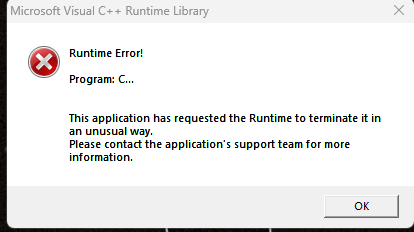
Microsoft Visual C++ Runtime Library Runtime Error!

Alex Lownsberry 0 Reputation points
2026-03-13T02:28:26.4433333+00:00

Screenshot 2026-03-11 001124

Hi, I have been having this notification on startup and I've spent many hours so far trying to fix it myself with the help of YouTube, Reddit and various threads. I've ran the DISM checkup and repair, I've uninstalled and reinstalled the Redistributable, basically if I could find it and articulate what I was supposed to do, I've done it but to no avail, I have a Windows security update that continuously fails and have tried reinstalling Windows which also failed, I have also tried to full reset my computer in hopes it would sort whatever program is causing the Runtime Error out but that also failed and undid the full reset. If anyone has encountered the same problem or has knowledge on what's causing it, the help would be welcomed and greatly appreciated. Also what the heck is Program: C...

Windows for home | Windows 11 | Performance and system failures
0 comments No comments
{count} votes

2 answers

Sort by: Most helpful
  1. Lester Bernard Reyes 75,495 Reputation points Independent Advisor
    2026-03-13T03:05:28.2666667+00:00

    Hi, I'm Bernard, a fellow Windows user. I'm happy to help!

    Kindly follow the steps provided by Q&A Assist. If the issue persists, I suggest doing an in-place upgrade, which will update the device to the latest version and repair all issues without deleting any files.


    Kindly follow the steps from this link:

    https://learn.microsoft.com/en-us/answers/questions/4252110/how-to-run-in-place-upgrade-in-windows-11

    0 comments No comments

  2. Q&A Assist
    2026-03-13T02:28:52.7033333+00:00
    AI generated content. This question contains an answer created with AI from Q&A Assist. Learn more

    The dialog shown is a generic Microsoft Visual C++ Runtime Library error. It means a program that uses the Visual C++ runtime is crashing at startup, usually because of:

    • A bug or corruption in that specific app
    • Damaged or mismatched Visual C++ runtime files
    • Low‑memory or heap corruption conditions

    The message itself does not identify which app is failing (it only shows Program: C...). To resolve it, focus on the app and the runtime components rather than Windows itself.

    Try these steps in order:

    1. Identify the failing program
      • Open Task Manager immediately after the error appears and look for any app that briefly starts and disappears.
      • Check Startup Apps in Task Manager and temporarily disable non‑Microsoft entries. Reboot and see if the error disappears.
      • Re‑enable startup items one by one until the error returns; the last one enabled is the culprit app.
    2. Repair or reinstall the failing app
      • Once the app is identified, go to Control Panel → Programs → Programs and Features (or Settings → Apps → Installed apps).
      • Select that app and choose Repair (if available) or Uninstall, then reinstall it from a clean installer.
    3. Repair or reinstall Visual C++ Redistributables
      • In Programs and Features, locate all entries named Microsoft Visual C++ Redistributable.
      • For each one, choose Change → Repair.
      • If repair does not help, uninstall the affected versions and reinstall them from the official Microsoft installers, then reboot.
    4. Check for low‑memory or heap‑corruption causes
      • Close other apps and reboot to ensure enough free memory.
      • If the error happens at system startup only, verify that no third‑party driver or tool is injecting into processes (security tools, overlays, etc.). Temporarily disable or uninstall recently added software or drivers and test again.
    5. Ensure Windows and drivers are up to date
      • Run Windows Update and install all pending updates, then reboot.
      • If a specific update repeatedly fails, resolve that separately, but the runtime error is usually tied to the app or C++ runtime, not the update itself.

    If the error persists after these steps, contact the vendor of the app identified in step 1 and provide them with the exact text of the dialog and any Windows Event Viewer application‑error entries for that executable.


    References:

    0 comments No comments

Your answer

Answers can be marked as 'Accepted' by the question author and 'Recommended' by moderators, which helps users know the answer solved the author's problem.
