Microsoft Teams | Microsoft Teams for business | Meetings and calls | Other
Additional meeting and call-related features and issues within Microsoft Teams for business

This browser is no longer supported.
Upgrade to Microsoft Edge to take advantage of the latest features, security updates, and technical support.
' cx='32' cy='32' r='32' /%3E%3Ctext x='50%25' y='55%25' dominant-baseline='middle' text-anchor='middle' fill='%23FFF' %3EMB%3C/text%3E%3C/svg%3E)
I would like to set up a regular open meeting for anyone with an internet connection to join. But anyone joining must go into a waiting room first and then be allowed entry by the host after checking the name they choose to give.
Participants names are not known before the meeting and anyone eligible may attend without fully identifying themselves. They have no common factor other than a desire to attend the meeting.
Is this possible in Teams please, and if so how?
thanks
Additional meeting and call-related features and issues within Microsoft Teams for business
' cx='32' cy='32' r='32' /%3E%3Ctext x='50%25' y='55%25' dominant-baseline='middle' text-anchor='middle' fill='%23FFF' %3EVH%3C/text%3E%3C/svg%3E)
Dear @mike burnett,
Thank you for posting your question in the Microsoft Q&A forum.
You can set this up using a standard Teams meeting with the meeting lobby enabled. This allows anyone with the meeting link to join, while still giving you full control over who is admitted. For reference: Plan for meetings with external participants in Microsoft Teams
Therefore, here are some steps I recommend you try
Step 1: In the Microsoft Teams Admin Center, set to allow open meetings with a waiting room (lobby). For reference: IT Admins - Manage lobby options in Microsoft Teams and Manage anonymous participant access to Teams meetings, webinars, and town halls (IT admins)
Open the Microsoft Teams Admin Center > Sign in to https://admin.teams.microsoft.com (Make sure you are logged in as a Teams Administrator or Global Administrator)
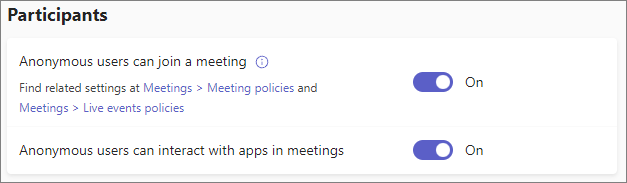
If you want to allow anonymous meeting access, be sure the Anonymous users can join a meeting meeting setting is also turned on. To set the organization-wide meeting setting for anonymous meeting join: In the Teams admin center, expand Meetings and then select Meeting settings > In the Participants section, set Anonymous users can join a meeting to On or Off > Select Save.
Step 2: Create a standard Teams meeting
Open Microsoft Teams > Go to Calendar > Select New meeting > Enter a meeting title, date, and time > Save the meeting
Step 3: Open Meeting Options
Open the meeting from your Teams calendar > Select Meeting options
Step 4: Force everyone into the waiting room (lobby). For reference: Using the lobby in Microsoft Teams meetings
In Meeting options, set the following:
This ensures all participants, including anonymous users, must wait in the lobby until you approve them.
Step 5: Share the meeting link
Copy the Join Microsoft Teams meeting link > Share this link publicly (email, website, message, etc.)
I hope the information shared helps point you in the right direction. Please try the steps above and let me know if they work. If not, we can continue working together to narrow this down.
The first response may not always resolve the issue right away, but with your help and more details, we can work toward a solution.
Thank you for your patience and understanding. I'm looking forward for your reply.
If the answer is helpful, please click "Accept Answer" and kindly upvote it. If you have extra questions about this answer, please click "Comment".
Note: Please follow the steps in our documentation to enable e-mail notifications if you want to receive the related email notification for this thread.
Dear @mike burnett,
Good day and I hope you're doing well. I just wanted to check in and see if there is any update from you
If you're still facing any problems, please feel free to share more details about the current error or steps you're stuck on. I’ll be happy to assist further.
Looking forward to your update.
Dear Vivian,
Thanks for asking but I was looking on behalf of a group that currently uses a different application and I was researching the alternative. Where I go next depends on the group.
Dear @mike burnett,
Thank you for the clarification. If the group decides to explore Teams further, you can evaluate whether a standard meeting, webinar, or town hall format best fits their needs, especially around open access and admission control, especially depends on how many people typically attend each session, and do you expect that number to grow.
For more information:
I hope the information shared helps point you in the right direction. Thank you for your patience and understanding.
Dear @mike burnett,
I hope you're doing well. I just wanted to check in and see if there is any update from you. If you have any further questions, please feel free to reach out. I'm happy to assist further