Hinweis
Für den Zugriff auf diese Seite ist eine Autorisierung erforderlich. Sie können versuchen, sich anzumelden oder das Verzeichnis zu wechseln.
Für den Zugriff auf diese Seite ist eine Autorisierung erforderlich. Sie können versuchen, das Verzeichnis zu wechseln.
Die Excel JavaScript-Bibliothek stellt APIs zum Anwenden von bedingter Formatierung auf Datenbereiche in Ihren Arbeitsblättern bereit. Diese Funktionalität macht das visuelle Analysieren großer Datensets komfortabel. Die Formatierung wird außerdem auf der Grundlage von Änderungen innerhalb des Bereichs dynamisch aktualisiert.
Hinweis
In diesem Artikel wird bedingte Formatierung im Kontext von Excel JavaScript-Add-Ins behandelt. Die folgenden Artikel bieten detaillierte Informationen über die vollständigen Funktionen zur bedingten Formatierung in Excel.
Programmgesteuerte Kontrolle von bedingter Formatierung
Die Range.conditionalFormats-Eigenschaft stellt eine Sammlung von ConditionalFormat-Objekten dar, die für den Bereich gelten. Das ConditionalFormat -Objekt enthält mehrere Eigenschaften, die das format definieren, das basierend auf ConditionalFormatType angewendet werden soll.
cellValuecolorScalecustomdataBariconSetpresettextComparisontopBottom
Hinweis
Jeder dieser Formatierungseigenschaften ist eine entsprechende *OrNullObject-Variante zugeordnet. Weitere Informationen zu diesem Muster erfahren Sie im Abschnitt *OrNullObject-Methoden.
Sie können nur einen Formattyp für das ConditionalFormat Objekt festlegen. Die type -Eigenschaft, bei der es sich um einen ConditionalFormatType-Enumerationswert handelt, bestimmt den Formattyp. Wird festgelegt type , wenn Sie einem Bereich ein bedingtes Format hinzufügen.
Erstellen von Regeln für die bedingte Formatierung
Fügen Sie einem Bereich bedingte Formate hinzu, indem Sie verwenden conditionalFormats.add. Nachdem Sie ein bedingtes Format hinzugefügt haben, legen Sie die spezifischen Eigenschaften für dieses Format fest. In den folgenden Beispielen wird gezeigt, wie verschiedene Formatierungstypen erstellt werden.
Zellwert
Bedingte Zellwertformatierung wendet ein benutzerdefiniertes Format auf der Grundlage der Ergebnisse einer oder zweier Formeln in der ConditionalCellValueRule an. Die operator -Eigenschaft ist ein ConditionalCellValueOperator , der definiert, wie die resultierenden Ausdrücke mit der Formatierung zusammenhängen.
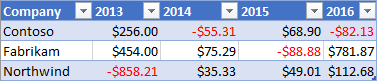
Das folgende Beispiel zeigt die Anwendung von roter Schriftfarbe auf jeden Wert im Bereich, der kleiner als null ist.
await Excel.run(async (context) => {
    const sheet = context.workbook.worksheets.getItem("Sample");
    const range = sheet.getRange("B21:E23");
    const conditionalFormat = range.conditionalFormats.add(
        Excel.ConditionalFormatType.cellValue
    );

    // Set the font of negative numbers to red.
    conditionalFormat.cellValue.format.font.color = "red";
    conditionalFormat.cellValue.rule = { formula1: "=0", operator: "LessThan" };

    await context.sync();
});
Farbskala
Bedingte Farbskalenformatierung wendet einen Farbverlauf auf einen Datenbereich an. Die criteria-Eigenschaft von ColorScaleConditionalFormat definiert drei ConditionalColorScaleCriterion: minimum, maximum und optional midpoint. Jeder der Kriterienskalierungspunkte verfügt über drei Eigenschaften:
-
color: Der HTML-Farbcode für den Endpunkt. -
formula: Eine Zahl oder Formel, die den Endpunkt darstellt. Dieser Wert istnull, wenntypeoderhighestValueistlowestValue. -
type: Weise, in der die Formel ausgewertet werden soll.highestValueundlowestValueverweisen auf Werte im zu formatierenden Bereich.
Das folgende Beispiel zeigt einen Bereich, der von Blau über Gelb bis hin zu Rot eingefärbt ist. Beachten Sie, dass minimum und maximum die niedrigsten bzw. höchsten Werte sind und null-Formeln verwenden.
midpoint verwendet den percentage-Typ in Kombination mit der Formel "=50", so dass also die gelbste Zelle den Mittelwert darstellt.

await Excel.run(async (context) => {
    const sheet = context.workbook.worksheets.getItem("Sample");
    const range = sheet.getRange("B2:M5");
    const conditionalFormat = range.conditionalFormats.add(
          Excel.ConditionalFormatType.colorScale
    );

    // Color the backgrounds of the cells from blue to yellow to red based on value.
    const criteria = {
          minimum: {
               formula: null,
               type: Excel.ConditionalFormatColorCriterionType.lowestValue,
               color: "blue"
          },
          midpoint: {
               formula: "50",
               type: Excel.ConditionalFormatColorCriterionType.percent,
               color: "yellow"
          },
          maximum: {
               formula: null,
               type: Excel.ConditionalFormatColorCriterionType.highestValue,
               color: "red"
          }
    };
    conditionalFormat.colorScale.criteria = criteria;

    await context.sync();
});
Custom
Benutzerdefinierte bedingte Formatierung wendet auf der Grundlage einer Formel beliebiger Komplexität ein benutzerdefiniertes Format auf Zellen an. Mithilfe des ConditionalFormatRule-Objekts können Sie die Formel in verschiedenen Notationen definieren:
-
formula: Standardnotation. -
formulaLocal– Lokalisiert basierend auf der Sprache des Benutzers. -
formulaR1C1: Notation im R1C1-Format.
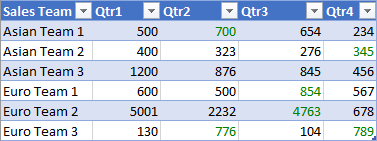
Im folgenden Beispiel werden die Schriftarten für Zellen mit höheren Werten als in der linken Zelle grün farbig farbig.
await Excel.run(async (context) => {
    const sheet = context.workbook.worksheets.getItem("Sample");
    const range = sheet.getRange("B8:E13");
    const conditionalFormat = range.conditionalFormats.add(
         Excel.ConditionalFormatType.custom
    );

    // If a cell has a higher value than the one to its left, set that cell's font to green.
    conditionalFormat.custom.rule.formula = '=IF(B8>INDIRECT("RC[-1]",0),TRUE)';
    conditionalFormat.custom.format.font.color = "green";

    await context.sync();
});
Datenbalken
Bedingte Formatierung mit Datenbalken fügt den Zellen Datenbalken hinzu. Standardmäßig bilden die minimalen und maximalen Werte im Bereich die Begrenzungen und proportionalen Größen der Datenbalken. Das DataBarConditionalFormat -Objekt verfügt über mehrere Eigenschaften, um die Darstellung der Leiste zu steuern.
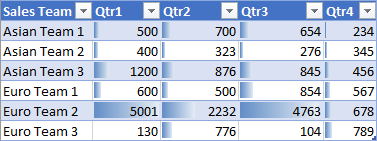
Im folgenden Beispiel wird der Bereich mit Datenbalken formatiert, die von links nach rechts aufgefüllt werden.
await Excel.run(async (context) => {
    const sheet = context.workbook.worksheets.getItem("Sample");
    const range = sheet.getRange("B8:E13");
    const conditionalFormat = range.conditionalFormats.add(
         Excel.ConditionalFormatType.dataBar
    );

    // Give left-to-right, default-appearance data bars to all the cells.
    conditionalFormat.dataBar.barDirection = Excel.ConditionalDataBarDirection.leftToRight;
    await context.sync();
});
Symbolsatz
Bedingte Formatierung mit einem Symbolsatz verwendet Excel-Symbole zum Hervorheben von Zellen. Die criteria -Eigenschaft ist ein Array von ConditionalIconCriterion, das das einzufügende Symbol und die Bedingung für das Einfügen definiert. Dieses Array wird automatisch mit Kriterienelementen mit Standardeigenschaften im Voraus aufgefüllt. Einzelne Eigenschaften können nicht überschrieben werden. Ersetzen Sie stattdessen das gesamte Criteria-Objekt.
Das folgende Beispiel zeigt einen Symbolsatz aus drei Dreiecken, die über einen Bereich angewendet werden.

await Excel.run(async (context) => {
    const sheet = context.workbook.worksheets.getItem("Sample");
    const range = sheet.getRange("B8:E13");
    const conditionalFormat = range.conditionalFormats.add(
         Excel.ConditionalFormatType.iconSet
    );

    const iconSetCF = conditionalFormat.iconSet;
    iconSetCF.style = Excel.IconSet.threeTriangles;

    /*
       With a "three*" icon set style, such as "threeTriangles", the third
        element in the criteria array (criteria[2]) defines the "top" icon;
        e.g., a green triangle. The second (criteria[1]) defines the "middle"
        icon, The first (criteria[0]) defines the "low" icon, but it can often
        be left empty as this method does below, because every cell that
       does not match the other two criteria always gets the low icon.
    */
    iconSetCF.criteria = [
        {},
          {
            type: Excel.ConditionalFormatIconRuleType.number,
            operator: Excel.ConditionalIconCriterionOperator.greaterThanOrEqual,
            formula: "=700"
          },
          {
            type: Excel.ConditionalFormatIconRuleType.number,
            operator: Excel.ConditionalIconCriterionOperator.greaterThanOrEqual,
            formula: "=1000"
          }
    ];

    await context.sync();
});
Vordefinierte Kriterien
Vordefinierte bedingte Formatierung wendet ein benutzerdefiniertes Format auf der Grundlage einer ausgewählten Standardregel auf den Bereich an. Die ConditionalFormatPresetCriterion in ConditionalPresetCriteriaRule definiert diese Regeln.
Im folgenden Beispiel wird die Schriftart weiß farbig, wenn der Wert einer Zelle mindestens eine Standardabweichung über dem Mittelwert des Bereichs liegt.

await Excel.run(async (context) => {
    const sheet = context.workbook.worksheets.getItem("Sample");
    const range = sheet.getRange("B2:M5");
    const conditionalFormat = range.conditionalFormats.add(
         Excel.ConditionalFormatType.presetCriteria
    );

    // Color every cell's font white that is one standard deviation above average relative to the range.
    conditionalFormat.preset.format.font.color = "white";
    conditionalFormat.preset.rule = {
         criterion: Excel.ConditionalFormatPresetCriterion.oneStdDevAboveAverage
    };

    await context.sync();
});
Textvergleich
Bedingte Textvergleichsformatierung verwendet Vergleiche von Zeichenfolgen als Bedingung. Die rule -Eigenschaft ist eine ConditionalTextComparisonRule , die eine Zeichenfolge definiert, die mit der Zelle verglichen werden soll, und einen Operator zum Angeben des Vergleichstyps.
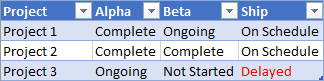
Im folgenden Beispiel wird die Schriftfarbe Rot formatiert, wenn der Text einer Zelle "Delayed" enthält.
await Excel.run(async (context) => {
    const sheet = context.workbook.worksheets.getItem("Sample");
    const range = sheet.getRange("B16:D18");
    const conditionalFormat = range.conditionalFormats.add(
         Excel.ConditionalFormatType.containsText
    );

    // Color the font of every cell containing "Delayed".
    conditionalFormat.textComparison.format.font.color = "red";
    conditionalFormat.textComparison.rule = {
         operator: Excel.ConditionalTextOperator.contains,
         text: "Delayed"
    };

    await context.sync();
});
Oberster/unterster
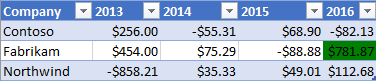
Die bedingte Formatierung für den obersten/untersten Wert wendet ein Format auf die höchsten oder niedrigsten Werte in einem Bereich an. Die rule-Eigenschaft, die den Typ ConditionalTopBottomRule aufweist, legt fest, ob die Bedingungen auf dem höchsten oder dem niedrigsten Wert basiert, und außerdem, ob die Auswertung nach Rangstufe oder Prozentsatz erfolgt.
Das folgende Beispiel wendet eine grüne Hervorhebung auf die Zelle mit dem höchsten Wert im Bereich an.
await Excel.run(async (context) => {
    const sheet = context.workbook.worksheets.getItem("Sample");
    const range = sheet.getRange("B21:E23");
    const conditionalFormat = range.conditionalFormats.add(
         Excel.ConditionalFormatType.topBottom
    );

    // For the highest valued cell in the range, make the background green.
    conditionalFormat.topBottom.format.fill.color = "green"
    conditionalFormat.topBottom.rule = { rank: 1, type: "TopItems"}

    await context.sync();
});
Ändern von Regeln für die bedingte Formatierung
Das ConditionalFormat -Objekt bietet mehrere Methoden, um Regeln für die bedingte Formatierung zu ändern, nachdem der Code sie festgelegt hat.
- changeRuleToCellValue
- changeRuleToColorScale
- changeRuleToContainsText
- changeRuleToCustom
- changeRuleToDataBar
- changeRuleToIconSet
- changeRuleToPresetCriteria
- changeRuleToTopBottom
Das folgende Beispiel zeigt, wie Sie die changeRuleToPresetCriteria -Methode aus der vorherigen Liste verwenden, um eine vorhandene Regel für das bedingte Format in den voreingestellten Regeltyp kriterien zu ändern.
Hinweis
Der angegebene Bereich muss über eine regelbedingte Formatierung verfügen, um die Änderungsmethoden verwenden zu können. Wenn der angegebene Bereich keine Regel für das bedingte Format aufweist, wenden die Änderungsmethoden keine neue Regel an.
await Excel.run(async (context) => {
    const sheet = context.workbook.worksheets.getItem("Sample");
    const range = sheet.getRange("B2:M5");

    // Retrieve the first existing `ConditionalFormat` rule on this range.
    // Note: The specified range must have an existing conditional format rule.
    const conditionalFormat = range.conditionalFormats.getItemOrNullObject("0");

    // Change the conditional format rule to preset criteria.
    conditionalFormat.changeRuleToPresetCriteria({
        criterion: Excel.ConditionalFormatPresetCriterion.oneStdDevAboveAverage,
    });
    conditionalFormat.preset.format.font.color = "red";

    await context.sync();
});
Mehrere Formate und Priorität
Sie können auf einen Bereich mehrere bedingte Formate anwenden. Wenn die Formate miteinander im Konflikt stehende Elemente aufweisen, wie etwa verschiedene Schriftfarben, wird auf das betreffende Element nur ein Format angewendet. Die ConditionalFormat.priority -Eigenschaft definiert, welches Format Vorrang hat. Priorität ist eine Zahl, die dem Index in entspricht ConditionalFormatCollection, und Sie legen sie beim Erstellen des Formats fest. Ein niedrigerer priority Wert bedeutet eine höhere Priorität.
Das folgende Beispiel zeigt die Wahl von im Konflikt stehenden Schriftfarben zwischen zwei Formaten. Negative Zahlen erhalten eine fett formatierte Schriftart, aber keine rote Schriftart, da die Priorität auf das Format geht, das ihnen eine blaue Schriftart verleiht.

await Excel.run(async (context) => {
    const sheet = context.workbook.worksheets.getItem("Sample");
    const temperatureDataRange = sheet.tables.getItem("TemperatureTable").getDataBodyRange();


    // Set low numbers to bold, dark red font and assign priority 1.
    const presetFormat = temperatureDataRange.conditionalFormats
        .add(Excel.ConditionalFormatType.presetCriteria);
    presetFormat.preset.format.font.color = "red";
    presetFormat.preset.format.font.bold = true;
    presetFormat.preset.rule = { criterion: Excel.ConditionalFormatPresetCriterion.oneStdDevBelowAverage };
    presetFormat.priority = 1;

    // Set negative numbers to blue font with green background and set priority 0.
    const cellValueFormat = temperatureDataRange.conditionalFormats
        .add(Excel.ConditionalFormatType.cellValue);
    cellValueFormat.cellValue.format.font.color = "blue";
    cellValueFormat.cellValue.format.fill.color = "lightgreen";
    cellValueFormat.cellValue.rule = { formula1: "=0", operator: "LessThan" };
    cellValueFormat.priority = 0;

    await context.sync();
});
Sich gegenseitig ausschließende bedingte Formate
Die stopIfTrue-Eigenschaft von ConditionalFormat verhindert die Anwendung von bedingten Formaten mit geringerer Priorität auf den Bereich. Wenn Ihr Code ein bedingtes Format mit stopIfTrue === true auf einen Bereich anwendet, gelten keine nachfolgenden bedingten Formate, auch wenn ihre Formatierungsdetails nicht widersprüchlich sind.
Das folgende Beispiel zeigt zwei bedingte Formate, die einem Bereich hinzugefügt werden. Negative Zahlen weisen eine blaue Schriftart mit hellgrünem Hintergrund auf, unabhängig davon, ob die andere Formatbedingung zutrifft.

await Excel.run(async (context) => {
    const sheet = context.workbook.worksheets.getItem("Sample");
    const temperatureDataRange = sheet.tables.getItem("TemperatureTable").getDataBodyRange();

    // Set low numbers to bold, dark red font and assign priority 1.
    const presetFormat = temperatureDataRange.conditionalFormats
        .add(Excel.ConditionalFormatType.presetCriteria);
    presetFormat.preset.format.font.color = "red";
    presetFormat.preset.format.font.bold = true;
    presetFormat.preset.rule = { criterion: Excel.ConditionalFormatPresetCriterion.oneStdDevBelowAverage };
    presetFormat.priority = 1;

    // Set negative numbers to blue font with green background and
    // set priority 0, but set stopIfTrue to true, so none of the
    // formatting of the conditional format with the higher priority
    // value will apply, not even the bolding of the font.
    const cellValueFormat = temperatureDataRange.conditionalFormats
        .add(Excel.ConditionalFormatType.cellValue);
    cellValueFormat.cellValue.format.font.color = "blue";
    cellValueFormat.cellValue.format.fill.color = "lightgreen";
    cellValueFormat.cellValue.rule = { formula1: "=0", operator: "LessThan" };
    cellValueFormat.priority = 0;
    cellValueFormat.stopIfTrue = true;

    await context.sync();
});
Regeln für die bedingte Formatierung löschen
Um Formateigenschaften aus einer bestimmten Bedingungsformatregel zu entfernen, verwenden Sie die clearFormat-Methode des ConditionalRangeFormat -Objekts. Die clearFormat -Methode erstellt eine Formatierungsregel ohne Formateinstellungen.
Um alle Regeln für die bedingte Formatierung aus einem bestimmten Bereich oder einem gesamten Arbeitsblatt zu entfernen, verwenden Sie die clearAll-Methode des ConditionalFormatCollection -Objekts.
Im folgenden Beispiel wird gezeigt, wie Sie die gesamte bedingte Formatierung aus einem Arbeitsblatt mithilfe der clearAll -Methode entfernen.
await Excel.run(async (context) => {
    const sheet = context.workbook.worksheets.getItem("Sample");
    const range = sheet.getRange();
    range.conditionalFormats.clearAll();

    await context.sync();
});
Siehe auch
Zusammenarbeit auf GitHub
Die Quelle für diesen Inhalt finden Sie auf GitHub, wo Sie auch Issues und Pull Requests erstellen und überprüfen können. Weitere Informationen finden Sie in unserem Leitfaden für Mitwirkende.
Office Add-ins