Bemærk
Adgang til denne side kræver godkendelse. Du kan prøve at logge på eller ændre mapper.
Adgang til denne side kræver godkendelse. Du kan prøve at ændre mapper.
The Schema Designer in the MSSQL extension for Visual Studio Code includes GitHub Copilot integration, so you can design, modify, and validate database schemas using natural language. Describe what you need in the chat pane, and GitHub Copilot translates your requests into schema actions reflected in the visual diagram canvas, generated T-SQL, and change highlights.
Tip
GitHub Copilot integration in Schema Designer is currently in preview and might change based on feedback. Join the community at GitHub Discussions to share ideas or report issues.
Features
GitHub Copilot integration in Schema Designer offers these capabilities:
- Create database schemas from natural language descriptions, with tables, columns, and relationships generated automatically.
- Evolve existing schemas by adding, modifying, or removing tables and columns through conversational prompts.
- Review AI-proposed changes individually through a guided change review flow, with the ability to accept or undo each edit.
- View a schema diff that shows all pending changes before they're applied to the database.
- Bootstrap application schemas on an empty database using a single natural language prompt.
- Import external artifacts such as JSON data, documents, or images and generate schema elements from them.
- Validate schema changes with guardrails for missing primary keys, invalid data types, and normalization issues.
Prerequisites
Before you use GitHub Copilot in the Schema Designer, ensure the following requirements are met:
- The MSSQL extension for Visual Studio Code is installed. For installation steps, see the MSSQL extension for Visual Studio Code overview.
- GitHub Copilot and GitHub Copilot Chat extensions are installed and signed in. For setup instructions, see Set up GitHub Copilot.
- An active database connection is established through the MSSQL extension. For connection steps, see Quickstart: Connect to and query a database with the MSSQL extension for Visual Studio Code.
Open Schema Designer with GitHub Copilot
You can open the Schema Designer with GitHub Copilot from two entry points:
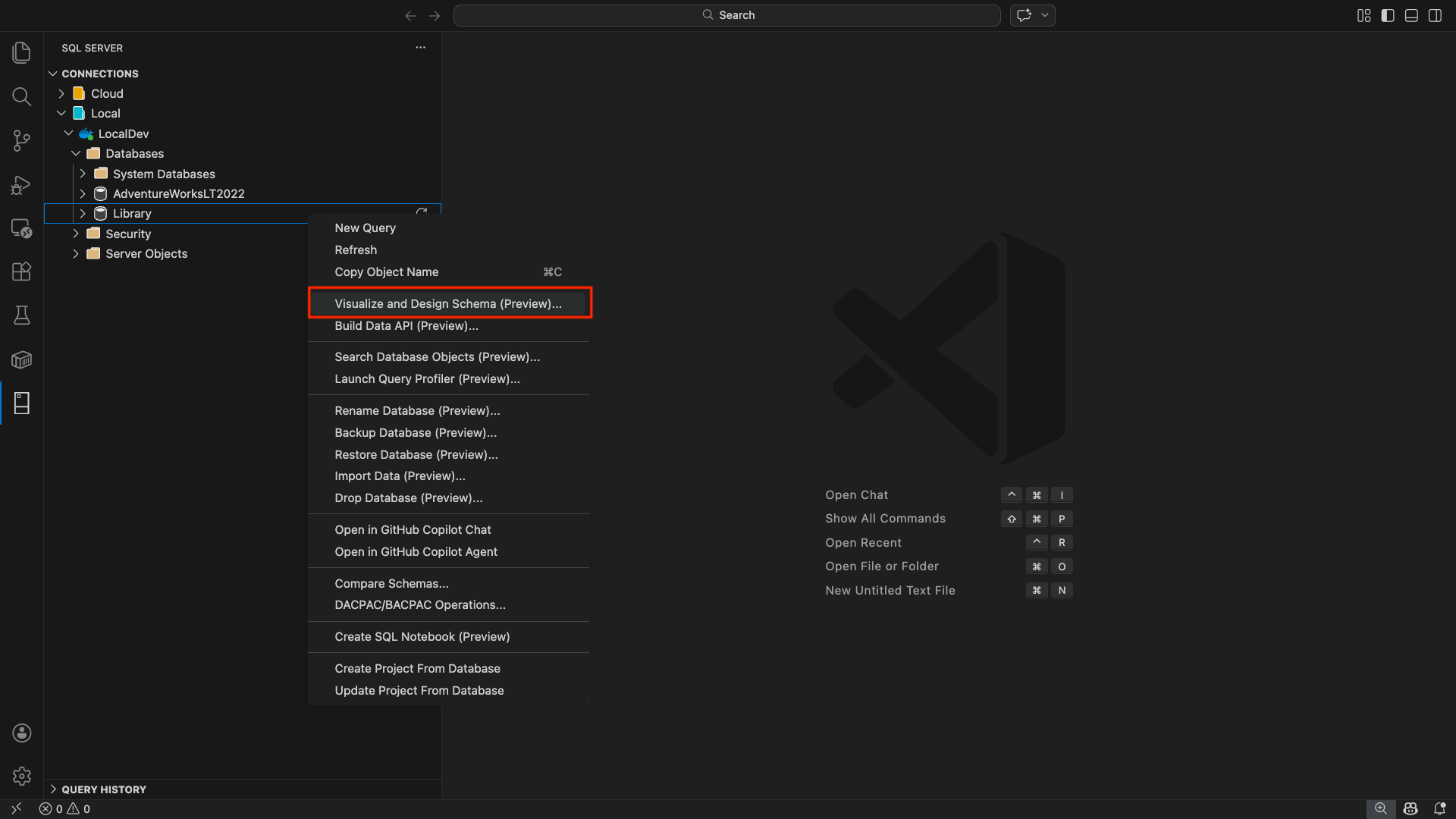
In the MSSQL extension's Object Explorer, right-click on a database node.
Select Schema Designer from the context menu.
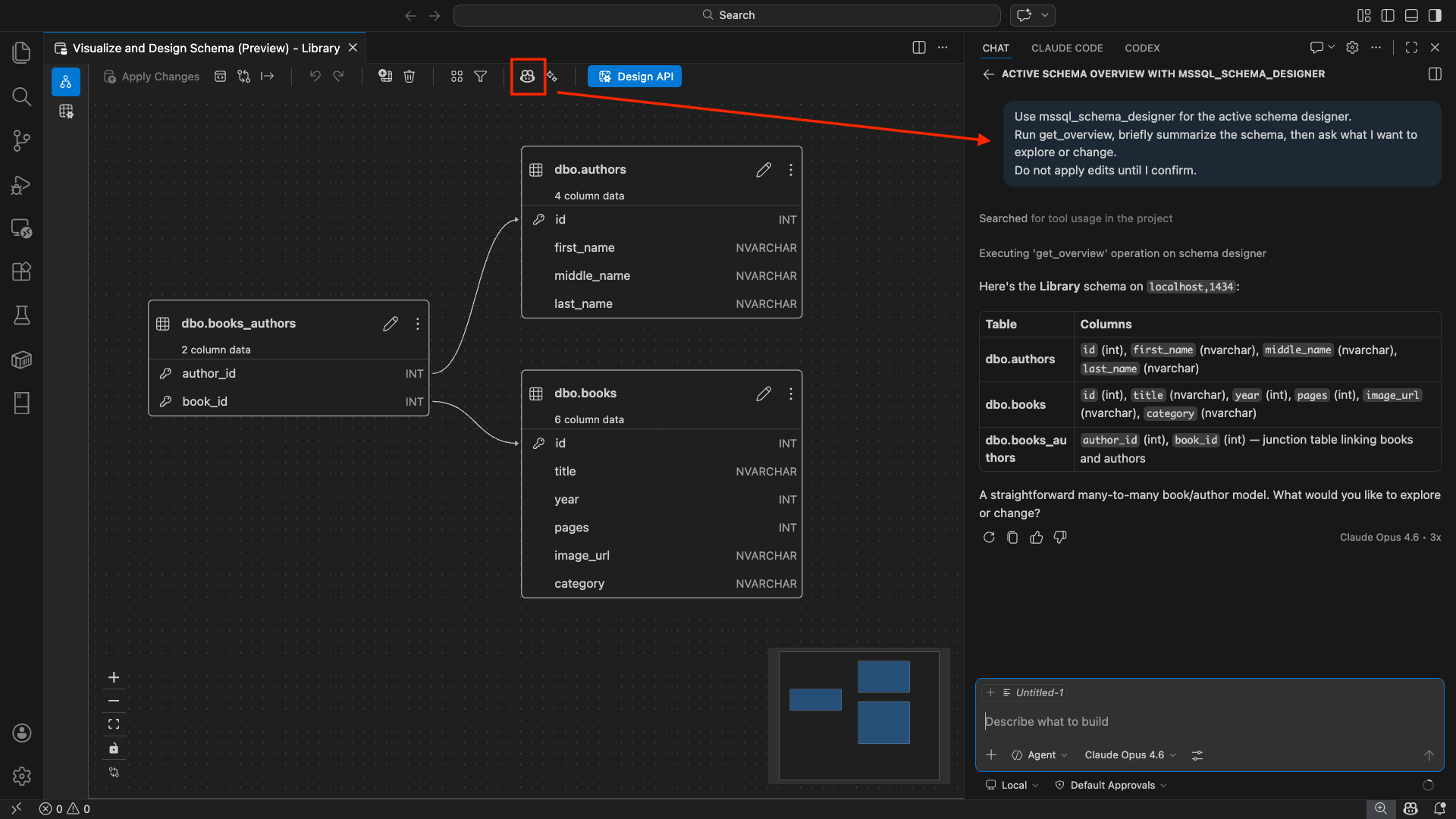
When the Schema Designer canvas opens with your database schema loaded, select the Chat button (with the GitHub Copilot icon) in the Schema Designer toolbar to open a GitHub Copilot chat session scoped to the current schema context.
Tip
You can also right-click a database node and select Open in Copilot Agent mode to start a GitHub Copilot agent chat session. In agent mode, you can ask GitHub Copilot to open the Schema Designer for you, for example: "Open schema designer for AdventureWorksLT2022". For more information, see Quickstart: Use GitHub Copilot Agent Mode.
Create a schema with natural language
When you open the GitHub Copilot chat panel in the Schema Designer, you can describe a schema in plain English and see it rendered in the visual diagram.
Type a natural language description of the schema you want to create in the chat pane.
GitHub Copilot generates the tables, columns, primary keys, and foreign key relationships based on your description.
Watch the visual diagram canvas as it updates in real time to reflect the generated schema.
Here are some prompt examples you can try:
"Build a library management system with tables for Books, Authors, Members, and BookLoans""Design an e-commerce schema with Products, Categories, Orders, OrderItems, and Customers""Create a blog platform with Users, Posts, Comments, and Tags with many-to-many relationships"
Evolve an existing schema
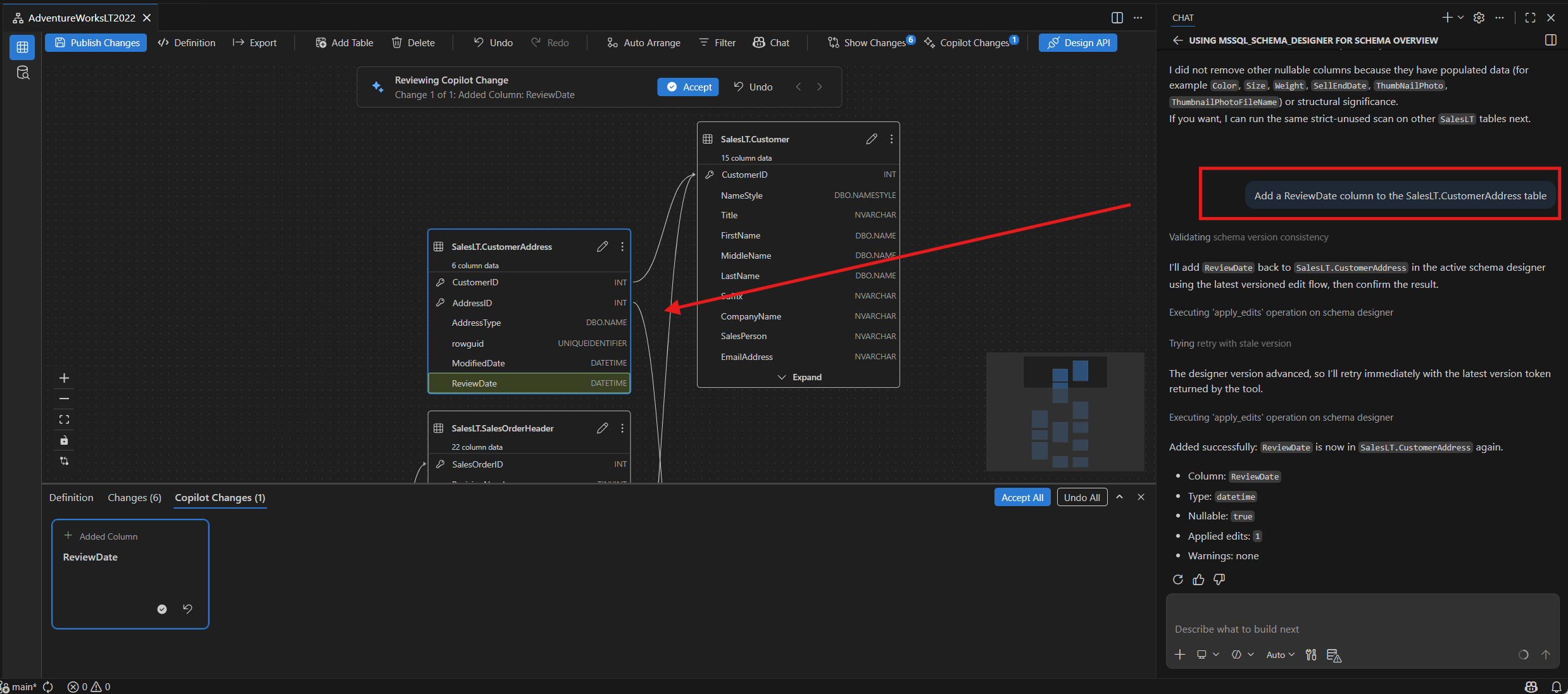
Starting from an existing schema, use GitHub Copilot to evolve it by adding, modifying, or removing tables and columns. The diagram, code, and diff views all reflect these changes live.
Here are some prompt examples for schema evolution:
"Add a description column of type NVARCHAR(500) to the Books table""Remove the ratings table from the schema""Rename the 'NumberOfPages' column in the Books table to 'PageCount'""Add booking/reservation support to this app schema""Change the data type of the Price column in Products from INT to DECIMAL(10,2)"
The visual diagram updates when you apply a change. Column additions appear in the correct table card. Removed elements disappear from the diagram. The process preserves all relationships.
Review schema changes
After making schema edits through GitHub Copilot or the UI, review all pending changes before applying them to the database.
Schema diff view
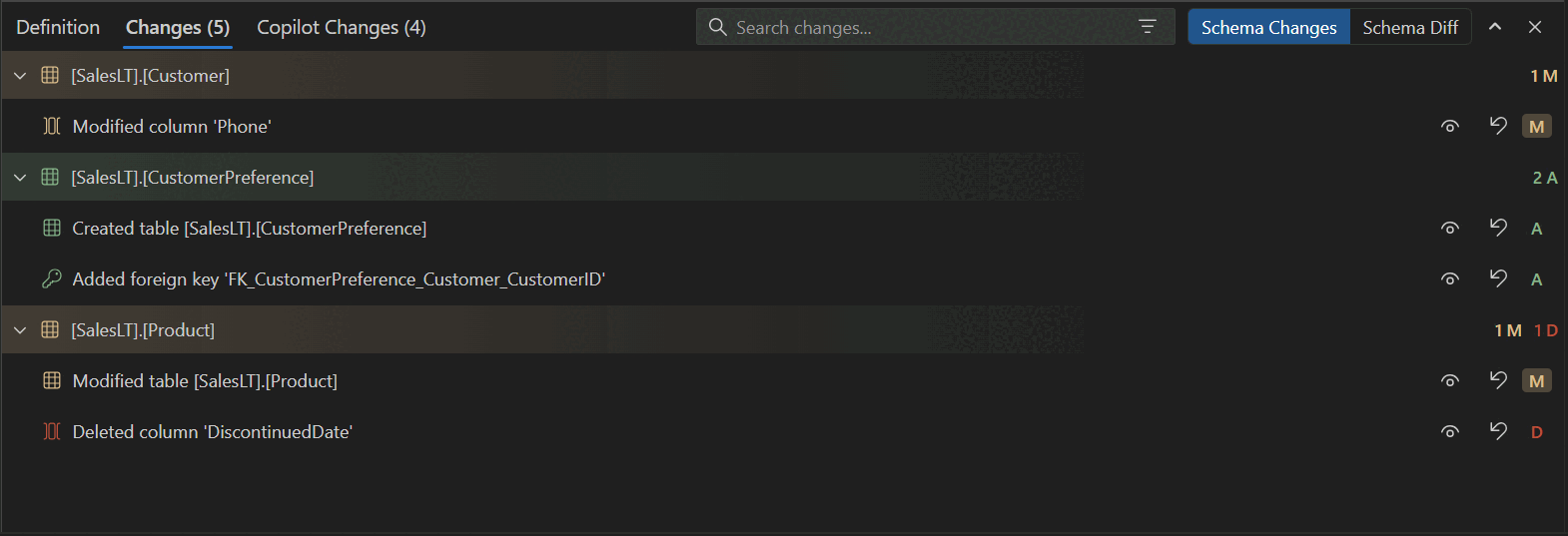
Select the Show Changes button in the Schema Designer toolbar to open the diff view. The diff view displays:
- Added objects, such as tables, columns, and foreign keys, clearly marked as Added.
- Removed objects marked as Removed.
- Modified objects showing before and after values for data type, nullability, identity, default values, and key flags.
- Schema-qualified names for all objects, such as
schema.tableandschema.column. - An Undo option that appears when you hover over individual changes.
GitHub Copilot change review
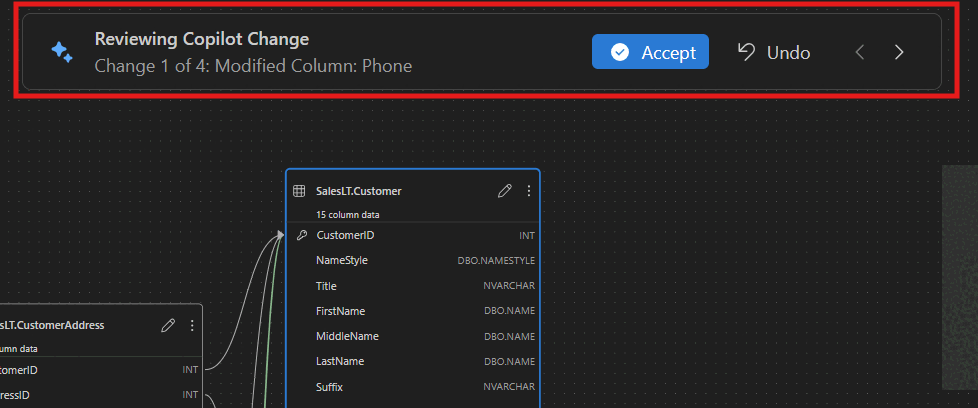
When GitHub Copilot applies multiple schema edits, it automatically starts the Copilot Changes review. This guided flow shows you each AI-proposed edit so you can review them one by one:
- Go forward and backward between changes.
- Select Accept to keep a change, or Undo to revert it.
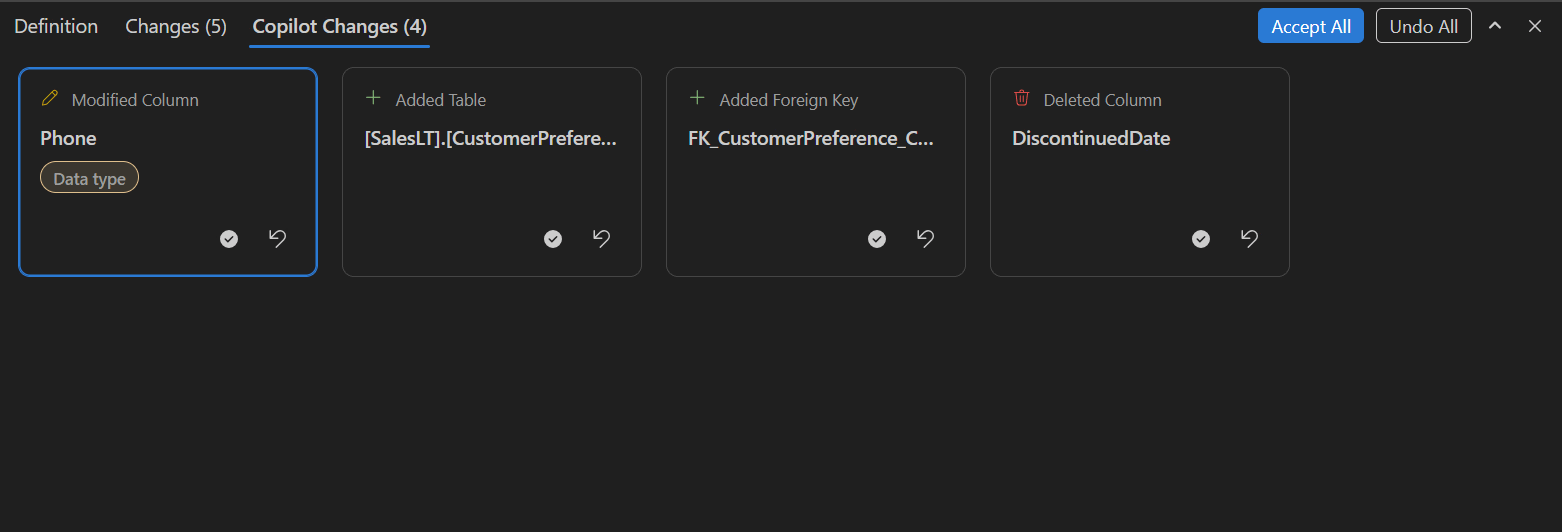
- Select the property badge on a change card to view detailed before and after values.
Select the property badge on a change card to view detailed before and after values for each modified property:
Bootstrap a schema from scratch
GitHub Copilot can generate complete application schemas. On an empty database, open the Schema Designer with the GitHub Copilot chat panel and describe an application concept. GitHub Copilot builds the data model, including tables, columns, primary keys, foreign keys, and relationships.
Here are some prompt examples for schema bootstrapping:
"Build a Twitter clone schema from scratch""Create a blog platform schema with users, posts, comments, and tags""Design an inventory management system with warehouses, products, stock levels, and suppliers""Generate a restaurant reservation system with tables for restaurants, menus, customers, and reservations"
After GitHub Copilot generates the initial schema, you can continue evolving it with follow-up prompts such as "Add a comments feature to this blog platform" or "Add direct messaging to this Twitter clone".
Import external artifacts
GitHub Copilot can accept external context to generate or inform schema design. Supported input includes JSON data, documents, images, or any format that GitHub Copilot supports.
Here are some prompt examples for importing external artifacts:
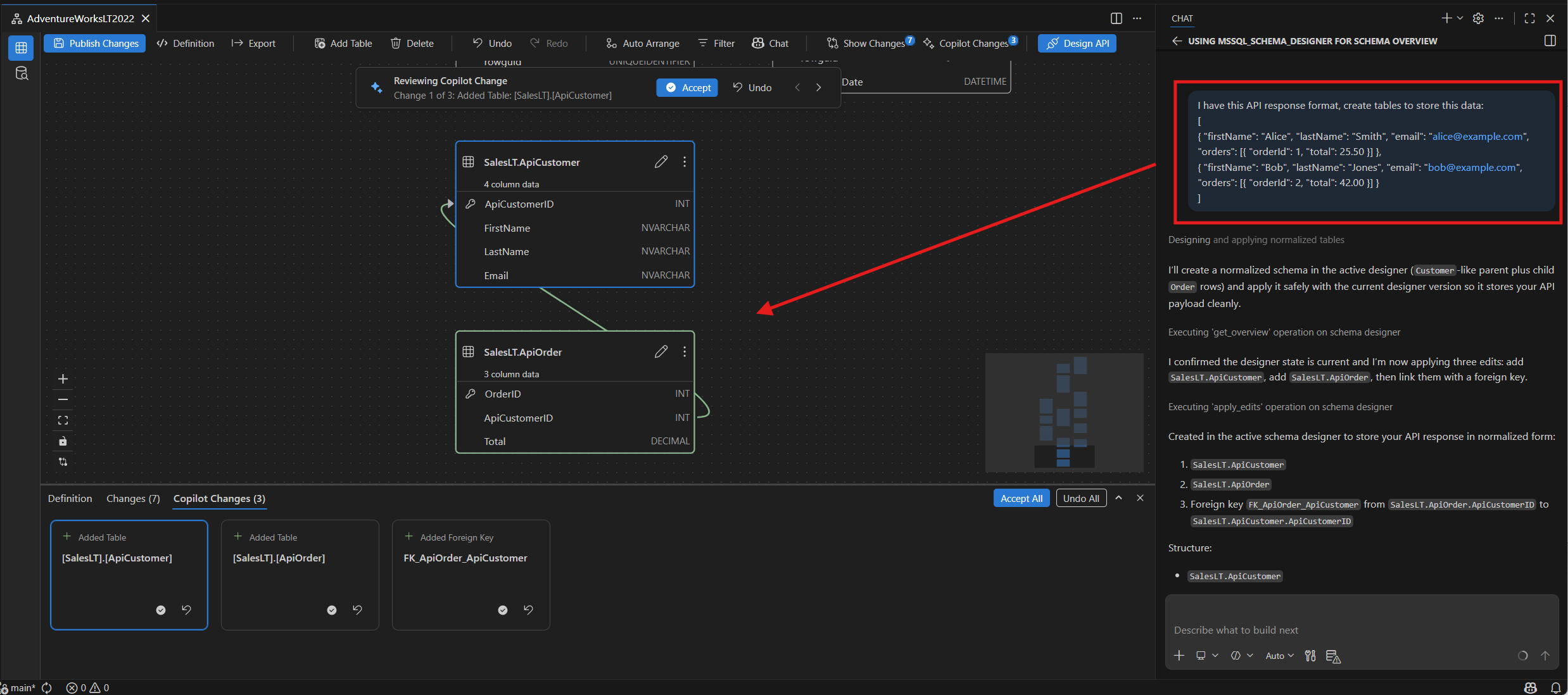
"Import this JSON and model it as tables"followed by a JSON payload"I have this API response format, create tables to store this data"followed by a sample JSON response- Attach a document or image and ask:
"Create a schema based on this document"
Nested objects in JSON are modeled as separate related tables. Schema Designer infers data types from the input and creates foreign key relationships for nested structures.
Validation and guardrails
As schemas evolve, GitHub Copilot validates changes and raises potential problems inline. Validation checks include:
- Missing primary keys on tables.
- Invalid or unsupported data types for the target SQL Server platform.
- Normalization issues such as repeating groups stored in a single column.
- Duplicate column names within the same table.
- Foreign key references to nonexistent tables or columns.
GitHub Copilot explains detected problems inline and suggests corrective actions before proceeding with the requested changes.
Limitations
- Chat session state: Chat sessions don't keep history when you switch database context. A new context resets the chat memory.
- Active database connection required: You need an active database connection through the MSSQL extension to load and modify schemas. When you use GitHub Copilot in agent mode, the agent can set up the connection for you.
- AI-generated output should be reviewed: GitHub Copilot might suggest incorrect or suboptimal schema recommendations. Always review generated SQL and schema changes before publishing to your database.
Feedback and support
If you have ideas, feedback, or want to engage with the community, join the discussion at https://aka.ms/vscode-mssql-discussions. To report a bug, visit https://aka.ms/vscode-mssql-bug. To request a new feature, go to https://aka.ms/vscode-mssql-feature-request.
Related content
- Schema Designer
- Quickstart: Use the schema explorer and designer
- GitHub Copilot for MSSQL extension for Visual Studio Code
- Quickstart: Use GitHub Copilot Agent Mode
- Schema Compare
- Data-tier Application (DACPAC and BACPAC) import and export
- Quickstart: Connect to and query a database with the MSSQL extension for Visual Studio Code
- Visual Studio Code documentation
- MSSQL extension for Visual Studio Code repository on GitHub