Bemærk
Adgang til denne side kræver godkendelse. Du kan prøve at logge på eller ændre mapper.
Adgang til denne side kræver godkendelse. Du kan prøve at ændre mapper.
The GitHub Copilot integration with the MSSQL extension for Visual Studio Code provides AI-assisted SQL development. You can use it to write and optimize database code, generate and modify schemas, understand existing logic, and work with code-first and data-first database development patterns.
This integration is designed for developers, with a focus on the following personas:
Modern application developer: Builds feature-rich, scalable applications with frameworks like Node.js, Python, .NET, and Go.
AI / cloud-native developer: Specializes in containerized, serverless, and microservices-based applications, often integrating AI-powered capabilities.
Solutions architect: Designs end-to-end systems that align database solutions with broader architectural goals.
Database developer: Focuses on Transact-SQL (T-SQL), database-specific concepts, and optimizing database workflows.
What is the MSSQL extension for Visual Studio Code?
The MSSQL extension in Visual Studio Code supports SQL database in Fabric, Azure SQL, and SQL Server.
For more information about the extension, visit the GitHub repository.
What is GitHub Copilot for the MSSQL extension for Visual Studio Code?
GitHub Copilot for the MSSQL extension provides AI assistance for SQL development in Visual Studio Code. It can help you:
- Explore, design, and modify database schemas using code-first and data-first approaches.
- Suggest SQL syntax, relationships, and constraints based on your schema context.
- Write, optimize, and troubleshoot SQL queries.
- Generate mock data and seed scripts for testing and development.
- Autogenerate object-relational mapping (ORM) migrations or T-SQL change scripts.
- Explain business logic in stored procedures, views, and functions.
- Identify security problems such as SQL injection risks or excessive permissions.
- Provide natural language explanations of T-SQL code.
- Describe existing database schemas and relationships.
- Scaffold data access layers and other backend components based on your database schema.
Supported SQL Server platforms
GitHub Copilot for the MSSQL extension works with all of these SQL Server platforms:
SQL Server
- SQL Server 2019 (15.x)
- SQL Server 2022 (16.x)
- SQL Server 2025 (17.x)
- SQL Server running on any platform:
- Windows
- Linux
- Containers (local and Kubernetes deployments)
Azure SQL
- Azure SQL Database
- Azure SQL Managed Instance
- SQL Server on Azure Virtual Machines
Microsoft Fabric
- SQL database in Fabric
- Fabric Data Warehouse
- Fabric Lakehouse (SQL analytics endpoint)
Target audience
GitHub Copilot for the MSSQL extension is designed for developers who work with applications and SQL databases in Visual Studio Code.
| Persona | Description |
|---|---|
| Modern application developer | Build applications using frameworks like React, Angular, .NET, Django, and Node.js. GitHub Copilot assists with schema generation, query authoring, and integration patterns from your codebase. |
| AI / cloud-native developer | Build serverless, containerized, and microservices-based solutions. GitHub Copilot generates T-SQL queries, manages schema changes, and assists with data access patterns for cloud-native architectures, including vector search and hybrid retrieval scenarios. |
| Solutions architect | Design data-centric systems across services and environments. GitHub Copilot helps you visualize, validate, and prototype database interactions. |
| Database engineer | Manage schema evolution, write T-SQL queries, and optimize performance. GitHub Copilot offers suggestions, explains code, and identifies potential optimizations. |
Features
| Feature | Description |
|---|---|
| Chat / inline Copilot suggestions | Engage in natural language conversations with the @mssql chat participant or use inline completions for T-SQL or ORM code. Suggestions adapt based on your database schema and active files. |
| Schema explorer and designer | Understand, design, and evolve your database schema using AI assistance. Supports object creation, relationships, and reverse engineering. |
| Schema Designer with GitHub Copilot | Use natural language within the Schema Designer interface to create, evolve, and review database schemas. GitHub Copilot drives the visual tool with live diagram and T-SQL updates, diff views, and artifact import. |
| Smart query builder | Generate SQL and object-relational mapping (ORM) queries using filters, joins, groupings, and conditions, based on schema awareness and natural language prompts. |
| Code generation | Scaffold database code, stored procedures, or ORM-based data access layers based on your current database schema and active files. GitHub Copilot generates patterns such as CRUD operations or access methods based on your development stack. |
| Query optimizer assistant | Get suggestions for improving SQL query performance. GitHub Copilot can suggest indexing strategies, refactor joins, or identify inefficiencies in WHERE clauses. It also supports execution plan analysis for recommendations based on your query's actual execution context. |
| Business logic explainer | Ask GitHub Copilot to explain what a stored procedure, view, or user-defined function does. Useful for understanding how business rules are implemented in T-SQL. |
| Security analyzer | GitHub Copilot can identify patterns that might expose your code to SQL injection, overly permissive roles, or unencrypted sensitive data, and recommend safer alternatives. |
| Localization and formatting helper | GitHub Copilot can suggest collation settings, Unicode usage, and query patterns for language-specific and region-specific requirements. |
| Test data generator | Generate schema-aware sample data (via SQL INSERT statements or ORM seeders) for your development environment. GitHub Copilot can also infer schema from existing sample files (JSON, CSV, TXT) or generate themed test data. |
| Data API builder | Configure REST, GraphQL, and MCP endpoints for your SQL database tables using an integrated UI with optional GitHub Copilot chat assistance for natural language entity configuration. |
Prerequisites
Install Visual Studio Code
- Download Visual Studio Code.
- Complete the installation by following the wizard.
Install the MSSQL extension in Visual Studio Code
To get started with SQL development in Visual Studio Code, install the MSSQL extension:
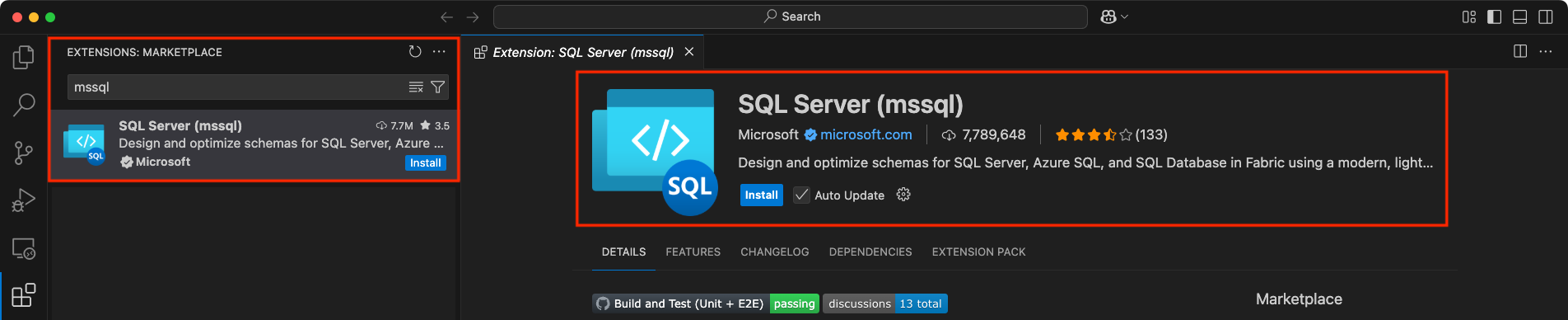
Open Visual Studio Code.
Select the Extensions icon in the Activity Bar (Cmd+Shift+X on macOS, or Ctrl+Shift+X on Windows and Linux).
In the search bar, type
mssql.Find SQL Server (mssql) in the results and select it.
Select the Install button.
Tip
If you're unfamiliar with the MSSQL extension for Visual Studio Code, see the MSSQL extension for Visual Studio Code.
Set up GitHub Copilot in Visual Studio Code
Make sure you have a GitHub account. If you don't have one, sign up for free at GitHub.
Ensure you have an active GitHub Copilot subscription. You can start a free trial or purchase a subscription at GitHub Copilot.
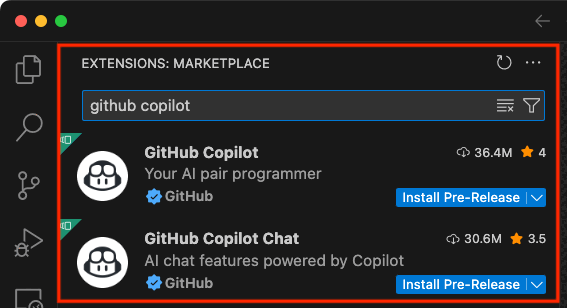
In Visual Studio Code, open the Extensions view (Cmd+Shift+X on macOS, or Ctrl+Shift+X on Windows and Linux).
Search for and install both GitHub Copilot and GitHub Copilot Chat extensions.
After installation, sign in to your GitHub account. Use the Visual Studio Code command palette
GitHub Copilot: Sign inor sign in using the GitHub Copilot icon from the status bar at the bottom of the window.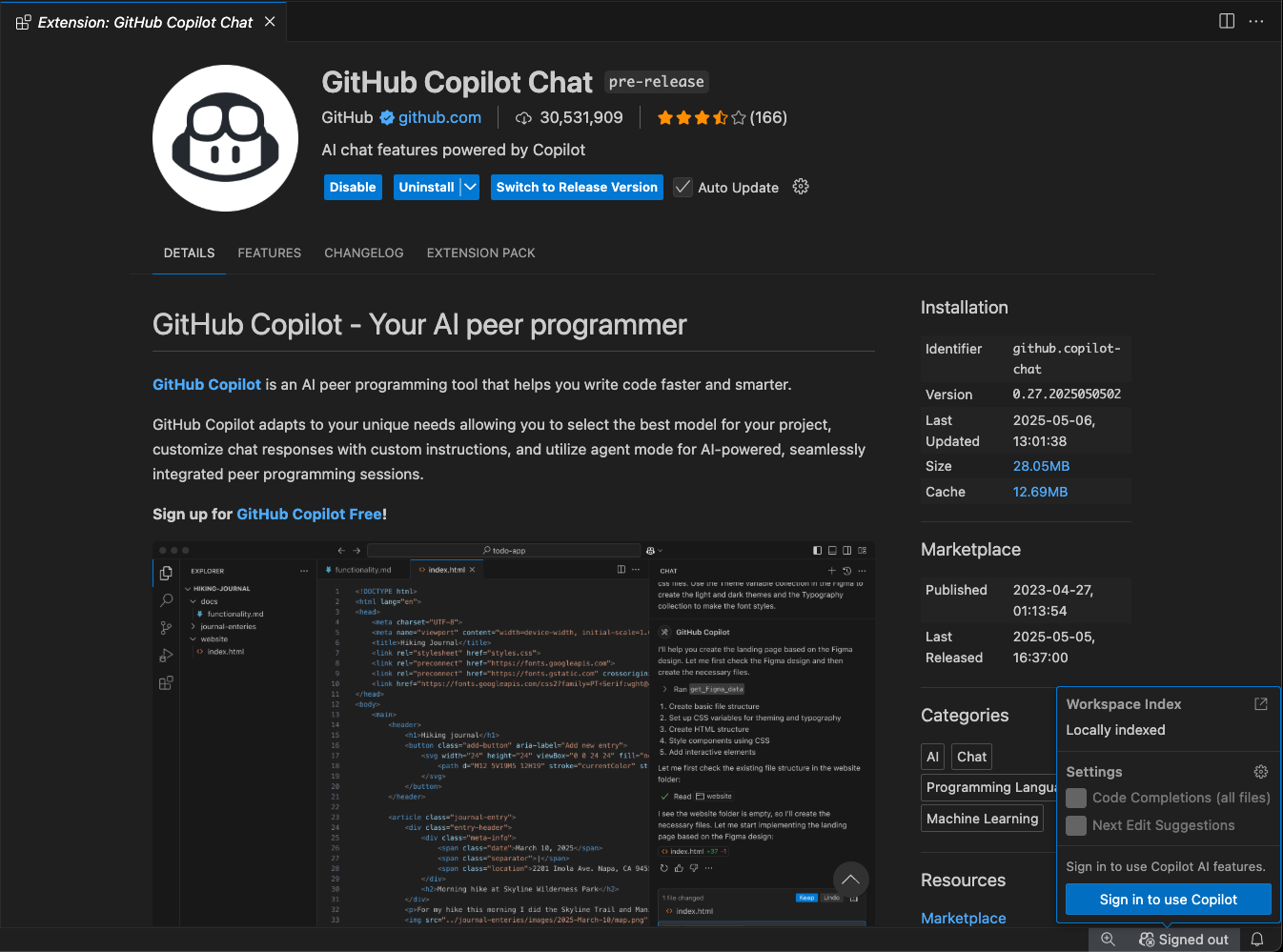
After signing in, you might need to authorize the GitHub Copilot extension to access your GitHub account. Follow the prompts to complete the authorization process.
When you sign in, GitHub Copilot is active and ready to assist as you write code in your editor.
For more information, see the official Quickstart for GitHub Copilot in Visual Studio Code.
Connect to a database
To get started with GitHub Copilot for the MSSQL extension, connect to a supported SQL Server or Azure SQL database from the Connections view in Visual Studio Code.
Note
For step-by-step instructions on how to create a new connection profile and connect to a database, see Quickstart: Connect to and query a database with the MSSQL extension for Visual Studio Code.
Start chatting with your database
You can start using GitHub Copilot by initiating a chat session with your database:
Go to the Connections view in the MSSQL extension.
Right-click on a connected database.
Select Chat with this database from the context menu.
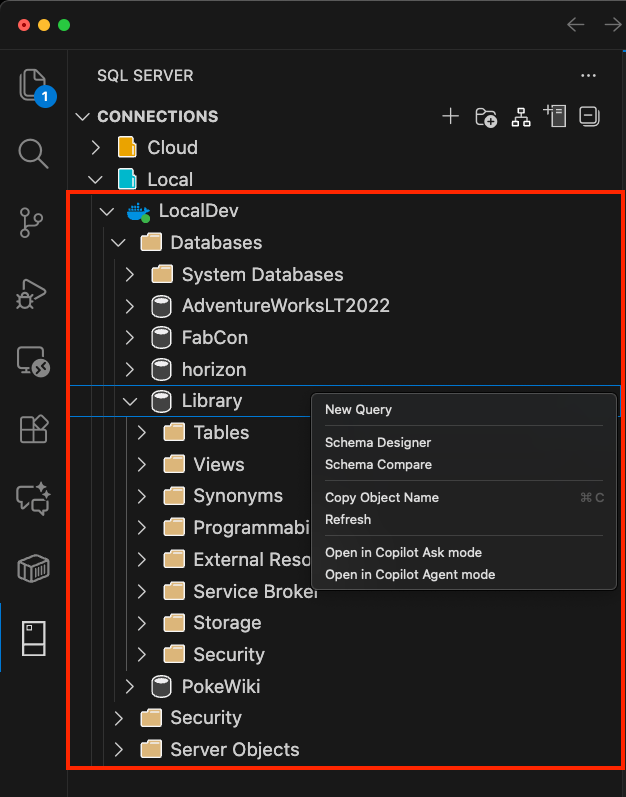
After selecting this option, you need to grant the MSSQL extension access to the language models provided by GitHub Copilot Chat.
This access is required to enable contextual conversations about your database.
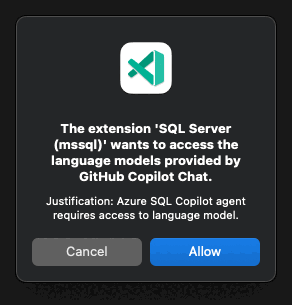
Once you approve access, a GitHub Copilot chat window opens in the context of the selected database. You're now ready to ask questions, generate Transact-SQL, and explore schema insights using natural language.
Manage database context
GitHub Copilot uses your current database connection to provide schema-aware suggestions. The @mssql chat participant automatically detects your connection status and adapts its behavior accordingly.
Connect to a database
When you start an Ask mode session with @mssql without an active database connection, the chat participant detects this condition and provides helpful guidance to establish a connection:
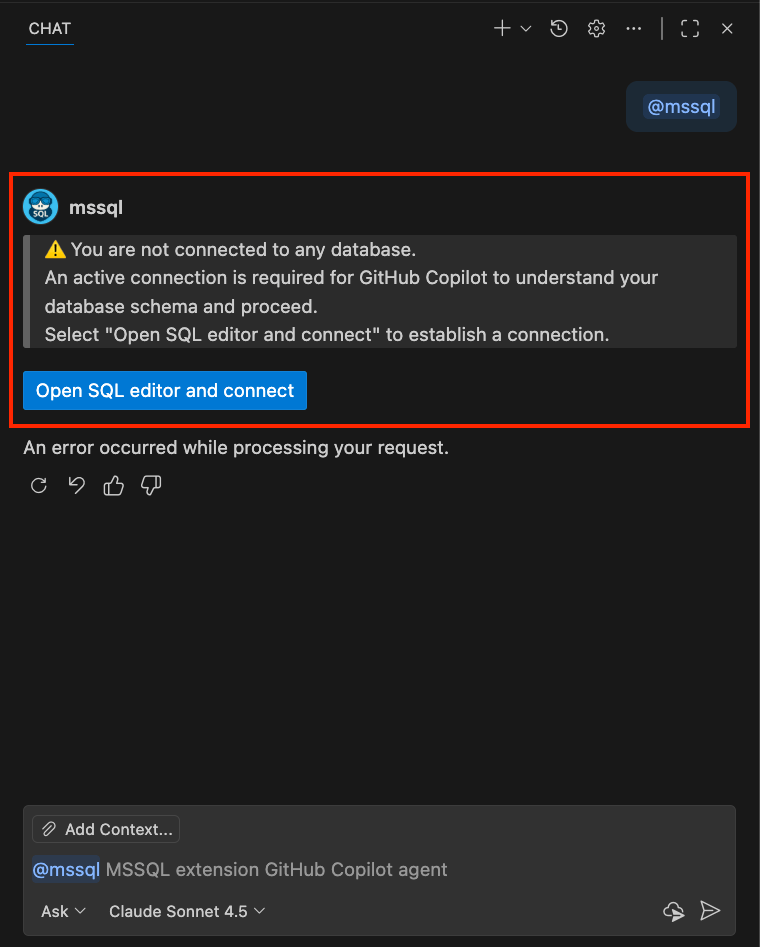
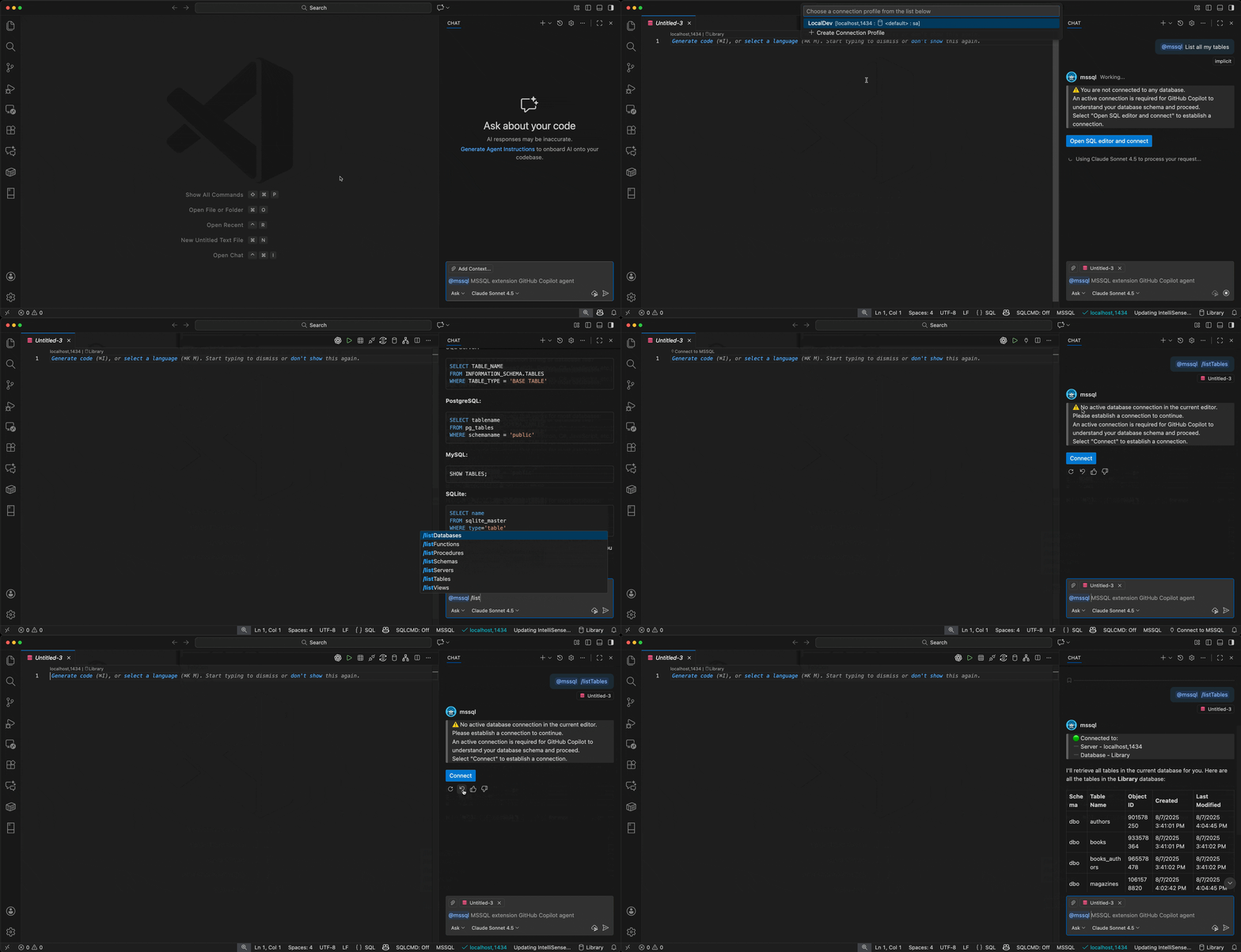
You can connect to a database in multiple ways:
Use GitHub Copilot's chat interface: When prompted by the
@mssqlparticipant, select the Open SQL editor and connect button to launch the connection dialog.Use the MSSQL extension: Use the Connect command from the MSSQL extension's Connections view to create or select a connection profile.
Use slash commands: Type
@mssql /connectin the GitHub Copilot chat to quickly open the connection dialog. For more connection-related slash commands, see Connection management slash commands.Use Agent Mode: If you're using Quickstart: Use GitHub Copilot Agent Mode, you can connect directly through natural language prompts without requiring a pre-established connection. For more information on how Agent Mode handles connections, see How connection logic works.
Welcome message and database context
Once connected, the @mssql chat participant displays a welcome message with your current connection details:
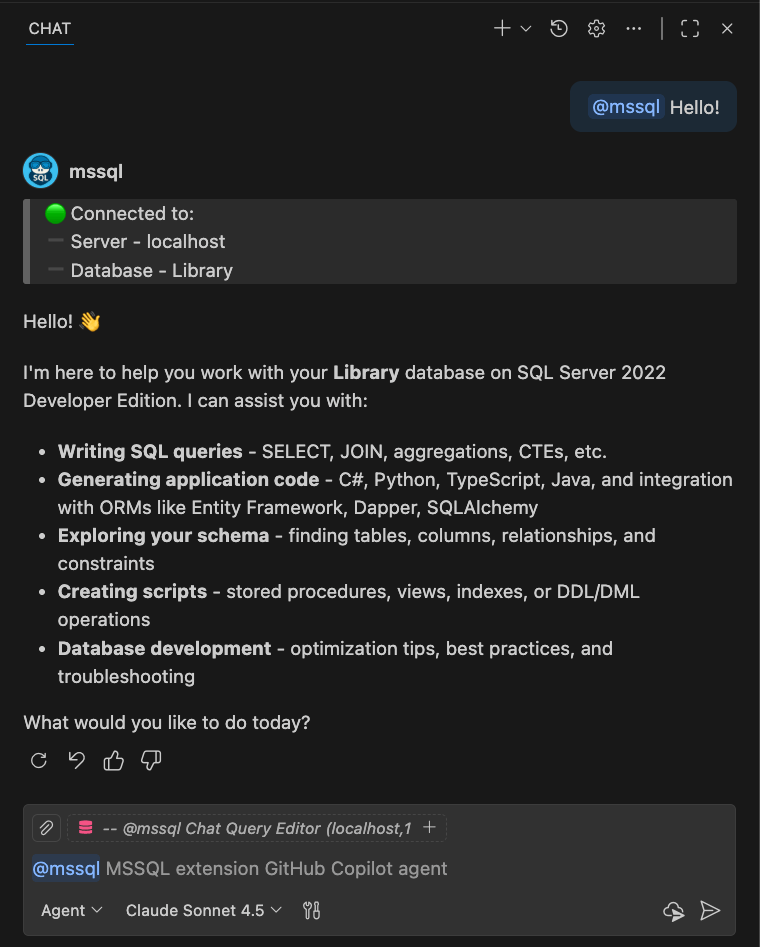
The welcome message displays:
- Your connected server
- Your current database name
- Available capabilities and assistance options
Switch database contexts
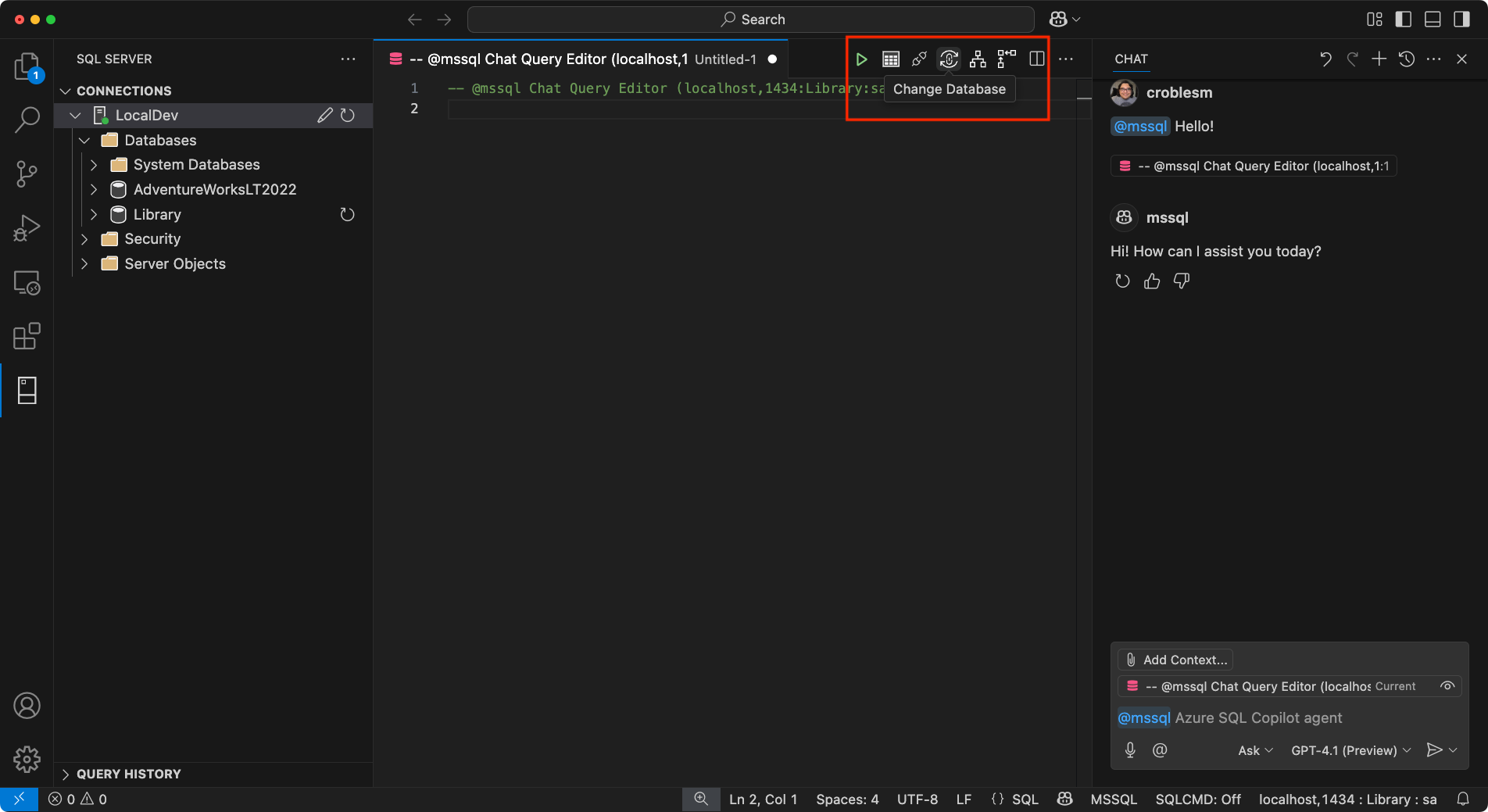
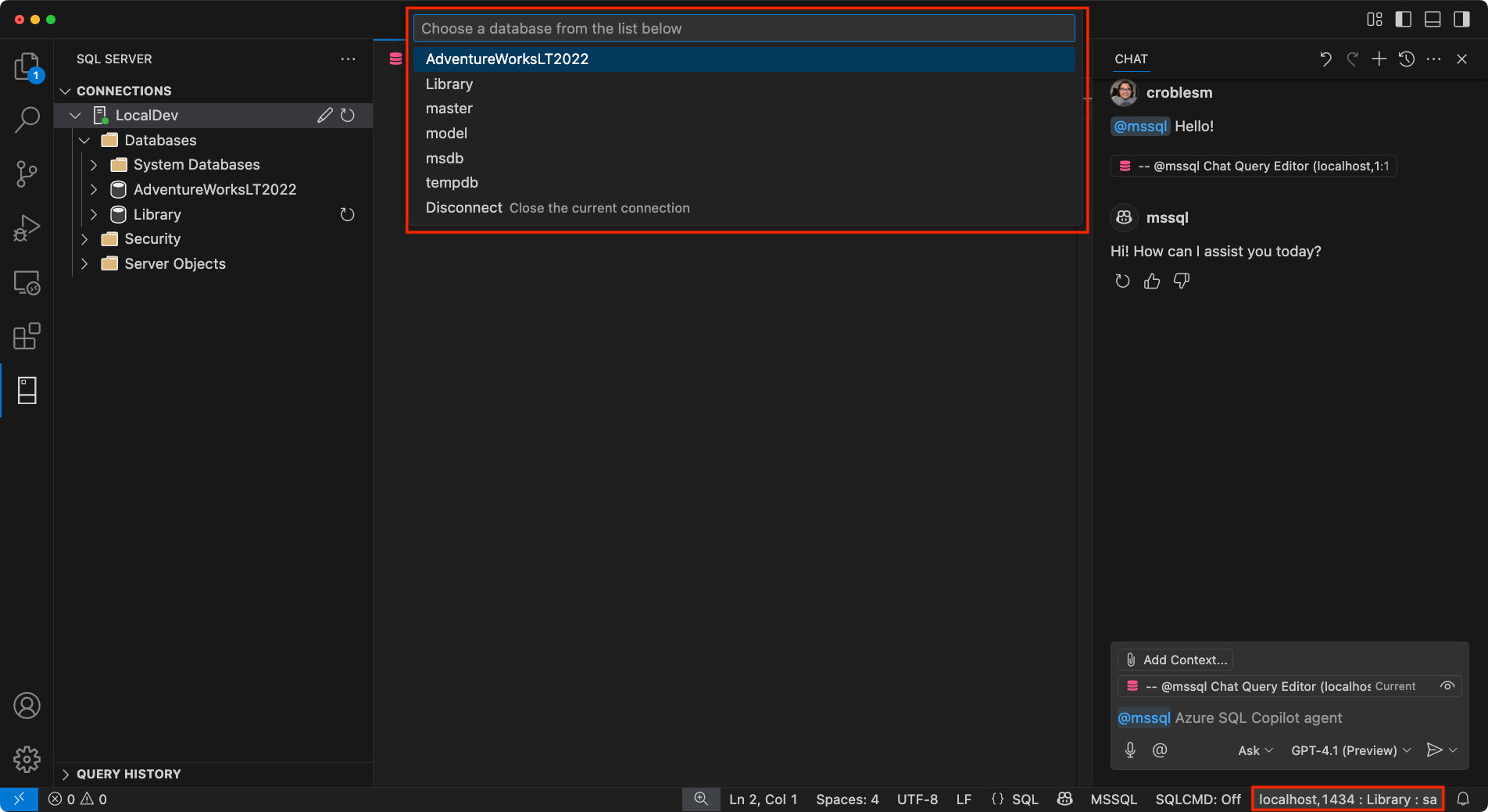
To switch to a different database while working, use one of the following options:
Change Database button: Use the Change Database button in the MSSQL extension sidebar.
Status bar: Select the status bar panel that displays the current connection (server, database, user). This action opens a dropdown list where you can select a different database from your configured profiles.
Important
GitHub Copilot requires an active database connection to provide meaningful, schema-aware suggestions. Without a connection, the
@mssqlparticipant guides you to establish one before proceeding with database-related tasks.Slash commands: Type
@mssql /changeDatabasein the GitHub Copilot chat to quickly switch to a different database. For more information, see Connection management slash commands.Agent Mode tools: Use natural language prompts with Agent Mode to switch databases. For more information, see Connection management in Agent Mode.
Note
When using GitHub Copilot Agent Mode, you can connect to databases without requiring a pre-established connection. Agent Mode uses tools contributed by the MSSQL extension to handle connections through natural language prompts or chat variables like
#mssql_connect. For details, see How connection logic works.
GitHub Copilot detects your connection state and provides context-aware assistance whether you're connecting for the first time or switching between environments.
Share your experience
To help us refine and improve GitHub Copilot for the MSSQL extension, use the following GitHub issue template to submit your feedback: GitHub Copilot Feedback
When submitting feedback, consider including:
Scenarios tested: Let us know which areas you focused on, for example, schema creation, query generation, security, localization.
What worked well: Describe any experiences that felt smooth, helpful, or exceeded your expectations.
Issues or bugs: Include any problems, inconsistencies, or confusing behaviors. Screenshots or screen recordings are especially helpful.
Suggestions for improvement: Share ideas for improving usability, expanding coverage, or enhancing GitHub Copilot's responses.
Related content
- Quickstart: Use GitHub Copilot slash commands
- Quickstart: Use GitHub Copilot Agent Mode
- Quickstart: Use chat and inline GitHub Copilot suggestions
- Quickstart: Generate code
- Quickstart: Use the schema explorer and designer
- Quickstart: Use the smart query builder
- Quickstart: Query optimizer assistant
- Quickstart: Use the business logic explainer
- Quickstart: Security analyzer
- Quickstart: Localization and formatting helper
- Quickstart: Generate data for testing and mocking
- GitHub Copilot integration in Schema Designer (Preview)
- Data API builder (preview)
- Limitations and known issues