Bemærk
Adgang til denne side kræver godkendelse. Du kan prøve at logge på eller ændre mapper.
Adgang til denne side kræver godkendelse. Du kan prøve at ændre mapper.
Applies to: Dynamics 365 Sales, Dynamics 365 Customer Insights - Journeys, Dynamics 365 Customer Service, Power Apps, Copilot Studio
This article describes a reference architecture that combines a Power Apps component framework (PCF) control, Copilot Studio, and Microsoft 365 Agents SDK to surface a custom agent in any model-driven app form, including the customer engagement apps in Dynamics 365. It provides guidance on authentication setup, agent configuration, and PCF control implementation so that you can deliver a consistent AI experience independent of any specific built-in agent.
Introduction
In another article, you learned about an integration and extensibility pattern between Dynamics 365 Sales and Copilot in Dynamics 365 Sales. That article shows how to create a custom topic in the agent and use the Copilot APIs directly available in a PCF control to surface a custom user experience in the contact form.
That architecture is interesting due to the relative simplicity of creating a custom topic in the built-in agent and using the Copilot APIs in a PCF control to manage the integration. But it also comes with some limits:
It tightly couples with the built-in agent, Copilot in Dynamics 365 Sales, which could lead to behavior change or breakage as this agent evolves.
The Copilot APIs directly available in a PCF control only work against Copilot for the currently used app, in this case Dynamics 365 Sales, and are still in preview.
In other words, the same contact form surfacing the same PCF control works only from Dynamics 365 Sales and not from other apps, such as Dynamics 365 Customer Insights - Journeys or Dynamics 365 Customer Service.
An advantage of the architecture in this article is that you can extend any form in a model-driven app to surface any custom Copilot Studio agent. This way, you get a consistent behavior across all apps and proper architecture decoupling.
Architecture
This section shows the solution architecture.

Download a PowerPoint file with this architecture. To download an architecture, choose the file in the explorer, and then choose the download raw file icon.
Authentication and communication flow
The overall flow consists of two main steps:
- Obtain an authentication token to use the Microsoft Copilot Studio APIs on behalf of the user.
- Establish a connection and communicate with your custom agent.
Prerequisites
This section describes the configurations you must make. There are two main steps as outlined in the following list.
Public client application registration
Register a public client application to use the Microsoft Copilot Studio APIs from the PCF control.
In the Azure portal, go to Microsoft Entra ID > Manage > App registrations > New registration.
On the Register an application page, enter a descriptive name for your application, such as PCAforMCSAgent.
In the Supported account types section, choose Accounts in this organizational directory only (contoso only - Single tenant).
In the Redirect URI section, select Single-page application (SPA) for the platform, and then specify the link to your Dataverse organization's home page for the redirect URI, such as
https://contoso.crm4.dynamics.com/main.aspx. You can add or change this information later if needed.
Tip
Take note of the following identifiers:
- Application (client) ID
- Directory (tenant) ID
Next, go to Authentication, and then, on the Settings tab, switch on the Allow public client flows toggle.
Finally, go to API permissions, and then add a permission with the following settings:
APIs my organization uses > Power Platform API > Delegated permissions > CopilotStudio > CopilotStudio.Copilots.Invoke
The following image shows the configuration.


Microsoft Copilot Studio agent
The PCF control interacts programmatically with this agent.
Note
In the context of this article, the exact purpose of the agent doesn't matter. As a general best practice, avoid chat-style scenarios in PCF controls. Instead, keep those scenarios in the Copilot sidecar pane to maintain a consistent user experience.
PCF controls are better suited for custom user experiences, such as the one described in the Agent for contact deduplication article. For this reason, the agent should deliver repeatable results in a controlled format that the PCF control can interpret and render.
You can achieve this format by providing appropriate instructions as part of the agent's definition so that the answer it provides always adheres to a given predefined JSON structure.
Authentication and metadata settings
In Copilot Studio, configure authentication by navigating to the agent settings. On the Security tab, in the Authentication section, select the Authenticate with Microsoft option.
Then, go to Advanced > Metadata and take note of the following identifiers:
Environment ID
Tenant ID
Agent app ID
Schema name
You can only change the last part of the schema name from the default when you first create the agent with advanced create.
Topic configuration for programmatic integration
The goal of this integration pattern is to manage the agent's response programmatically through code logic. For the activity emitted by the topic back to your code, it's more appropriate to use an event activity rather than a message activity (like in a typical chat-based integration). A named event is easier to tag, identify, parse, and react to in code. Learn more about activity types at Understanding the Activity Protocol.
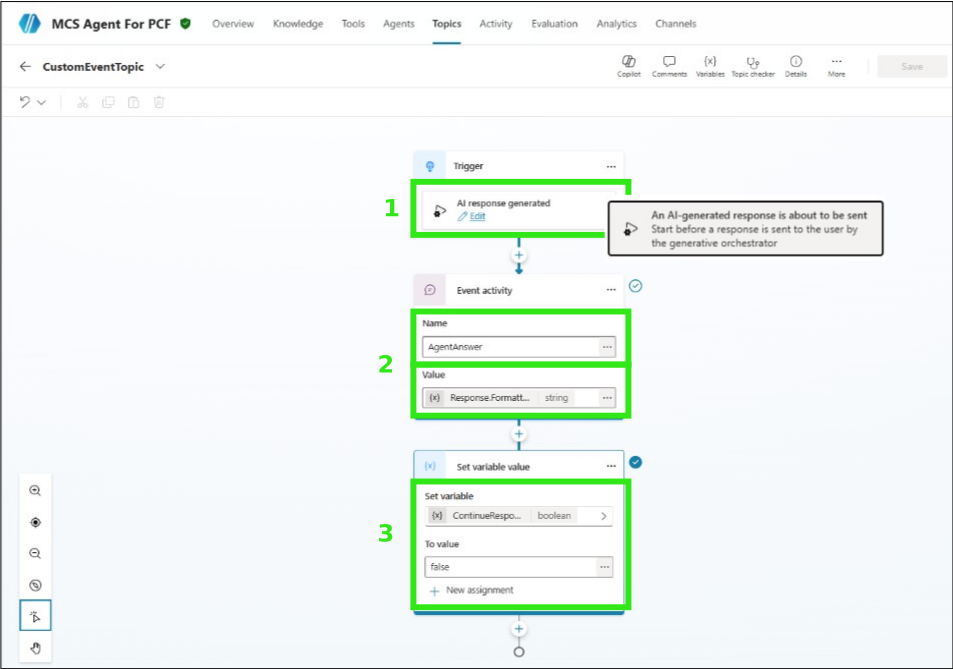
To achieve this goal, create a topic that starts just before the agent returns its message and sends a properly tagged (that is, named) event instead of letting the response be sent as a normal message activity.
Set the topic trigger to AI response generated so that the topic starts just before the response is about to be sent. Learn more at Set topic triggers.
Create an event activity with an easily identifiable name, such as AgentAnswer, and then set the value to the system variable
Response.FormattedText.Set the
ContinueResponsevariable tofalseto avoid redundant sending of the response activity as a message.
The following image shows how this configuration looks in Copilot Studio.
Implement the PCF control integration
This section describes the configurations you must make. Complete the three main steps outlined in the following list.
Token acquisition
You can acquire a token to authenticate and call the Copilot APIs from your PCF control in many ways. The following example shows a straightforward approach using the v4.xx package from MSAL Browser. If you build your PCF control with React, you can also use a wrapper library, depending on your app flow and requirements.
import { PublicClientApplication, Configuration } from "@azure/msal-browser";

export function GetToken(): Promise<string> {

    const PCA_Configuration: Configuration = {
        auth: {clientId: "00001111-aaaa-2222-bbbb-3333cccc4444",
               authority: "https://login.microsoftonline.com/aaaabbbb-0000-cccc-1111-dddd2222eeee"},
        cache: {cacheLocation: "localStorage"}};

    const PCA = new PublicClientApplication(PCA_Configuration);

    return new Promise((resolve) => {
        PCA.initialize()
        .then(() => {
            const accessTokenRequest = {
                  scopes: ["https://api.powerplatform.com/CopilotStudio.Invoke"],
                  account: PCA.getAllAccounts()[0]??undefined};
            console.log("Token account ? : ");
            console.log(PCA.getAllAccounts()[0]);
            PCA.acquireTokenSilent(accessTokenRequest)
            .then((tokenSilentResponse) => {
                console.log("Got Token Silent");
                resolve(tokenSilentResponse.accessToken);
                return;
                })
                .catch((error) => {
                    console.log(error);
                    PCA.acquireTokenPopup(accessTokenRequest)
                    .then((tokenPopupResponse) => {
                        console.log("Got Token Popup");
                        resolve(tokenPopupResponse.accessToken);
                        return;
                        })
                        .catch((error) => {
                            console.log(error);
                            })
                    })
            return;
            })
            .catch((error) => {
                console.log(error);
                })
    });
}
When a new user first uses the control and triggers the acquisition of the token from the registered Public Client Application, a pop-up asks for consent. Subsequent usages either acquire the token silently with cache information or briefly show the pop-up if the cache is emptied in between, but without the need to reconfirm consent as this consent is persisted in the registered Public Client Application.
Communication with the agent
Use the authentication token along with connection settings to initiate and use a CopilotStudioClient from the microsoft/agents-copilotstudio-client package to communicate with your agent and get the expected formatted response.
import { GetToken } from "./MSALAuthentication";
import { Activity } from "@microsoft/agents-activity";
import { ConnectionSettings, CopilotStudioClient } from "@microsoft/agents-copilotstudio-client";

export function GetMCSAnswer(ProgrammaticPrompt: string){

    const main = async () => {
        const MCSConnectionSettings: ConnectionSettings = {
            environmentId: "aaaabbbb-0000-cccc-1111-dddd2222eeee",
            agentIdentifier: "copilots_header_cr123_MCSAgentForPCF"
        };
        const token = await GetToken();

        const copilotClient = new CopilotStudioClient(MCSConnectionSettings, token);

        let conversationId = ''
        for await (const incomingActivity of copilotClient.startConversationStreaming(true)) {
            conversationId = incomingActivity.conversation?.id ?? '';
            if (conversationId != '')
            {
                const messageActivity = new Activity("message");
                messageActivity.text = ProgrammaticPrompt;
                messageActivity.conversation = { id: conversationId }
                for await (const reply of copilotClient.sendActivityStreaming(messageActivity)) {
                    processActivity(reply, conversationId, copilotClient);
                }
            }
        }
    }

    function processActivity (act: Activity , convo: string, cc: CopilotStudioClient) {
        if (act.type == "event" && act.name == "AgentAnswer") {
            /*
                Code logic to process the answer from the Agent in act.value
            */
        }
    }

    main().catch(e => console.log(e));

}
Manage user consent for connector authentication
If your agent uses a tool with a connector setup to use the user's credentials, such as for the Dataverse connector, you must manage the logic to surface the request to the user and provide the user's consent back to the agent.
The agent sends consent requests as a message activity with an Adaptive Card as attachment that you can parse and render by using the AdaptiveCards package.
In the following example, this process happens in a modal dialog (using a placeholder created in the main document). Modify the previous processActivity function:
import * as AdaptiveCards from "adaptivecards";

// ...

function processActivity (act: Activity, convo: string, cc: CopilotStudioClient) {
    if (act.type == "event" && act.name == "AgentAnswer") {
        console.log("Received agent answer");
        /*
            Code logic to process the answer from the Agent
        */
    }
    else if (act.type == "message" && act.name == "connectors/consentCard") {
        const dialog = document.getElementById("placeholderdialog");
        const adaptiveCard = new AdaptiveCards.AdaptiveCard();
        const attachedAdaptiveCard = act.attachments;
        if (attachedAdaptiveCard != undefined && dialog != null
            && dialog instanceof HTMLDialogElement) {
            adaptiveCard.onExecuteAction = function(action) {
                processConsent(action, dialog, convo, cc).catch(e => console.log(e));
                }
            adaptiveCard.parse(attachedAdaptiveCard[0].content);
            const renderedCard = adaptiveCard.render();
            if (renderedCard != undefined) {
                dialog.innerHTML = "";
                dialog.appendChild(renderedCard);
                dialog.showModal();
            }
        }
    }
}
The following image illustrates the appearance in Dynamics 365 Customer Insights - Journeys:

The last part is to define the processConsent function to handle the action events, meaning what are the actions the user can take. In this example, use Allow and Cancel.
async function processConsent ( action: AdaptiveCards.Action,
                                placeholderdialog: HTMLDialogElement,
                                convo: string,
                                cc: CopilotStudioClient) {
    if (action.title == "Allow") {
        const actConsent = new Activity("message");
        actConsent.conversation = { id: convo };
        actConsent.value = {action: "Allow", id: "submit", shouldAwaitUserInput: true};
        actConsent.channelData = {postBack: true, enableDiagnostics: true};
        console.log(actConsent);
        placeholderdialog.close();
        for await (const reply of cc.sendActivityStreaming(actConsent, convo)) {
                processActivity(reply, convo, cc);
        }
    }
    else if (action.title == "Cancel") {
        placeholderdialog.close();
    }
}
You can now use this configuration across the customer engagement apps.
Related content
- Agent for contact deduplication in Dynamics 365 Sales with Dynamics 365 Customer Insights, Power Apps component framework, and Copilot Studio
- Dynamics 365 reference architectures
Contributors
This article is maintained by Microsoft. It was originally written by the following contributors.
Principal author:
- Thomas Chilaud | Solution Architect