Bemærk
Adgang til denne side kræver godkendelse. Du kan prøve at logge på eller ændre mapper.
Adgang til denne side kræver godkendelse. Du kan prøve at ændre mapper.
This article teaches you how to install .NET Upgrade Assistant in Visual Studio or using the command-line interface (CLI) tool.
Important
.NET Upgrade Assistant is officially deprecated. Use the GitHub Copilot modernization chat agent instead, which is included with Visual Studio 2026 and Visual Studio 2022 17.14.16 or later. This agent analyzes your projects and dependencies, produces a step-by-step migration plan with targeted recommendations and automated code fixes, and commits each change so you can validate or roll back. It automates common porting tasks—updating project files, replacing deprecated APIs, and resolving build issues—so you can modernize faster with less manual effort.
Prerequisites
- Windows Operating System
- Visual Studio 2026 (or Visual Studio 2022 version 17.14.17+).
- .NET SDK 8 or later.
Methods
.NET Upgrade Assistant is built into Visual Studio or can be installed as a .NET Global Tool.
The Upgrade Assistant runs inside Visual Studio, on the solution or project you have open. The .NET Global Tool is an interactive console application that runs on a solution or project file at or below the current directory.
If you want the streamlined experience of opening a project in Visual Studio and upgrading it, use the Upgrade Assistant.
Visual Studio
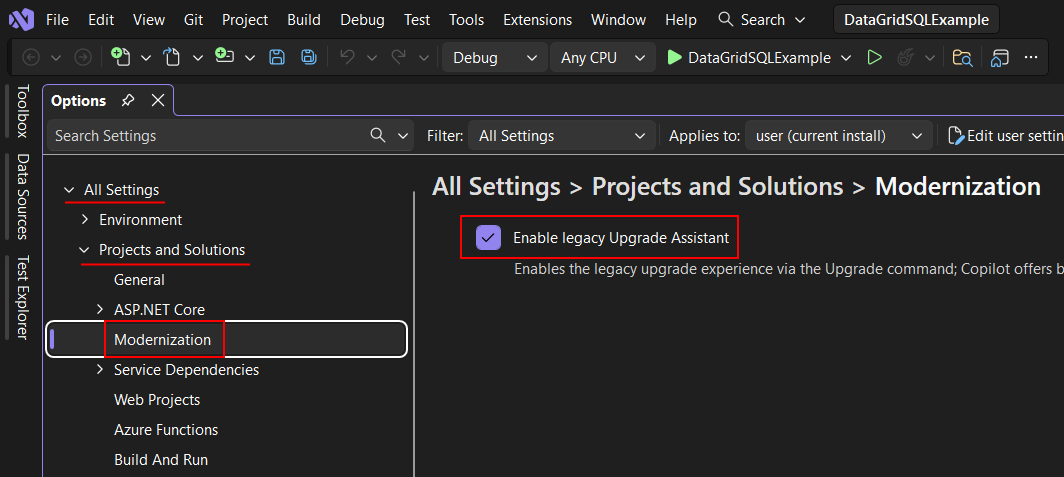
The following steps enable the legacy Upgrade Assistant in Visual Studio.
Open Visual Studio.
If the Open Recent \ Get Started window opens, select the Continue without code link.
Select the Tools > Options menu, which opens the Options window.
Navigate to All Settings > Projects and Solutions > Modernization.
Select the Enable legacy Upgrade Assistant item.
Restart Visual Studio
.NET Global Tool
The following steps install .NET Upgrade Assistant as a .NET Global Tool. .NET Upgrade Assistant is distributed in the upgrade-assistant NuGet package.
Open a command prompt that has the
dotnetcommand in Path.Run the following command to install the tool:
dotnet tool install -g upgrade-assistantImportant
Installing this tool may fail if you've configured another NuGet feed source. Use the
--ignore-failed-sourcesparameter to treat those failures as warnings instead of errors, bypassing those other NuGet feed sources:dotnet tool install -g --ignore-failed-sources upgrade-assistant
Validation
The following information helps you determine that .NET Upgrade Assistant is installed.
Visual Studio
To determine if .NET Upgrade Assistant is enabled, right-click on any .NET or .NET Framework project in the Solution Explorer window and check for an Upgrade menu item.
.NET Global Tool
Open a command prompt and run the
upgrade-assistantcommand. If the command response indicates that the command is unknown, the tool didn't install correctly or isn't in PATH.
Troubleshoot - .NET Global Tool
If you configured extra NuGet feed sources, the install might fail with an error indicating that the NuGet package isn't available in the feed. Use the --ignore-failed-sources parameter to treat those failures as warnings instead of errors, bypassing the other NuGet feed sources:
dotnet tool install -g --ignore-failed-sources upgrade-assistant
Samarbejd med os på GitHub
Kilden til dette indhold kan findes på GitHub, hvor du også kan oprette og gennemse problemer og pullanmodninger. Du kan få flere oplysninger i vores vejledning til bidragydere.
