Bemærk
Adgang til denne side kræver godkendelse. Du kan prøve at logge på eller ændre mapper.
Adgang til denne side kræver godkendelse. Du kan prøve at ændre mapper.
Microsoft Security Copilot is a generative AI security product that empowers security and IT professionals to respond to cyber threats, process signals, and assess risk exposure at the speed and scale of AI. For an overview, see What is Microsoft Security Copilot?.
Note
Disclaimer: This documentation is only intended for customers using commercial clouds. Currently, Security Copilot isn't designed for use by customers using US government clouds, including but not limited to GCC, GCC High, DoD, and Microsoft Azure Government. For more information, consult with your Microsoft representative.
Note
When you first sign in to Security Copilot, your experience might differ depending on your onboarding and rollout stage.
- New inclusion customers might see an agents-first landing experience, where agents are the default homepage and primary way to get started.
- Existing customers might continue to see the current experience with chat and prompts on the homepage.
In the agents-first experience, you access chat from All history instead of the homepage.
There are two categories of Security Copilot customers:
Microsoft 365 E5 and E7 Security Copilot included customers
Microsoft Security Copilot is included with your Microsoft 365 E5 and E7 license. However, eligibility alone does not enable access, Security Copilot must be rolled out in your tenant for access. Microsoft sends a 7‑day advance notification, and your tenant is auto provisioned after the notification period ends. Once provisioning is complete, Security Copilot is ready for use. See, How do I know if my tenant is enabled for Security Copilot?.
What you see when you first sign in
In some environments, Security Copilot opens with an agents-first homepage and a role-based welcome experience.
- Security analysts are guided to set up and try agents.
- Administrators are guided to assign roles, review usage and capacity, and configure agents.
To start a chat session in this experience, go to All history and select New session.
Non-Microsoft 365 E5 and E7 Security Copilot customers
If you're not a Microsoft 365 E5 and E7 customer, you must follow the manual onboarding steps to provision Security Compute Units (SCUs) so that you can use Security Copilot.
After onboarding is complete, your experience might vary depending on rollout (for example, an agents-first landing page).
To get started with Security Copilot, use the following guidance:
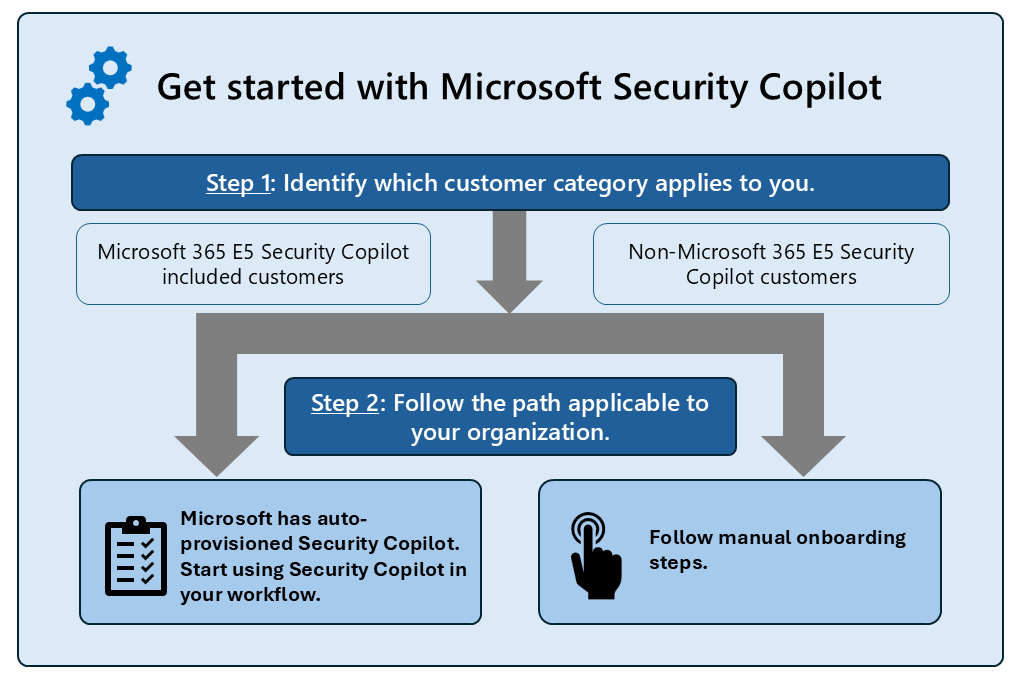
This illustration describes the steps to get started with Security Copilot:
Step 1: Identify which customer category applies to you
Before you begin onboarding to Microsoft Security Copilot, you must first determine what type of Security Copilot customer you are.
Your onboarding experience depends on this license status:
Microsoft 365 E5 and E7 customers might already have Security Copilot included and automatically provisioned.
Important
To determine if your organization is eligible, see Eligibility and access requirements.
Tip
Your license determines onboarding steps, but your in-product experience might differ during rollout (for example, agents-first vs chat-first landing experience).
To learn what's included with Microsoft 365 E5 and E7, see Learn about Security Copilot in Microsoft 365 E5 and E7.
Non–Microsoft 365 E5 and E7 customers must provision Security Compute Units (SCUs) to enable Security Copilot.
Important
Don't begin onboarding until you've confirmed whether your organization has a Microsoft 365 E5 or E7 license.
The steps you follow and whether you need to purchase capacity depend on this determination.
Step 2: Follow the path applicable to your organization
After you have confirmed your Microsoft 365 E5 and E7 license status, use the following guidance to continue.
| Microsoft 365 E5 and E7 Security Copilot included customers | Non–Microsoft 365 E5 and E7 Security Copilot customers |
|---|---|
| Microsoft has auto provisioned Security Copilot. You can start using Security Copilot in your workflows. For more information, see Understand how Security Copilot is auto provisioned for Microsoft 365 E5 and E7 customers. | Follow the manual onboarding steps. For more information, see Onboarding for non-Microsoft 365 E5 and E7 customers. |
Start using Security Copilot
After onboarding is complete, you can begin using Security Copilot:
- Agents (recommended starting point) – In newer experiences, agents are the primary entry point and homepage.
- Chat and prompts – To start a chat session, go to All history, then select New session.
Role-based onboarding guidance
In the agents-first experience, the initial guidance can vary by role:
Administrators:
- Assign access and roles
- Review usage and capacity
- Discover and set up agents
Security analysts:
- Set up an agent
- Browse the agent store
- Try an agent in Microsoft Defender
First thing to do
When you first open Security Copilot, start by choosing how you want to work.
Start with an agent (recommended)
Agents are the primary entry point in newer experiences. They help you perform structured and repeatable tasks.
- Go to Home
- Select an agent or choose Discover agents
- Run the agent to begin your workflow
Use agents when you want to:
- Automate investigation steps
- Follow a guided workflow
- Perform repeatable tasks
Start a chat session
If you want to explore or investigate using prompts, start a chat session.
- Select History
- Select New session
- Enter your prompt
Use prompts when you want to:
- Ask questions
- Investigate specific issues
- Explore data interactively
What to try next
- Run an agent to complete a common task
- Ask a question using a prompt
- Save your prompts as a promptbook for reuse
Next steps
Once you've completed onboarding, you're ready to start using Security Copilot. Depending on your experience, you might begin with agents or start a chat session from All history.
- Explore agents, plugins, connectors, and promptbooks in your workflows
- Navigate Security Copilot
- Start with prompts (use All history to begin a chat session)