Bemærk
Adgang til denne side kræver godkendelse. Du kan prøve at logge på eller ændre mapper.
Adgang til denne side kræver godkendelse. Du kan prøve at ændre mapper.
This article describes how to configure Visual Studio Code to connect to the deployer virtual machine (VM) for SAP Deployment Automation Framework.
Prerequisites
- A deployed SAP Deployment Automation Framework control plane, including a deployer VM. For more information, see Deploy the control plane.
- Visual Studio Code installed on your local machine.
- Access to the deployer key vault in the Azure portal.
Configure Visual Studio Code
Follow these steps to configure Visual Studio Code.
Copy the SSH key from the key vault
Sign in to the Azure portal.
Select or search for Key vaults.
On the Key vault page, find the deployer key vault. The name starts with
MGMT[REGION]DEP00user. Filter by Resource group or Location, if necessary.On the Settings section in the left pane, select Secrets.
Find and select the secret that contains sshkey. It might look like
MGMT-[REGION]-DEP00-sshkey.On the secret's page, select the current version. Copy the Secret value.
Create a new file in Visual Studio Code and copy in the secret value.
Save the file where you keep SSH keys. For example, use
C:\Users\<your-username>\.ssh\weeu_deployer.ssh. When you save the file, make sure the file type is set to All Files so the.sshextension is preserved and no other extension like.txtis appended.
After you download the SSH key for the deployer, you can use it to connect to the deployer VM.
Get the public IP of the deployer
Sign in to the Azure portal.
Find the resource group for the deployer. The name starts with
MGMT-[REGION_CODE]-DEP00unless you deployed the control plane by using a custom naming convention. The contents of the deployer resource group should look like the following image.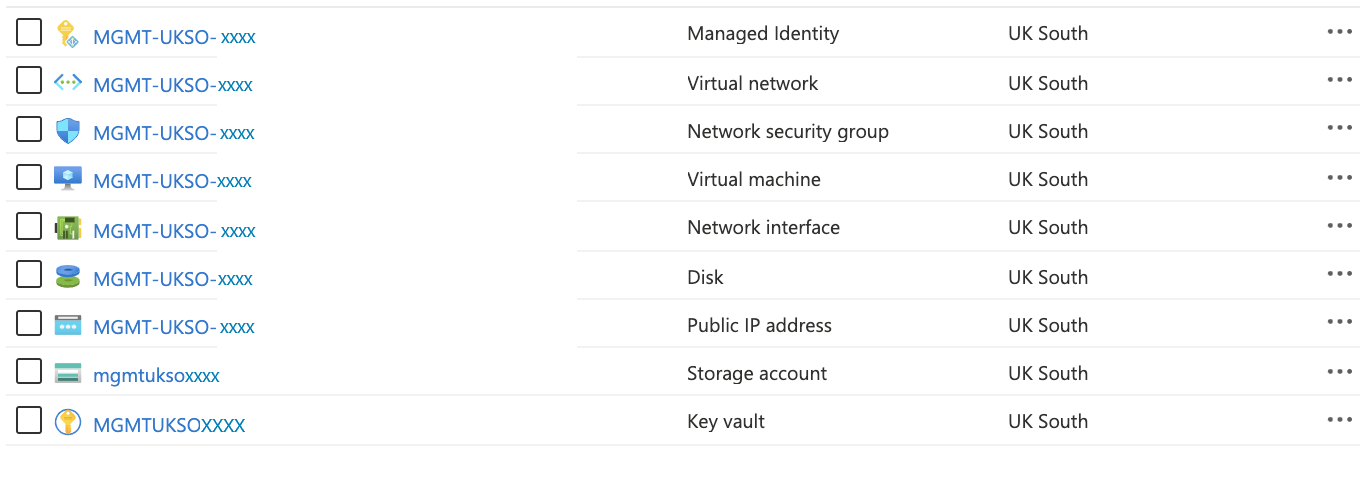
Find the public IP for the deployer. The name should end with
-pip. Filter by type, if necessary.Copy the IP address.
Install the Remote Development extension
Open the Extensions window by selecting View > Extensions or by pressing Ctrl + Shift + X.
Ensure that the Remote Development extension is installed.
Connect to the deployer
Open the command palette by selecting View > Command Palette or by pressing Ctrl + Shift + P. Enter Connect to host. You can also select the icon in the lower-left corner of Visual Studio Code and select Connect to host.
Select Add New SSH Host.
ssh -i "C:\Users\<your-username>\.ssh\weeu_deployer.ssh" azureadm@<IP_Address>Note
Replace
<IP_Address>with the deployer IP address.Select Connect. Select Linux when you're prompted for the target operating system, and accept the remaining dialogs (such as key and trust).
When connected, select Open Folder and open the
/Azure_SAP_Automated_Deploymentfolder.